> ## Documentation Index
> Fetch the complete documentation index at: https://docs.flashduty.com/llms.txt
> Use this file to discover all available pages before exploring further.
# Monitoring Objects Overview
> Learn what Monitors monitoring objects are, what monit-agent does, and how objects automatically appear in the console
Monitoring objects are the targets that Monitors can query and diagnose. After `monit-agent` is installed and started, the platform automatically displays the hosts, databases, and middleware objects that the Agent can diagnose.
## Why monit-agent is needed
Traditional observability data usually includes metrics, logs, traces, and alert events. These data types help you understand what happened, but real troubleshooting often requires checking the live environment, for example:
* Which processes on the current machine are using high CPU or memory.
* Whether a port, domain, or service can be reached from the target machine.
* Whether disks, mount points, network interfaces, or connection counts are abnormal.
* MySQL variables, connection state, key metrics, or read-only SQL query results.
* Redis memory, hit rate, slow logs, or read-only command results.
* PostgreSQL connection activity, lock waits, slow queries, or read-only SQL query results.
* MongoDB replica set status, current operations, or read-only management command results.
* Kafka broker status, consumer lag, topic details, and group details.
* Elasticsearch cluster health, node metrics, index statistics, and shard allocation.
Collected data alone may not answer these questions. In many cases, you need to query the live environment. `monit-agent` is designed for this scenario.
In AI-SRE scenarios, you can think of the LLM as the diagnostic brain, and `monit-agent` as the execution endpoint deployed in your environment. After a user asks a question in natural language, the LLM understands the question, selects suitable diagnostic tools, and explains the result. `monit-agent` executes controlled queries near the target host or target service and returns structured results to the system.
`monit-agent` is not designed to give the LLM unrestricted execution privileges. It provides a safe, controlled, and auditable execution boundary with tool allowlists, parameter validation, command limits, timeouts, output truncation, sensitive data masking, local disable switches, and audit records.
## Technical Architecture
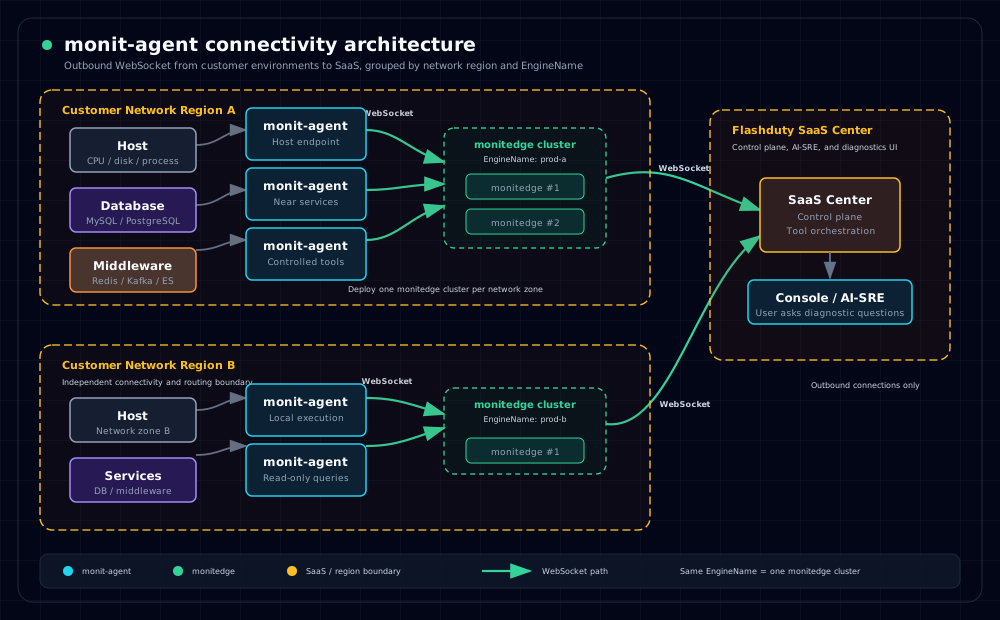
`monit-agent` connects to `monitedge` in the same network region over WebSocket. `monitedge` then connects to the SaaS Center over WebSocket. In most deployments, each network region has one `monitedge` cluster, and multiple `monitedge` instances with the same `EngineName` are treated as one engine cluster.
## Supported object types
| Object type | Meaning | Example address in the console |
| -------------- | ------------------------------------------------------------- | ------------------------------------------------------ |
| Host | A server where `monit-agent` is installed and running | `10.0.1.12`, `host-prod-01.example.com` |
| MySQL | A MySQL instance configured in `agent.yaml` | `db-prod-01.example.com:3306` |
| Redis | A Redis instance configured in `agent.yaml` | `redis-prod-01.example.com:6379` |
| Redis Sentinel | A Redis Sentinel process configured in `agent.yaml` | `10.1.2.10:26379` |
| PostgreSQL | A PostgreSQL instance configured in `agent.yaml` | `pg-prod-01.example.com:5432` |
| MongoDB | A MongoDB instance (mongod) configured in `agent.yaml` | `10.1.3.10:27017` |
| MongoDB Mongos | A MongoDB routing process (mongos) configured in `agent.yaml` | `10.1.3.20:27017` |
| Kafka | A Kafka cluster configured in `agent.yaml` | `prod-order-kafka` (`cluster_name`) |
| Elasticsearch | An Elasticsearch cluster configured in `agent.yaml` | Automatically obtained from the cluster `cluster_name` |
After `monit-agent` is installed and started, at least one host object appears in the console. Other object types appear only after they are configured in `agent.yaml`.
Use stable and recognizable values for object identifiers (`target_locator`), such as fixed private IP addresses or DNS names. Do not use addresses that only make sense locally, such as `localhost` or `127.0.0.1`, as the displayed object address.
## How objects appear in the console
Monitoring objects do not need to be created manually in the console. Install and start `monit-agent` on the target machine. After the Agent successfully connects to Edge, it reports the objects it can diagnose, and the console displays them automatically.
If a new user enters the monitoring object page and sees an empty list, it usually means no Agent has connected successfully. After the first Agent is connected, a host object usually appears first. If you later add MySQL, Redis, PostgreSQL, and other services to the configuration file, the corresponding objects appear automatically.
## Recommended onboarding path
Onboard the host object first, confirm that the Agent can connect to Edge, and verify that the current host appears in the console.
Gradually add MySQL, Redis, PostgreSQL, MongoDB, Kafka, Elasticsearch, and other objects in `agent.yaml`.
After objects appear, enable controlled query tools such as `mysql.query`, `redis.command`, `postgres.query`, `mongodb.command`, and `elasticsearch.cat` only when needed.
## Related docs
Prepare the Edge address, download the Agent, and start it in the foreground or as a system service.
Configure hosts, databases, middleware, and custom script tools.