> ## Documentation Index
> Fetch the complete documentation index at: https://docs.flashduty.com/llms.txt
> Use this file to discover all available pages before exploring further.
# War Room
> War Room is an automated collaboration feature designed for incident emergency response, capable of creating and managing dedicated communication groups on mainstream instant messaging platforms.
**Plan requirement**: This feature requires an On-call Pro or higher subscription. [Learn more](https://flashcat.cloud/flashduty/price/)
Flashduty On-call War Room is an automated collaboration feature designed for incident emergency response. It creates and manages dedicated communication groups on mainstream instant messaging (IM) platforms throughout the entire incident lifecycle, ensuring teams can respond and collaborate efficiently.
## Key Features
Seamless integration with Feishu/Lark, Dingtalk, WeCom, and Slack
Quickly create dedicated war rooms for active incidents with real-time incident status sync in group chats
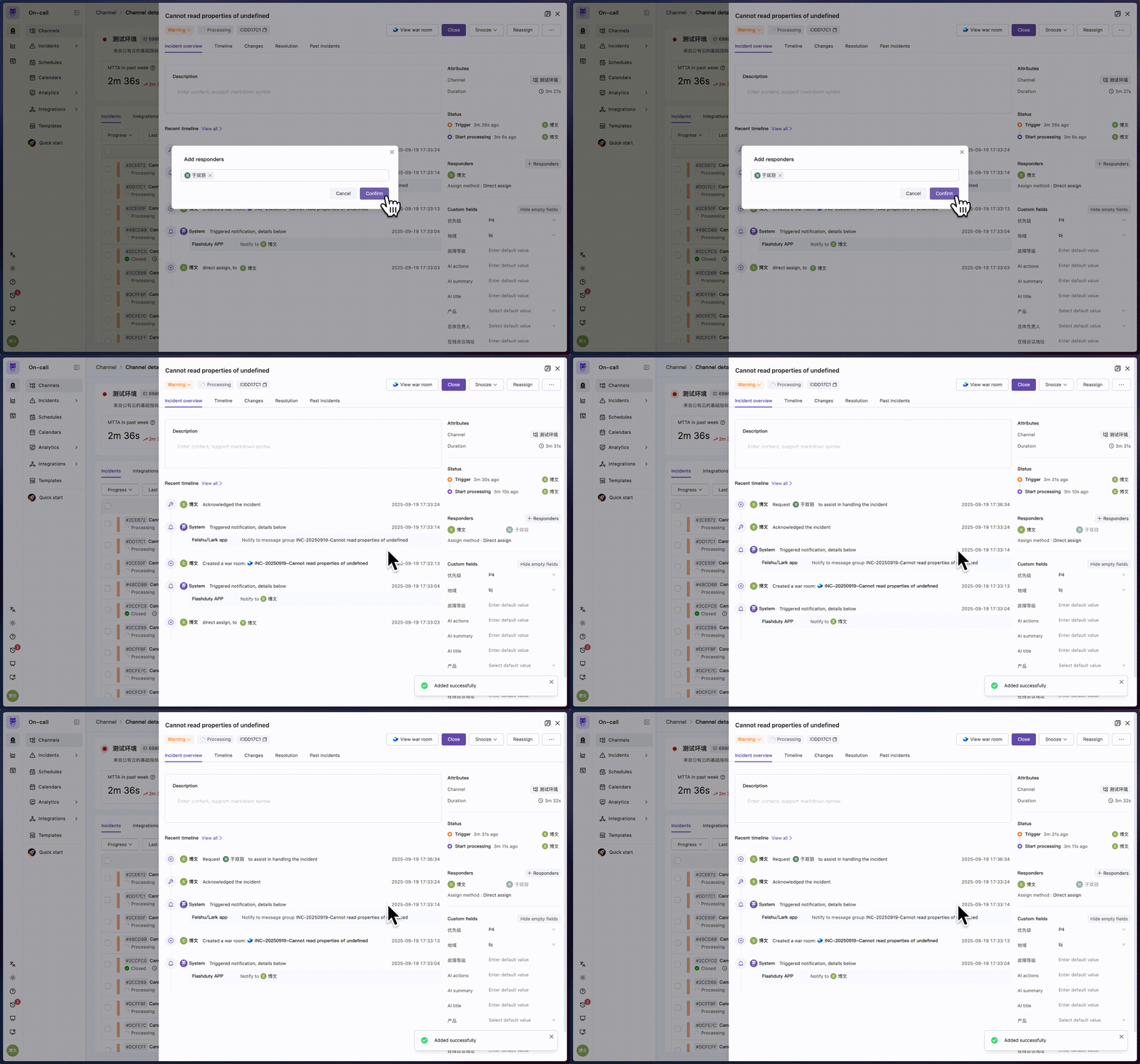
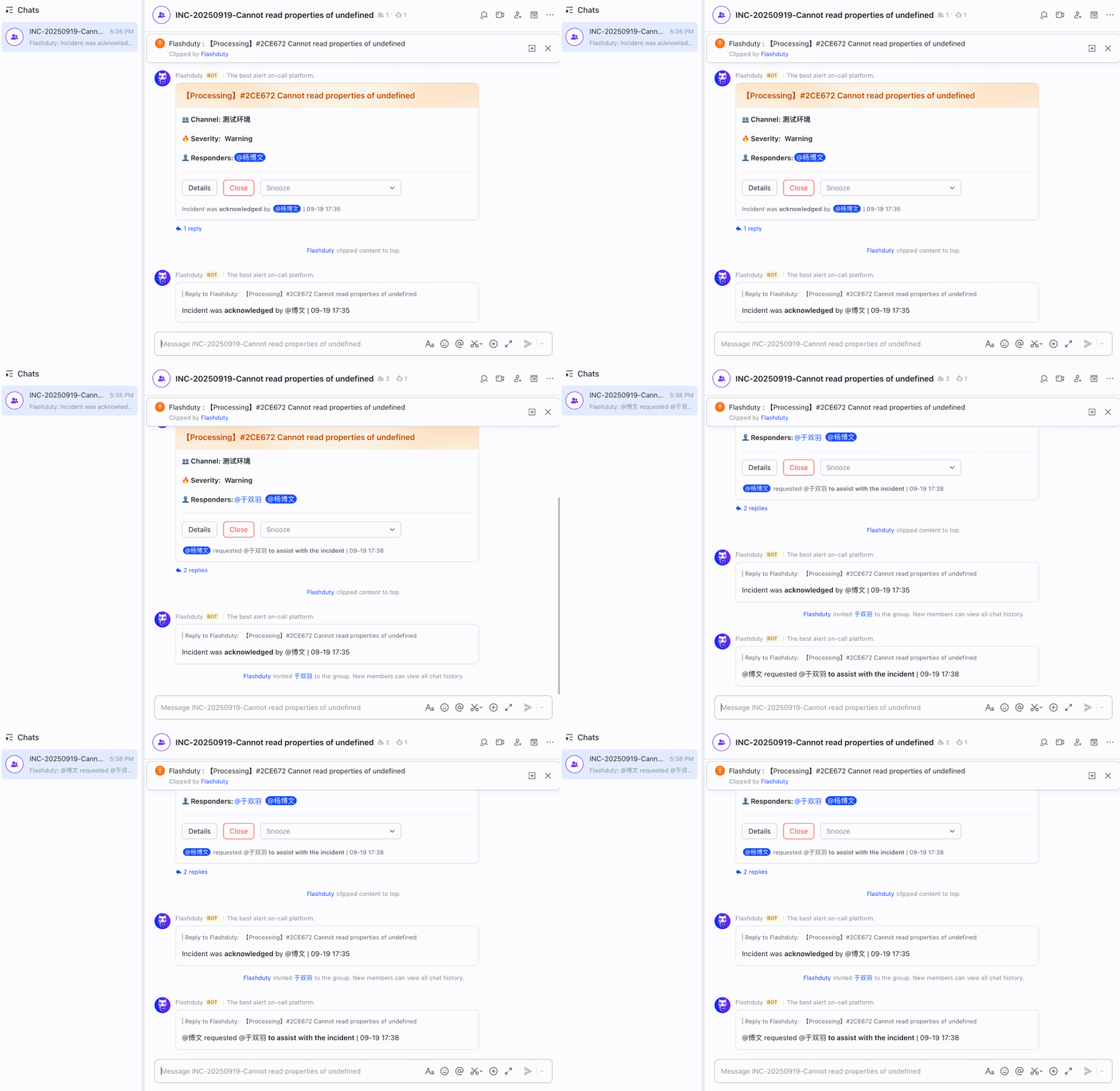
When incident responders change, new members are automatically invited to join the war room
Real-time sync of incident status between war room and Flashduty platform
All war room related operations are automatically recorded in the incident timeline for review and audit
## Quick Start
Go to **On-call → Integration Center → Integration List → Instant Messaging**, connect your IM application as needed, and follow the guide to enable war room functionality.
Connect Feishu/Lark application
Connect Dingtalk application
Connect WeCom application
Connect Slack application
On any active incident's details page, click **Create War Room** in the upper right corner.
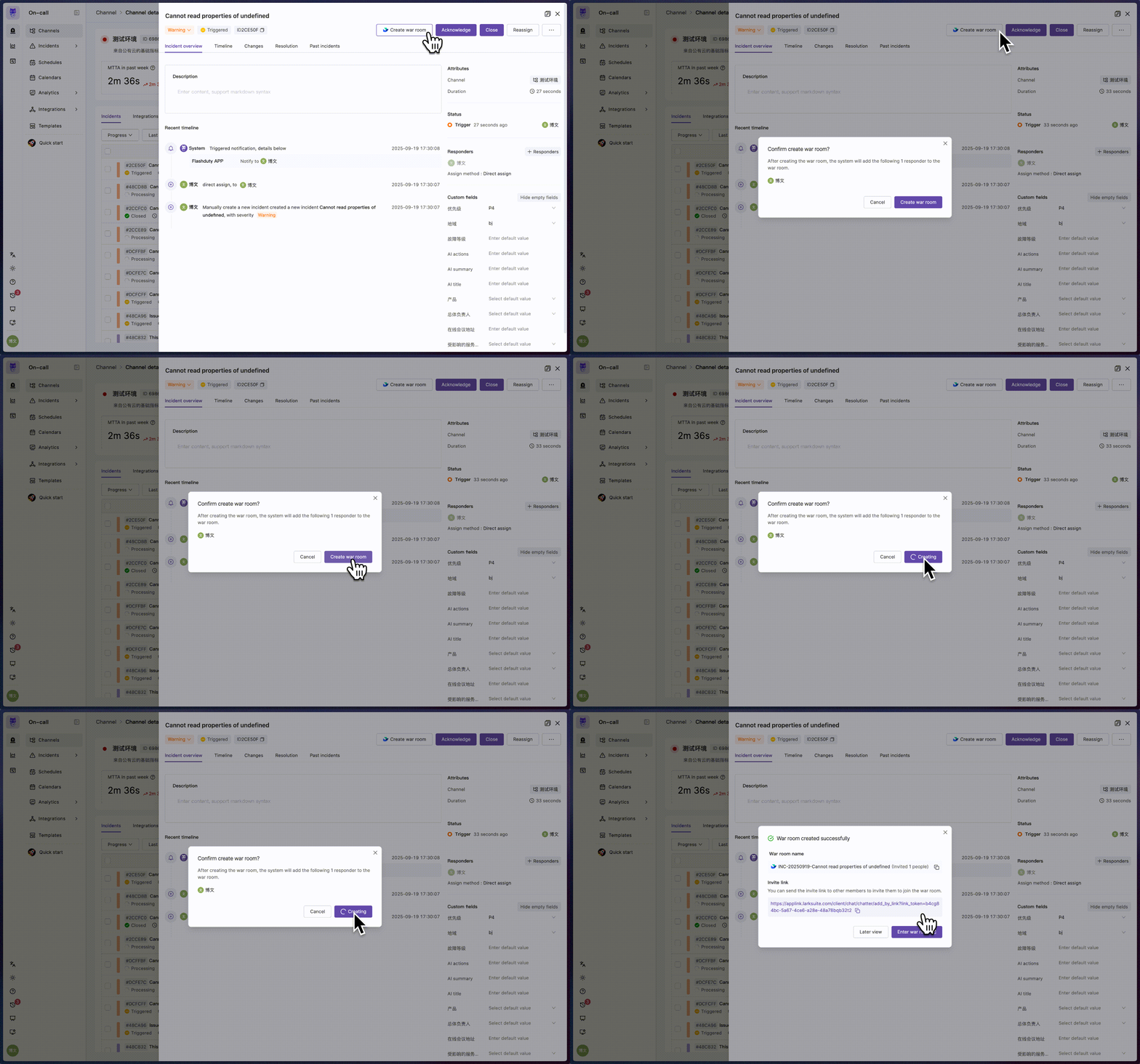
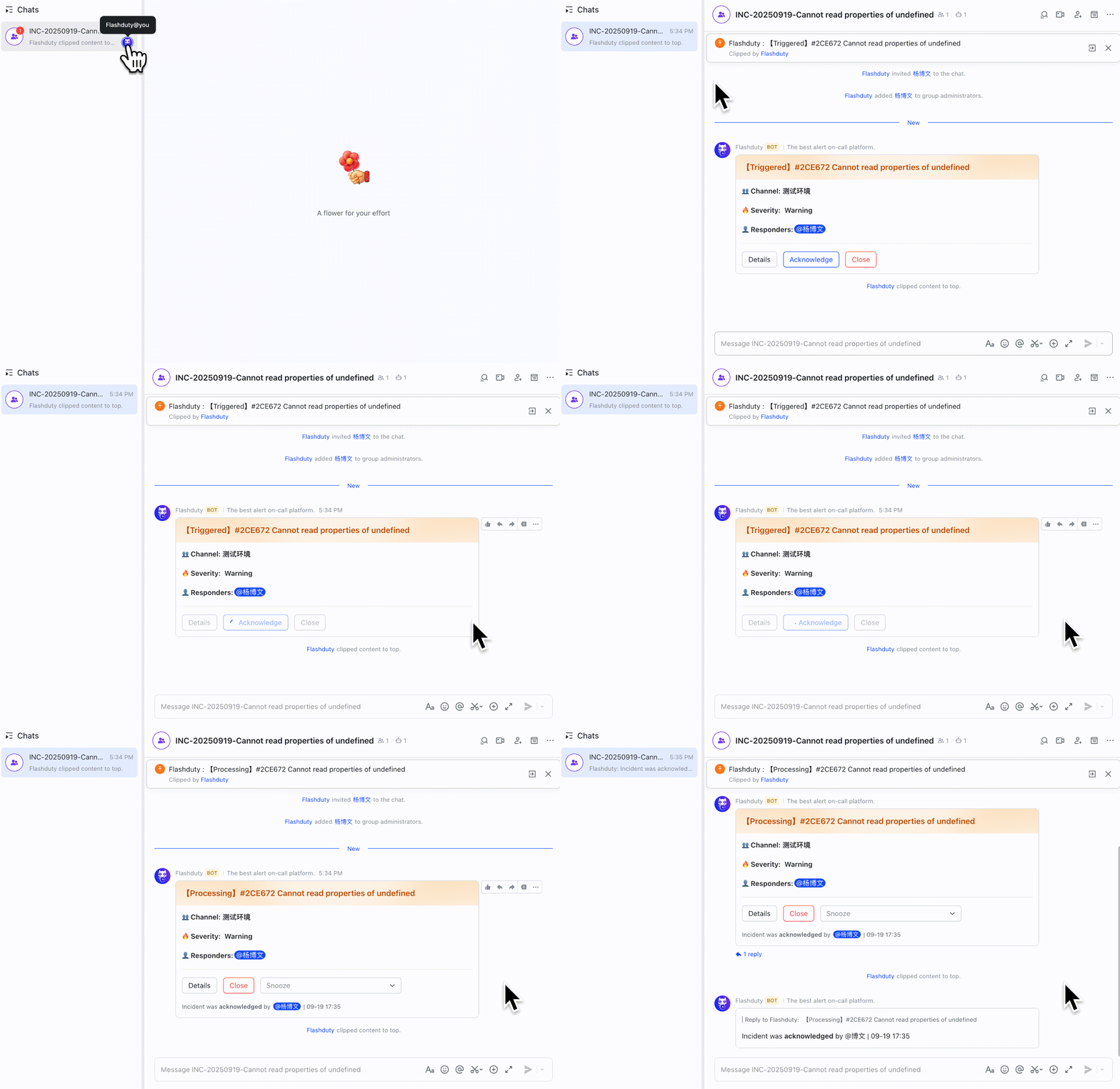
When incident responders change, relevant personnel are automatically synced to the war room. Other members can click **View War Room** on the incident details page to quickly join the conversation.
In the war room, members can acknowledge, close, and snooze incidents, and receive incident status updates from Flashduty On-call.
After the incident is closed, click **Dismiss War Room** from the **...** menu on the incident details page.

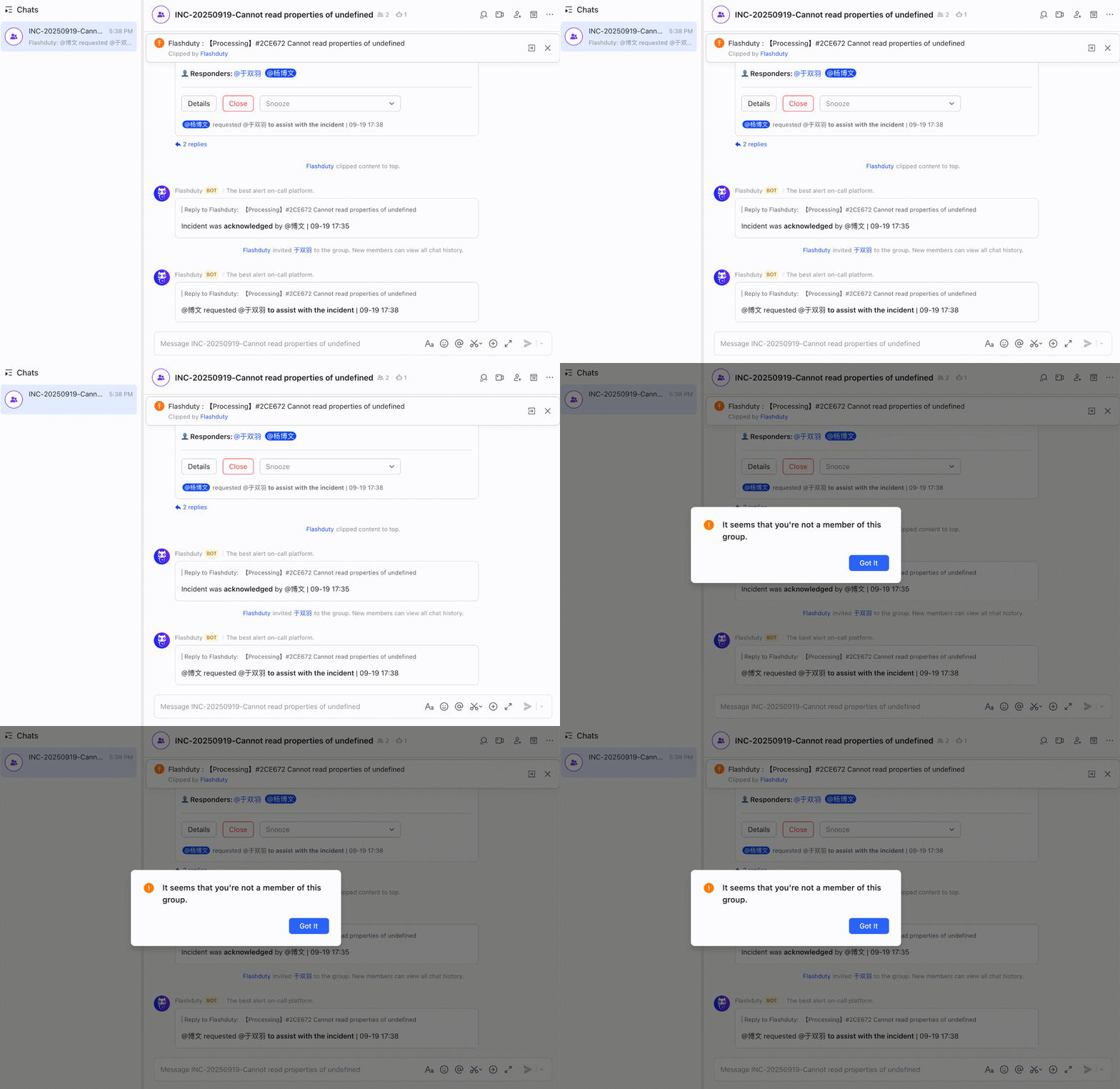
By deeply integrating emergency processes with instant messaging tools, Flashduty War Room brings you an **automated**, **visual**, and **traceable** incident collaboration experience.
## FAQ
Flashduty implements war room functionality by integrating applications on IM platforms and calling related APIs for group chats, messages, and user information.
When creating or connecting related applications, you need to manually grant necessary permissions to ensure operational security.
Currently supported IM platforms:
| Platform | Status |
| ----------- | ----------- |
| Feishu/Lark | ✅ Supported |
| Dingtalk | ✅ Supported |
| WeCom | ✅ Supported |
| Slack | ✅ Supported |
* Due to different levels of openness across IM platforms, the configuration process for accessing war room functionality varies. Flashduty On-call has simplified the configuration steps as much as possible during adaptation.
* At any given time, the system only supports enabling war room functionality for one IM integration.
War room is an advanced feature in IM integration. Please ensure you have completed all necessary configuration steps according to the official documentation. You can find related guides on the integration configuration page or in Flashduty Docs → **Integration Guide**.
To ensure Flashduty can successfully invite members, it needs to obtain their user ID on the IM platform. Please ensure relevant personnel have completed at least one of the following:
On the Flashduty On-call Personal Center → [Basic Information](https://console.flashcat.cloud/profile) page, fill in **Notification Email** and **Notification Phone**.
If your IM integration supports it, use the **One-click Link** feature on the **Link Users** page. Flashduty On-call will use the notification email and phone configured in the user's personal center to call application permissions for user information linking.
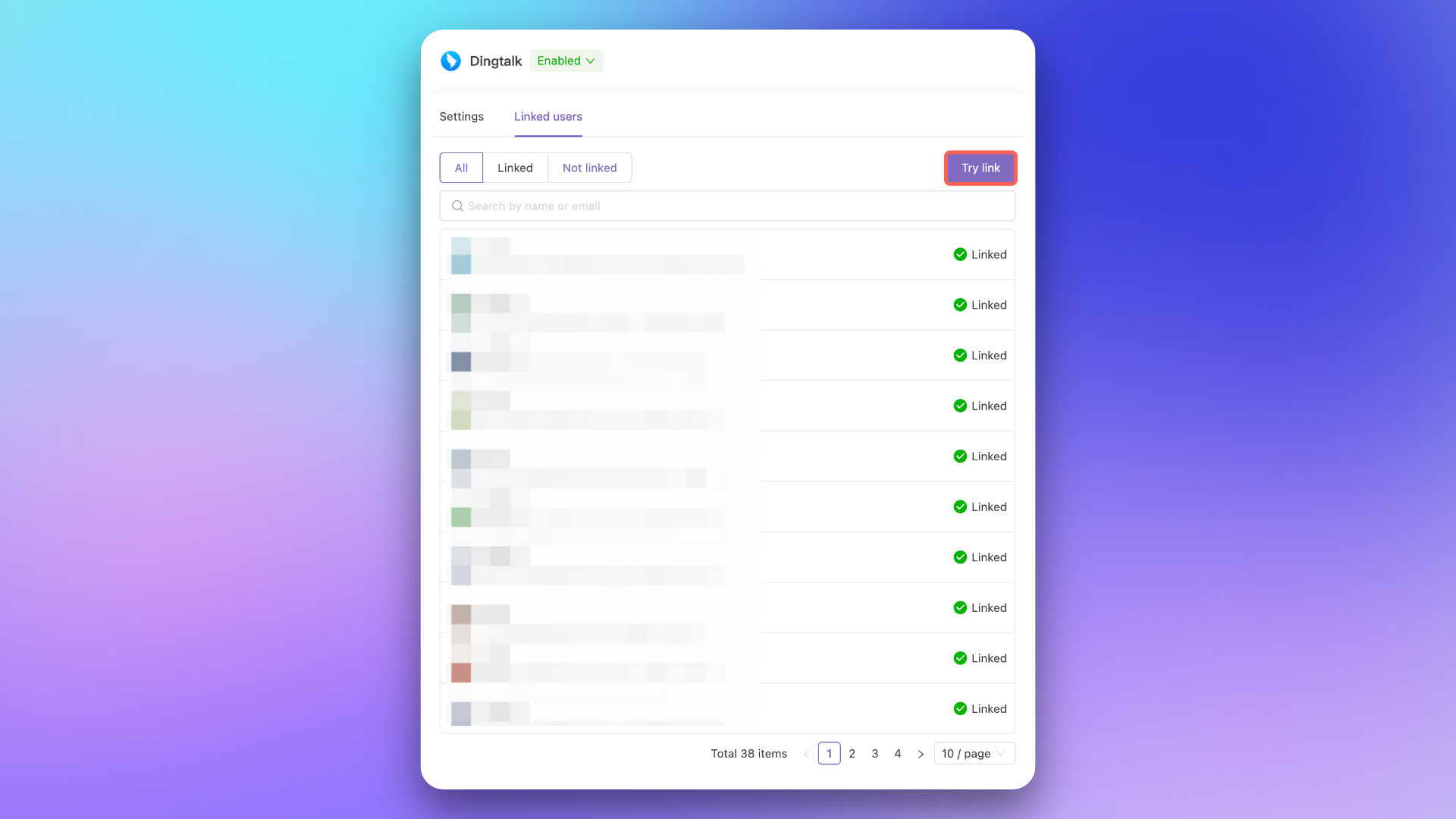
If your IM integration supports it, complete a sign in within the IM app to automatically link accounts.
If the issue persists, please contact Flashduty technical support.
WeCom requires application group chats to have at least **2 members**. When creating a WeCom war room, Flashduty resolves the incident's responders, incident owner, and the current operator into WeCom user IDs. If fewer than 2 members with linked WeCom accounts can be resolved, creation fails with the error:
> Creating a WeCom war room requires at least two people. Add more linked WeCom members and try again.
**Resolution**: Ensure at least 2 of the incident's responders have completed WeCom account linking (see the steps in "Why is my war room functionality not working as expected?" above). Use **One-click Link** or guide members to sign in within the WeCom app to complete the binding.
## AI SRE
Based on **War Room** functionality and existing **Intelligent Grouping** and **AI Summary** capabilities, Flashduty On-call will gradually roll out **AI SRE** features to provide more comprehensive and intelligent support for incident handling.
### AI Assistant in War Room
Users can directly `@flashduty` to ask questions, and AI will quickly parse intent and return relevant information or action suggestions
AI assistant will analyze in real-time based on incident status, monitoring metrics, and historical data to provide detailed impact assessments
By analyzing team discussions, proactively extract summaries from the knowledge base and push relevant handling guides to assist root cause identification
Automatically summarize incident lifecycle using war room chat history, extract key decision points and improvement suggestions, and generate structured review documents
To build a more comprehensive context of the incident's full lifecycle, AI-generated post-mortem reads war room chat history. Ensure your IM integration has been granted the necessary permissions — see [Feishu/Lark](/en/on-call/integration/instant-messaging/lark) or [Slack](/en/on-call/integration/instant-messaging/slack) integration guides for details.