> ## Documentation Index
> Fetch the complete documentation index at: https://docs.flashduty.com/llms.txt
> Use this file to discover all available pages before exploring further.
# Email Integration
> Generate a unique email address in Flashduty to synchronize alert triggers and recoveries through email
Generate a unique email address in Flashduty to synchronize alert triggers and recoveries through email.
## Steps
***
### Create Email Integration
You can obtain an email address through either of these two methods:
#### Using Private Integration
Choose this simpler option when you don't need to route alerts to different channels.
Expand
1. Go to the Flashduty console, select **Channel**, and enter a channel's details page
2. Select the **Integration** tab, click **Add Integration**, and enter the integration page
3. Choose **Email** integration, click **Save** to generate a card
4. Click the generated card to view the **Email Address**, copy it for later use, and you're done
#### Using Shared Integration
Choose this option when you need to route alerts to different channels based on the alert payload information.
Expand
1. Go to the Flashduty console, select **Integration Center=>Alerts**, and enter the integration selection page
2. Select **Email** integration:
* **Integration Name**: Define a name for the current integration
* **Email Address**: Set an easy-to-remember prefix for the email, which must be unique within your account
* **Push Mode**: Choose when the email should trigger or recover alerts
3. Copy the **Email Address** from the current page for later use
4. Configure the default route and select the corresponding channel (after the integration is created, you can go to `Route` to configure more routing rules)
5. Done
### Customize Email Integration
#### Email Address
By default, the system generates a unique email address for you. You can modify it, but note that **the email prefix must not contain uppercase letters** (lowercase letters and digits are recommended) and must remain unique within your account.
#### Push Mode
By default, the system creates a new alert for every email, but you can switch the mode to:
1. **Trigger or Update Alert Based on Email Subject**: In this mode, when receiving a new email, the system searches for open alerts based on the email subject. If found, it updates the alert; otherwise, it triggers a new alert.
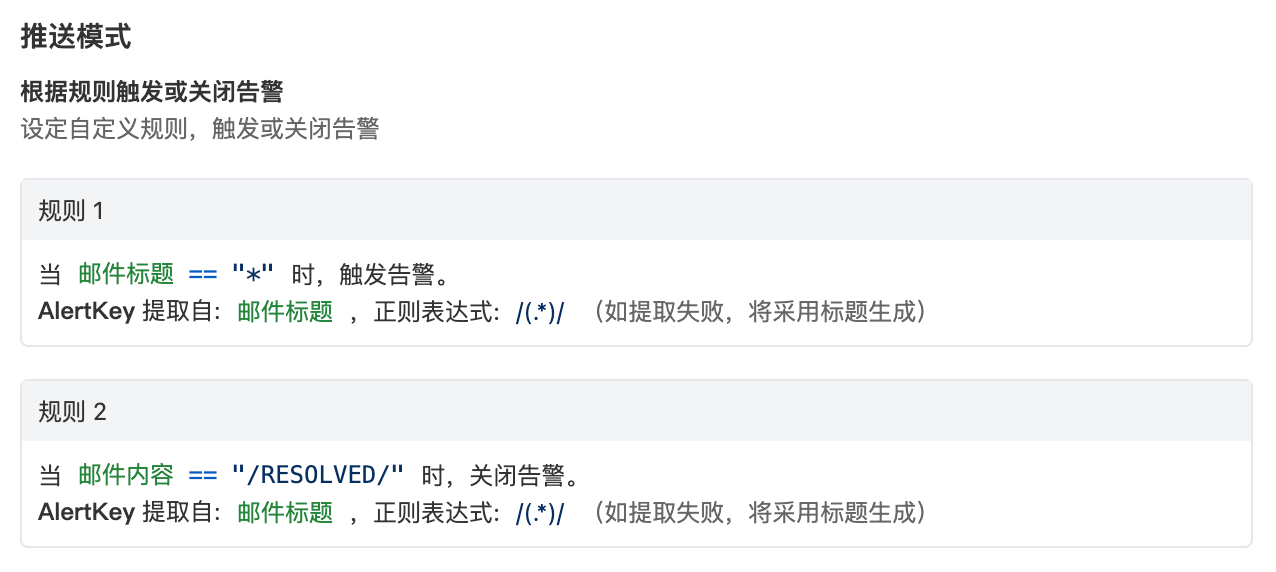
2. **Trigger or Close Alert Based on Rules**: In this mode, when receiving a new email, the system matches emails according to your rules and either triggers new alerts or closes existing ones based on the matches.
* You must fill in at least one **trigger** rule
* You must set regex extraction rules for Alert Key. The system uses this field to find historical alerts for updates or closure; **if regex extraction fails, the system will use the email subject to generate an Alert Key** to ensure alerts aren't lost due to configuration errors
* You can choose whether to discard emails when no rules match
Configuration example:
* Receive all emails, close the alert when the email content contains **RESOLVED**, otherwise trigger a new alert
* Extract Alert Key from email subject using the rule **/(.\*)/**
 ### Important Notes
1. The system will reject emails larger than 5MB
2. If the email text content exceeds 32KB, the system will truncate it and add a label in the incident details:
```
body_cut = true
```
3. If the email contains attachments, the system will discard them and add a label in the incident details:
```
attachment_stripped = true
```
4. For new alerts triggered by email, **the title is the email subject, and the description is the email content**
5. If you modify your account domain, this email address will also change, so remember to update the push URL
## Severity Mapping
***
Currently, all alerts pushed to Flashduty through the email integration are set to Warning severity. However, you can customize the severity using the [alert pipeline](/en/on-call/integration/alert-integration/alert-pipelines).
### Important Notes
1. The system will reject emails larger than 5MB
2. If the email text content exceeds 32KB, the system will truncate it and add a label in the incident details:
```
body_cut = true
```
3. If the email contains attachments, the system will discard them and add a label in the incident details:
```
attachment_stripped = true
```
4. For new alerts triggered by email, **the title is the email subject, and the description is the email content**
5. If you modify your account domain, this email address will also change, so remember to update the push URL
## Severity Mapping
***
Currently, all alerts pushed to Flashduty through the email integration are set to Warning severity. However, you can customize the severity using the [alert pipeline](/en/on-call/integration/alert-integration/alert-pipelines).