## In Flashduty
***
You can obtain an integration push URL through either of these two methods:
### Using Private Integration
Choose this method when you don't need to route alert events to different channels. It's simpler and recommended.
Expand
1. Go to the Flashduty console, select **Channel**, and enter a specific channel's details page
2. Select the **Integrations** tab, click **Add Integration** to enter the integration page
3. Choose **OceanBase** integration and click **Save** to generate a card
4. Click the generated card to view the **push URL**, copy it for later use, and you're done
### Using Shared Integration
Choose this method when you need to route alerts to different channels based on the alert event's payload information.
Expand
1. Go to the Flashduty console, select **Integration Center=>Alert Events** to enter the integration selection page
2. Select **OceanBase** integration:
* **Integration Name**: Define a name for this integration
3. Configure the default route and select the corresponding channel (after the integration is created, you can go to `Route` to configure more routing rules)
4. Click **Save** and copy the newly generated **push URL** for later use
5. Done
## In OceanBase
***
## I. OceanBase Alert Push Configuration
### Step 1: Configure Alert Channel
1. Log in to your OceanBase console and select Alert Center
2. Go to **Alert Channels**, click **New Channel** to start creating
3. Select **Custom Script** as the channel type
4. Configure the basic settings as shown below:
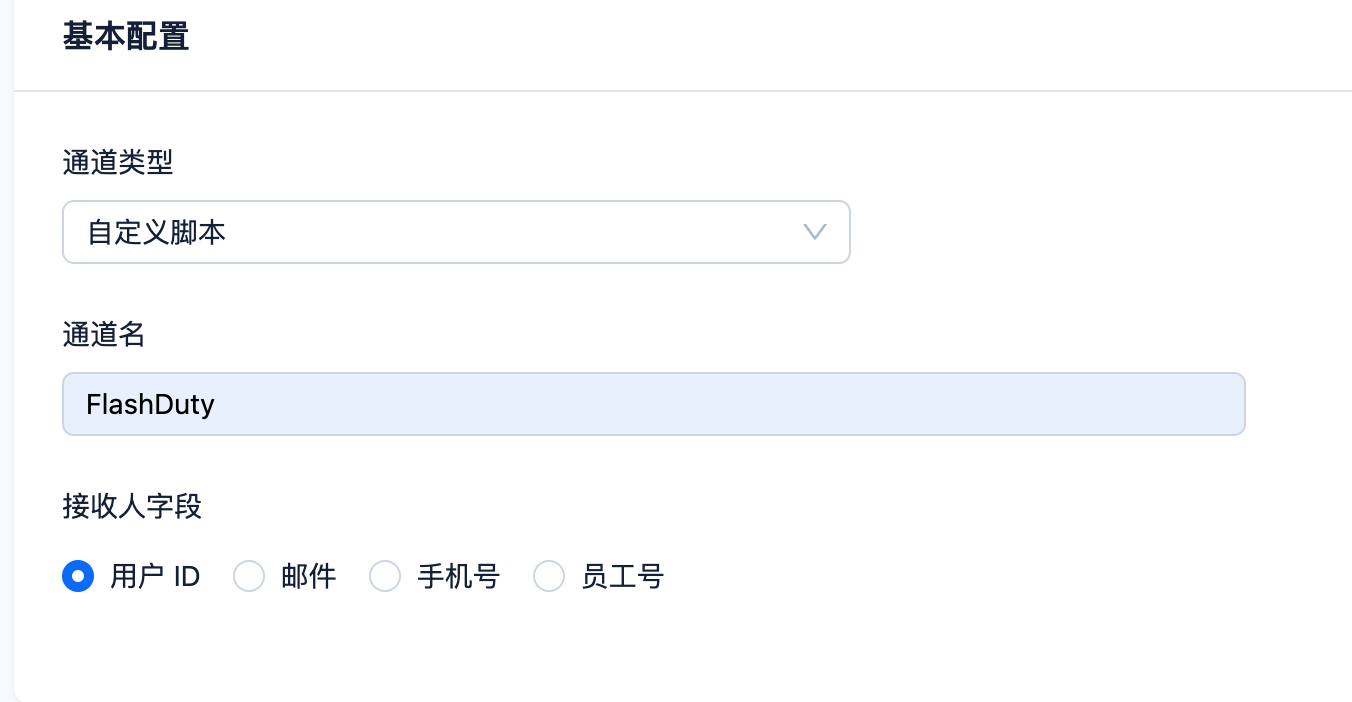
5. Copy the following script content into the channel configuration, and **please add the integration\_key value from your Flashduty push URL to the integration\_key parameter in the script**
```
#!/usr/bin/env bash
function sendToFlashduty() {
URL="${address}/event/push/alert/standard?integration_key=${integration_key}"
curl -s -X POST ${URL} -H 'Content-Type: application/json' -d '{
"event_status": "'${alert_level}'",
"alert_key": "'${alarm_id}'",
"description": "'"${alarm_description//\"/\\\"}"'",
"title_rule": "$app_types::$name::$alarm_targets",
"event_time":'${timestamp}',
"labels": {
"app_types":"'${app_type}'",
"id":"'${alarm_id}'",
"name":"'${alarm_name}'",
"alarm_level":"'${alarm_level}'",
"alarm_status":"'${alarm_status}'",
"alarm_active_at":"'${alarm_active_at}'",
"alarm_threshold":"'${alarm_threshold}'",
"alarm_type":"'${alarm_type}'",
"alarm_targets":"'${alarm_target}'",
"ob_cluster_group":"'${ob_cluster_group}'",
"ob_cluster":"'${ob_cluster}'",
"hostIP":"'${host_ip}'",
"app_cluster":"'${app_cluster}'",
"alarm_description":"'"${alarm_description//\"/\\\"}"'",
"alarm_url":"'${alarm_url}'"
}
}'
return $?
}
alarm_name=$(echo ${alarm_name} | sed "s/ /_/g")
alarm_target=$(echo ${alarm_target} | sed "s/ /_/g")
timestamp=$(TZ=UTC date -d "${alarm_updated_at}" +%s)
levelMd5=$(echo ${alarm_level} | md5sum | awk '{print$1}')
statusMd5=$(echo ${alarm_status} | md5sum | awk '{print$1}')
active="048d106318302b41372b4292b5696ad4"
Inactive="bf7da164d431439fe9668fbc964110c4"
down="2e1558b0a152fae2dd15884561b1508d"
critical="59b9b38574ca2ee4f5e264b56f49a83f"
alert="723931b03a5d1cec59eac40cf0703580"
caution="abf4d55ba8926eff32cb44065e634ed3"
info="6aae3f4254789d72aa0cc8ed55b8f11f"
address="https://api.flashcat.cloud"
integration_key=""
if [[ ${statusMd5} == ${Inactive} ]];then
alert_level="Ok"
timestamp=$(TZ=UTC date -d "${alarm_resolved_at}" +%s)
elif [[ ${statusMd5} == "${active}" ]];then
if [[ ${levelMd5} == ${down} || ${levelMd5} == ${critical} ]];then
alert_level="Critical"
elif [[ ${levelMd5} == ${alert} ]];then
alert_level="Warning"
elif [[ ${levelMd5} == ${caution} || ${levelMd5} == ${info} ]];then
alert_level="Info"
fi
fi
if [[ ${statusMd5} == ${active} || ${statusMd5} == ${Inactive} ]];then
sendToFlashduty
fi
```
6. Fill in {} for Response validation
7. Select Markdown for the alert message format in Message Configuration
8. Select **English** for the alert message template, fill in the following content, and submit:
```
OCP Alert Notification - Single Alert
- Alert ID: ${alarm_id}
- Name: ${alarm_name}
- Severity: ${alarm_level}
- Alert Target: ${alarm_target}
- Service: ${service}
- Summary: ${alarm_summary}
- Triggered at: ${alarm_active_at}
- Updated at: ${alarm_updated_at}
- Resolved at: ${alarm_resolved_at}
- Details: ${alarm_description}
- Status: ${alarm_status}
- Alert Type: ${alarm_type}
- Alert Threshold: ${alarm_threshold}
- Cluster Group: ${ob_cluster_group}
- Cluster: ${ob_cluster}
- Host: ${host_ip}
- App Cluster: ${app_cluster}
- OCP Link: ${alarm_url}
```
### Step 2: Configure Alert Push
1. Create a new push configuration at: **Alert Center=>Alert Push=>New Push Configuration**
2. Configure push type and specified objects as needed
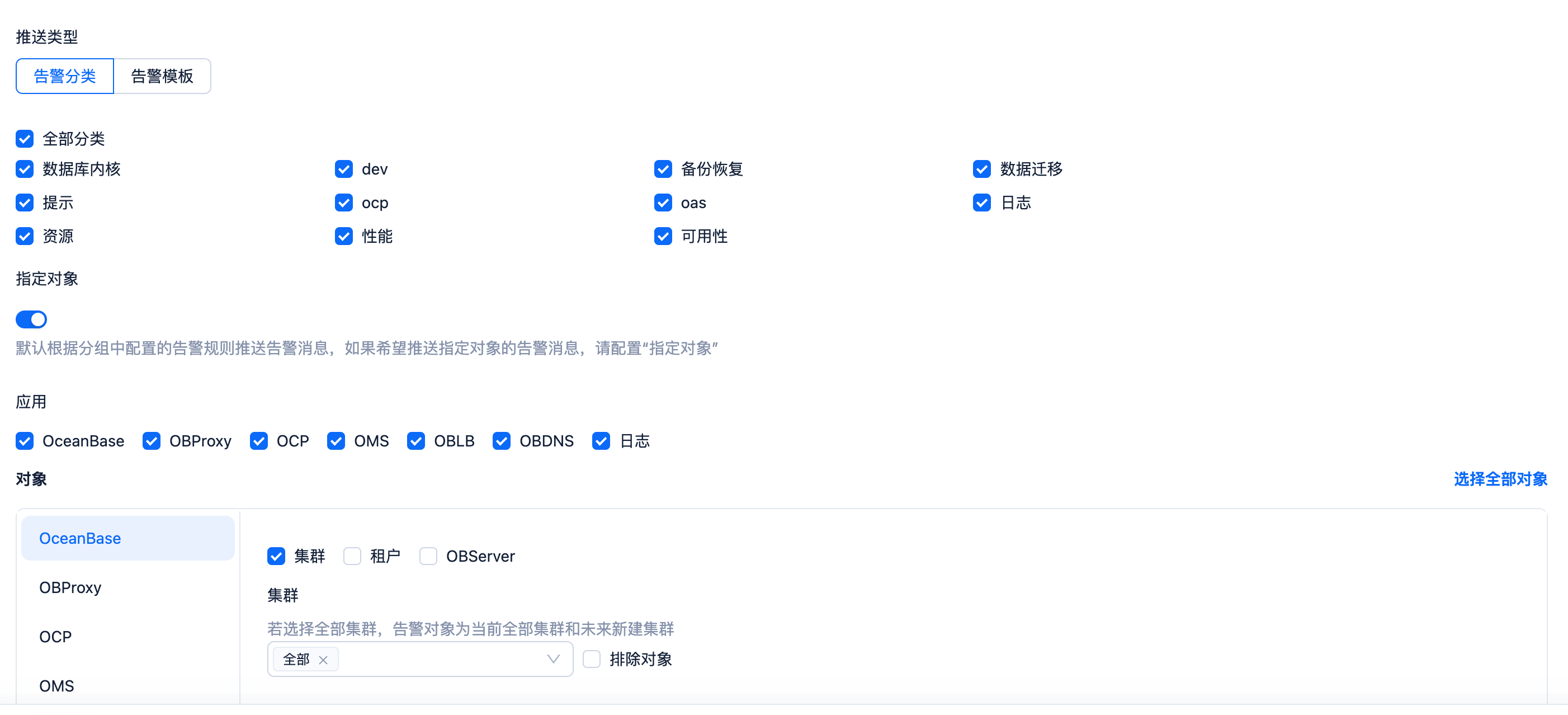
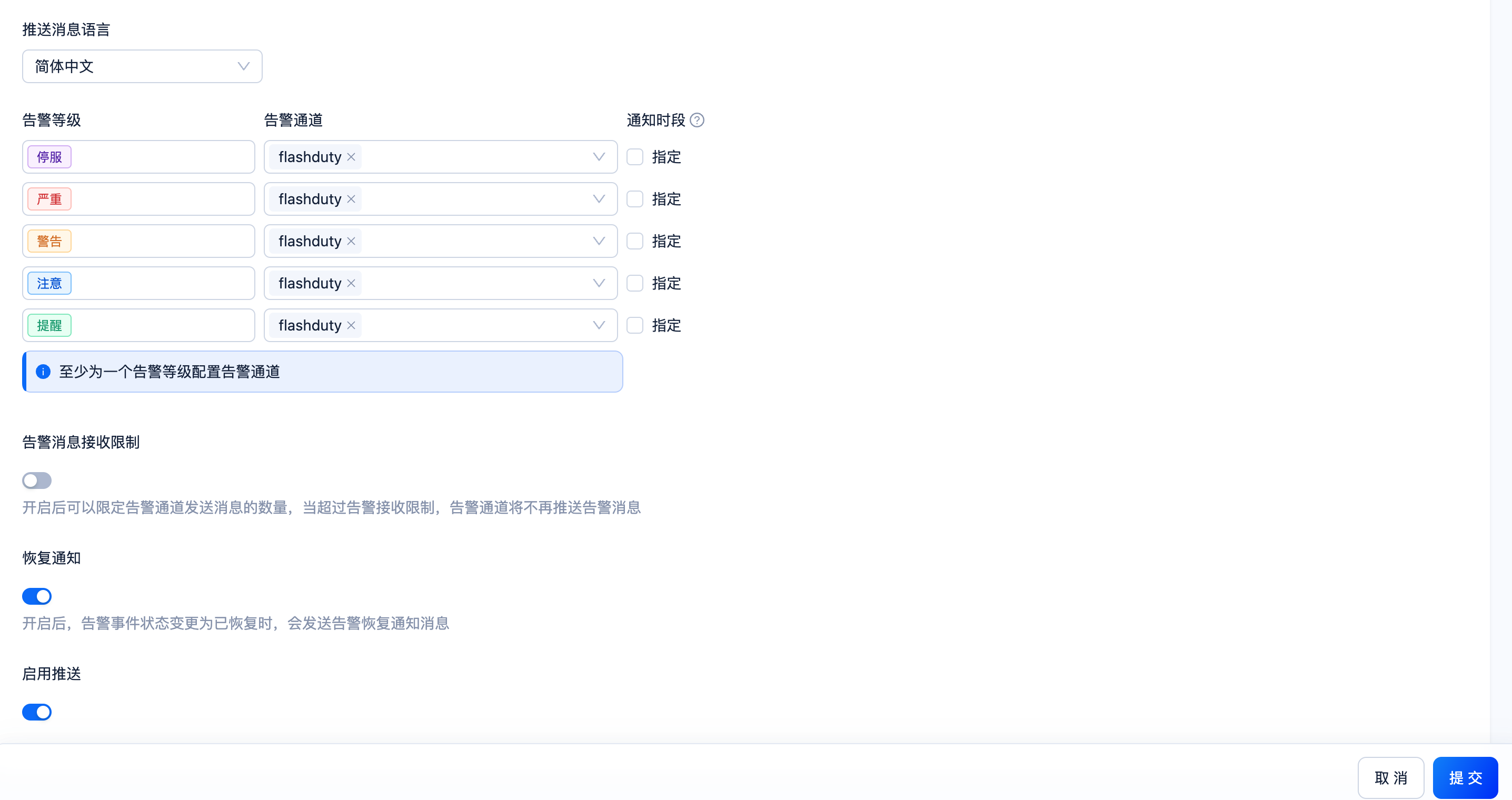
3. Select **English** for push language
4. Select **Flashduty** for alert channel
5. Enable **Recovery Notification**
6. Submit
| OceanBase | Flashduty | Status |
| --------- | --------- | -------- |
| Down | Critical | Critical |
| Critical | Warning | Critical |
| Warning | Warning | Warning |
| Caution | Info | Info |
| Notice | Info | Info |