> ## Documentation Index
> Fetch the complete documentation index at: https://docs.flashduty.com/llms.txt
> Use this file to discover all available pages before exploring further.
# Splunk Alert Events
> Sync Splunk alert events to Flashduty via webhook for automated alert noise reduction
Sync Splunk alert events to Flashduty via webhook for automated alert noise reduction.
## In Flashduty
***
You can obtain an integration push URL through either of these two methods:
### Using Private Integration
Choose this method when you don't need to route alert events to different channels. It's simpler and recommended.
Expand
1. Go to the Flashduty console, select **Channel**, and enter a specific channel's details page
2. Select the **Integration** tab, click **Add Integration** to enter the integration page
3. Choose **Splunk** integration and click **Save** to generate a card
4. Click the generated card to view the **push URL**, copy it for later use, and you're Done
### Using Shared Integration
Choose this method when you need to route alerts to different channels based on the alert event's payload information.
Expand
1. Go to the Flashduty console, select **Integration Center=>Alert Events** to enter the integration selection page
2. Select **Splunk** integration:
* **Integration Name**: Define a name for this integration
3. Configure the default route and select the corresponding channel (after the integration is created, you can go to `Route` to configure more routing rules)
4. Click **Save** and copy the newly generated **push URL** for later use
5. Done
## In Splunk
***
## I. Splunk Alert Push Configuration
1. Log in to your Splunk console
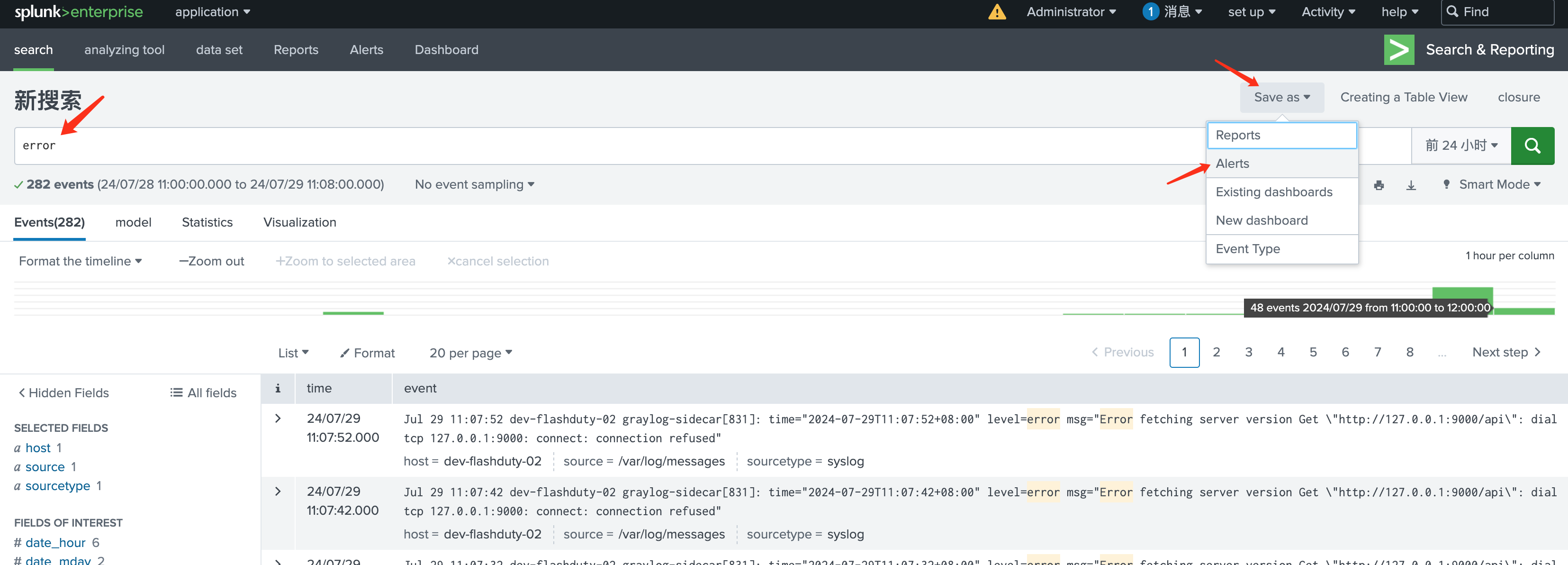
2. In the `Search and Report` application, search for keywords you want to monitor, such as "error"
3. In the upper right corner's save menu, select `Alerts` to configure the search keywords as monitoring items
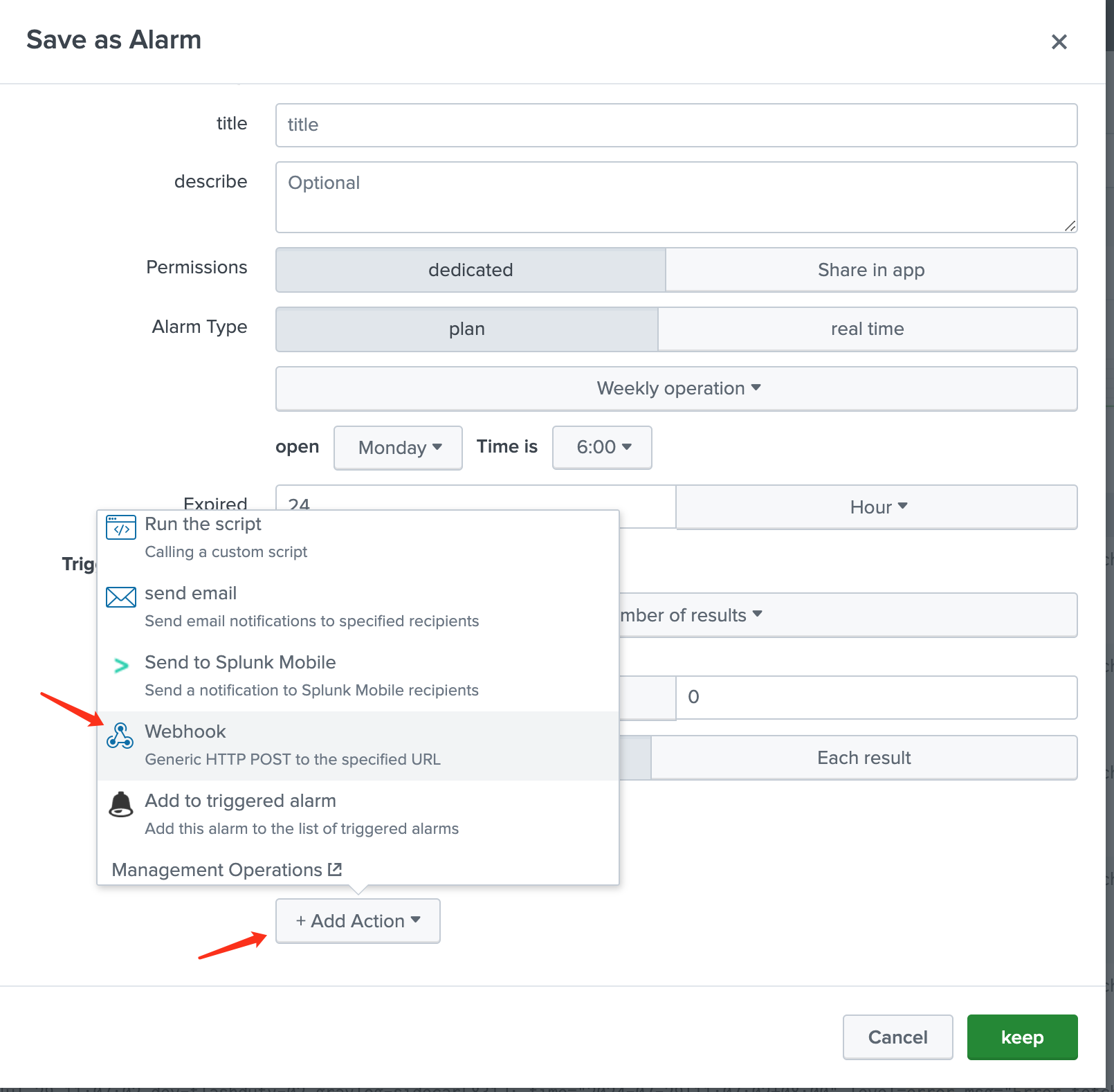
4. In the configuration popup, enter relevant information. Configure the `set up` and `Triggering conditions` sections according to your needs
5. In the `Trigger Action` section, click `Add Action` and select `Webhook`
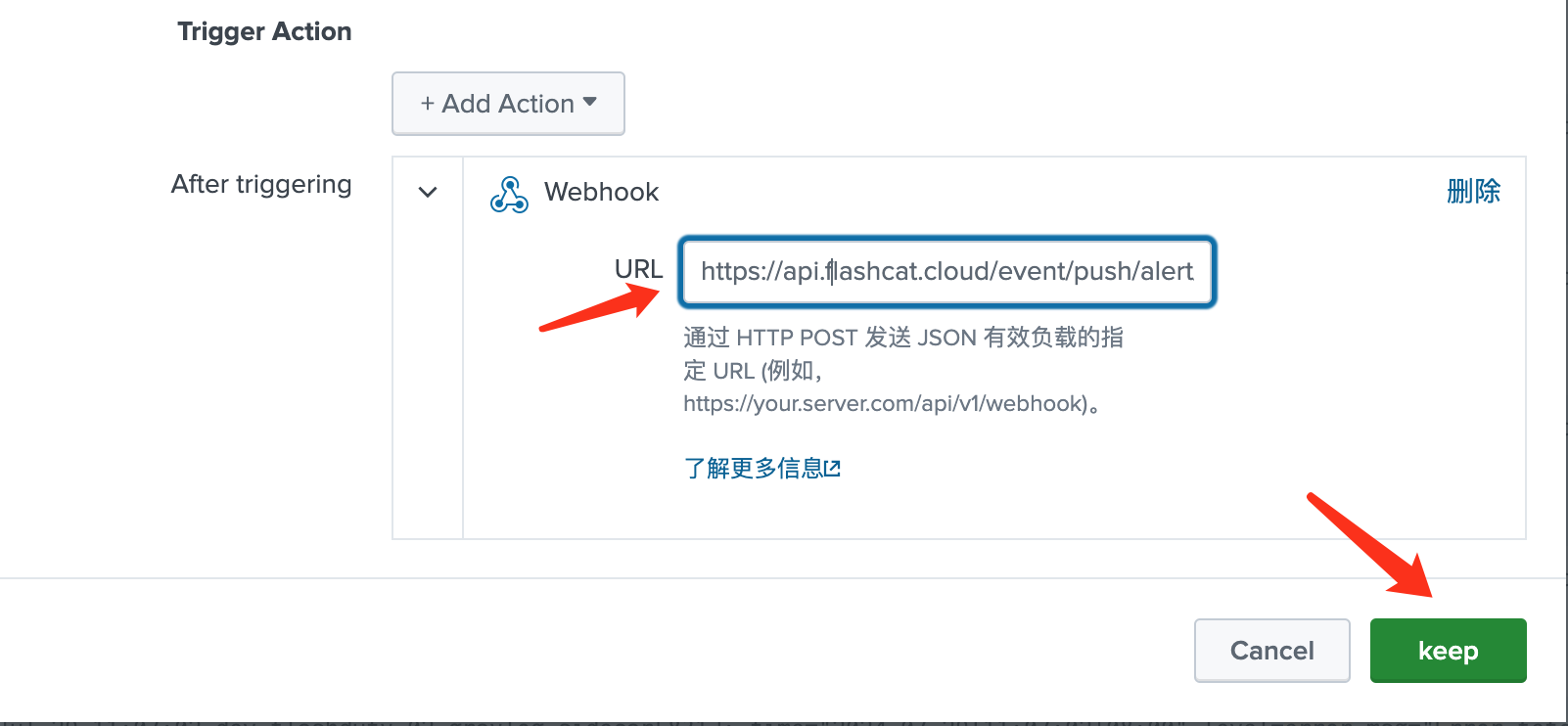
6. In the `Webhook` section, enter the integration push URL in the `URL` field (the URL will be generated after saving the integration name on the current page) and save to complete the alert configuration
Since Splunk alert events don't differentiate severity levels, all alert events pushed from Splunk to Flashduty will have a Warning status and won't include recovery events.