## In Flashduty
***
You can obtain an integration push URL through either of these two methods:
### Using Private Integration
Choose this method when you don't need to route alerts to different channels. It's simpler and recommended.
Expand
1. Go to the Flashduty console, select **Channel**, and enter a channel's details page
2. Select the **Integrations** tab, click **Add Integration** to enter the integration page
3. Choose **Tencent Cloud EventBridge** integration and click **Save** to generate a card
4. Click the generated card to view the **push URL**, copy it for later use, and you're Done
### Using Shared Integration
Choose this method when you need to route alerts to different channels based on the alert payload information.
Expand
1. Go to the Flashduty console, select **Integration Center => Alerts** to enter the integration selection page
2. Select **Tencent Cloud EventBridge** integration:
* **Integration Name**: Define a name for this integration
3. Configure the default route and select the corresponding channel (after the integration is created, you can go to `Route` to configure more routing rules)
4. Click **Save** and copy the newly generated **push URL** for later use
5. Done
## In Tencent Cloud EventBridge
***
1. Log in to your Tencent Cloud Console and select EventBridge service
2. Go to the Event Rules page, click the New button to start editing rules
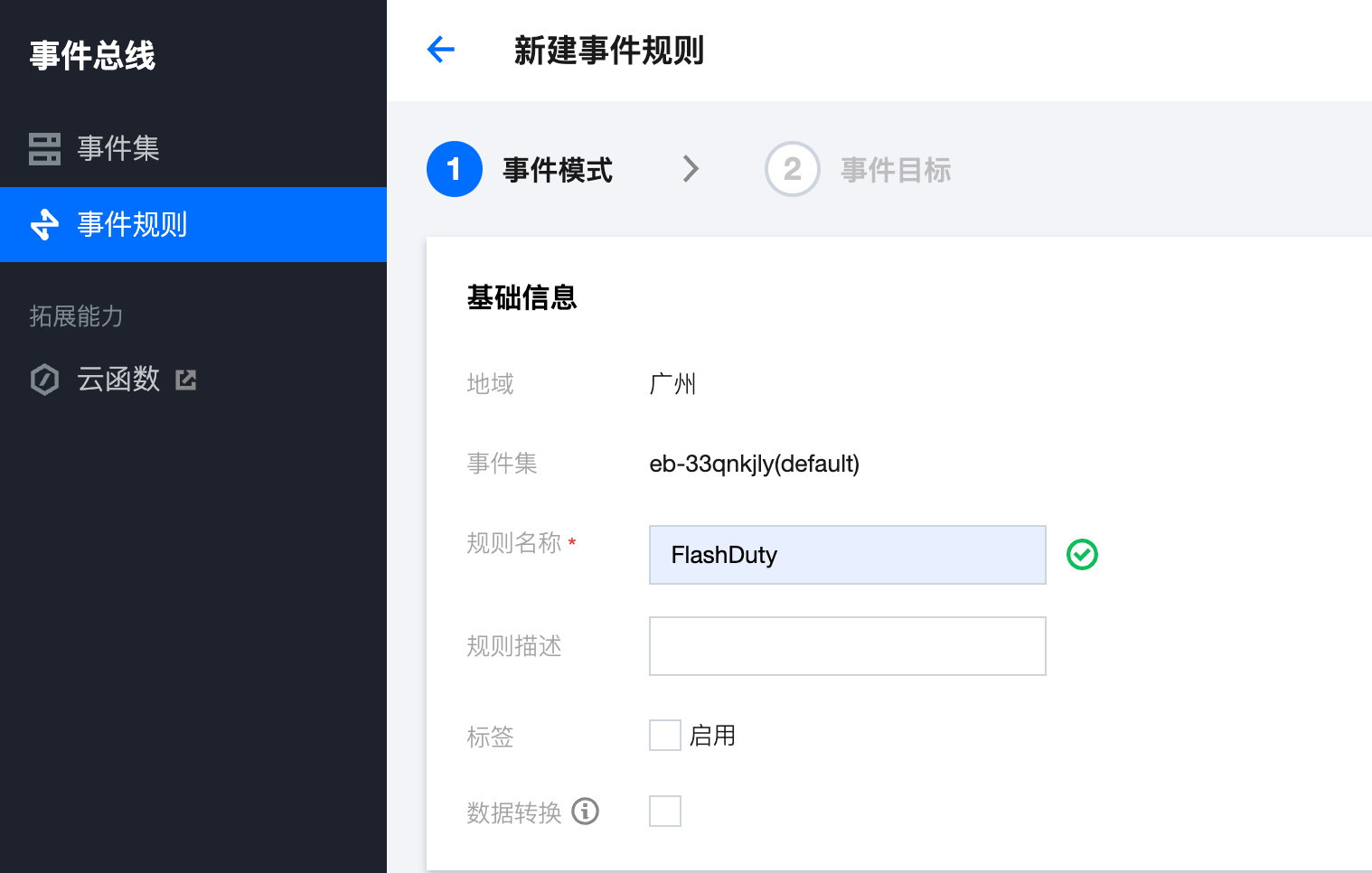
3. Enter the name as Flashduty, as shown below:
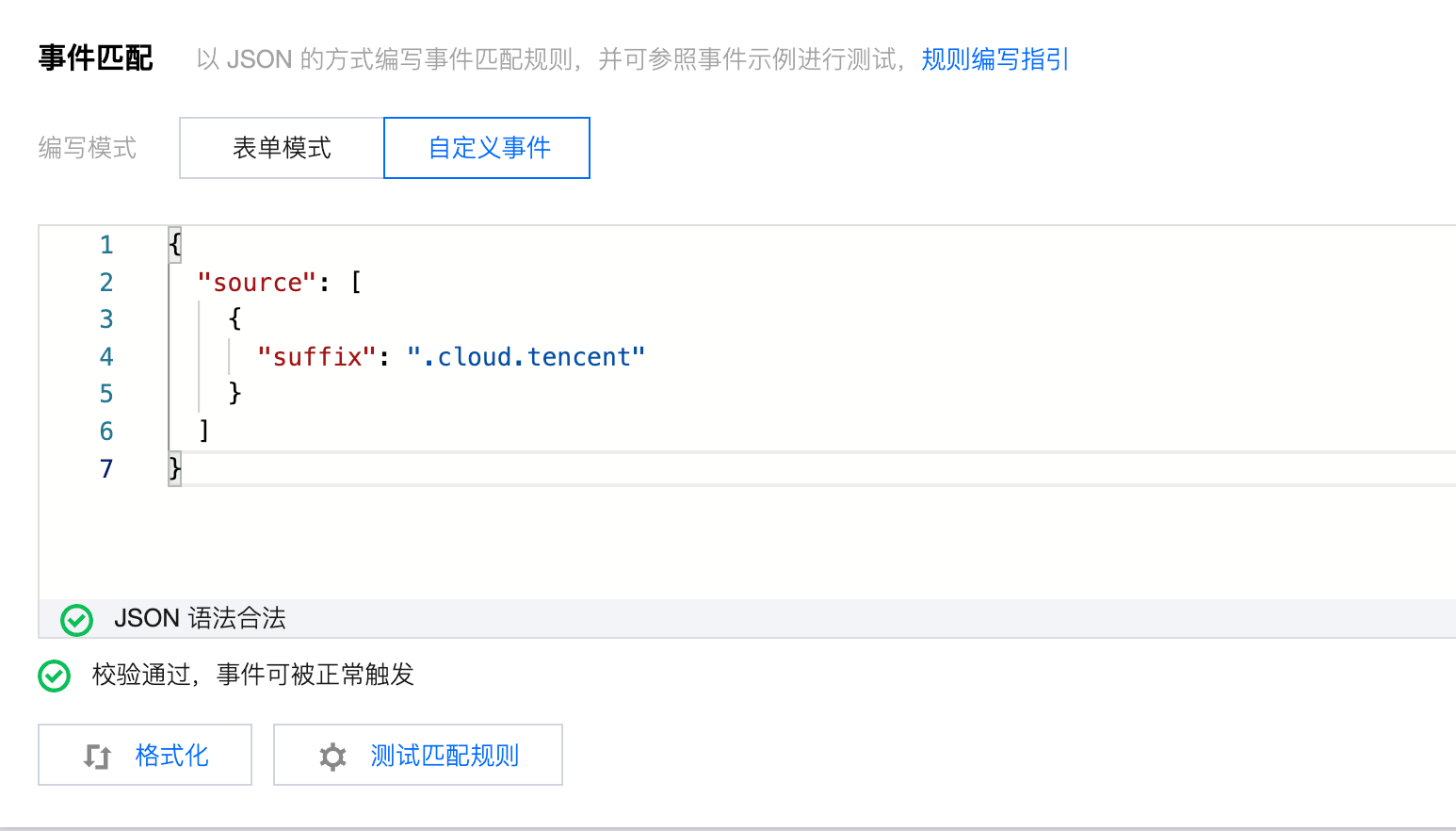
4. For event matching, you can either select specific events through the form mode or customize by entering the following JSON content to match all events:
```
{
"source": [
{
"suffix": ".cloud.tencent"
}
]
}
```
As shown below:
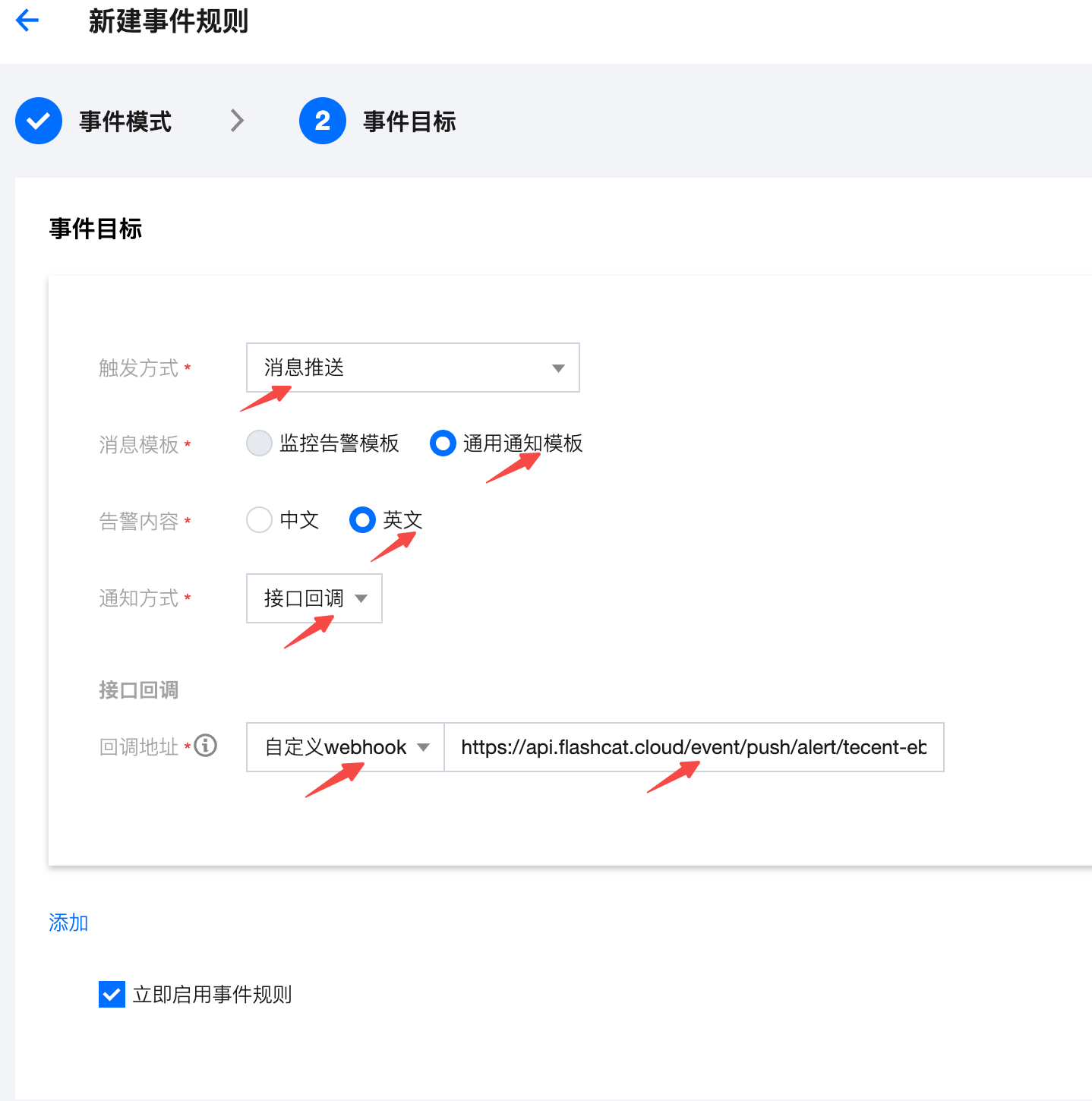
5. Next, configure the event target by selecting "Message Push", "General Notification Template", "English", "API Callback", and "Custom webhook". Enter the integration push URL in the webhook address field
6. Click the Save button, return to the Event Set page, select an event set, and click Send Event to test

7. Return to the integration list. If the latest event time is displayed, the configuration is successful and events are being received
8. Done
All Tencent Cloud EventBridge events correspond to "warning" severity level alerts in Flashduty.