> ## Documentation Index
> Fetch the complete documentation index at: https://docs.flashduty.com/llms.txt
> Use this file to discover all available pages before exploring further.
# Label Enhancement
> Label enhancement automatically generates new labels during alert ingestion to supplement source data. Examples: extract IP from description, map resource ID to readable name, combine multiple fields to generate jump links, query external systems via API for dynamic data
**Plan requirement**: Basic label enhancement requires an On-call Standard or higher subscription. Advanced label enhancement (such as API mapping) requires a Pro or higher subscription. [Learn more](https://flashcat.cloud/flashduty/price/)
## Core Uses
Labels are used throughout Flashduty On-call's alert processing workflow:
| Scenario | Use |
| :-------------------------- | :------------------------------------------------- |
| **Incident Filtering** | Quickly filter by labels in incident list |
| **Route Distribution** | Route alerts to different channels based on labels |
| **Assignment Notification** | Match different escalation rules by labels |
| **Alert Grouping** | Group similar alerts by label dimensions |
| **Silence/Inhibition** | Match alerts to silence or inhibit by labels |
## Configure Label Enhancement
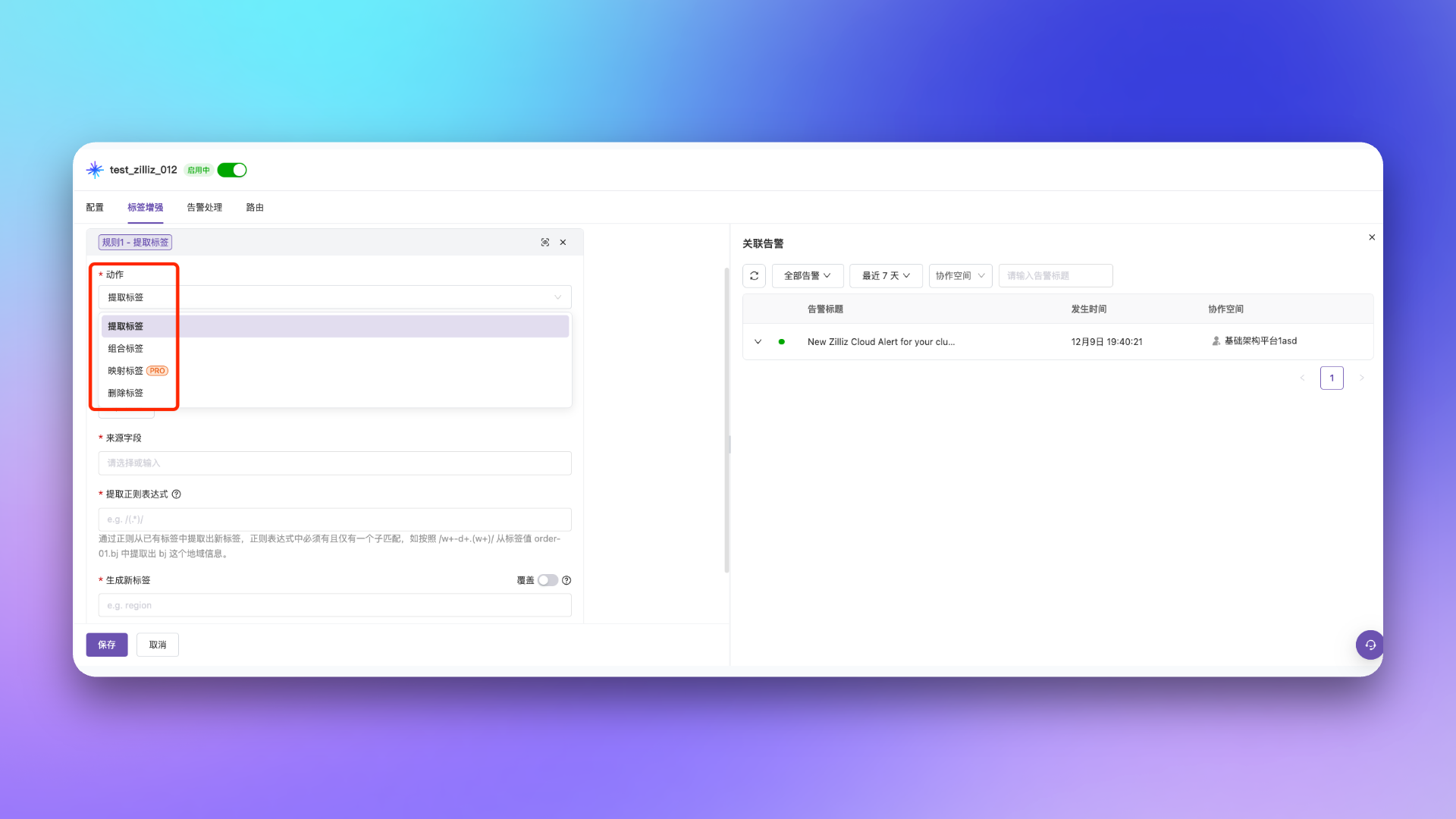
Go to Integration Details → **Label Enhancement** → **Add Rule**.
### Enhancement Types
| Type | Description | Example |
| :---------- | :-------------------------------------------------------- | :--------------------------------------------- |
| **Extract** | Extract content from title/description/labels using regex | Extract IP address from description |
| **Combine** | Concatenate new labels using template syntax | Combine domain + event ID to generate log link |
| **Map** | Convert values to readable names via mapping table | Map resource ID to resource type |
| **Delete** | Remove specified labels | Delete sensitive info labels |
 ### Configuration Options
| Option | Description |
| :------------ | :------------------------------------------------------------------------------------------------------------------------- |
| **Condition** | Only applies to alerts matching conditions, see [Configure Filter Conditions](/en/on-call/configuration/filter-conditions) |
| **Overwrite** | When enabled, overwrites labels with same name; disabled by default |
| **Preview** | Preview rule effects using real alerts |
Multiple rules execute sequentially from top to bottom. When a rule doesn't match, it's skipped and no corresponding label is generated.
## Configuration Examples
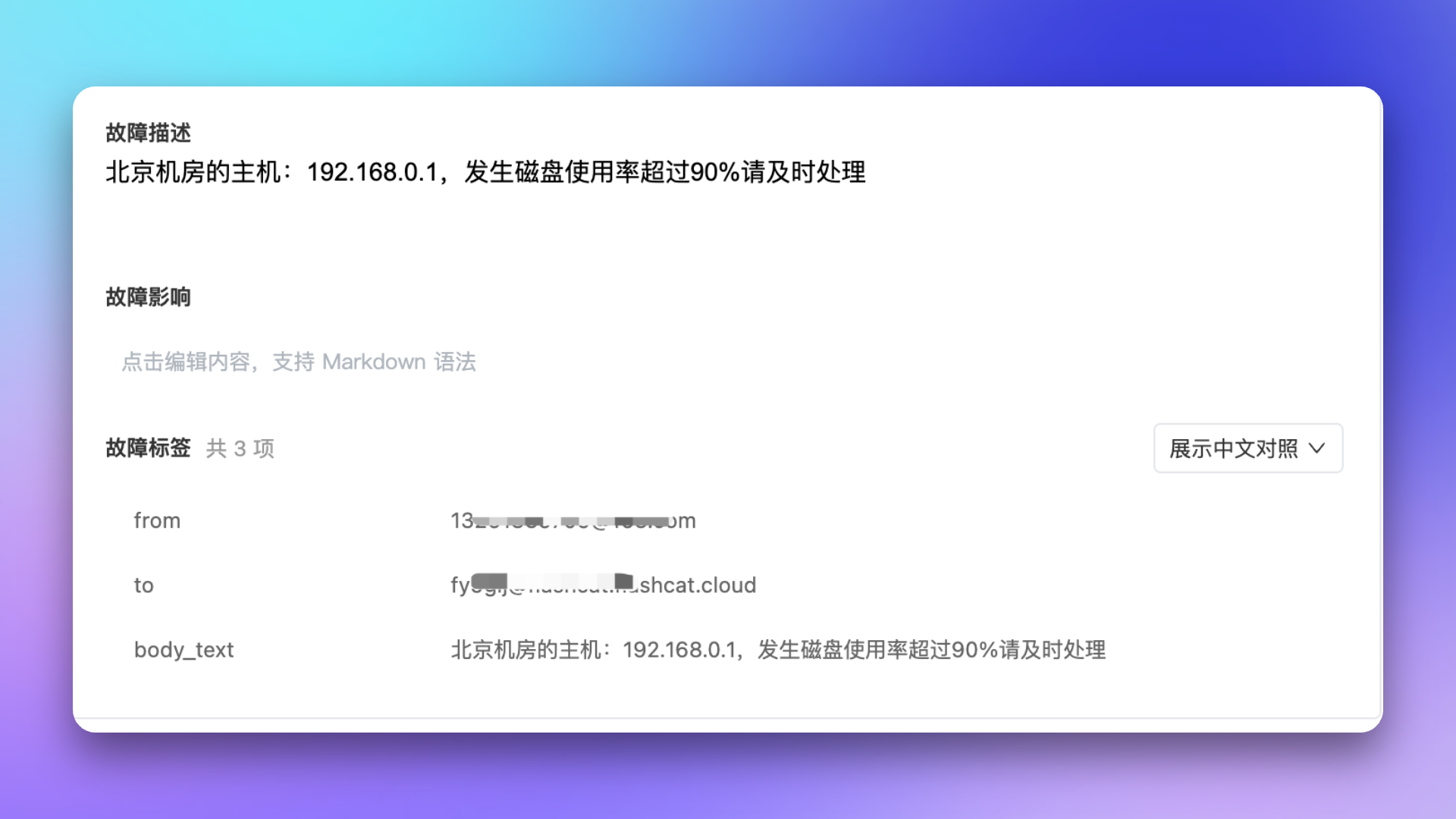
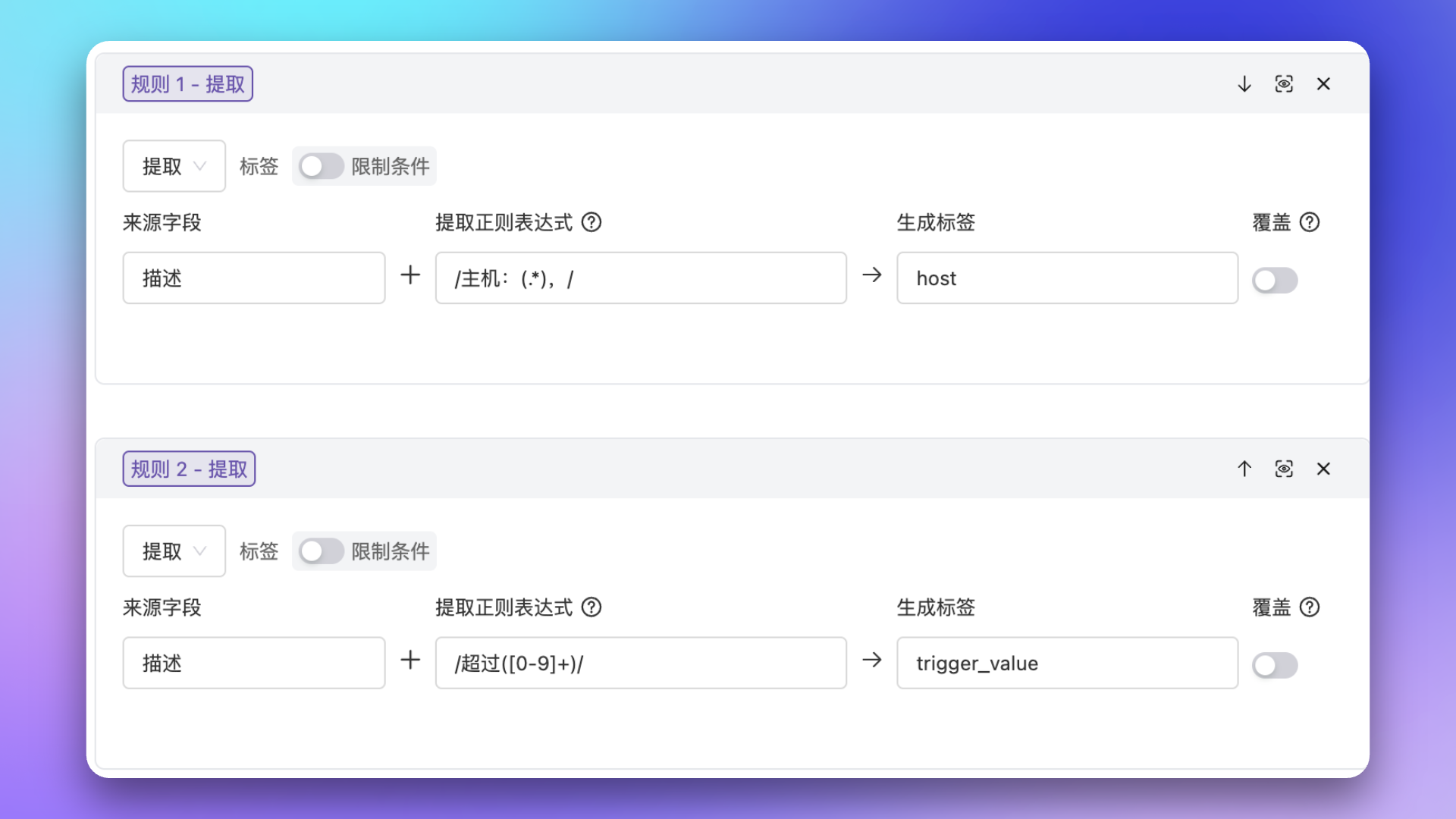
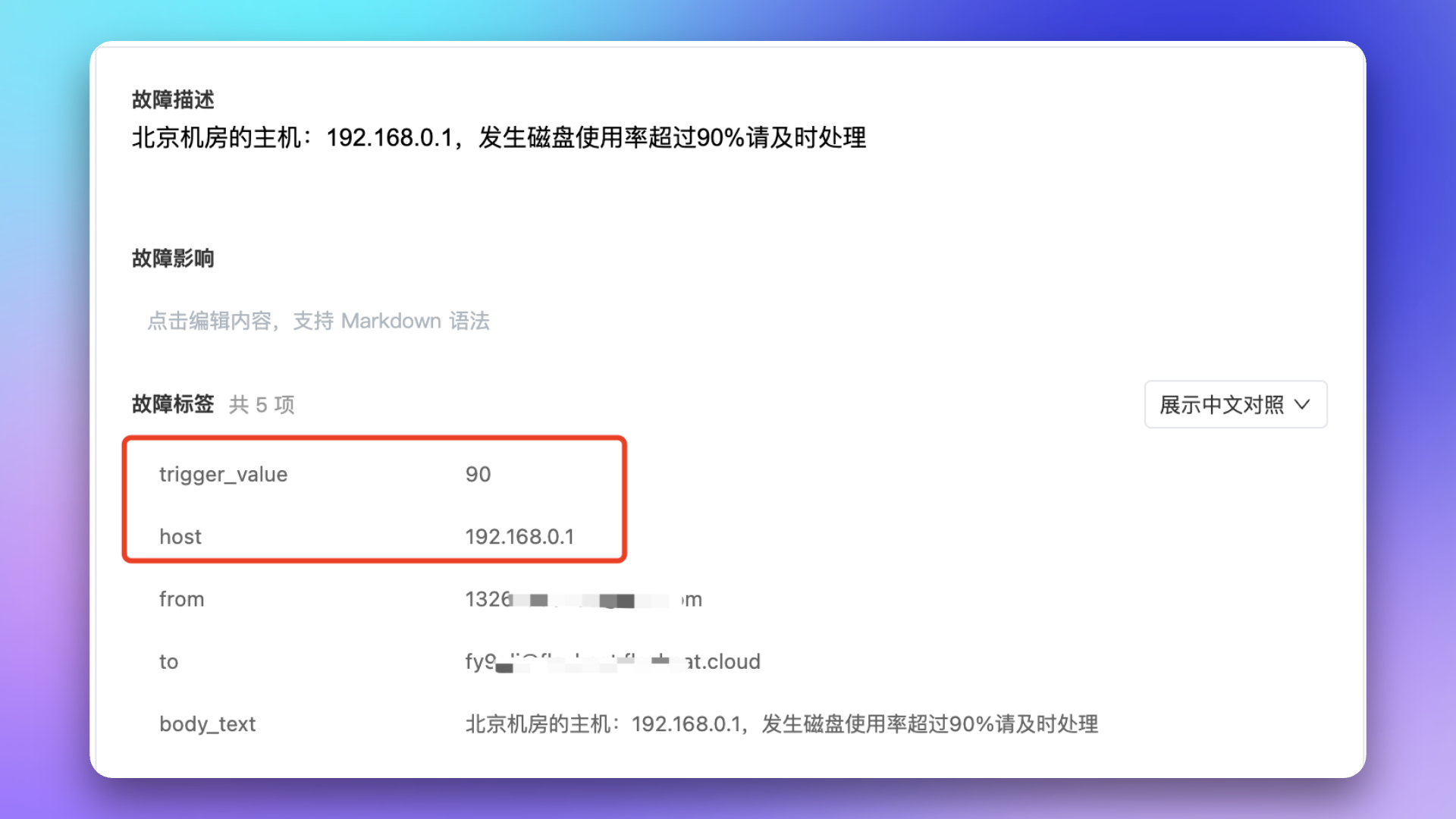
**Scenario**: Alert events come from email integration; need to extract key information from description as labels for other scenarios, like extracting IP and trigger value from description as independent labels.
### Configuration Options
| Option | Description |
| :------------ | :------------------------------------------------------------------------------------------------------------------------- |
| **Condition** | Only applies to alerts matching conditions, see [Configure Filter Conditions](/en/on-call/configuration/filter-conditions) |
| **Overwrite** | When enabled, overwrites labels with same name; disabled by default |
| **Preview** | Preview rule effects using real alerts |
Multiple rules execute sequentially from top to bottom. When a rule doesn't match, it's skipped and no corresponding label is generated.
## Configuration Examples
**Scenario**: Alert events come from email integration; need to extract key information from description as labels for other scenarios, like extracting IP and trigger value from description as independent labels.
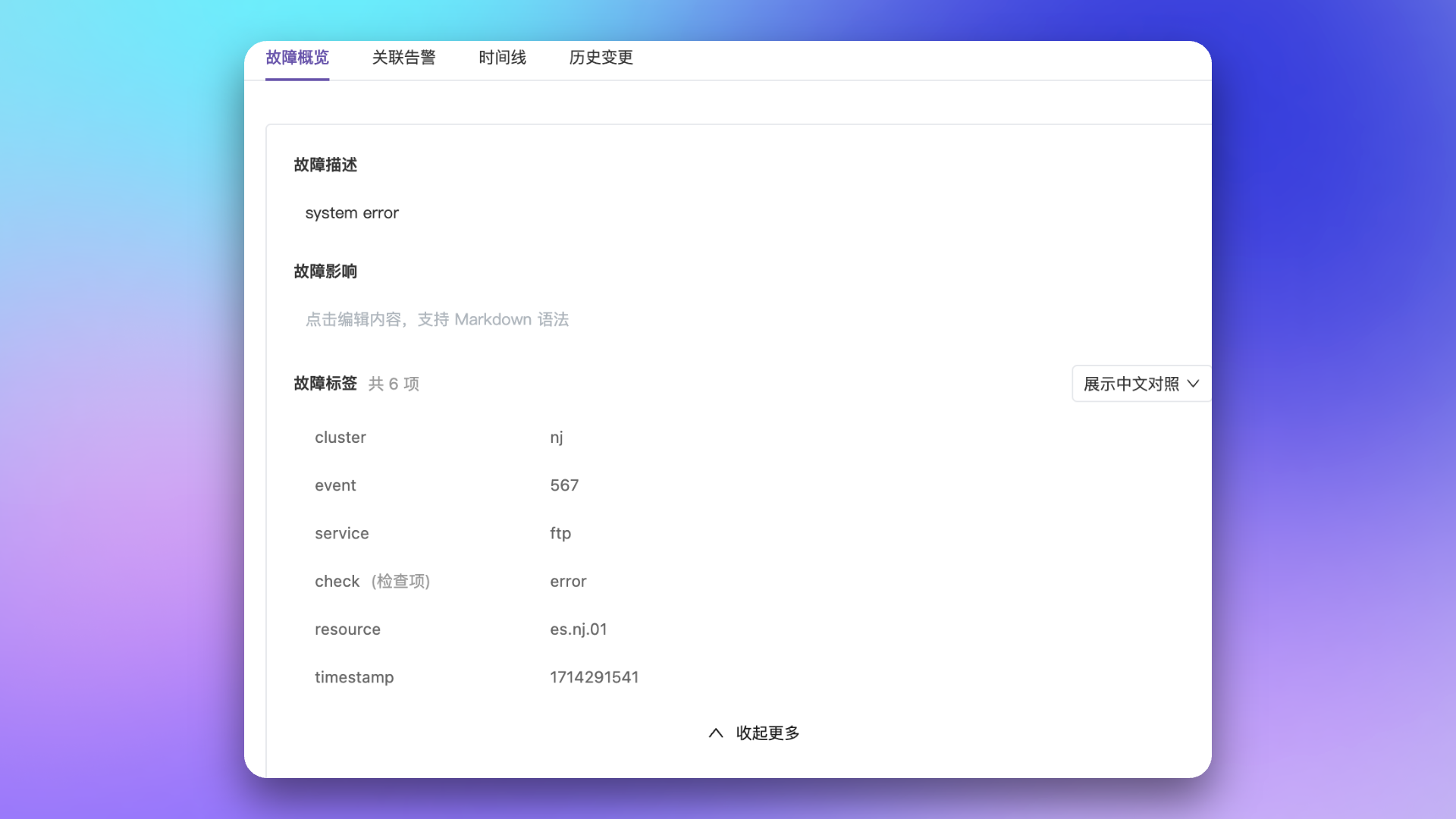
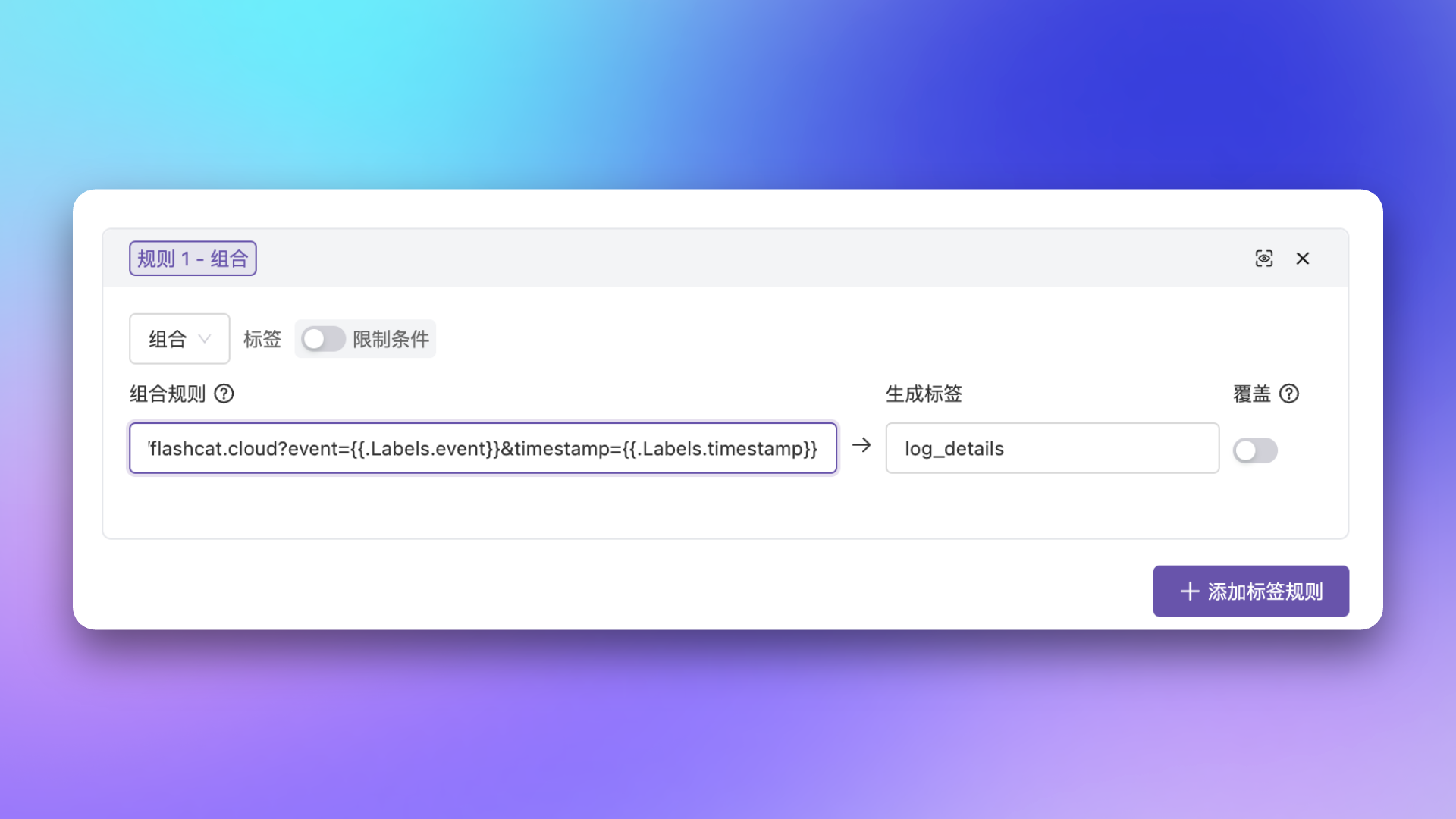
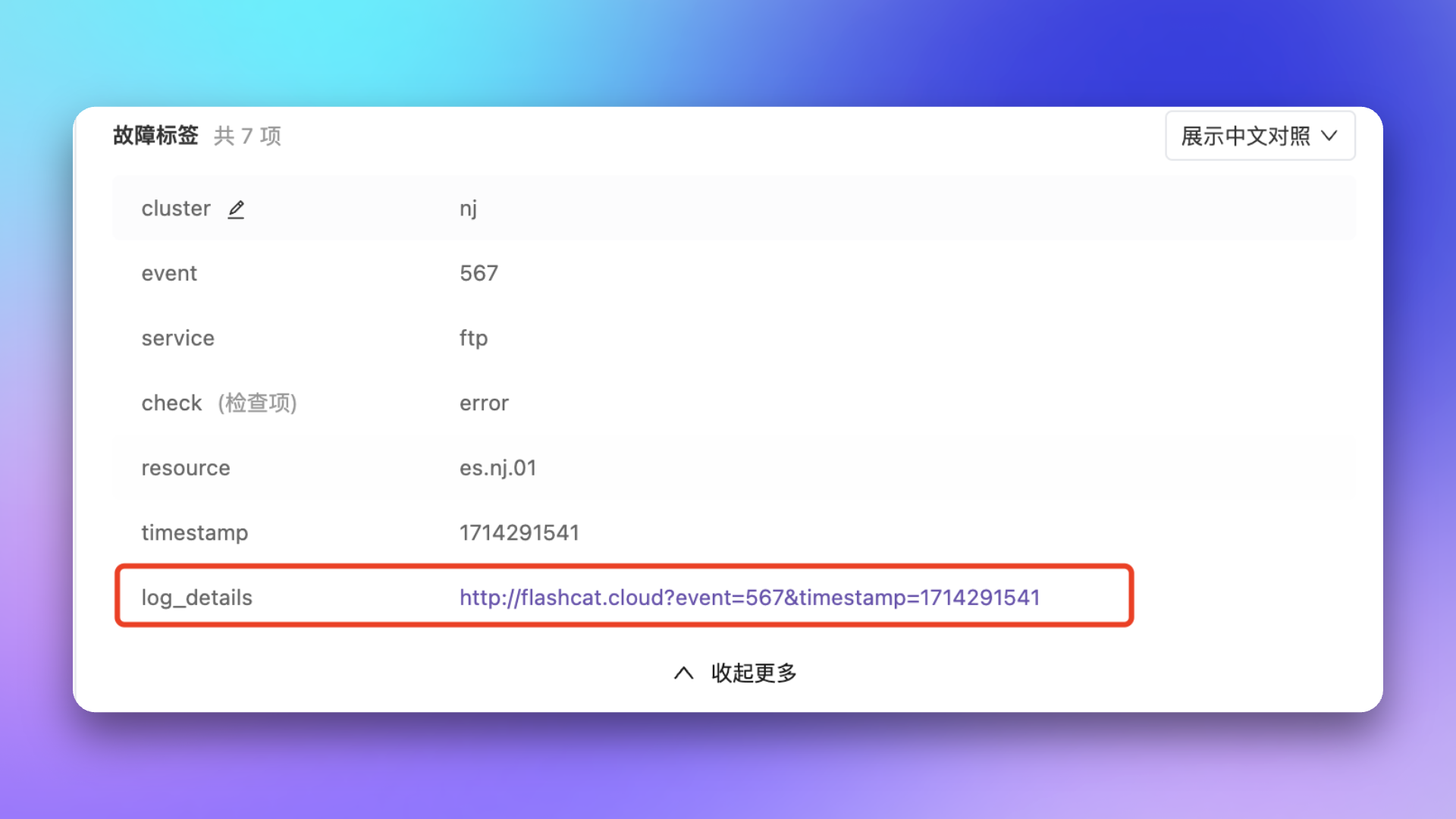
 **Scenario**: Company's log platform can access log details directly via domain + event ID + timestamp, but alert info only has event ID and timestamp labels, so need to combine these into an access URL.
 **Scenario**: When source alert label values are variable and not intuitively meaningful, use mapping to map source labels to newly defined labels and values.
Label mapping supports two mapping methods, selected via an inline radio toggle when adding a mapping rule -- choose **Schema** or **API**:
| Mapping Type | Description | Use Case |
| :------------------------- | :---------------------------------------------- | :-------------------------------------------------------------------- |
| **Schema (Mapping Table)** | Static mapping via predefined CSV mapping table | Mapping relationships are relatively fixed with limited data |
| **API (API Mapping)** | Dynamic mapping by calling external API service | Need to query external systems (e.g., mapping api) for real-time data |
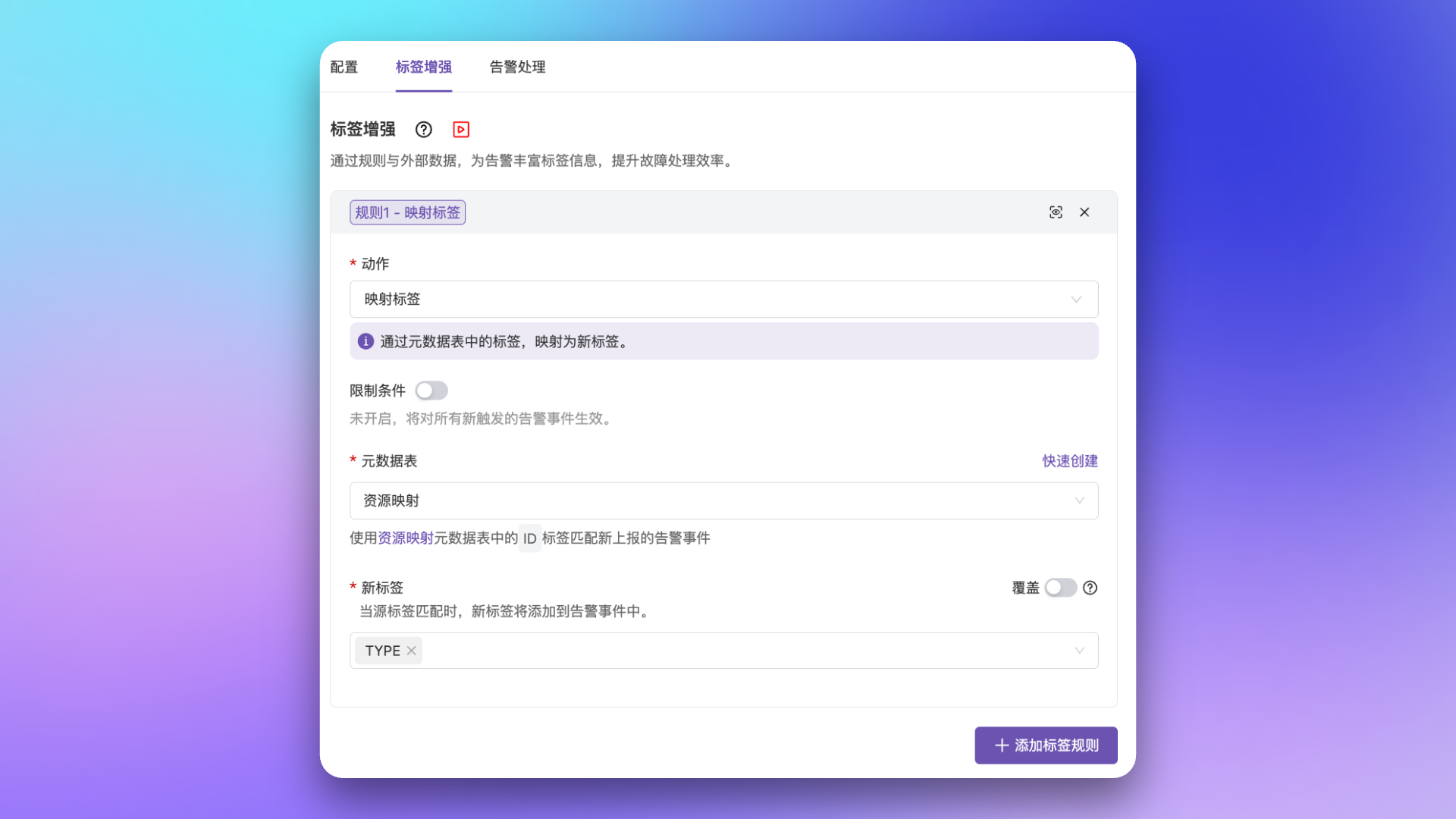
**Example**: Source alerts only have resource type IDs, want to show corresponding resource type names.
Prepare a CSV format mapping table file to map resource type IDs in alerts to actual resource type names.
| ID | Type |
| :-: | :------: |
| A | server |
| B | router |
| C | gateway |
| D | database |
| E | MQ |
1. Go to `Configuration` → `Mappings` → `Schema` → `Create mapping schema`
2. Fill in basic info like name, description, management team, etc.
3. In `Mapping Table Data`, upload the prepared CSV file (if quantity is small, you can edit and add in mapping details page after creation)
4. Select `Source Label` (e.g., `ID`), select `Target Label` (e.g., `Type`)
5. Click `Create` to complete mapping table creation
**Scenario**: When source alert label values are variable and not intuitively meaningful, use mapping to map source labels to newly defined labels and values.
Label mapping supports two mapping methods, selected via an inline radio toggle when adding a mapping rule -- choose **Schema** or **API**:
| Mapping Type | Description | Use Case |
| :------------------------- | :---------------------------------------------- | :-------------------------------------------------------------------- |
| **Schema (Mapping Table)** | Static mapping via predefined CSV mapping table | Mapping relationships are relatively fixed with limited data |
| **API (API Mapping)** | Dynamic mapping by calling external API service | Need to query external systems (e.g., mapping api) for real-time data |
**Example**: Source alerts only have resource type IDs, want to show corresponding resource type names.
Prepare a CSV format mapping table file to map resource type IDs in alerts to actual resource type names.
| ID | Type |
| :-: | :------: |
| A | server |
| B | router |
| C | gateway |
| D | database |
| E | MQ |
1. Go to `Configuration` → `Mappings` → `Schema` → `Create mapping schema`
2. Fill in basic info like name, description, management team, etc.
3. In `Mapping Table Data`, upload the prepared CSV file (if quantity is small, you can edit and add in mapping details page after creation)
4. Select `Source Label` (e.g., `ID`), select `Target Label` (e.g., `Type`)
5. Click `Create` to complete mapping table creation
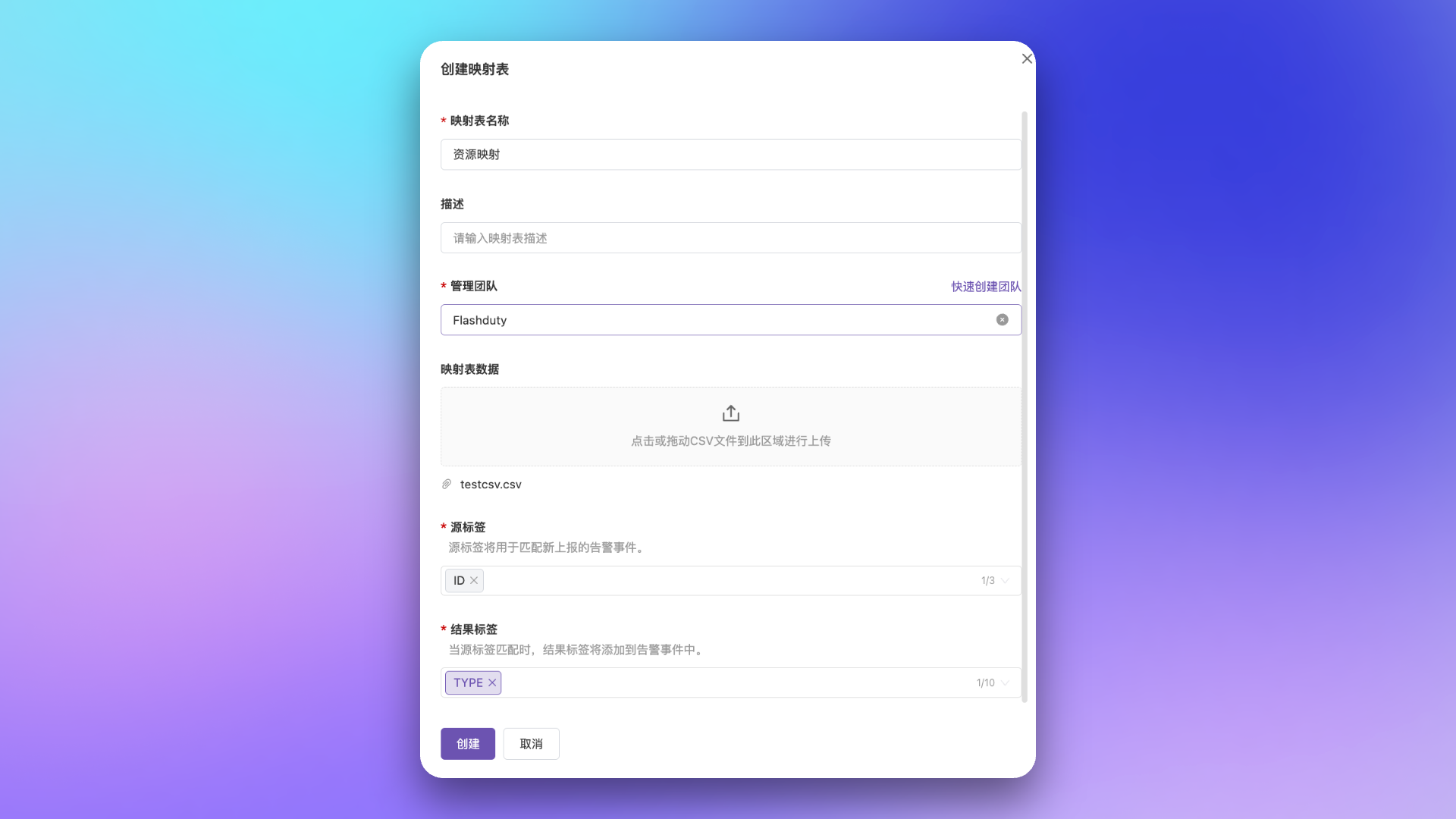
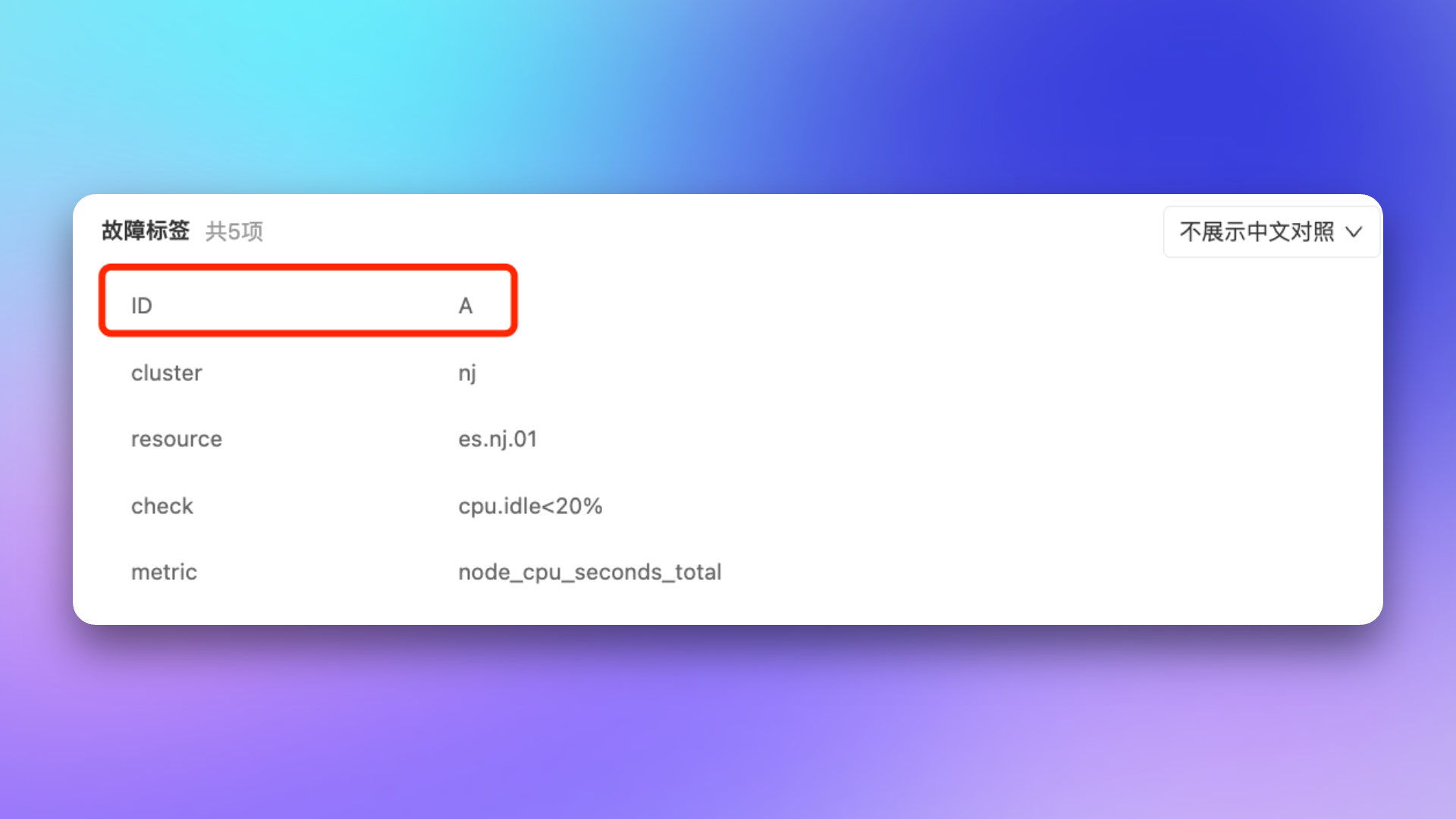
 **Original Alert**: Reported alert info only has resource ID, no resource type name.
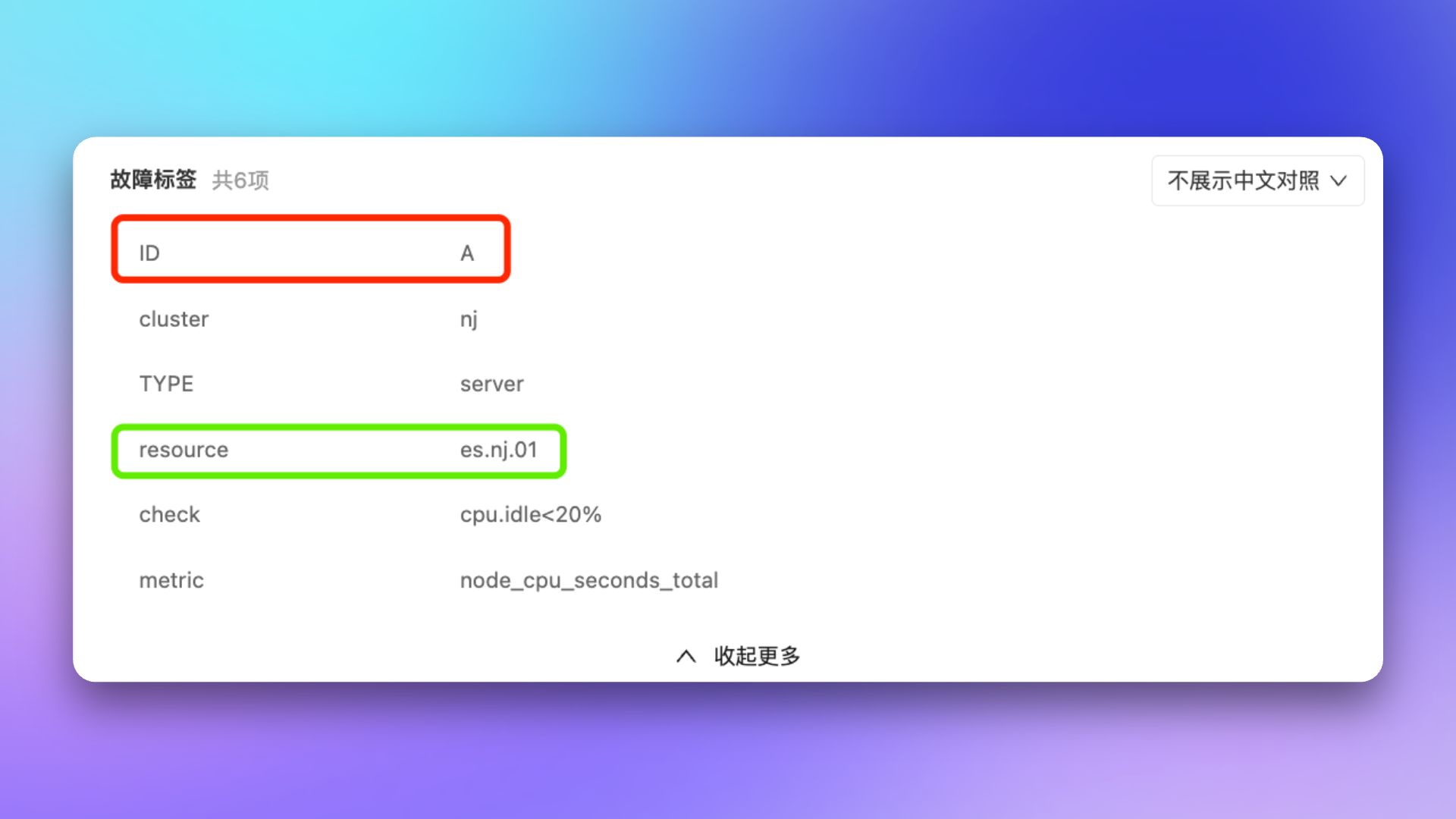
 **Mapping Result**: Through configured mapping relationship, map resource ID to new resource type name label.
 **Example**: Need to query responsible team, service tier, and other dynamic data from mapping api system based on host information in alerts.
1. Go to `Configuration` → `Mappings` → `API` → `Create API`
2. Fill in service configuration:
| Configuration | Description | Example |
| :------------ | :------------------------------------------------- | :------------------------------------------------ |
| Service Name | Readable name for the service | Mapping api Asset Query Service |
| Description | Service purpose description | Query asset info by host IP |
| Request URL | API request address | `https://mapping-api.example.com/v1/enrich-event` |
| Headers | HTTP request header configuration | `X-Auth-Token: your-token` |
| Timeout | Request timeout, 1-3 seconds, default 2 seconds | 1 |
| Retry Count | Retry count on failure, 0-1 times, default 0 times | 1 |
If the API uses HTTPS with an untrusted certificate, you can enable the `Skip Certificate Verification` option.
Add a mapping rule in label enhancement, use the radio toggle to select mapping type as `API`:
1. Select the created mapping service
2. Configure `Result Label List`: specify label names expected from API response, e.g., `owner_team`, `service_tier`, `host_ip`
3. Enable `Override` option as needed
When an alert is triggered, Flashduty automatically calls the configured API service, sends alert event data to the external system, and adds the returned labels to the alert.
## Mapping Data Management
### Mapping Table Data Management
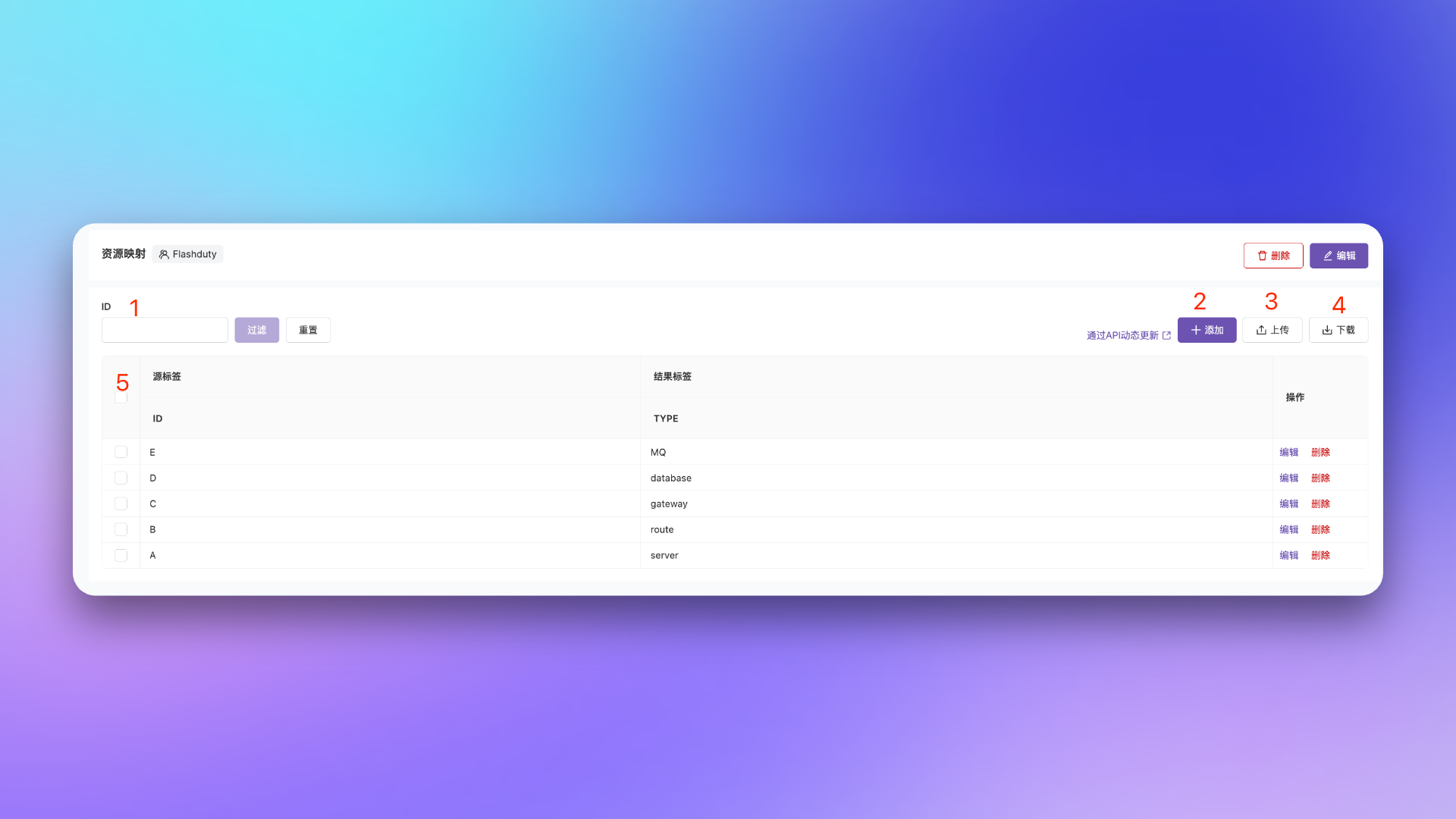
In the mapping table details page, you can manage mapping table data:
| Feature | Description |
| :------------ | :---------------------------------------------------------- |
| Data Search | Search by source label value |
| Data Add | Manually add mapping data |
| Data Upload | Upload new data mapping table, will overwrite existing data |
| Data Download | Download current mapping table data locally |
| Data Display | Display current mapping table data, can edit or delete |
**Example**: Need to query responsible team, service tier, and other dynamic data from mapping api system based on host information in alerts.
1. Go to `Configuration` → `Mappings` → `API` → `Create API`
2. Fill in service configuration:
| Configuration | Description | Example |
| :------------ | :------------------------------------------------- | :------------------------------------------------ |
| Service Name | Readable name for the service | Mapping api Asset Query Service |
| Description | Service purpose description | Query asset info by host IP |
| Request URL | API request address | `https://mapping-api.example.com/v1/enrich-event` |
| Headers | HTTP request header configuration | `X-Auth-Token: your-token` |
| Timeout | Request timeout, 1-3 seconds, default 2 seconds | 1 |
| Retry Count | Retry count on failure, 0-1 times, default 0 times | 1 |
If the API uses HTTPS with an untrusted certificate, you can enable the `Skip Certificate Verification` option.
Add a mapping rule in label enhancement, use the radio toggle to select mapping type as `API`:
1. Select the created mapping service
2. Configure `Result Label List`: specify label names expected from API response, e.g., `owner_team`, `service_tier`, `host_ip`
3. Enable `Override` option as needed
When an alert is triggered, Flashduty automatically calls the configured API service, sends alert event data to the external system, and adds the returned labels to the alert.
## Mapping Data Management
### Mapping Table Data Management
In the mapping table details page, you can manage mapping table data:
| Feature | Description |
| :------------ | :---------------------------------------------------------- |
| Data Search | Search by source label value |
| Data Add | Manually add mapping data |
| Data Upload | Upload new data mapping table, will overwrite existing data |
| Data Download | Download current mapping table data locally |
| Data Display | Display current mapping table data, can edit or delete |
 For frequently changing mapping relationships (like Mapping api data sync), we recommend using API mapping, or use [Flashduty API](/en/api-reference/on-call/alert-enrichment/mapping-data-write-upsert) for automated mapping table updates.
### Mapping Service API Specification
When using API mapping, your external API service must follow these specifications:
#### Request Specification
Flashduty will call your API via `POST` method with the following request body:
```json theme={null}
{
"result_label_keys": ["owner_team", "service_tier", "host_ip"],
"event": {
"account_id": 1,
"channel_id": 20,
"data_source_id": 15,
"data_source_type": "prometheus",
"description": "CPU usage for instance '10.0.1.1:9100' is over 95%",
"title": "High CPU Usage on instance 10.0.1.1:9100",
"alert_key": "d41d8cd98f00b204e9800998ecf8427e",
"event_severity": "Critical",
"event_status": "Critical",
"event_time": 1678886400,
"labels": {
"region": "us-east-1",
"service": "service-A",
"env": "production",
"instance": "10.0.1.1:9100"
}
}
}
```
| Field | Type | Description |
| :------------------ | :------------- | :--------------------------------------------------------------------- |
| `result_label_keys` | array\[string] | List of expected label names to return, configured by user in the rule |
| `event` | object | Complete information of the current alert event |
#### Response Specification
The API must return a JSON response in the following format:
**Success Response** (HTTP 200):
```json theme={null}
{
"result_labels": {
"owner_team": "team-database",
"service_tier": "tier-1",
"host_ip": "10.0.1.1"
}
}
```
| Response Code | Description |
| :---------------- | :-------------------------------------- |
| `200 OK` | Success, returns `result_labels` object |
| `404 Not Found` | No matching data found |
| `400 Bad Request` | Invalid request format |
| `5xx` | Internal server error |
If a requested label cannot find a corresponding value, the API **should not** include that key in `result_labels`.
#### Security Constraints
For security purposes, the following HTTP Headers are prohibited in mapping services:
| Category | Prohibited Headers |
| :--------------- | :------------------------------------------------------------------------------ |
| Authentication | `authorization`, `proxy-authorization`, `cookie`, `x-api-key`, `x-access-token` |
| IP Spoofing | `x-forwarded-for`, `x-real-ip`, `true-client-ip`, `x-client-ip` |
| Host & Routing | `host`, `x-forwarded-host`, `x-forwarded-proto`, `x-internal-id`, `x-user-id` |
| Protocol Related | `transfer-encoding`, `upgrade`, `connection` |
We recommend using custom Headers with `X-Custom-` or `X-Enrich-` prefix for authentication.
#### Best Practices
1. **Performance First**: The API is on the critical path of alert processing, must ensure low latency (recommended \< 500ms)
2. **Implement Caching**: For identical query conditions, implement caching to improve performance
3. **Idempotent Design**: Multiple calls for the same event should return identical results
4. **Secure Authentication**: API must be protected by authentication mechanisms to prevent unauthorized access
## Further Reading
Use labels to match escalation conditions
Use labels as grouping dimensions
Learn label matching syntax
Distribute alerts to different channels
For frequently changing mapping relationships (like Mapping api data sync), we recommend using API mapping, or use [Flashduty API](/en/api-reference/on-call/alert-enrichment/mapping-data-write-upsert) for automated mapping table updates.
### Mapping Service API Specification
When using API mapping, your external API service must follow these specifications:
#### Request Specification
Flashduty will call your API via `POST` method with the following request body:
```json theme={null}
{
"result_label_keys": ["owner_team", "service_tier", "host_ip"],
"event": {
"account_id": 1,
"channel_id": 20,
"data_source_id": 15,
"data_source_type": "prometheus",
"description": "CPU usage for instance '10.0.1.1:9100' is over 95%",
"title": "High CPU Usage on instance 10.0.1.1:9100",
"alert_key": "d41d8cd98f00b204e9800998ecf8427e",
"event_severity": "Critical",
"event_status": "Critical",
"event_time": 1678886400,
"labels": {
"region": "us-east-1",
"service": "service-A",
"env": "production",
"instance": "10.0.1.1:9100"
}
}
}
```
| Field | Type | Description |
| :------------------ | :------------- | :--------------------------------------------------------------------- |
| `result_label_keys` | array\[string] | List of expected label names to return, configured by user in the rule |
| `event` | object | Complete information of the current alert event |
#### Response Specification
The API must return a JSON response in the following format:
**Success Response** (HTTP 200):
```json theme={null}
{
"result_labels": {
"owner_team": "team-database",
"service_tier": "tier-1",
"host_ip": "10.0.1.1"
}
}
```
| Response Code | Description |
| :---------------- | :-------------------------------------- |
| `200 OK` | Success, returns `result_labels` object |
| `404 Not Found` | No matching data found |
| `400 Bad Request` | Invalid request format |
| `5xx` | Internal server error |
If a requested label cannot find a corresponding value, the API **should not** include that key in `result_labels`.
#### Security Constraints
For security purposes, the following HTTP Headers are prohibited in mapping services:
| Category | Prohibited Headers |
| :--------------- | :------------------------------------------------------------------------------ |
| Authentication | `authorization`, `proxy-authorization`, `cookie`, `x-api-key`, `x-access-token` |
| IP Spoofing | `x-forwarded-for`, `x-real-ip`, `true-client-ip`, `x-client-ip` |
| Host & Routing | `host`, `x-forwarded-host`, `x-forwarded-proto`, `x-internal-id`, `x-user-id` |
| Protocol Related | `transfer-encoding`, `upgrade`, `connection` |
We recommend using custom Headers with `X-Custom-` or `X-Enrich-` prefix for authentication.
#### Best Practices
1. **Performance First**: The API is on the critical path of alert processing, must ensure low latency (recommended \< 500ms)
2. **Implement Caching**: For identical query conditions, implement caching to improve performance
3. **Idempotent Design**: Multiple calls for the same event should return identical results
4. **Secure Authentication**: API must be protected by authentication mechanisms to prevent unauthorized access
## Further Reading
Use labels to match escalation conditions
Use labels as grouping dimensions
Learn label matching syntax
Distribute alerts to different channels