> ## Documentation Index
> Fetch the complete documentation index at: https://docs.flashduty.com/llms.txt
> Use this file to discover all available pages before exploring further.
# Feishu/Lark
> By integrating a Feishu/Lark custom app, you can receive and respond to alerts within Feishu/Lark
**Plan requirement**: IM integration requires an On-call Pro or higher subscription. [Learn more](https://flashcat.cloud/flashduty/price/)
## AI SRE Required Permissions
The following list includes all permissions required when the Feishu/Lark IM integration uses AI SRE, including basic notifications, War Room, AI SRE conversations, and AI-generated post-mortem reports. In the Feishu/Lark Open Platform **Permission Management** page, request each official permission name below.
| Official permission name | Purpose |
| :--------------------------------- | :--------------------------------------------------------------------------------------------------------------------- |
| `im:chat` | Create and manage War Room chats, get chat information, and add chat members |
| `im:message` | Read and send direct and group messages |
| `im:message.p2p_msg:readonly` | Receive direct messages sent by users to the bot; without this permission, AI SRE cannot receive direct-chat questions |
| `im:message.group_at_msg:readonly` | Receive group messages that mention the bot; required for group-chat AI SRE conversations |
| `im:message:send_as_bot` | Send AI SRE replies and War Room messages as the bot |
| `im:message:update` | Update messages sent by the app for AI SRE streaming replies |
| `im:message.group_msg` | Read group chat history; required for AI SRE context and AI-generated post-mortem reports |
| `im:message.reactions:read` | Query message reactions for AI SRE processing status confirmation |
| `im:message.reactions:write_only` | Add or delete message reactions for AI SRE processing status confirmation |
| `im:resource` | Upload and download images, files, and other message resources |
| `cardkit:card:write` | Create and update CardKit cards for AI SRE streaming replies |
| `contact:user.id:readonly` | Get user IDs by phone number or email for automatic linking and member invitation |
| `contact:contact.base:readonly` | Get basic contact information for reading user and department metadata |
| `contact:user.base:readonly` | Get basic user information for displaying sender names |
## 1. Create Feishu/Lark App
***
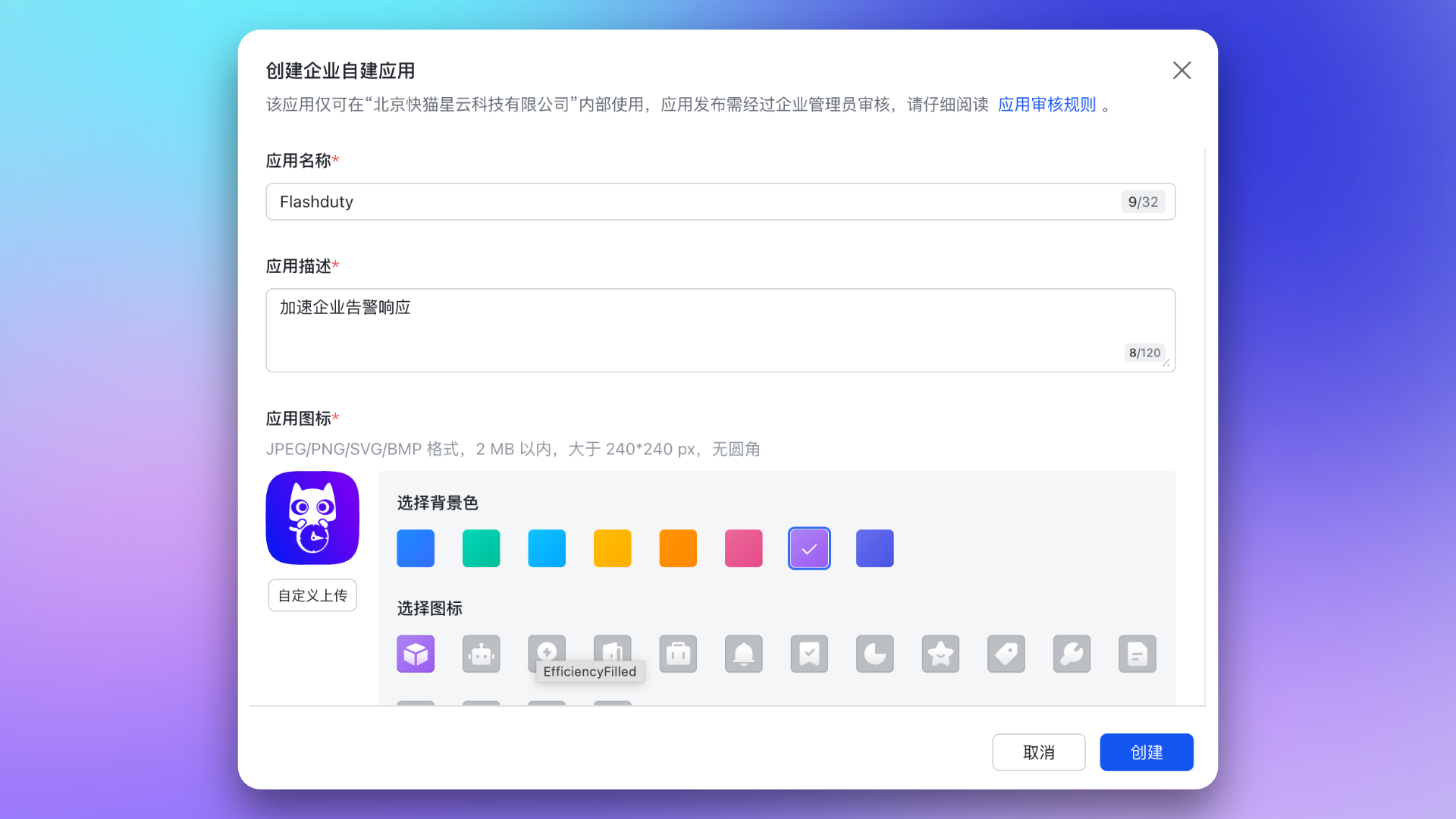
### 1. Create Custom App
Visit [Feishu/Lark Developer Console](https://open.feishu.cn/app) to create an enterprise custom app. You can use the [Flashduty official icon](https://download.flashcat.cloud/flashcat_logo_circular.png) as the app icon.
For details, see Feishu/Lark development documentation [Create Enterprise Custom App](https://open.feishu.cn/document/uYjL24iN/uMTMuMTMuMTM/development-guide/step1#132c1aac).
### 2. Copy Credential Information
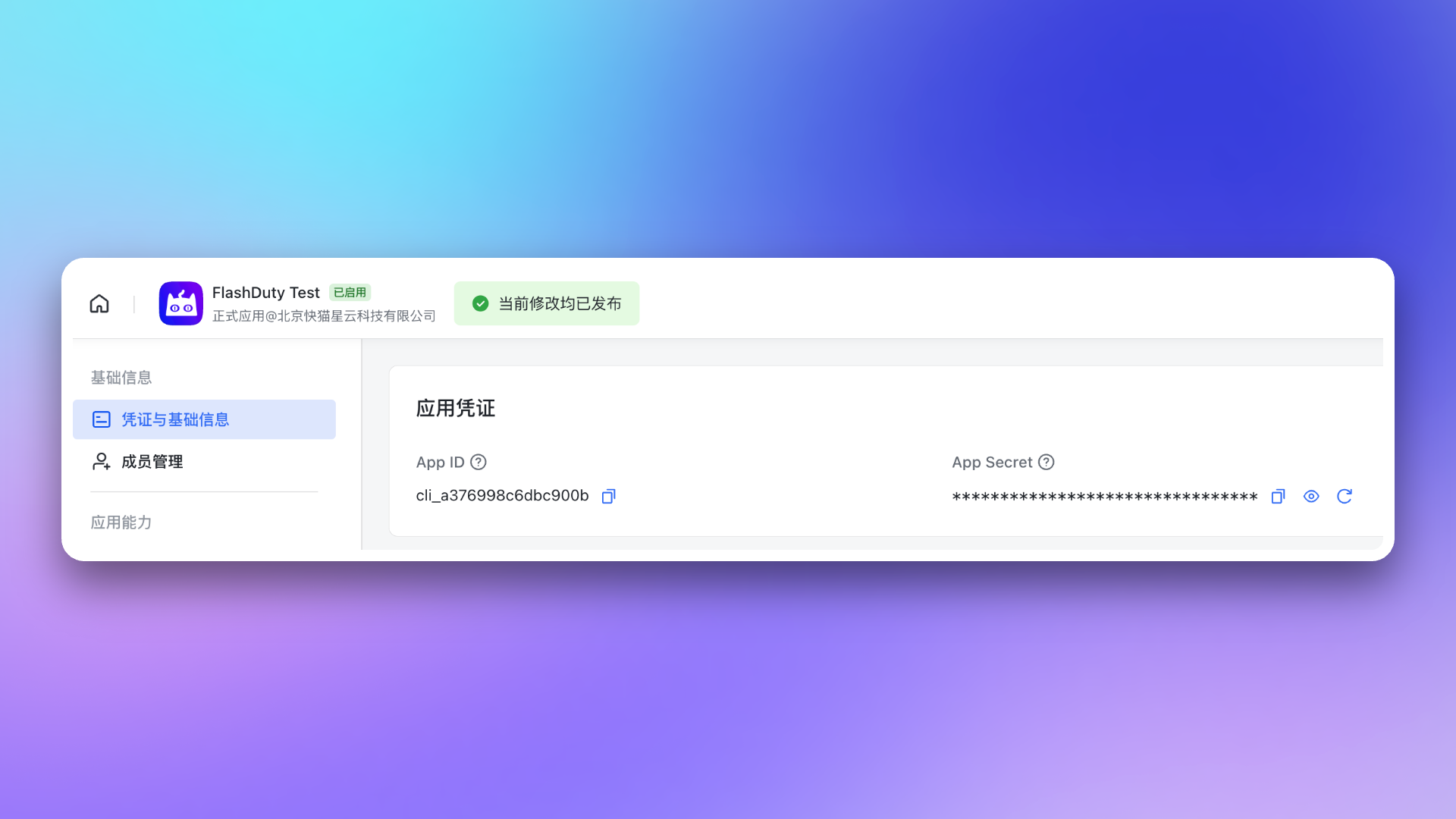
Go to **Credentials & Basic Info** page, copy `App ID` and `App Secret` for later use.
### 3. Copy Event Callback Token Information
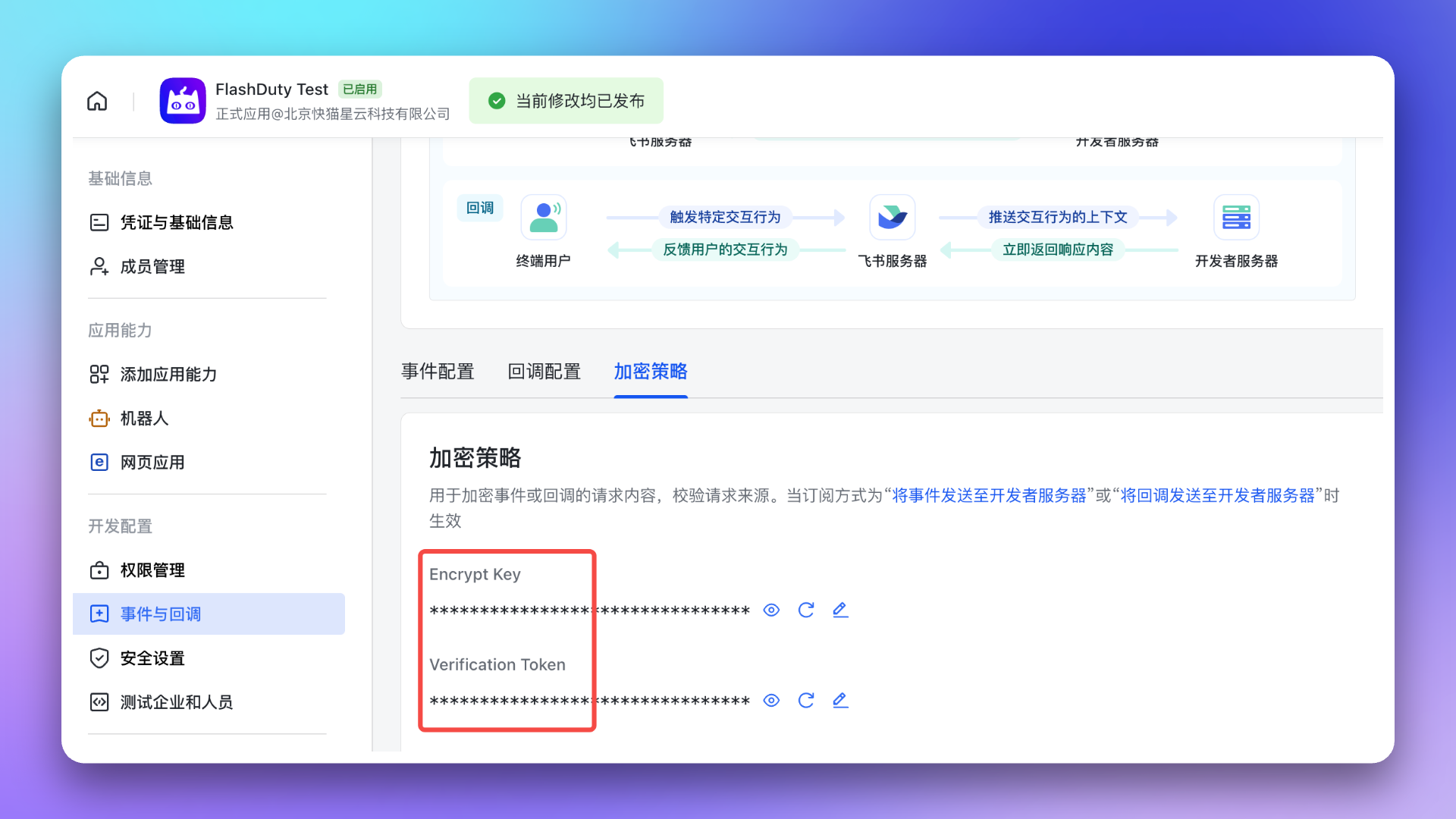
Go to Development Configuration → Events & Callbacks → **Encryption Strategy** page, generate and copy `Encrypt Key` (recommended for better security) and `Verification Token` for later use.
## 2. Add Feishu/Lark Integration
***
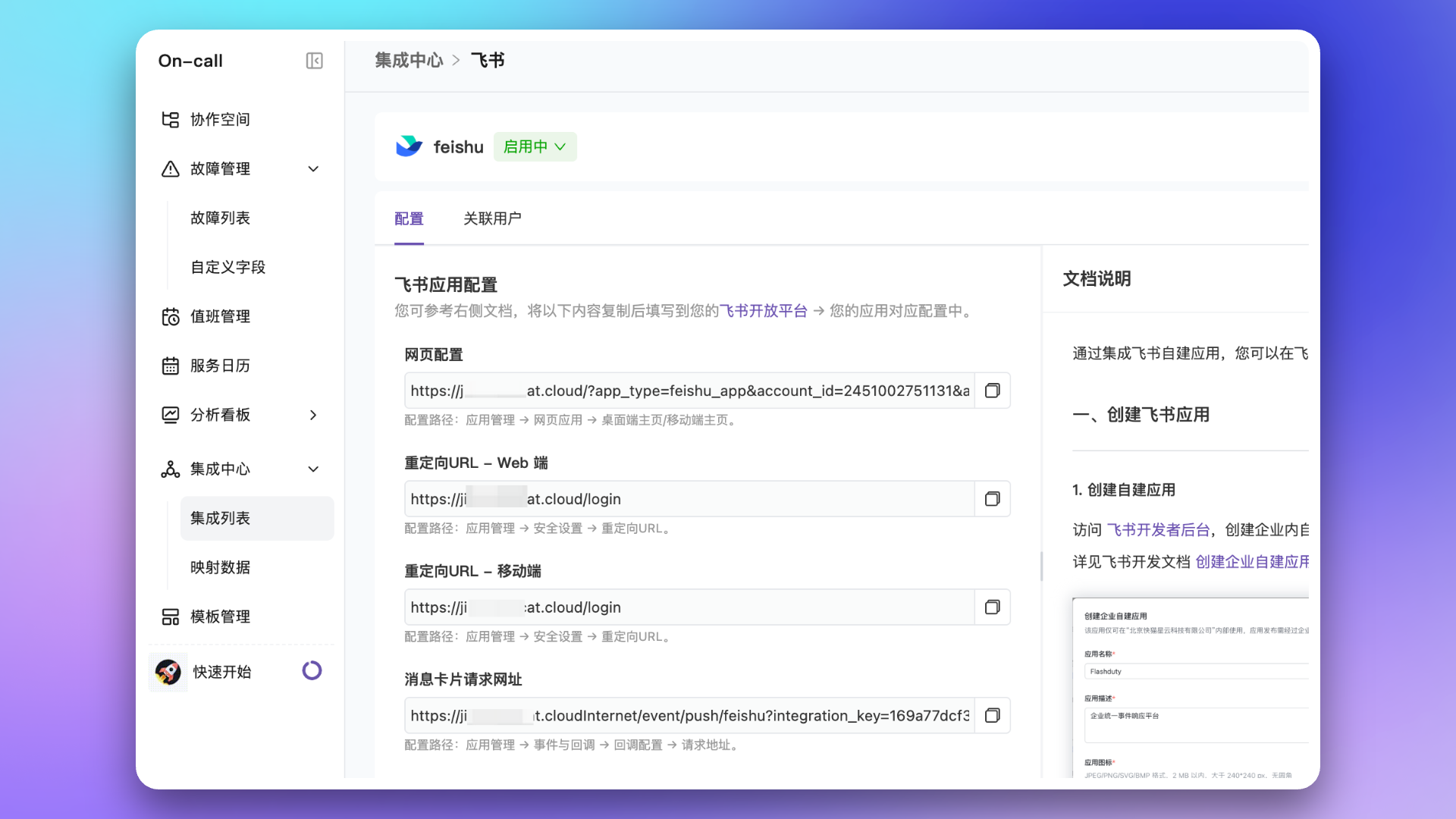
Return to Flashduty On-call **Integration Center** page, select Instant Messaging → **Feishu/Lark**, fill in `Name` and the `App ID`, `App Secret`, `Verification Token`, and `Encrypt Key` copied in the previous step, then click **Save** to complete creation.
After successful creation, you'll see the added Feishu/Lark integration in the list. Click its name to enter the details page to view **Web Configuration** URL, **Redirect URL**, and **Message Card Request URL**, which will be used in subsequent steps.
## 3. Configure Feishu/Lark App
***
### 1. Enable and Configure App Capabilities
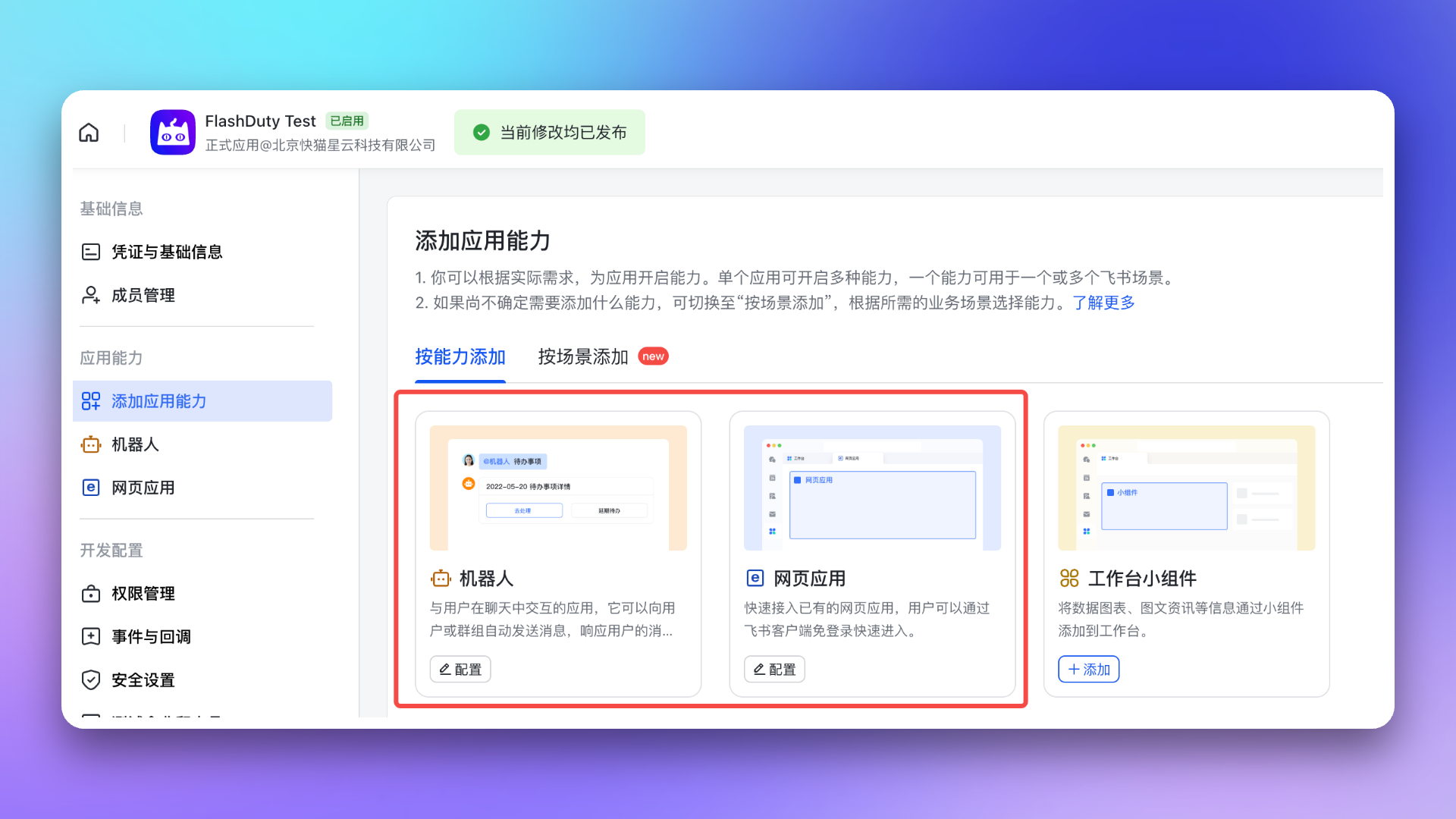
1. Return to Feishu/Lark Developer Console, enter the Feishu/Lark app you just created, go to Add App Capabilities → **Add by Capability** page, and enable both **Web App** and **Bot** capabilities.
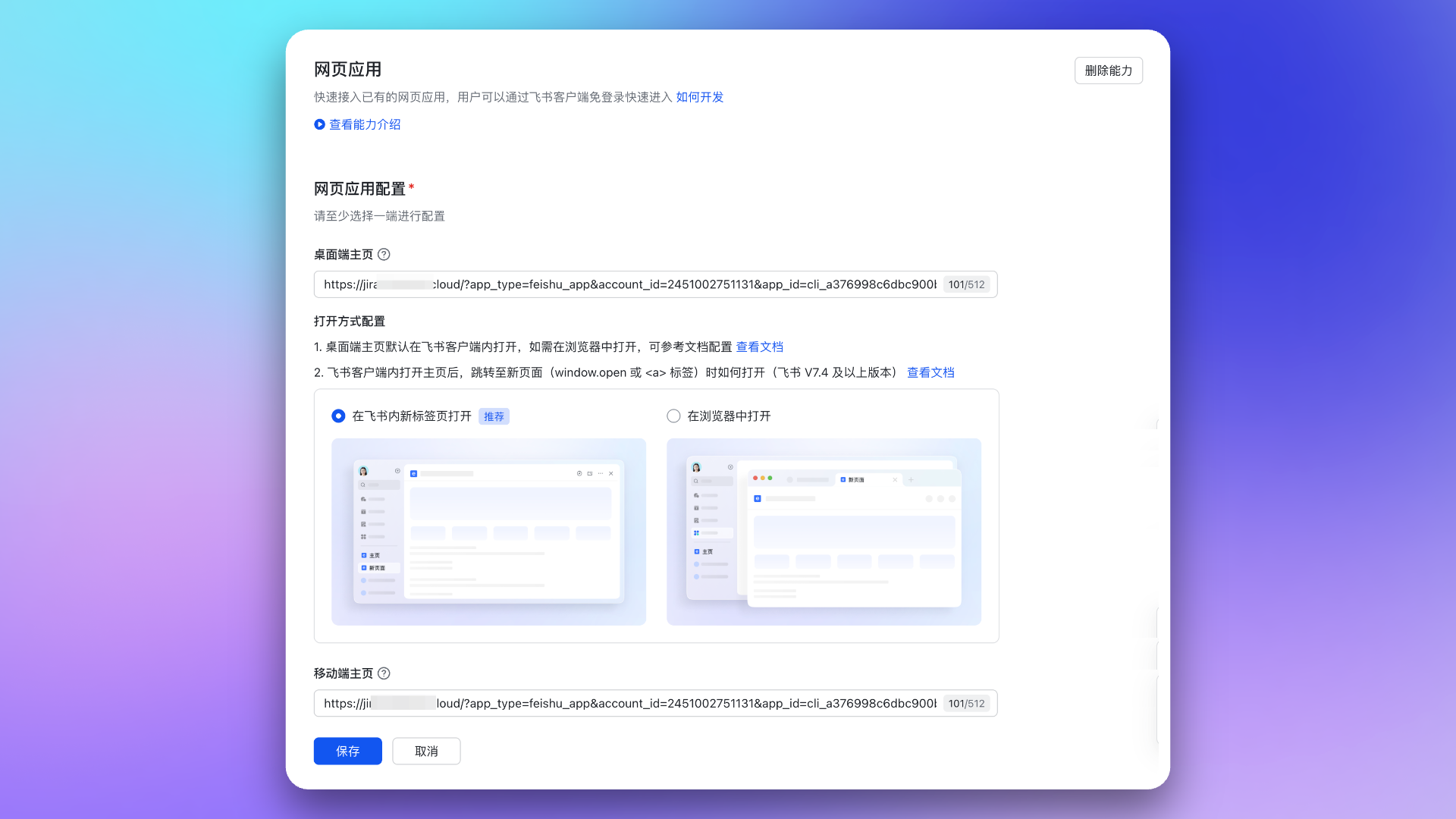
2. Go to **Web App** page, configure `Desktop Homepage` and `Mobile Homepage`, both using the **Web Configuration** URL from integration details. See Feishu/Lark development documentation [Configure App Homepage URL](https://open.feishu.cn/document/uYjL24iN/uMTMuMTMuMTM/development-guide/step1#8366b844).
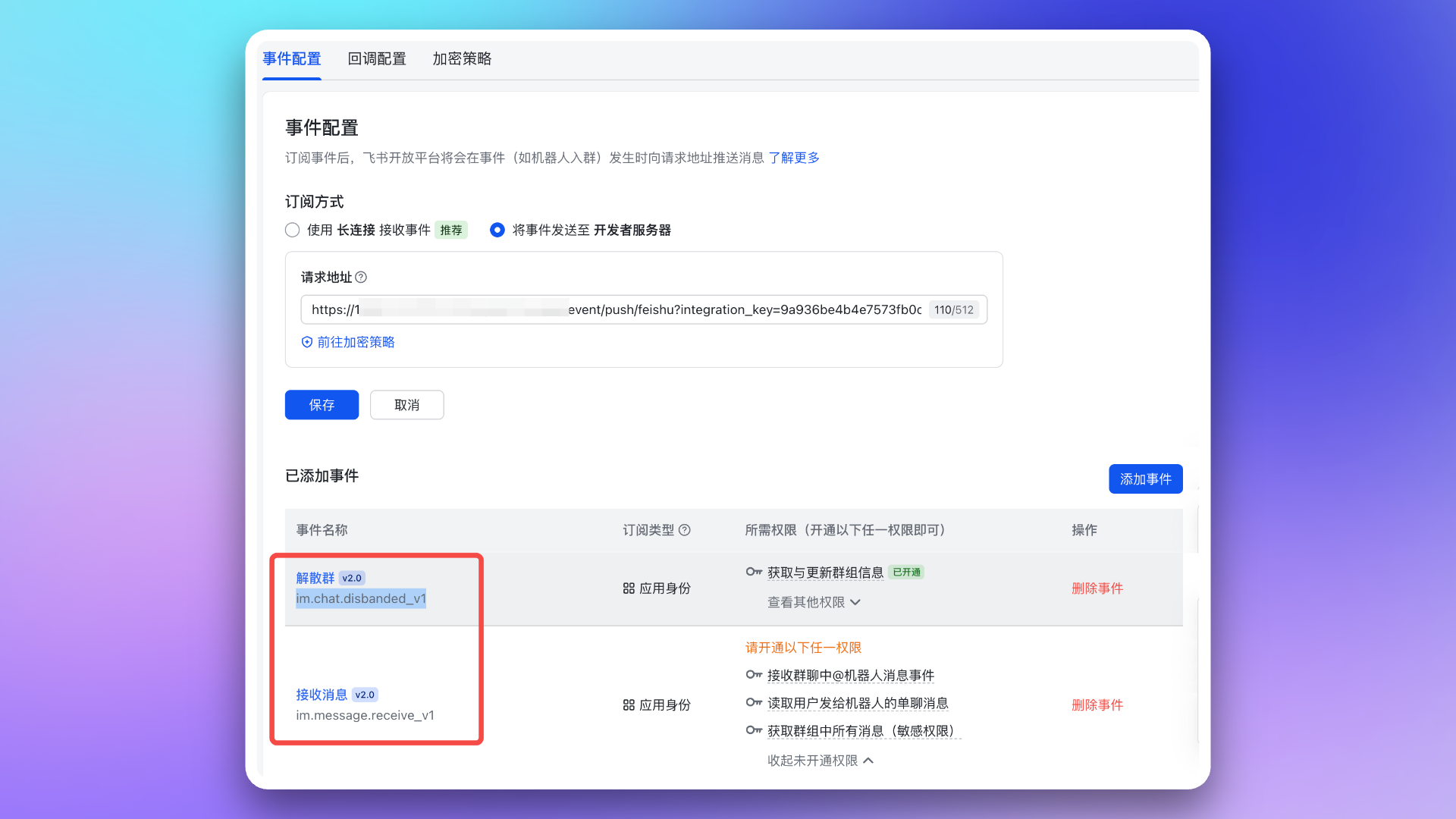
3. Go to Event Callbacks → **Event Configuration** page, configure `Subscription Method` (content is the **Message Card Request URL** from integration details). Then add the following two events:
* `im.chat.disbanded_v1`
* `im.message.receive_v1`
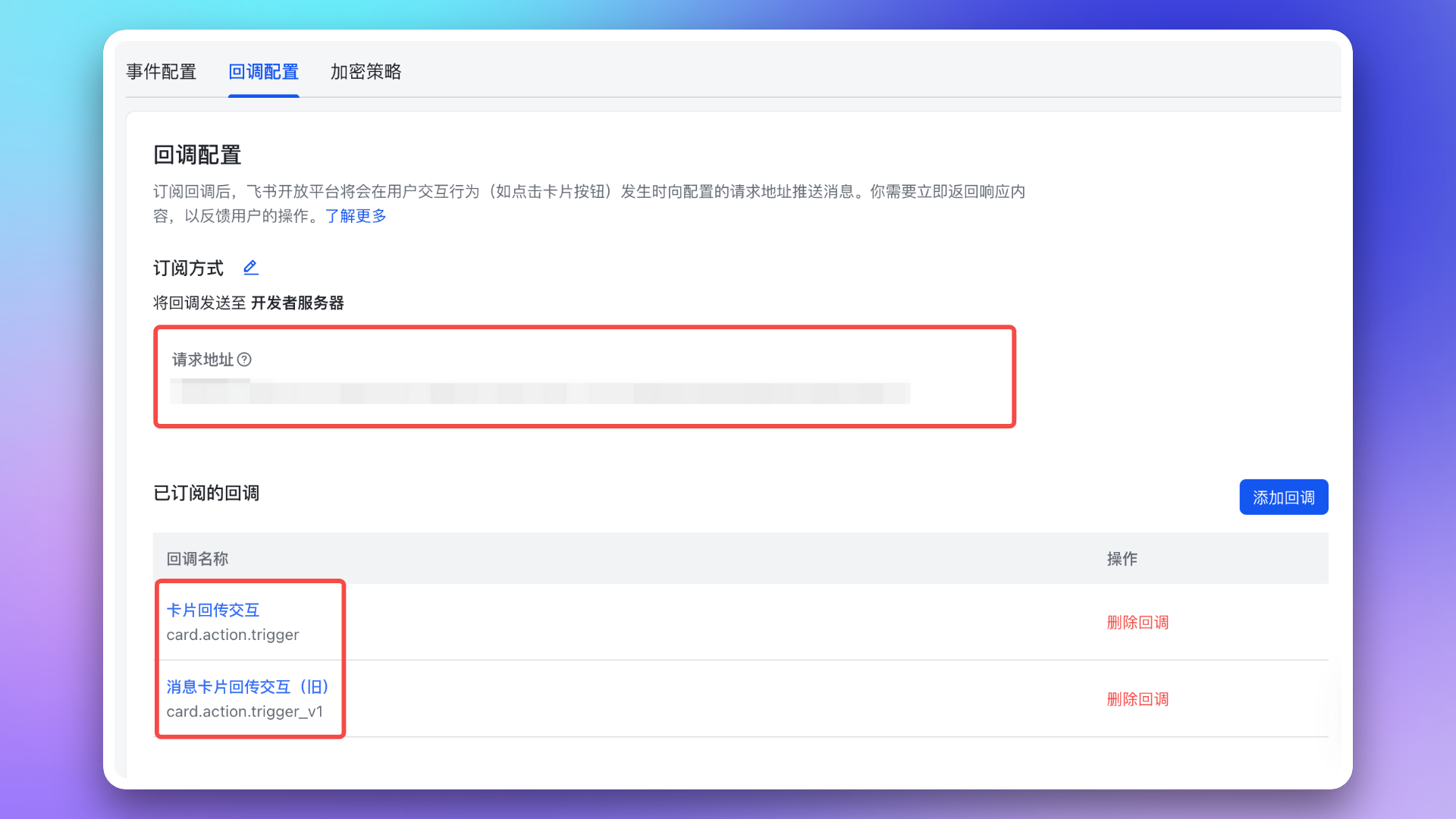
4. Go to Event Callbacks → **Callback Configuration** page, configure `Subscription Method` (content is the **Message Card Request URL** from integration details). Then subscribe to the following two callbacks:
* `card.action.trigger`
* `card.action.trigger_v1`
### 2. Add Redirect URL to Feishu/Lark App
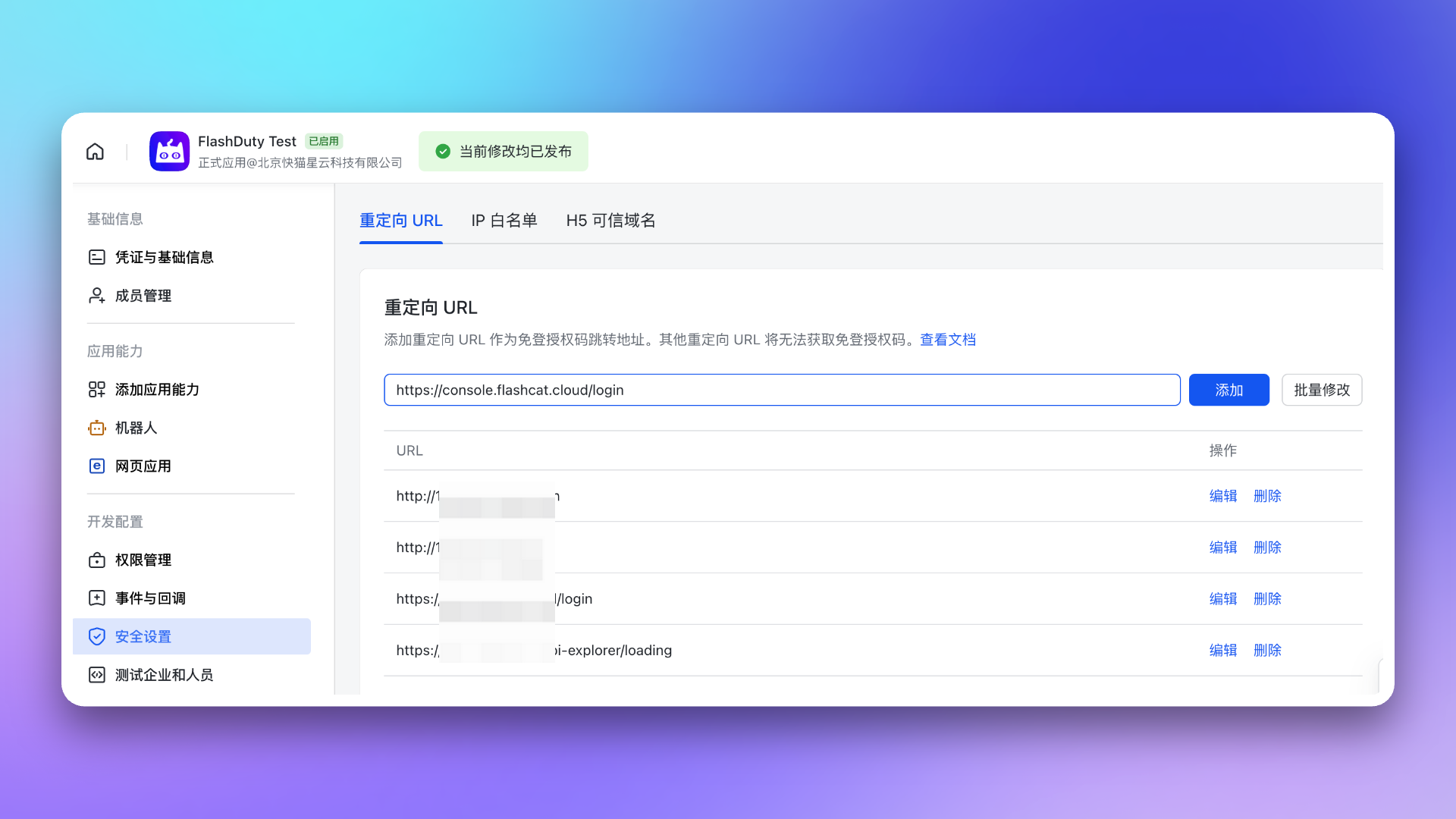
Go to **Security Settings** page, configure `Redirect URL`, content is the **Redirect URL** from integration details.
See Feishu/Lark development documentation [Configure Redirect URL](https://open.feishu.cn/document/uYjL24iN/uYjN3QjL2YzN04iN2cDN?lang=zh-CN#c863e533).
### 3. Request App Permissions
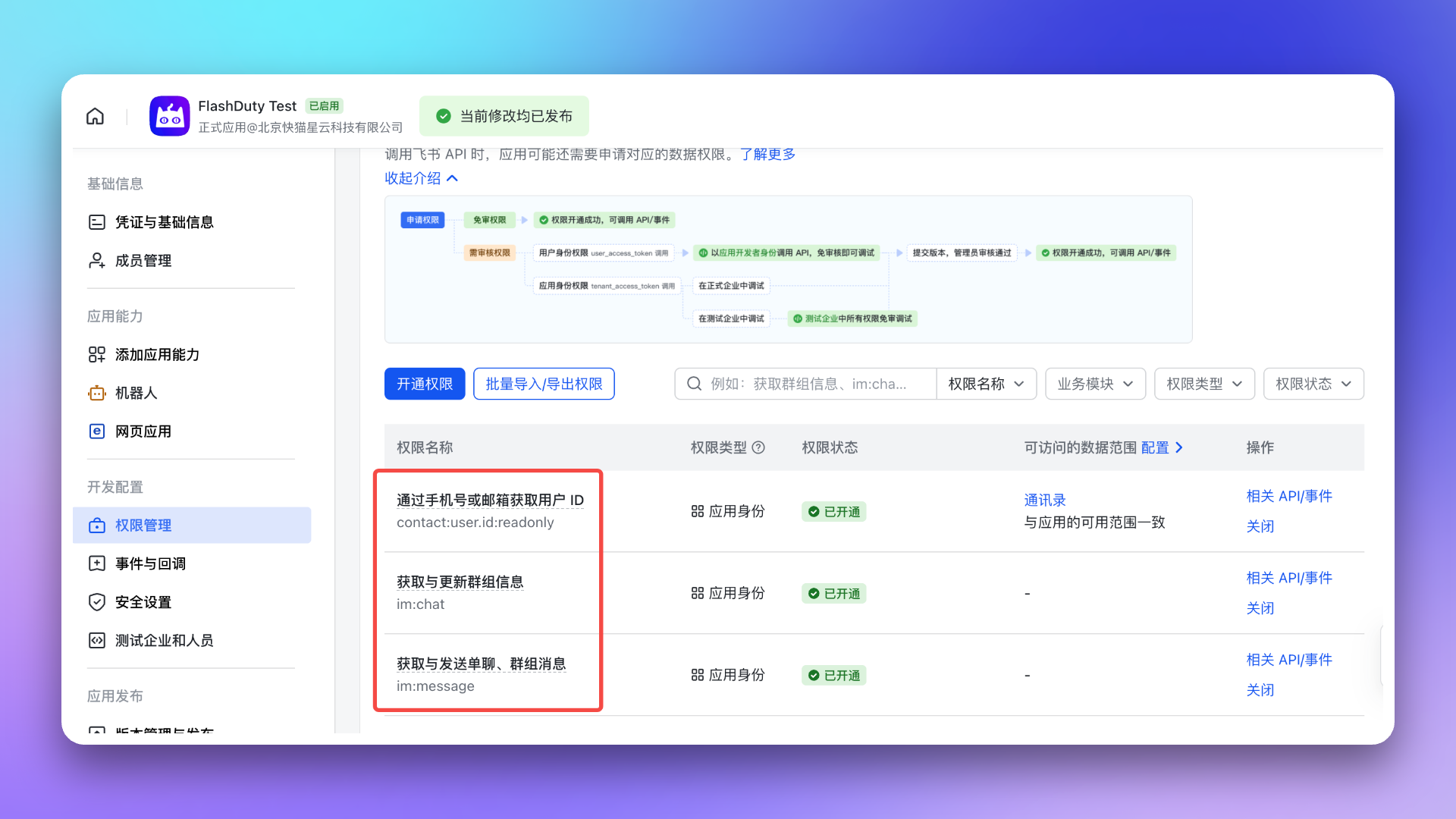
Go to the **Permission Management** page and request all permissions listed in [AI SRE Required Permissions](#aisre-permissions) for the app created in previous steps. Pay special attention to `im:message.p2p_msg:readonly` and `im:message.group_at_msg:readonly`; without them, Feishu/Lark will not push direct-chat messages or group @bot messages to Flashduty. After changing permissions or event subscriptions, publish a new app version for the changes to take effect in production.
## 4. Publish and Use App
After completing all the above configurations, please publish the app. It can be used after admin approval. See Feishu/Lark development documentation [App Publishing and Usage](https://open.feishu.cn/document/uYjL24iN/uMTMuMTMuMTM/development-guide/step-4).
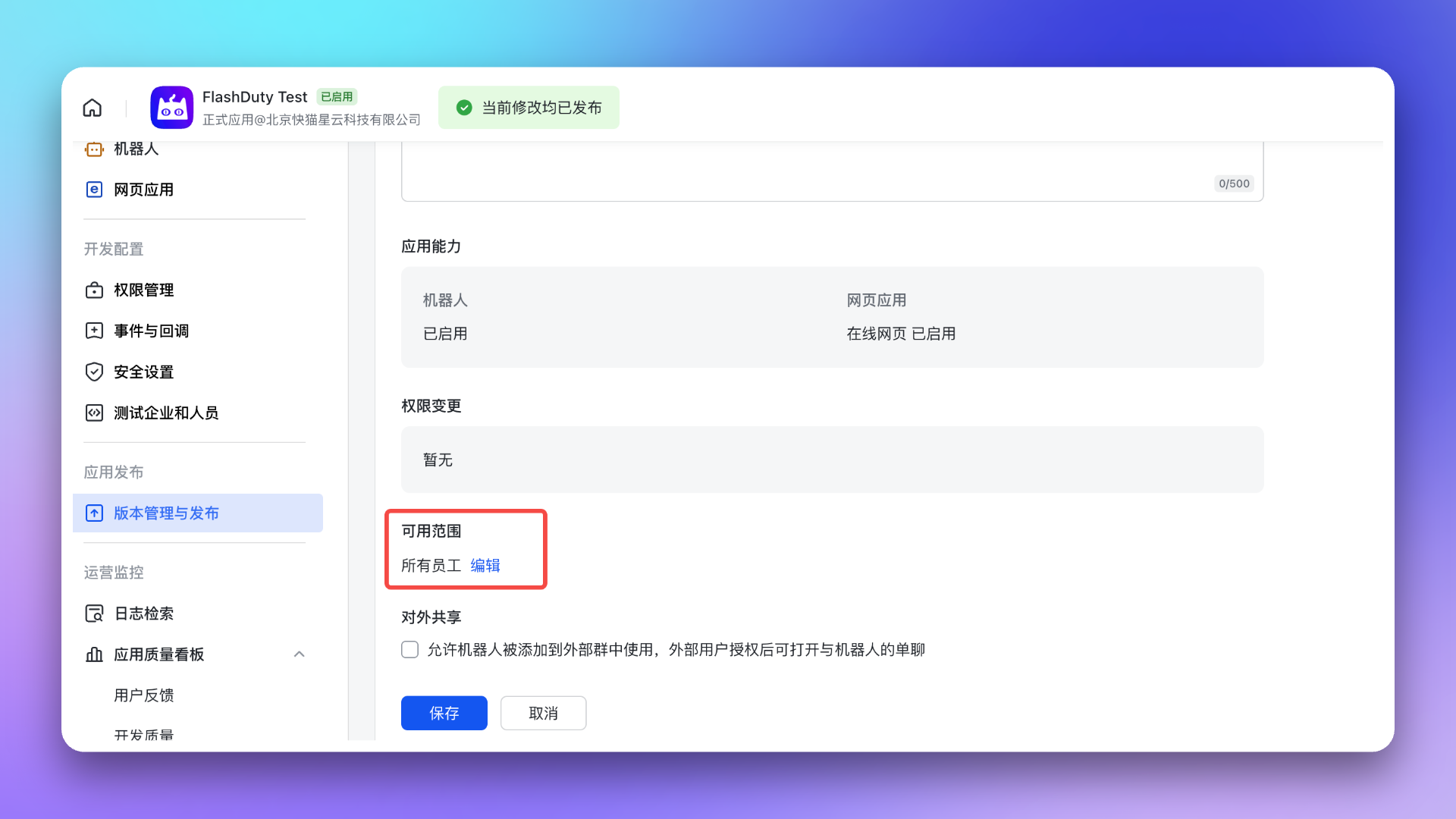
To ensure everyone can use the app, adjust the app **Visibility** to all employees before publishing.
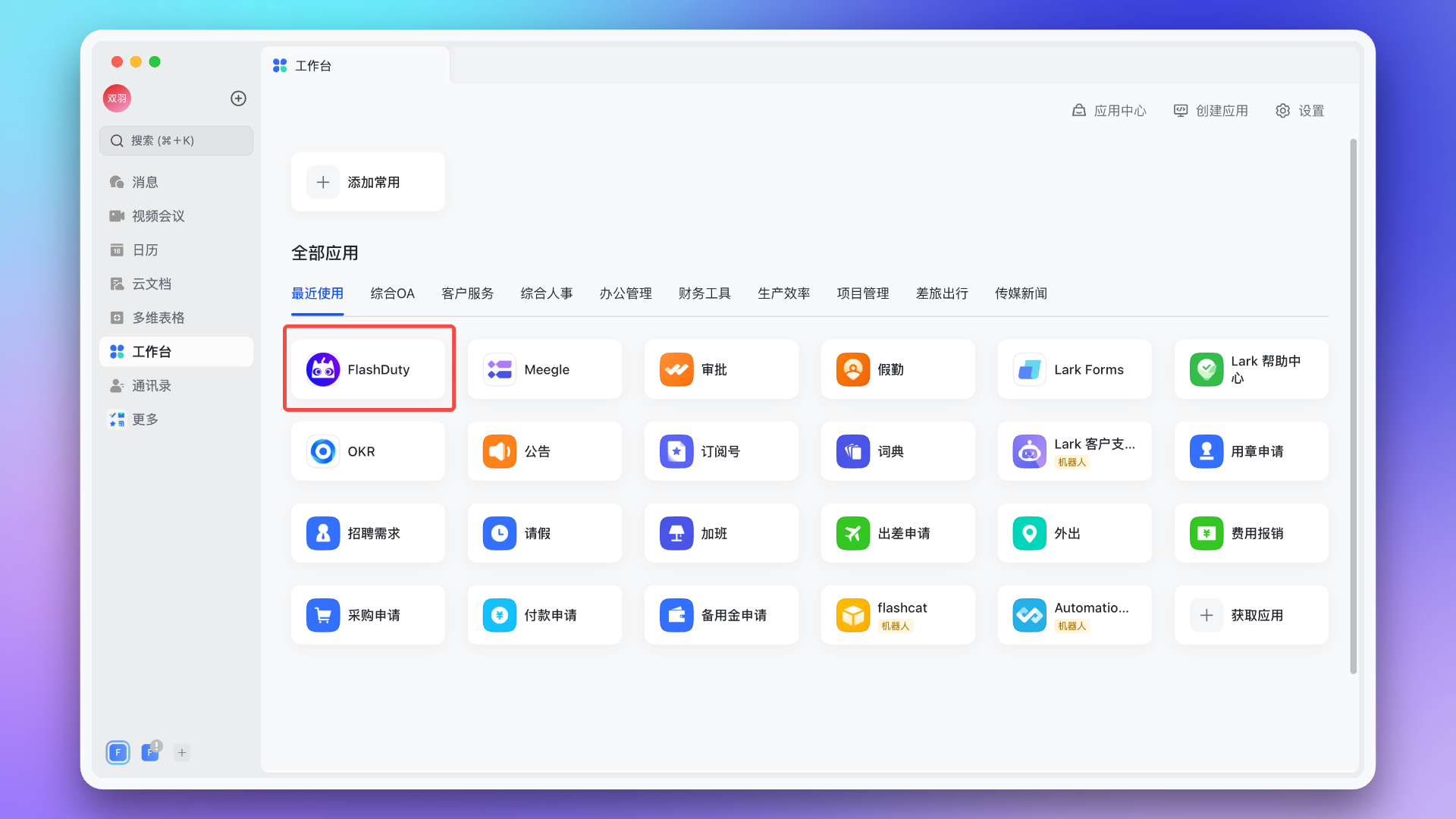
After publishing, you can access the app via **Mobile** or **Desktop**. First access requires login to link Feishu/Lark and Flashduty accounts; subsequent access will be passwordless.
Feishu/Lark → Workspace → Search app name → **Open App**
Feishu/Lark → Workspace → Search app name → **Open App**
## 5. Configure War Room
> Ensure the app has been granted the [AI SRE required permissions](#aisre-permissions) listed at the beginning of this page.
After completing the previous steps, in the Flashduty On-call integration configuration page's **Enhanced Features** section, check **Enable War Room** to activate this feature—no additional configuration needed.
Only one IM integration can have War Room enabled at a time. If you've already enabled War Room in another IM integration (such as Dingtalk, Slack, or WeCom), you need to disable it there first before enabling it in the current Feishu/Lark integration.
## 6. Linked Users
In the **Linked Users** tab of the integration detail page, you can view the linking status between team members and Feishu/Lark accounts, and quickly complete batch linking.
### View Linking Status
The linked users list shows all team members and their linking status. You can filter by:
| Filter | Description |
| :----------- | :------------------------------------------------------------------- |
| **All** | View all team members |
| **Linked** | View only members who have linked their Feishu/Lark accounts |
| **Unlinked** | View only members who have not yet linked their Feishu/Lark accounts |
Search by name or email is supported.
### One-Click Linking
When unlinked members exist, click the **One-Click Link** button. The system will attempt to obtain Feishu/Lark account IDs via phone numbers or emails and automatically link them, equivalent to members logging into Flashduty using the same information on Feishu/Lark.
The system can only push Feishu/Lark message notifications after members complete linking. If linking fails, verify that the member's phone number or email matches their Feishu/Lark account.
## 7. FAQ
Go to Feishu/Lark → Workspace → Search app name → **Open App**, complete one login to link Feishu/Lark and Flashduty accounts so the system can obtain user identity for message delivery.
* Ensure account linking is complete. Go to Feishu/Lark → Workspace → Search app name → **Open App**, complete one login. If already logged in, try clicking the top-right menu, switch accounts, and re-login to link the account
* Ensure you've purchased sufficient Licenses. View License usage in Console → **Billing Center**
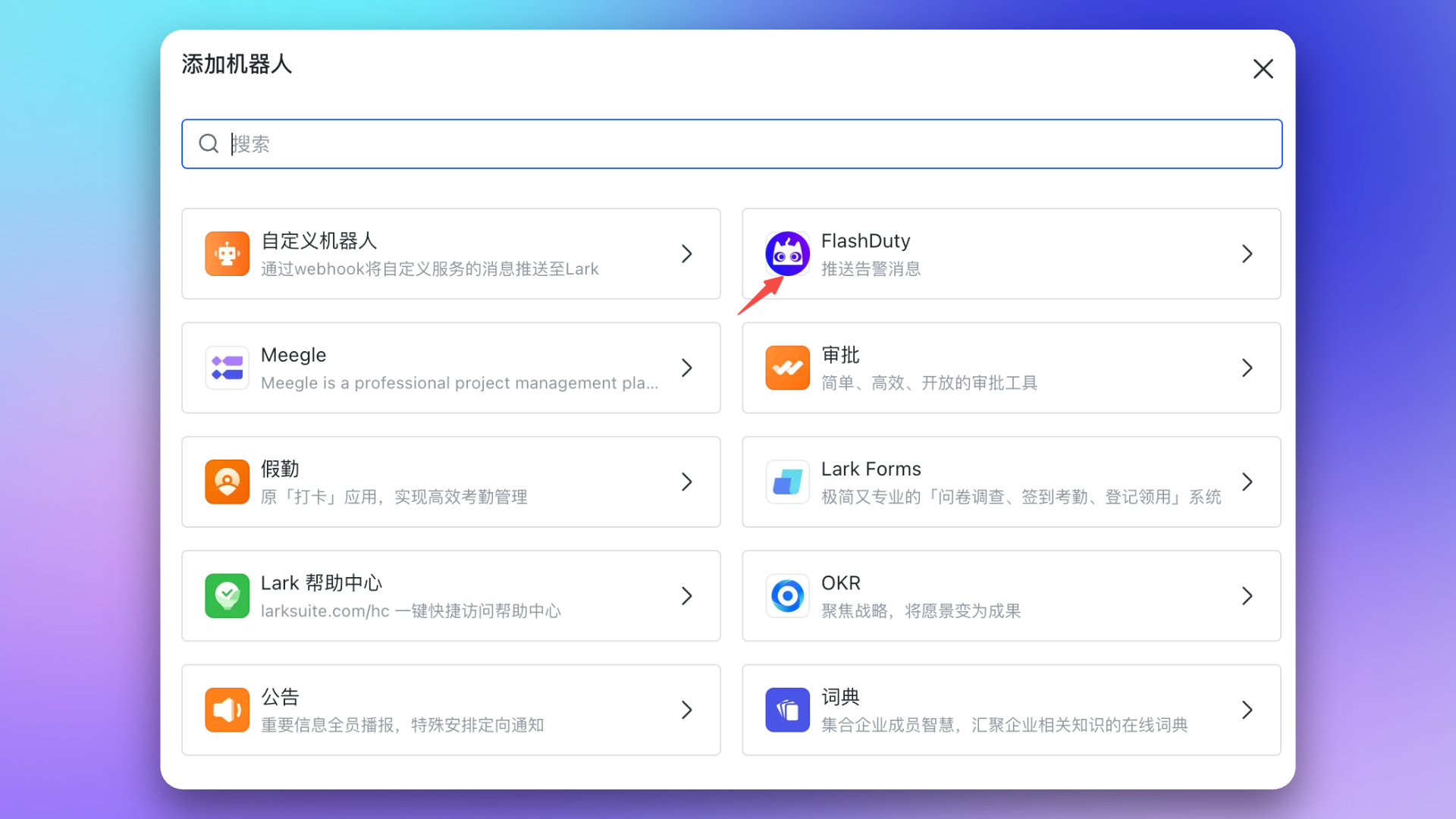
* Go to Feishu/Lark, add the created Flashduty bot to the target group chat
* Return to escalation rule configuration page, refresh and reselect the group chat list
**Call Limits:**
| **Feishu/Lark Version** | **Total Calls/Month** | **Refresh Time** |
| :---------------------: | :-------------------: | :---------------: |
| Basic Free | 10,000 | 1st of each month |
| Other versions | Unlimited | - |
**Rate Limits:**
| **Scenario** | **Limit** |
| :------------------------: | :---------------------------- |
| All APIs | Max 50 calls/second per app |
| Send message API | Max 1000 calls/minute per app |
| Group bot Webhook | Max 100 calls/minute |
| Send to same user or group | Max 5 calls/second |
After exceeding API call limits, Feishu/Lark app cannot deliver messages properly. Use notification channels reasonably. See [Feishu/Lark official documentation](https://open.feishu.cn/document/uAjLw4CM/ugTN1YjL4UTN24CO1UjN/platform-updates-/custom-app-api-call-limit).
* Check again that the app has been granted the [AI SRE required permissions](#aisre-permissions) listed at the beginning of this page
* See the **FAQ** section in [War Room documentation](/en/on-call/advanced/war-room)