> ## Documentation Index
> Fetch the complete documentation index at: https://docs.flashduty.com/llms.txt
> Use this file to discover all available pages before exploring further.
# Microsoft Teams
> By integrating the Microsoft Teams third-party app, you can receive and respond to alerts within Microsoft Teams
**Plan requirement**: IM integration requires an On-call Pro or higher subscription. [Learn more](https://flashcat.cloud/flashduty/price/)
Microsoft Teams integration is currently in Beta stage. The following steps must be completed by a Microsoft Teams administrator.
## 1. Install and Update App
Download [FlashdutyBot-v1.0.3.zip](https://flashduty-docs.oss-cn-beijing.aliyuncs.com/docs/FlashdutyBot-v1.0.3.zip) to your local machine.
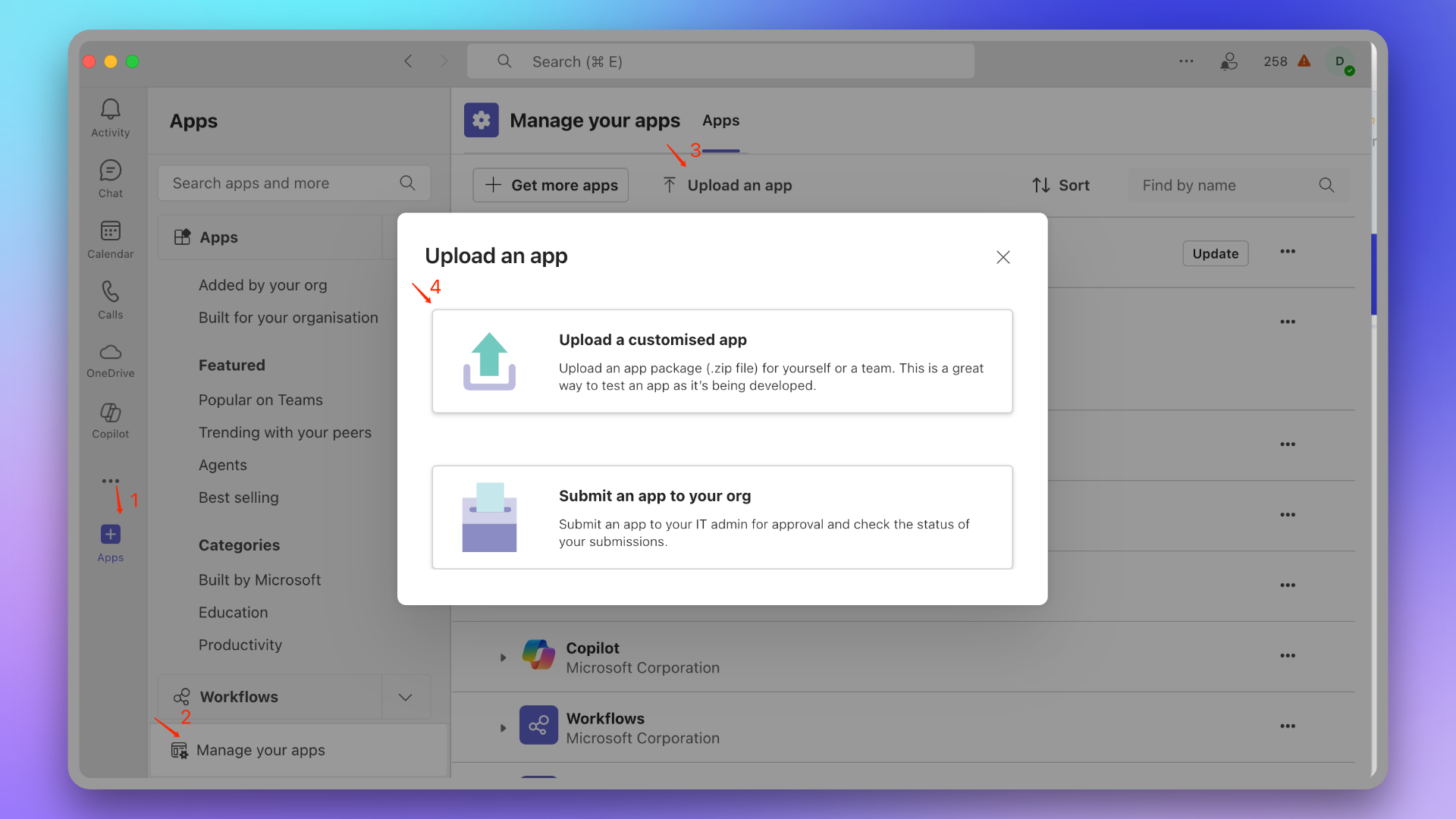
Go to Microsoft Teams, navigate to +Apps → Manage your apps → Upload an app → **Upload an app to your org's app catalog**, then upload the app package `FlashdutyBot.zip`.
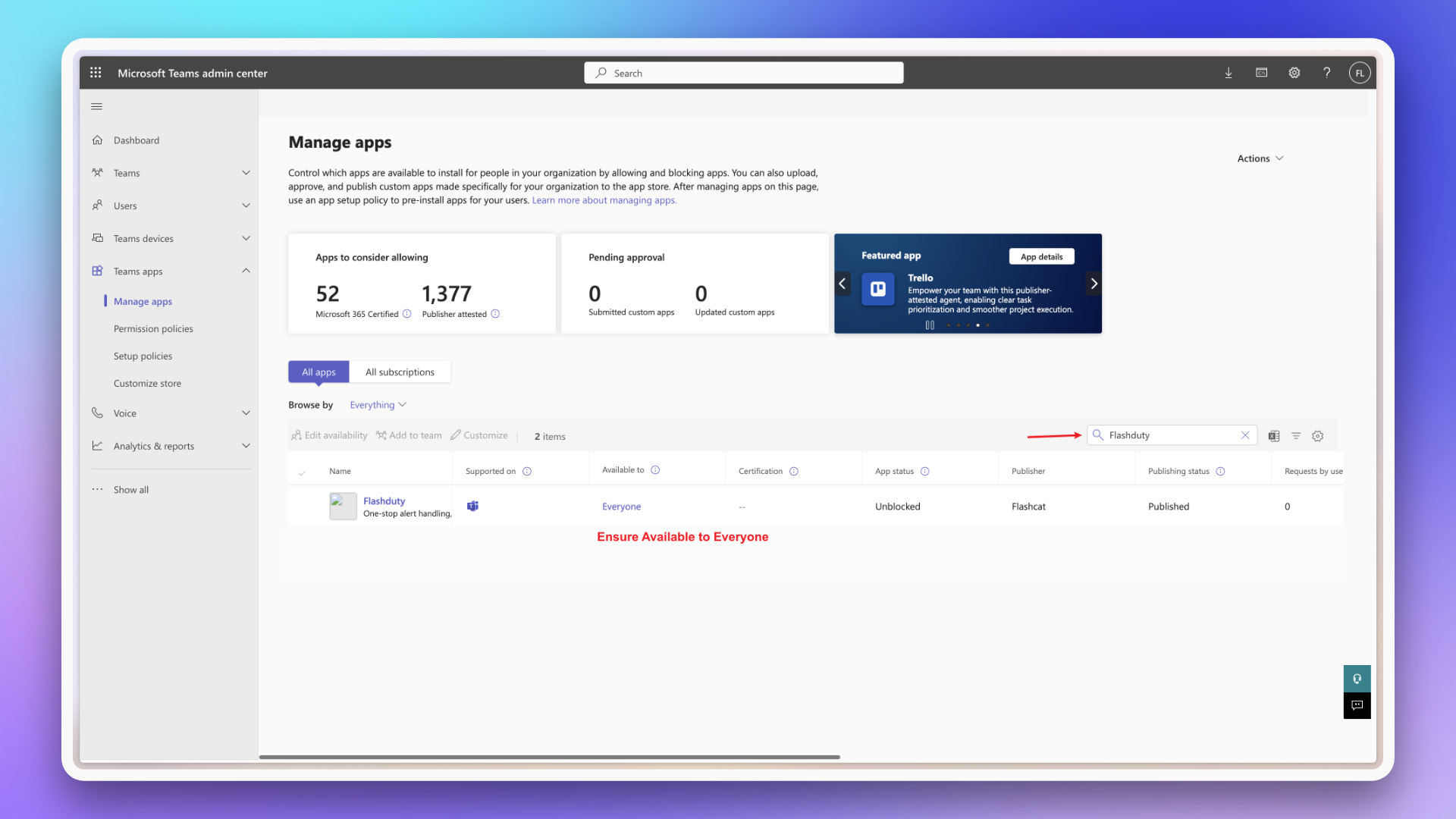
Go to [Microsoft Teams Admin Center](https://admin.teams.microsoft.com/policies/manage-apps), find the Flashduty On-call app, adjust app visibility to everyone or your specified scope.
If the app status shows "Blocked", please wait a moment and refresh the page or modify manually.
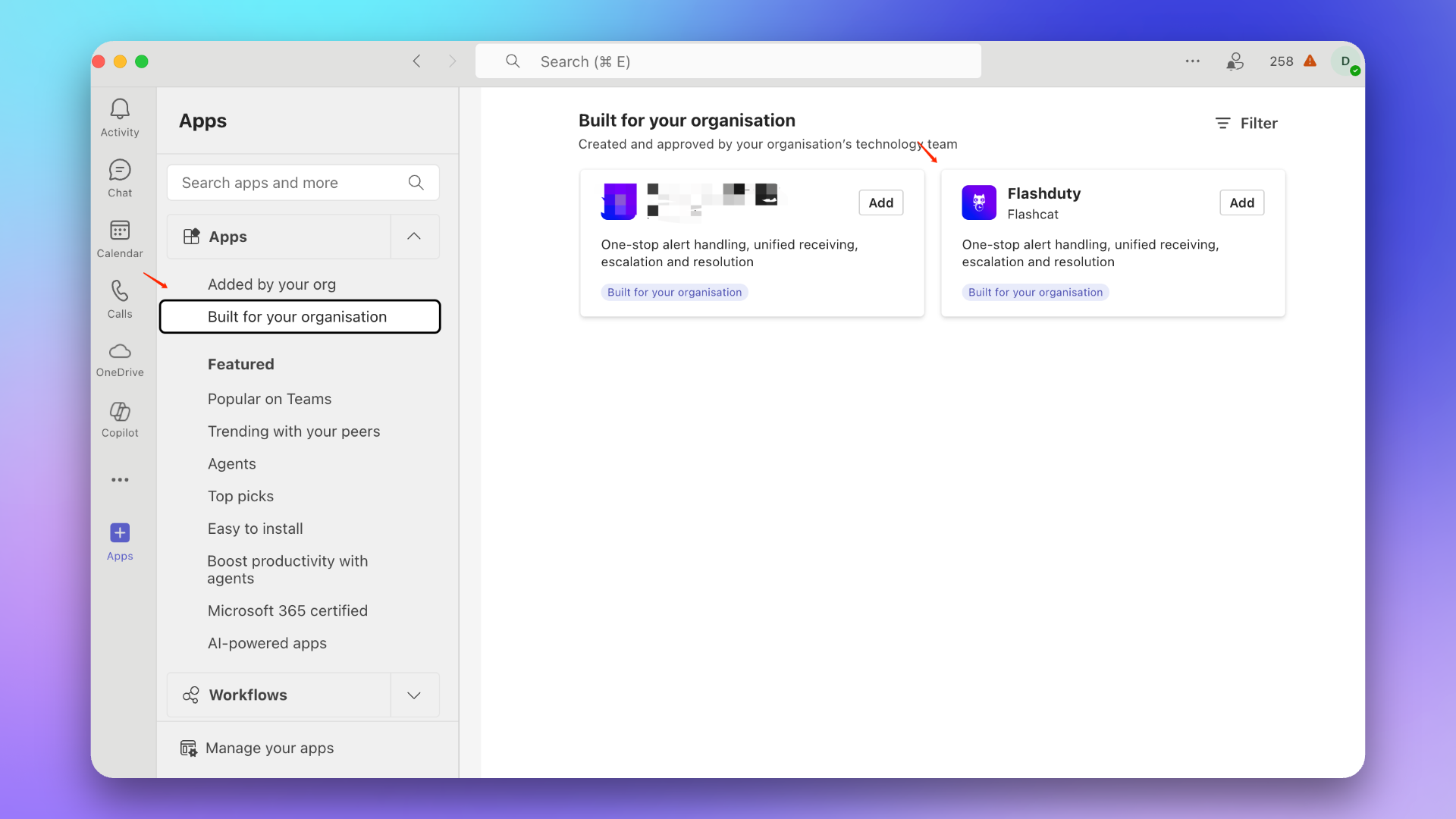
Wait a few minutes, organization members can find this app in +Apps → **Built for your org**.
### Update App
If your installed app version is lower than 1.0.3, please follow the process below to update.
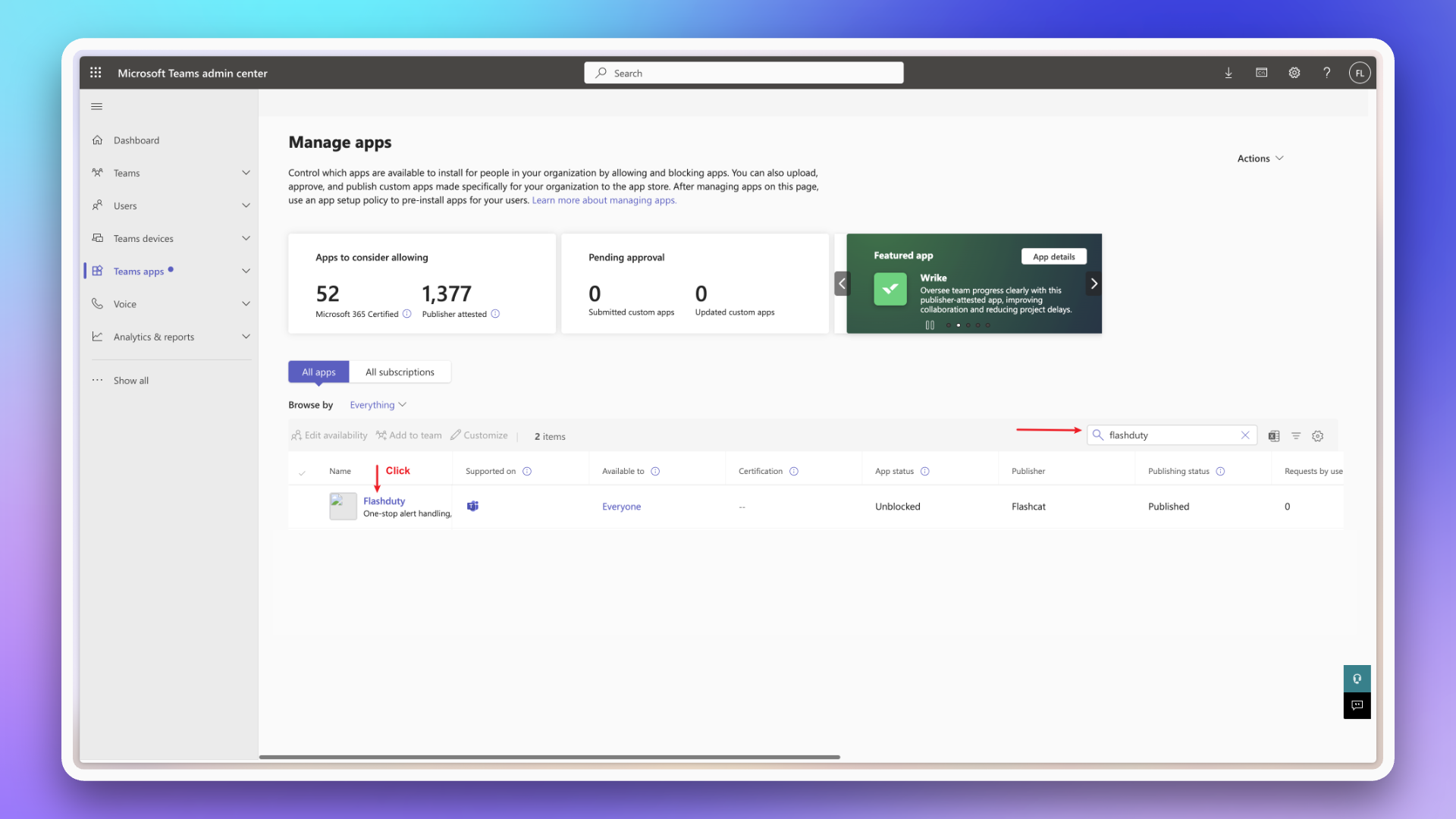
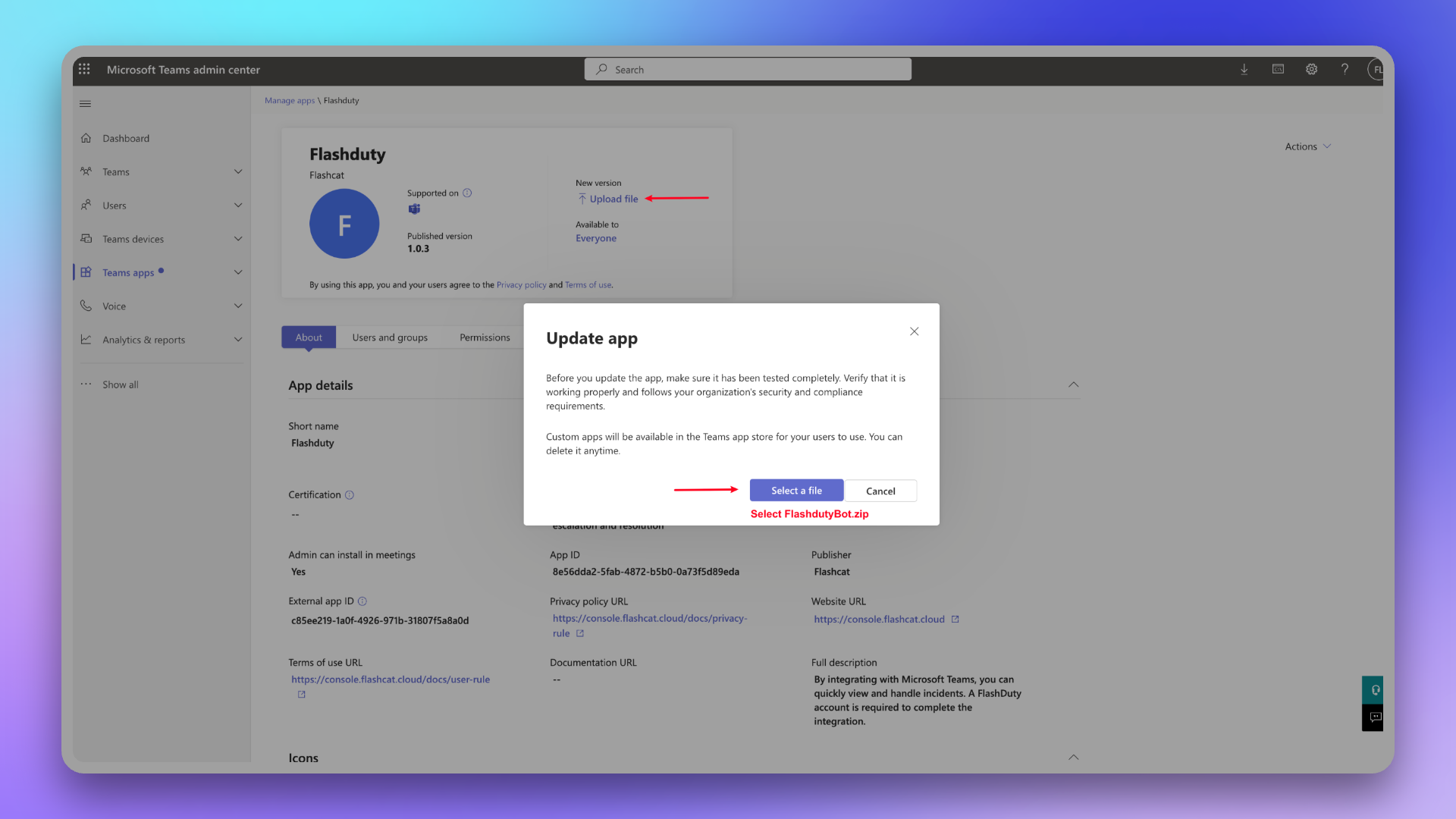
Go to [Microsoft Teams Admin Center](https://admin.teams.microsoft.com/policies/manage-apps), find and enter the Flashduty app details page.
Upload the new `FlashdutyBot.zip`.
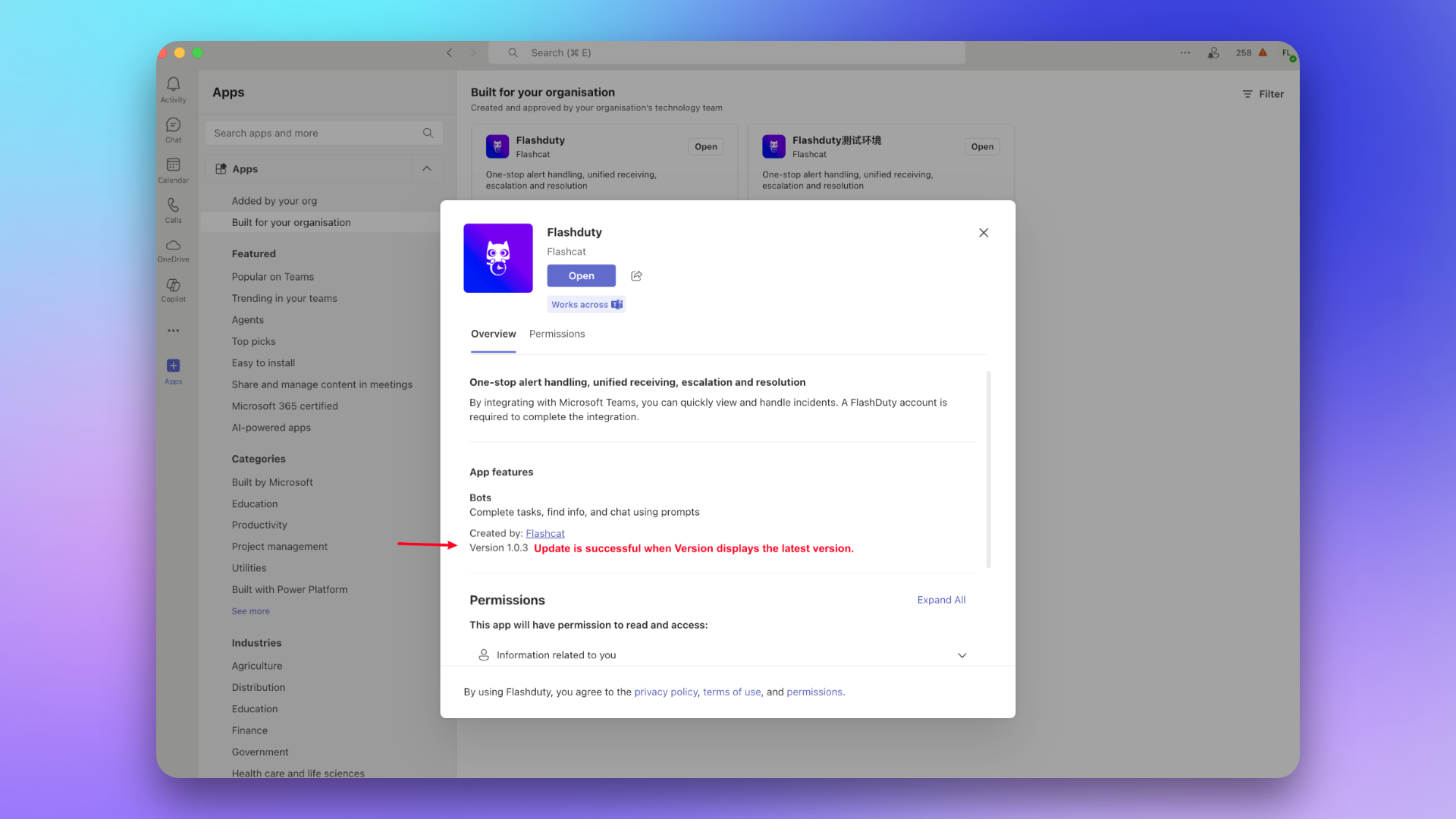
Wait for the app version to update in the client (may take tens of minutes).
## 2. Link Team
Find the Flashduty On-call app in the app marketplace.
If app not found, please contact your Microsoft Teams organization administrator.
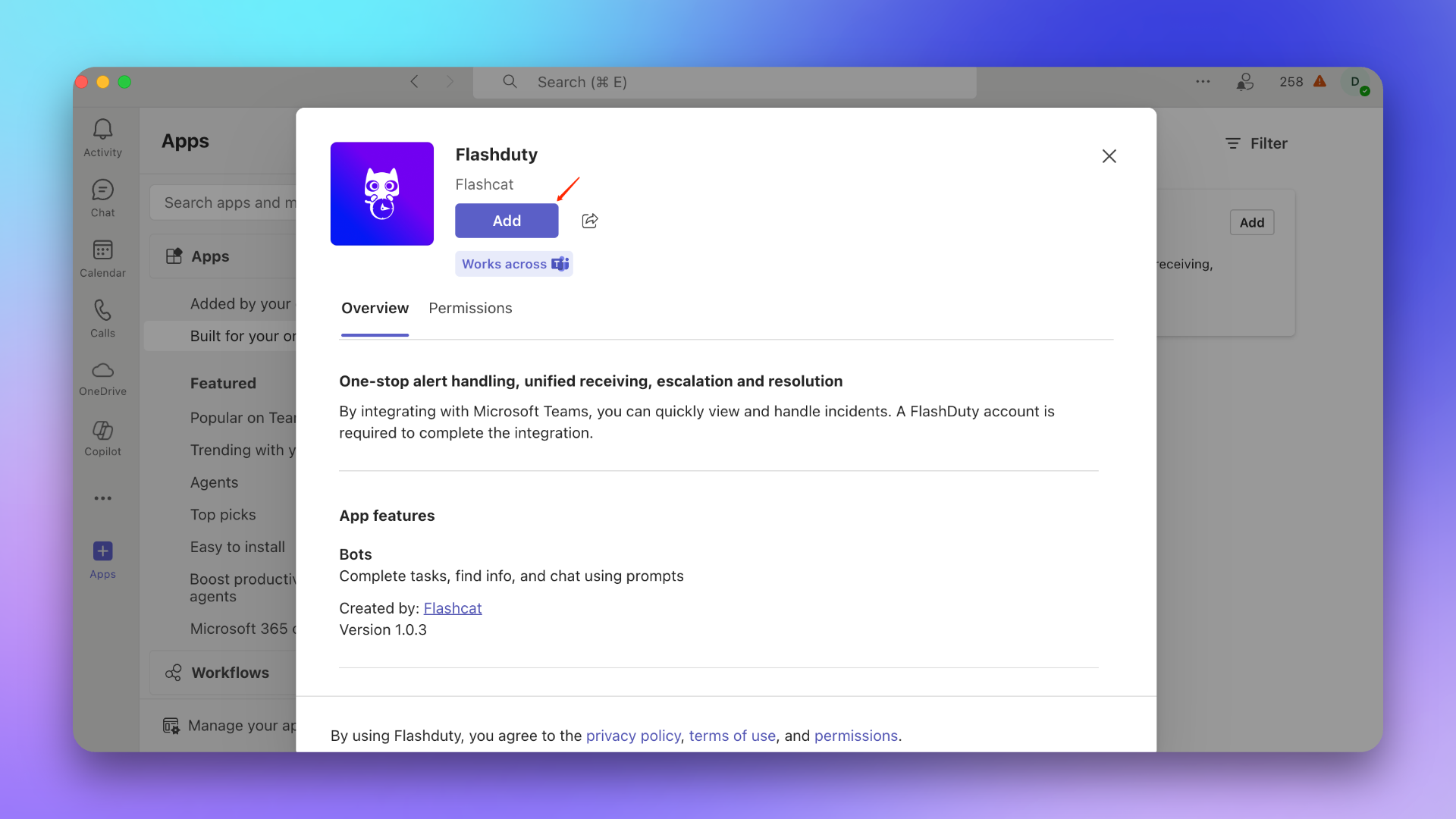
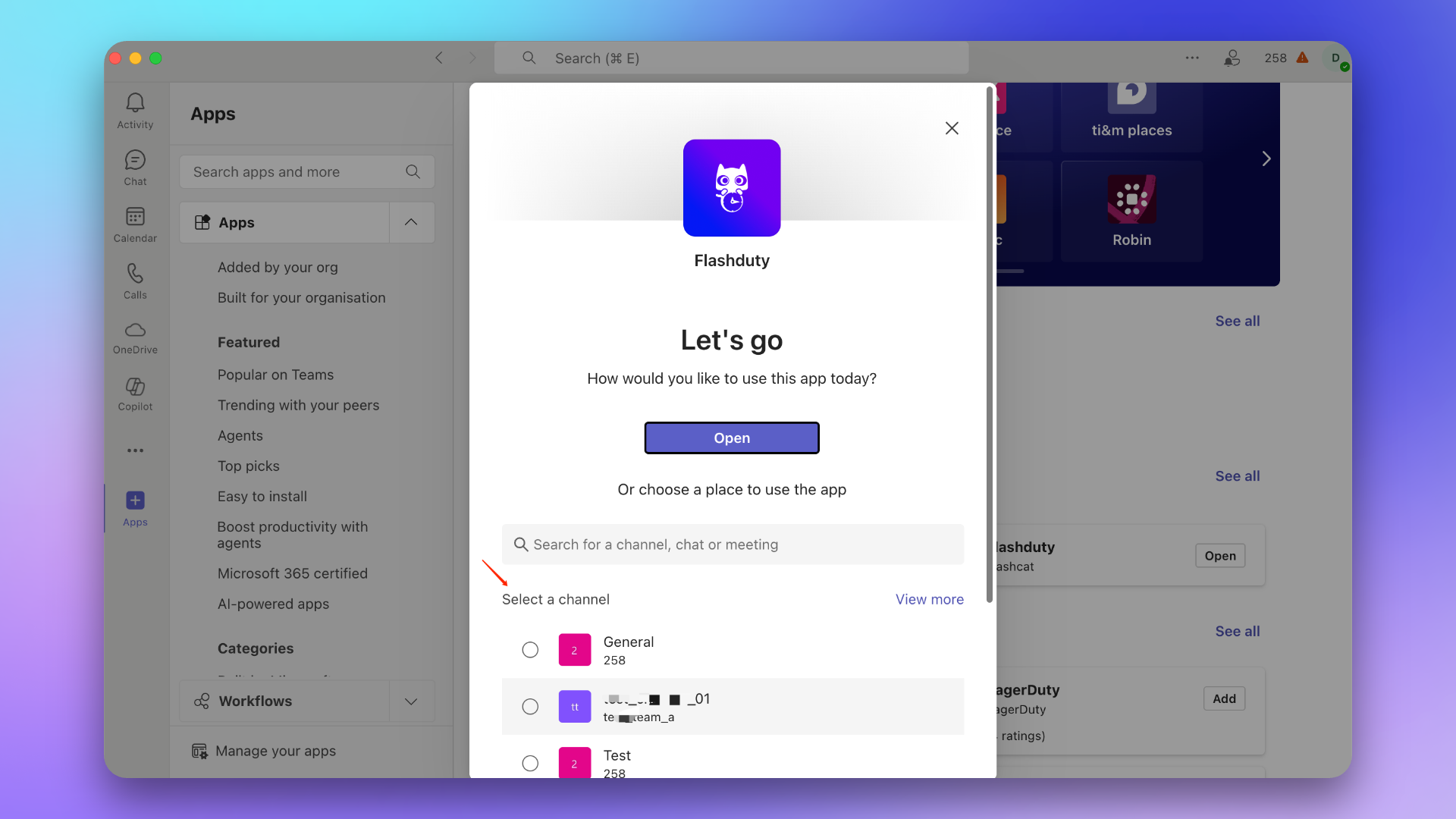
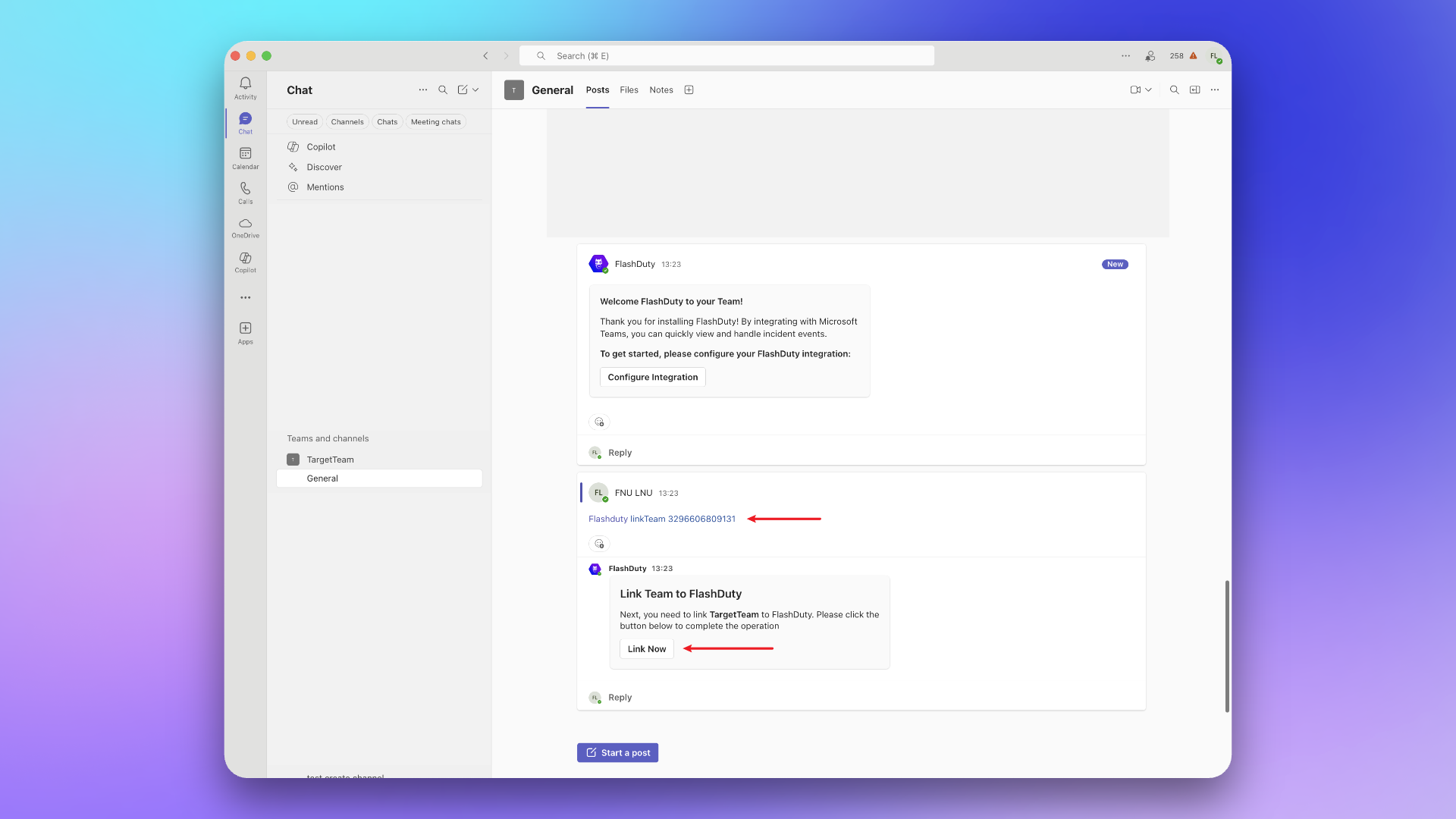
Add the app to the target Team.
This step must select the target Team's General Channel, otherwise incidents cannot be sent to the Team.
In the Team, @Flashduty and send command `linkTeam {ID}`, then click **Link Now**.
## 3. Link Chat
Find the Flashduty On-call app in the app marketplace.
If app not found, please contact your Microsoft Teams organization administrator.

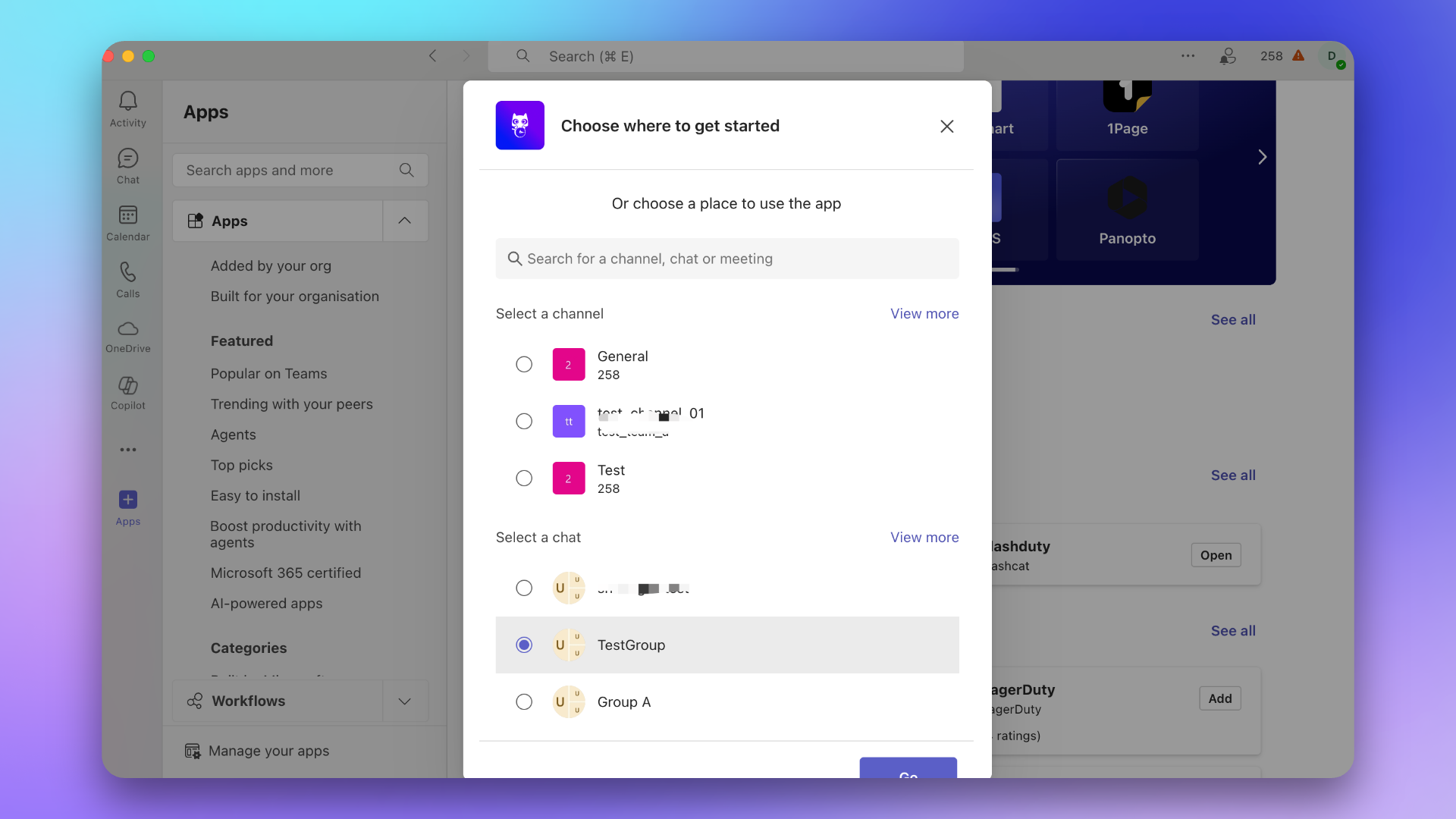
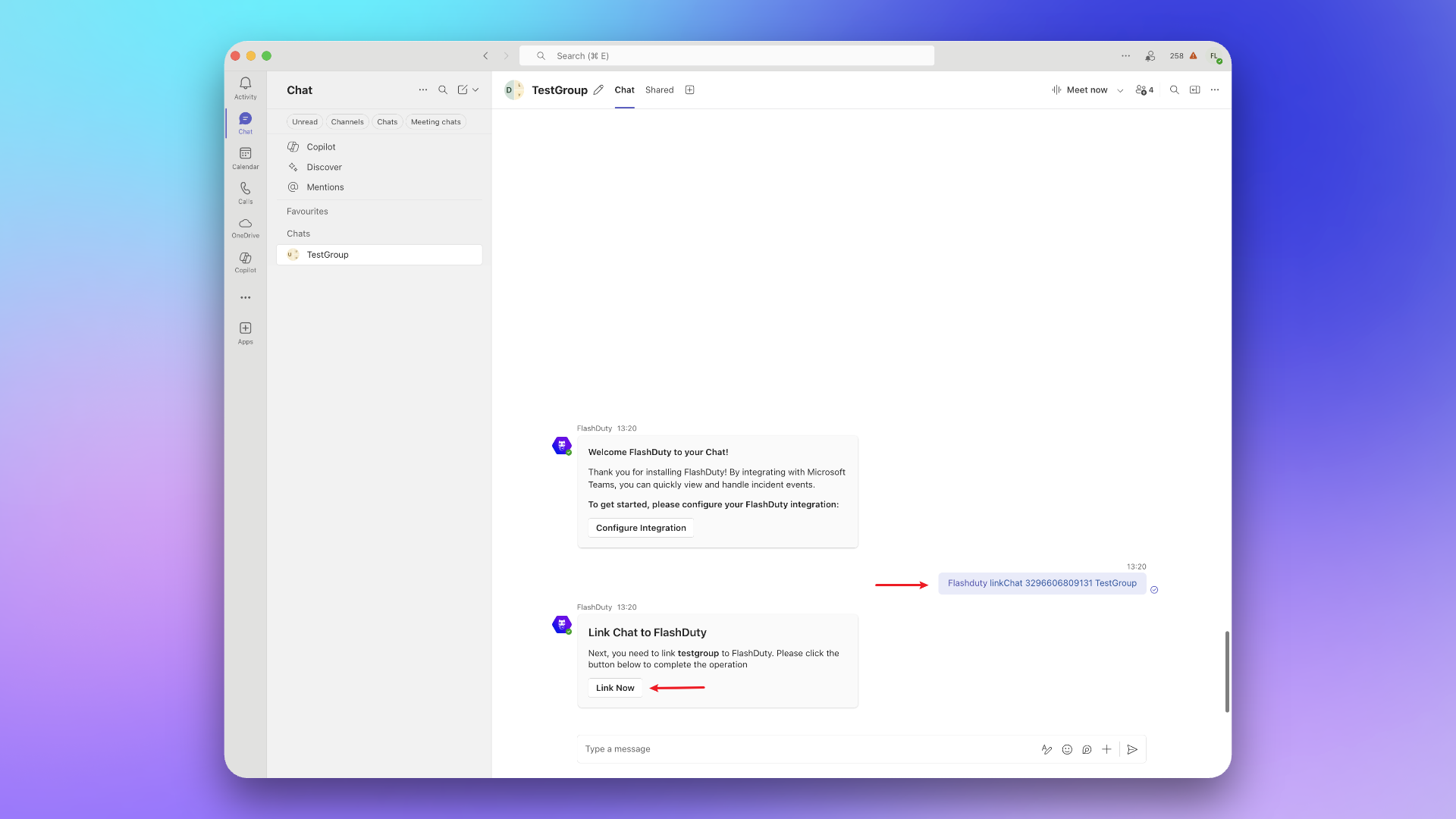
Add the app to the target Chat.
In the Chat, @Flashduty and send command `linkChat {ID} {ChatName}`, then click **Link Now**.
## 4. Notification Card Actions
When incident notifications are pushed to Microsoft Teams, the notification cards support the following interactive actions, allowing you to respond to incidents directly in Teams without switching to the Flashduty console:
* **Acknowledge**: Mark that you have started handling the incident
* **Resolve**: Mark the incident as resolved and close it
* **Snooze**: Temporarily suspend the incident and receive a reminder after a specified time
* **Custom Actions**: Trigger your pre-configured custom actions (such as restarting services, rolling back changes, etc.)
War room functionality is not currently supported for Microsoft Teams. If you need to use the war room feature, consider using Slack, Feishu/Lark, Dingtalk, or WeCom integration instead.
## 5. Link User
Find the Flashduty On-call app in the app marketplace.
If app not found, please contact your Microsoft Teams organization administrator.

Click **Open App**.
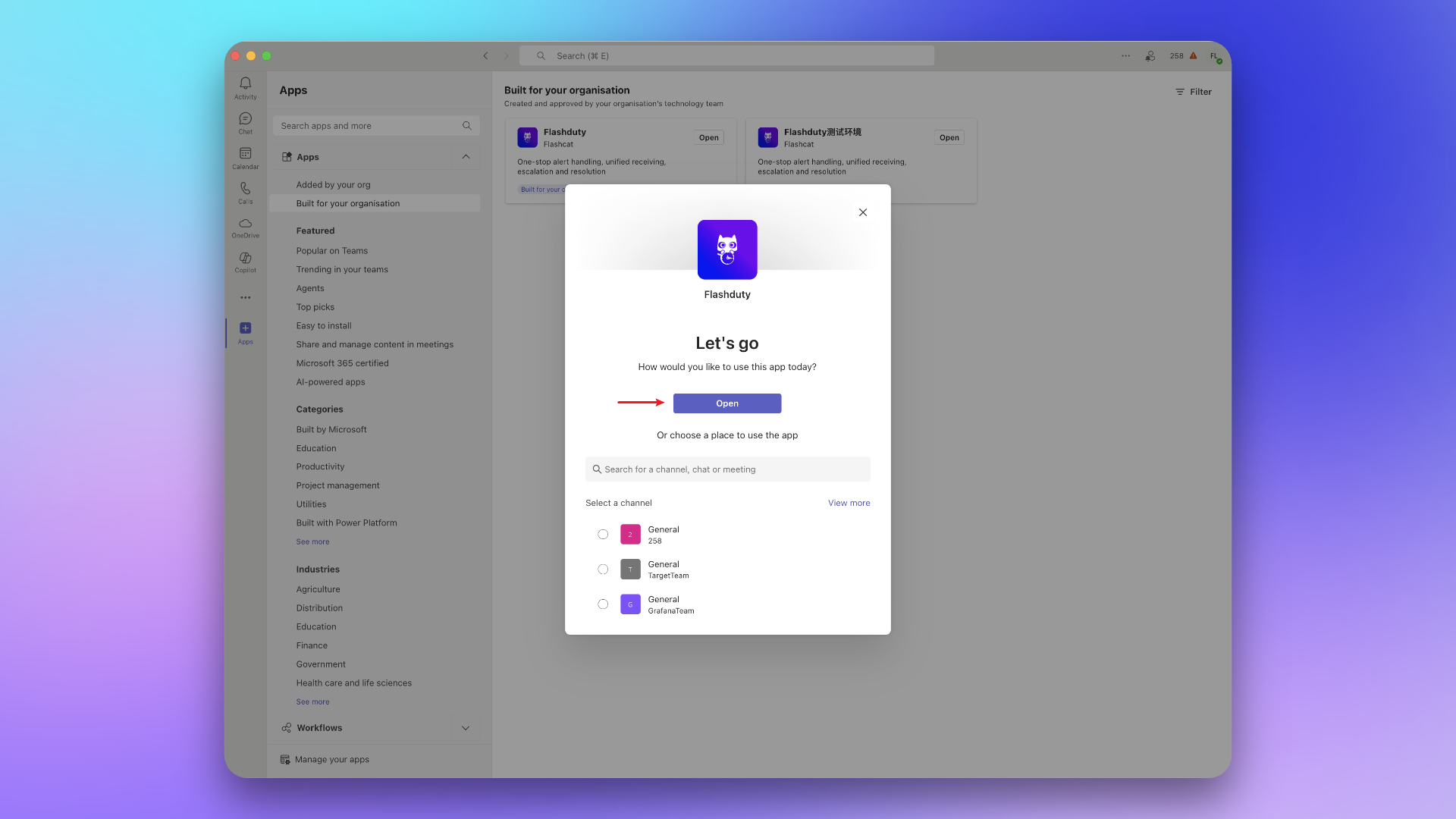
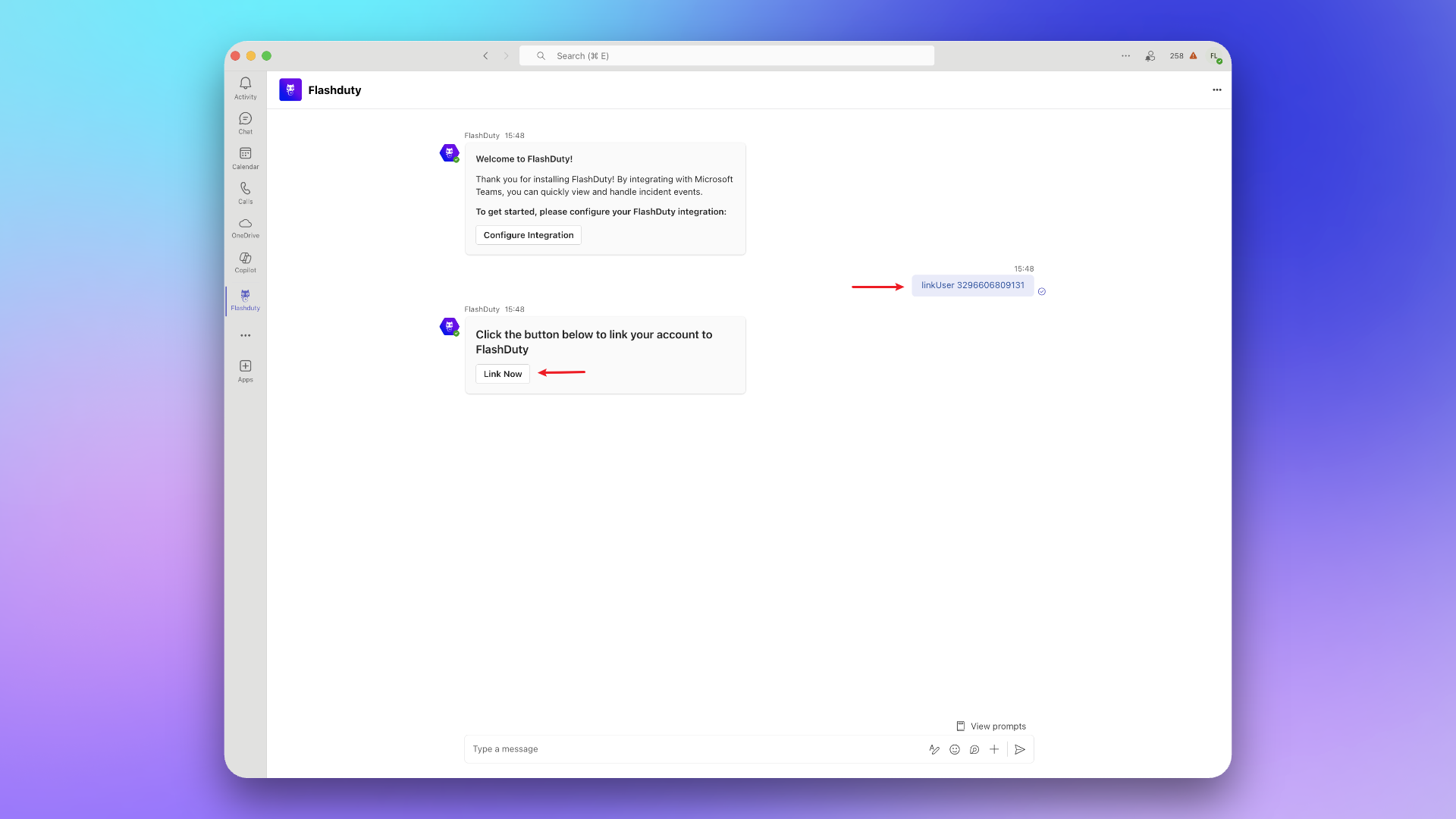
Copy and send command `linkUser {}` to the chat, then click **Link Now**.
## 6. FAQ
Go to Integration Center → Instant Messaging → **Microsoft Teams**, check if teams and users have been successfully linked.
Go to Integration Center → Instant Messaging → **Microsoft Teams**, view in **Linked Teams** and **Linked Users**.
This feature is not currently supported.