> ## Documentation Index
> Fetch the complete documentation index at: https://docs.flashduty.com/llms.txt
> Use this file to discover all available pages before exploring further.
# OpenLDAP
> Set up OpenLDAP via Docker Compose and integrate with Flashduty
LDAP integration login is only supported in **private deployment versions**.
## Quick Overview
LDAP (Lightweight Directory Access Protocol) is a protocol based on the X.500 standard for accessing and maintaining distributed directory services. LDAP enables users and applications to query, browse, and search information stored in directories, such as user identity information and network resources.
LDAP typically runs on the TCP/IP protocol stack, specifically using TCP port 389 (unencrypted communication) and 636 (encrypted communication using LDAPS).
**Core Features of LDAP:**
* **Tree Structure**: LDAP data is organized in a tree structure called DIT (Directory Information Tree), facilitating hierarchical searching and browsing
* **Entries and Attributes**: Each entry in LDAP contains multiple attributes. Attributes have types and values, such as `cn` for Common Name and `mail` for email address
OpenLDAP is an open-source LDAP implementation that has become the preferred choice for many enterprises and organizations due to its open-source nature and flexibility.
This article assumes Docker and Docker Compose are already supported in your environment. If not, please install them first.
## Docker Compose Configuration
```yaml docker-compose.yml theme={null}
version: '1'
networks:
go-ldap-admin:
driver: bridge
services:
openldap:
image: osixia/openldap:1.5.0
container_name: go-ldap-admin-openldap
hostname: go-ldap-admin-openldap
restart: always
environment:
TZ: Asia/Shanghai
LDAP_ORGANISATION: "flashduty.com"
LDAP_DOMAIN: "flashduty.com"
LDAP_ADMIN_PASSWORD: "password"
volumes:
- ./openldap/ldap/database:/var/lib/ldap
- ./openldap/ldap/config:/etc/ldap/slapd.d
ports:
- 389:389
networks:
- go-ldap-admin
phpldapadmin:
image: osixia/phpldapadmin:0.9.0
container_name: go-ldap-admin-phpldapadmin
hostname: go-ldap-admin-phpldapadmin
restart: always
environment:
TZ: Asia/Shanghai
PHPLDAPADMIN_HTTPS: "false"
PHPLDAPADMIN_LDAP_HOSTS: go-ldap-admin-openldap
ports:
- 8088:80
volumes:
- ./openldap/phpadmin:/var/www/phpldapadmin
depends_on:
- openldap
links:
- openldap:go-ldap-admin-openldap
networks:
- go-ldap-admin
```
Replace `password` with your desired password.
## Start Services
Save the above configuration as `docker-compose.yml`, open a terminal in the directory containing the configuration file, and run the following command:
```bash theme={null}
docker-compose up
```
```bash theme={null}
docker-compose up -d
```
**Check service status:**
```bash theme={null}
docker-compose ps
```
**Stop services:**
```bash theme={null}
docker-compose down
```
## Login to OpenLDAP
Access `http://ip:8088/` in your browser and login with the following credentials:
| Field | Value |
| -------- | ------------------------------ |
| Username | `cn=admin,dc=flashduty,dc=com` |
| Password | Your configured password |
## OpenLDAP Configuration
### Add Groups and Users
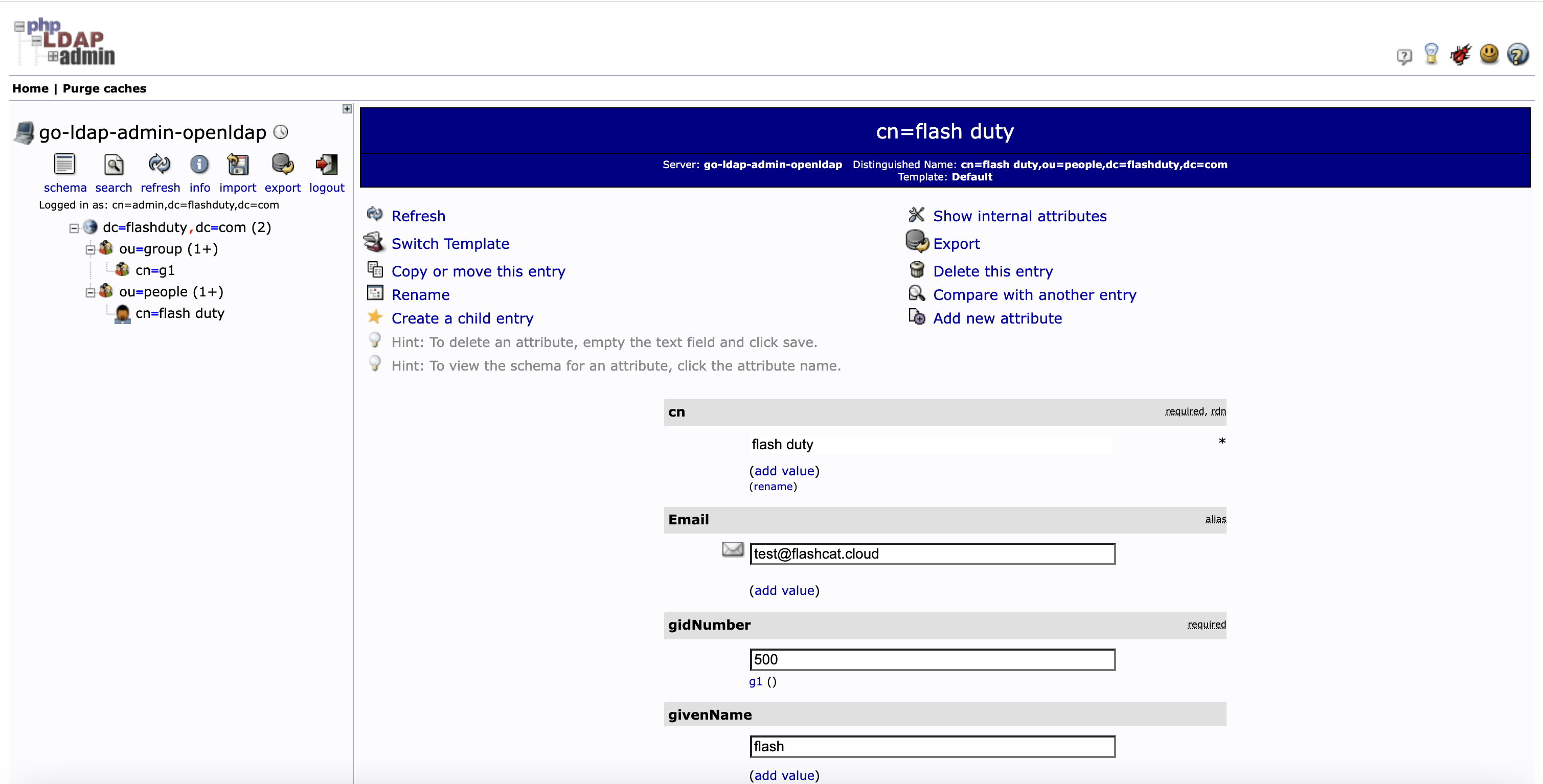
In **User Path** (e.g., `cn=flash duty` under `ou=people` in the image above) => **Add new attribute** => select **Email** to add the Email attribute for users. Skip if it already exists.
## Flashduty Integration
Based on the OpenLDAP configuration above, the Flashduty integration information is shown in the image below:
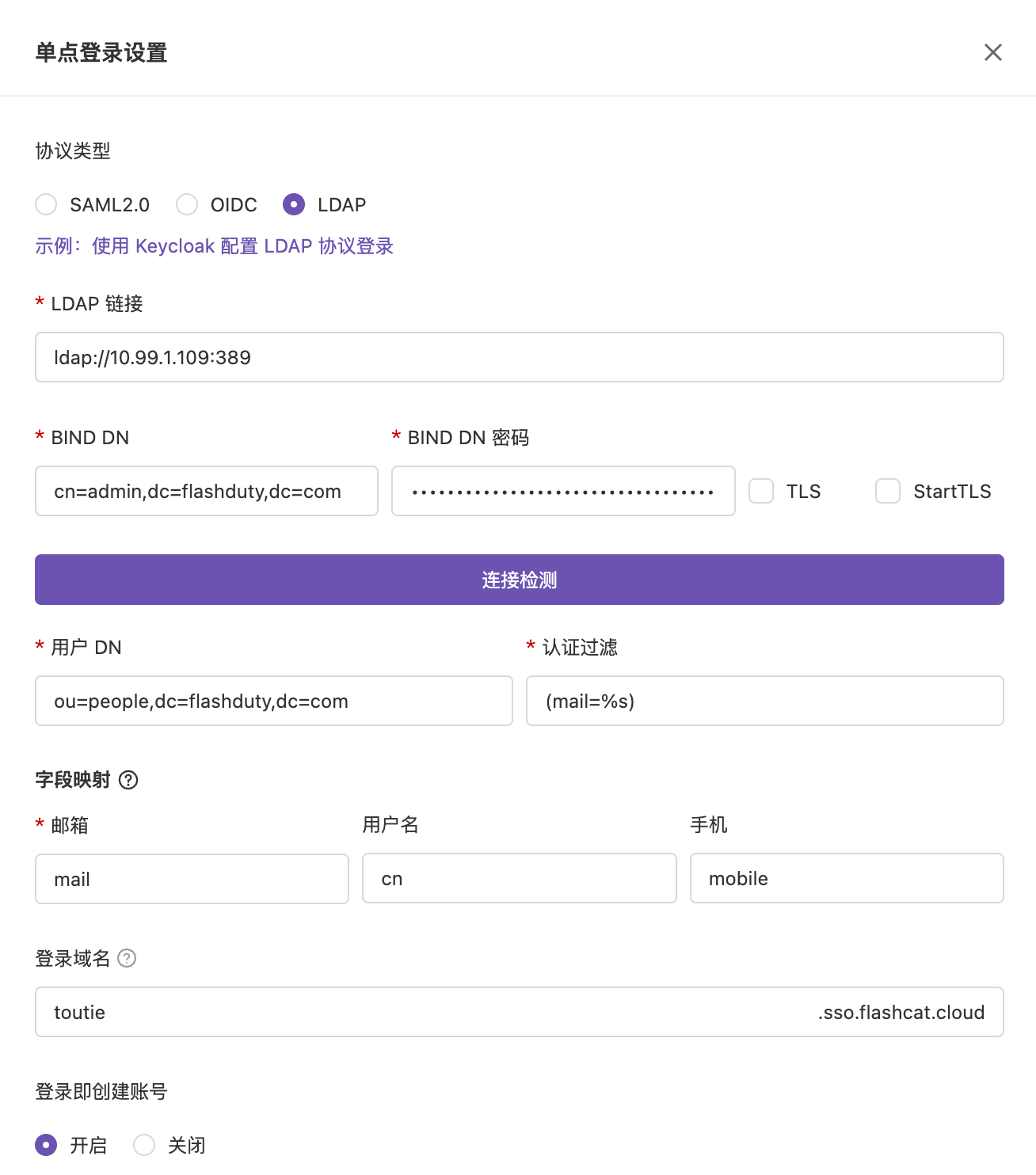
For the meaning and description of the above fields, refer to [Configure Single Sign-On](/en/platform/configure-sso).
After completing the configuration, click the **Connection Test** button at the bottom of the settings drawer to verify that Flashduty can successfully connect to the OpenLDAP server. Once the connection succeeds, click **Save**.