> ## Documentation Index
> Fetch the complete documentation index at: https://docs.flashduty.com/llms.txt
> Use this file to discover all available pages before exploring further.
# ServiceDesk Plus Sync
> Associate incidents with ServiceDesk Plus requests through ServiceDesk Plus Sync Webhook.
**Plan requirement**: This feature requires an On-call Pro or higher subscription. [Learn more](https://flashcat.cloud/flashduty/price/)
Through ServiceDesk Plus Sync Webhook, synchronize Flashduty incidents with ServiceDesk Plus requests for linkage between Flashduty and ServiceDesk Plus.
This integration is based on the v3 API protocol officially provided by ServiceDesk Plus and is compatible with its interface specifications. If you're using a private deployment version, please confirm whether its API supports v3. Additionally, there are differences in authorization configuration between ServiceDesk Plus cloud and private versions—refer to the relevant documentation for specific configuration.
* [Cloud Version](#cloud-version)
* [Private Deployment](#private-deployment)
When configuring this integration, if your selected sync direction is From\_ServiceDesk\_Plus, you can skip authorization configuration and go directly to [Configure Sync](#configure-sync).
## Cloud Version
### In ServiceDesk Plus
#### Step 1: Create Authorization Application
Select the corresponding Developer Console address based on your ServiceDesk Plus service region: [Data Centres](https://www.manageengine.com/products/service-desk/sdpod-v3-api/getting-started/data-centers.html)
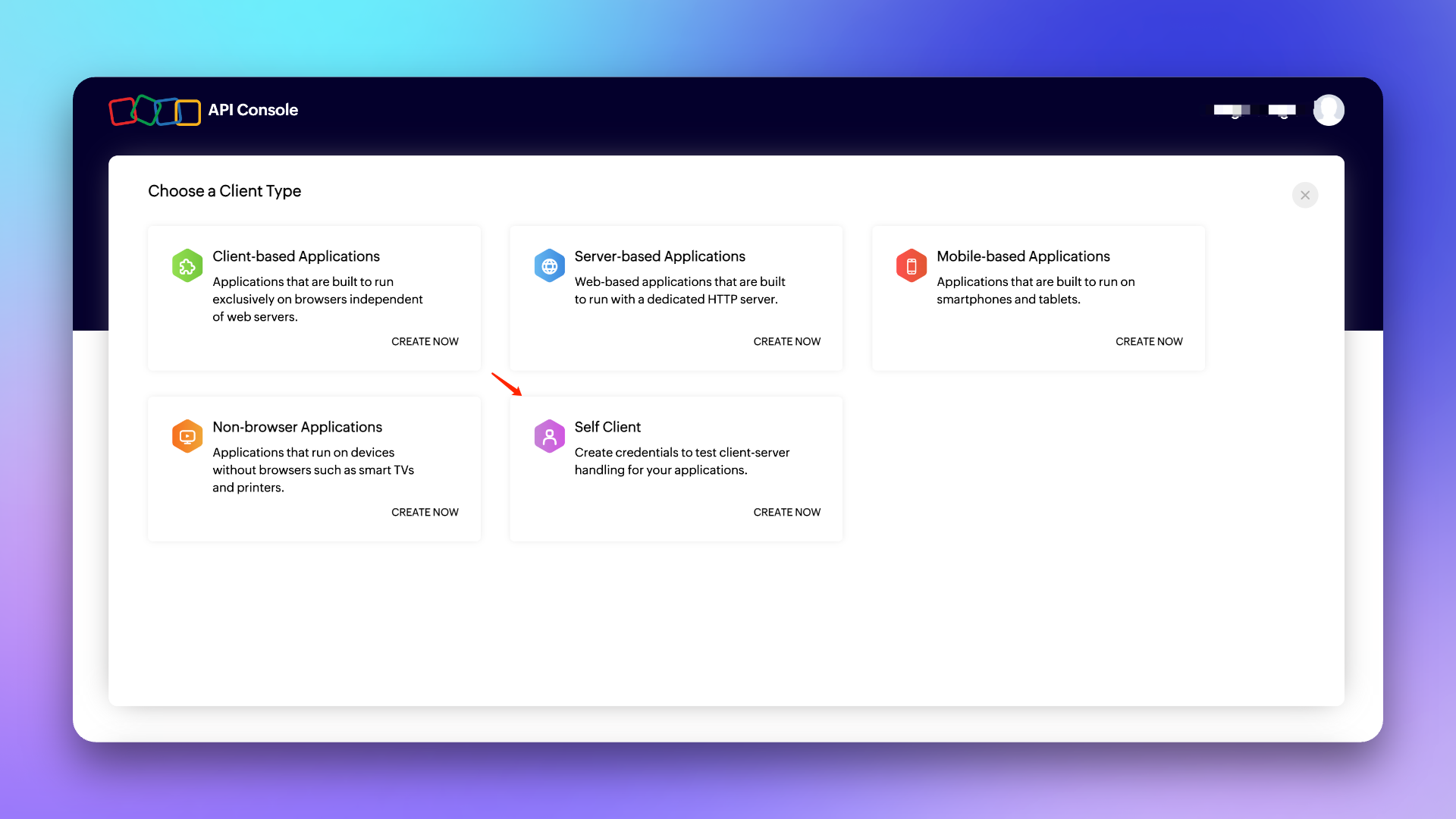
1. Login to Developer Console, select `Self Client` type Client and create.
2. Click `Generate Code`, enter in `Scope`: **SDPOnDemand.requests.ALL,SDPOnDemand.setup.READ,SDPOnDemand.custommodule.READ**. Refer to [official documentation](https://www.manageengine.com/products/service-desk/sdpod-v3-api/getting-started/oauth-2.0.html#scopes) for scope reference.
3. Select the maximum **10 minutes** for `Time Duration`, enter any description in `Scope Description` like: Used for Flashduty sync, and create.
4. Copy the generated **Code**, **Client ID**, and **Client Secret** for later use.
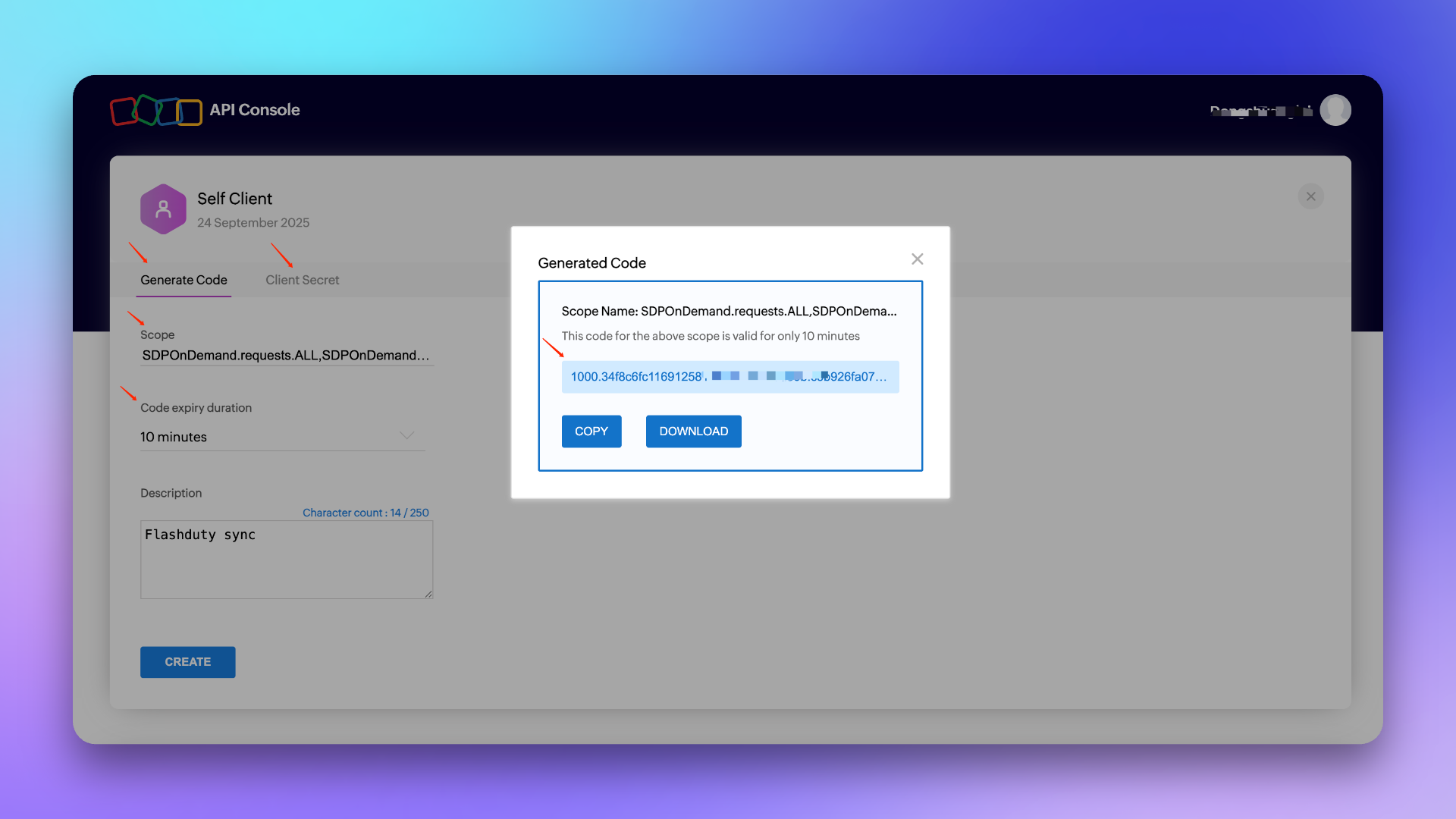
###### Note: The Code is only valid for 10 minutes and can only be used once. After obtaining the Code, please complete [Integration Authorization](#integration-authorization) within the validity period.
### In Flashduty On-call
#### Step 2: Integration Authorization
Select the corresponding API Endpoint and Accounts Server URL based on your ServiceDesk Plus service region: [Data Centres](https://www.manageengine.com/products/service-desk/sdpod-v3-api/getting-started/data-centers.html)
1. Select **Cloud Version** for `Platform Type`, enter `API Endpoint` and `Accounts Server URL`.
2. Enter the `Code`, `Client ID`, and `Client Secret` generated in the **Create Authorization Application** step and click Next to complete [Integration Configuration](#integration-configuration) (if errors occur, regenerate the Code or contact technical support).
## Private Deployment Version
### In ServiceDesk Plus
#### Step 1: Generate API Key
1. Login to ServiceDesk Plus console, click `Generate API Key` in Personal Center.
2. Select **Never Expire** for `Token Expiration`, copy the generated **Token** for later use, and complete [Integration Authorization](#private-deployment-authorization).
###### Note: The user generating the API key needs relevant permissions such as create/update requests, get template/priority/custom field lists. Insufficient permissions will prevent completing integration configuration—we recommend using an admin role.
### In Flashduty On-call
#### Step 2: Integration Authorization
1. Select **Private Deployment Version** for `Platform Type`, enter `API Endpoint`.
2. Enter the generated **Token** and click Next to complete [Integration Configuration](#integration-configuration).
## Common Configuration
### In Flashduty On-call
#### Step 1: Integration Configuration
1. **Integration Name:** Define a name for the current integration.
2. **Management Team:** When a management team is selected, only team members and tenant administrators can edit this integration.
3. **Sync Direction:**
* To\_ServiceDesk\_Plus: Sync Flashduty incidents to ServiceDesk Plus.
* From\_ServiceDesk\_Plus: Sync ServiceDesk Plus requests to Flashduty.
* Two-way: Flashduty and ServiceDesk Plus sync mutually.
4. **Trigger Mode**:
* Auto Trigger: Configure conditions; Flashduty On-call will automatically sync incidents matching the conditions to ServiceDesk Plus.
* Manual Trigger: Manually trigger ServiceDesk Plus sync from More Actions in incident details (the integration configuration name is the trigger name).
5. **Channel**: Select channels where this integration takes effect.
6. **Request Template**: Select the template to use when creating requests; if empty, tickets are created using the default template.
7. **Severity Mapping**: Choose to map severity, incident labels, or custom field values to ServiceDesk Plus priority field; if empty, the field is not passed when creating tickets.
8. **Custom Field Mapping**: Map labels or custom fields from incidents to corresponding text fields in ServiceDesk Plus tickets for automatic information filling. This feature supports syncing common context information (like service name, instance address, metric name) to ServiceDesk Plus for subsequent investigation and tracking.
* Only supports target fields of single-line or multi-line text type.
* Supports extracting values from incident labels (like service, instance) or custom properties.
* If source field is empty, target field remains empty and won't overwrite existing content.
9. **Assignee Mapping**: When Flashduty incidents sync to ServiceDesk Plus and need auto-assignment to Technician or Group, use Flashduty incident label values as assignees (if corresponding assignee doesn't exist, sync will fail—choose carefully).
10. **Requester**: Specify the requester when creating tickets; must be configured if this field is required during creation.
11. Click `Save` to complete configuration.
### In ServiceDesk Plus
#### Step 2: Configure Sync
To sync ServiceDesk Plus requests to Flashduty, refer to this configuration item. **Note:** Paths may differ slightly between versions, but configuration methods are the same.
##### Create Webhook
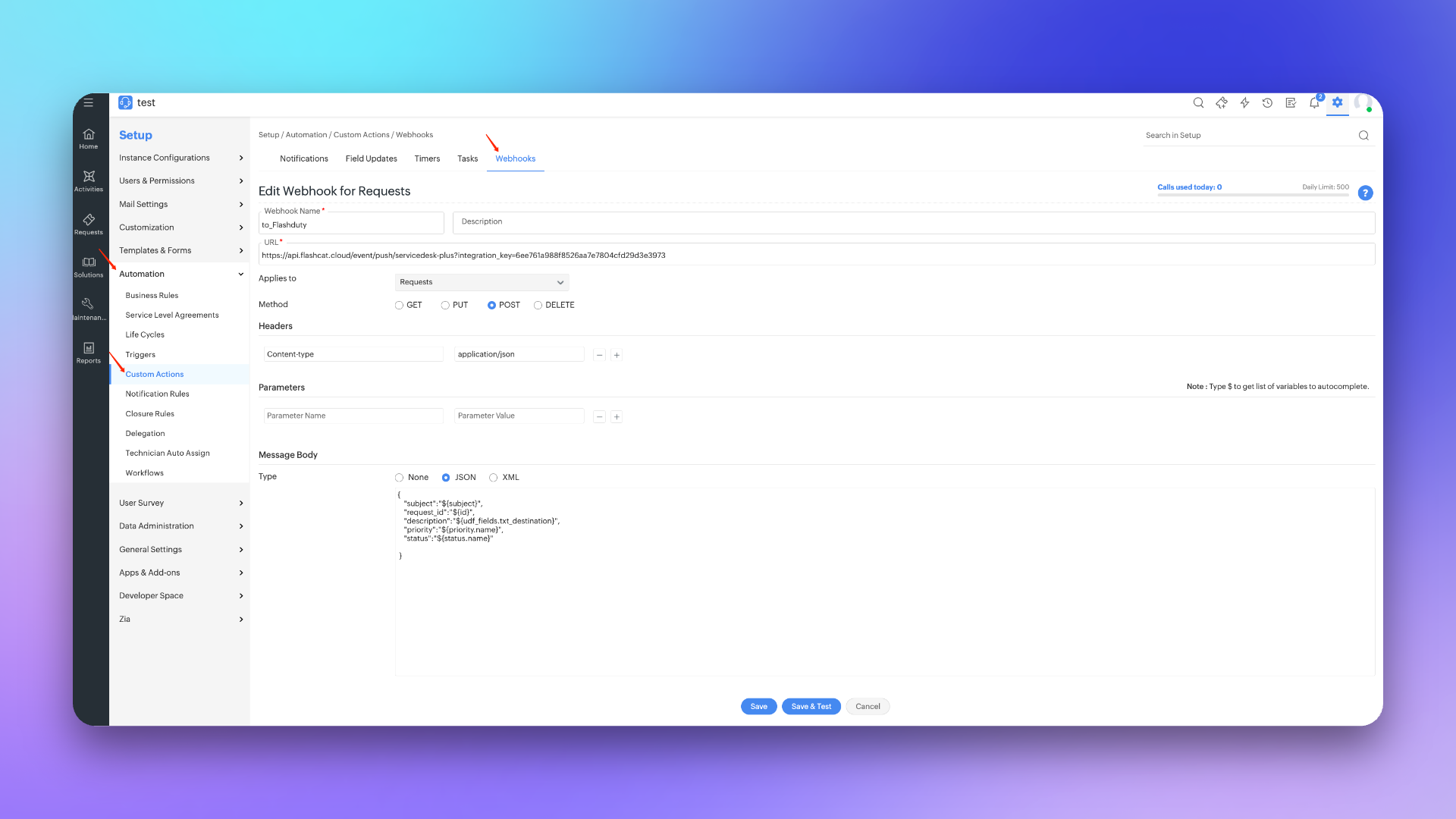
1. Login to ServiceDesk Plus console, find the `Setup` configuration page.
2. Select `Automation`, then go to `Custom Actions` page and select `Webhooks`.
3. Click `New Webhook`, enter **to\_Flashduty** for `Webhook Name`.
4. Enter the integration's push URL for `URL`.
5. Select **Requests** for `Applies to`, **POST** for `Method`, enter **Content-Type application/json** in `Headers`.
6. Select **JSON** for `Message Body` Type and enter the following:
```
# Cloud Version
{
"subject":"${subject}",
"request_id":"${id}",
"description":"${udf_fields.txt_destination}",
"priority":"${priority.name}",
"status":"${status.name}",
"txt_test_field":"${udf_fields.txt_test_field}"
}
```
```
# Private Deployment Version
{
"suject":"${{request.subject}}",
"request_id":"${{request.id}}",
"description":"${{request.description}}",
"status":"${{request.status.name}}",
"priority":"${{request.priority.name}}",
"udf_sline_301":"${{request.udf_fields.udf_sline_301}}"
}
```
7. Click `Save` to complete configuration.
##### Step 3: Create Trigger
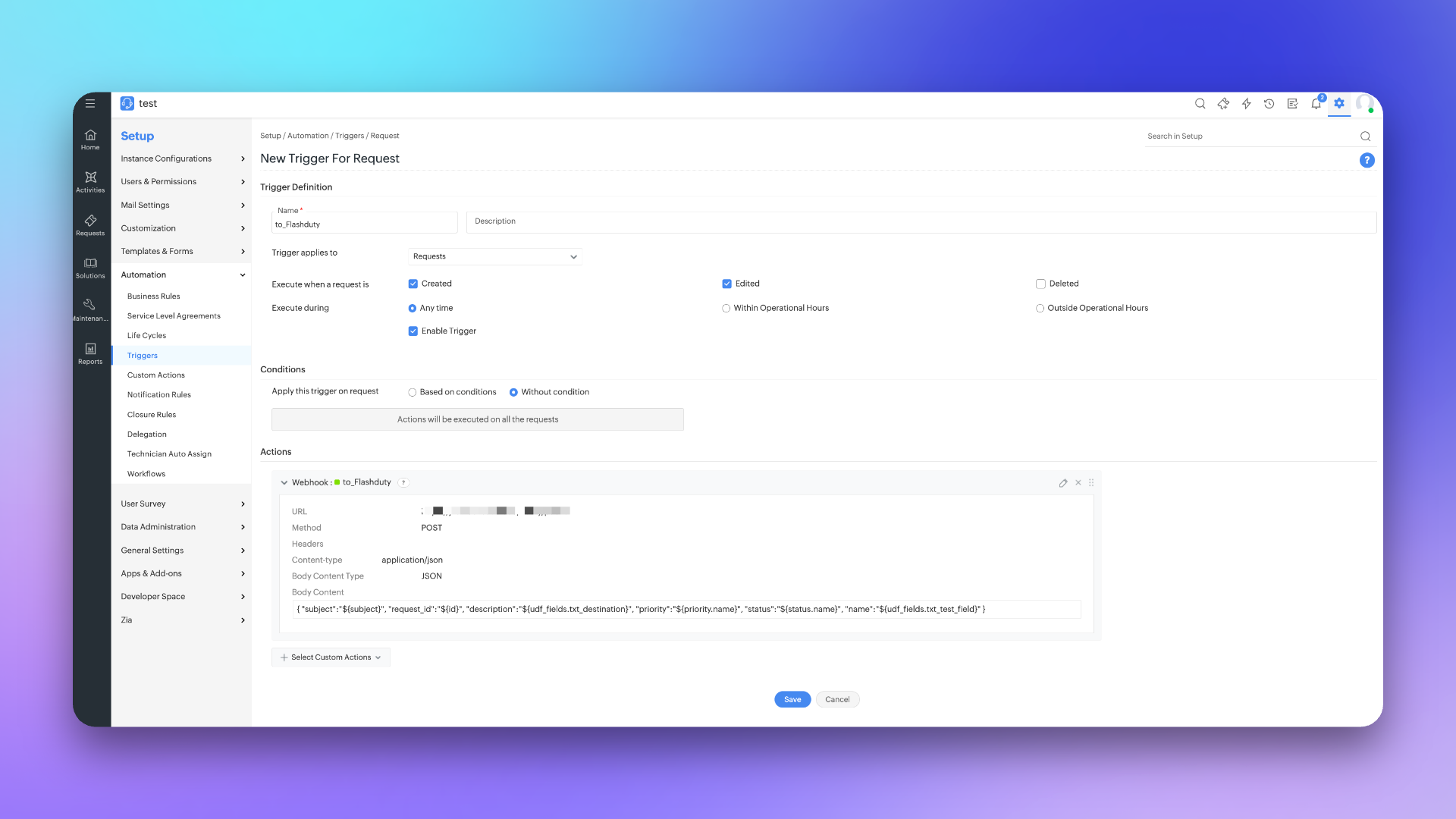
1. Login to ServiceDesk Plus console, find the `Setup` configuration page.
2. Select `Automation`, then go to `Triggers` page and select `Request`.
3. Click `New Trigger`, enter **to\_Flashduty** for `Name`.
4. Select **Request** for `Trigger applies to`, check **Create and Edited** for `Execute when a request is`.
5. Select **Any time** for `Execute during` and check **Enable Trigger**.
6. Select `Without condition` for `Conditions` or configure as needed.
7. In `Actions`, select **Webhook** and check **to\_Flashduty** channel.
8. Click `Save` to complete configuration.
## Sync Information Mapping
### Form Fields
| ServiceDesk Plus | Flashduty | Notes |
| ---------------- | ------------- | ------------- |
| Subject | Title | Title |
| Description | Description | Description |
| Status | Progress | Status |
| Priority | Severity | Severity |
| Others | Custom Fields | Custom fields |
### Status Mapping
| ServiceDesk Plus | Flashduty | Notes |
| -------------------- | ---------- | ---------------------- |
| Open | Triggered | Triggered |
| In Progress | Processing | Processing |
| Assigned | Processing | Processing |
| Pending Verification | Processing | Processing |
| Staging | Processing | Processing |
| On Hold | Snoozed | Default snooze 2 hours |
| Resolved | Closed | Closed |
| Closed | Closed | Closed |
| Canceled | Closed | Closed |
| Rejected | Closed | Closed |
## Invocation History
The ServiceDesk Plus Sync integration provides a complete invocation history, helping you troubleshoot sync delivery and debug interface issues.
### View Invocation History
Go to the ServiceDesk Plus Sync integration detail page and switch to the **Invocation History** tab.
### Filtering and Search
| Filter | Description |
| :----------------- | :--------------------------------------------------------------------------------------------- |
| **Time Range** | Select from last 30 minutes, 6 hours, 1 day, 2 days, 7 days, 14 days, 30 days, or custom range |
| **Incident ID** | Enter an incident ID for exact search |
| **Channel** | Filter records by channel |
| **Request Status** | Filter by success or failure |
### History Record Fields
| Field | Description |
| :----------------- | :--------------------------------------------------------------------------------- |
| **Trigger Time** | Time when the event was triggered |
| **Incident Title** | Associated incident title; click to jump to incident details |
| **Request ID** | ServiceDesk Plus request ID; click to jump to ServiceDesk Plus to view the request |
| **Channel** | Associated channel; click to navigate |
| **Request Status** | Success or failure |
### View Invocation Details
Click **View Details** on a record to see the complete request information:
* **Incident ID**: Associated incident ID
* **Channel**: Associated channel
* **Incident Title**: Click to jump to the incident detail page
* **Trigger Time**: Time the request was triggered
* **Request Status**: Success or failure
* **Error Message**: Displays error information on failure
## FAQ
Can Scope be changed?
No. The current Scope is already the minimum required. Flashduty needs get/create/update operations when syncing requests with ServiceDesk Plus, and needs to get priority/custom field lists when configuring integrations, so corresponding permissions are required.