> ## Documentation Index
> Fetch the complete documentation index at: https://docs.flashduty.com/llms.txt
> Use this file to discover all available pages before exploring further.
# Issue Status
> Learn about RUM Issue status transitions
In Error Tracking, all Issues have a status that helps you categorize and prioritize problems.
## Status Types
| Status | Identifier | Description |
| -------------- | ------------ | ------------------------------------------------------------------------ |
| **For Review** | `for_review` | New issues or regressions that need attention |
| **Reviewed** | `reviewed` | Categorized issues that need fixing, can be handled immediately or later |
| **Ignored** | `ignored` | Issues that don't require further investigation or handling |
| **Resolved** | `resolved` | Issues that have been fixed and are no longer occurring |
All newly discovered Issues have an initial status of **For Review (for\_review)**. Flashduty automatically updates status based on specific conditions, and you can also manually adjust it.
## Auto-resolve Issues
Flashduty automatically marks inactive or resolved Issues as **Resolved (resolved)**:
If the last reported version of an Issue is more than 14 days old and the error hasn't reappeared in newer versions, the system will automatically resolve it.
If the `version` tag is not set, when an Issue has no new error reports in the past 14 days, the system will automatically resolve it.
Properly configuring your application's `version` tag is crucial for accurately identifying resolved Issues.
## Auto-reopen Issues
Flashduty has Issue detection capability. When a resolved Issue reappears, the system automatically reopens it and marks it as **For Review (for\_review)** status, while recording the event as "Regression" in the activity timeline.
### What is Regression?
Regression refers to previously fixed problems unexpectedly reappearing after code updates. Flashduty's regression detection automatically identifies these situations, reopening related Issues instead of creating duplicate Issues, thereby preserving the complete context and history of the problem.
### Regression Detection Mechanism
Regression detection is triggered when any of the following conditions are met:
* If a **Resolved (resolved)** error reappears in an updated version of the code
* If a **Resolved (resolved)** error reappears when no version tag is set
Once regression is detected, Flashduty will:
Automatically change the Issue status to **For Review (for\_review)**
Add a **Regression** label to the Issue for quick identification
### Associated Version Configuration
Regression detection considers the service version information when the error occurred. Detection is only triggered in new versions after the Issue is marked as **Resolved (resolved)**.
```javascript theme={null}
window.FLASHCAT_RUM.init({
applicationId: "rum-application-id",
environment: "production",
version: "1.0.0", // Ensure correct version number is set
});
```
If no version tag is set, when a resolved Issue has errors again, the system will still mark it as "Regression", but cannot determine if it occurred in a new version.
## Manually Update Status
You can manually update Issue status anywhere Issues are displayed, including the Issue list or details panel.
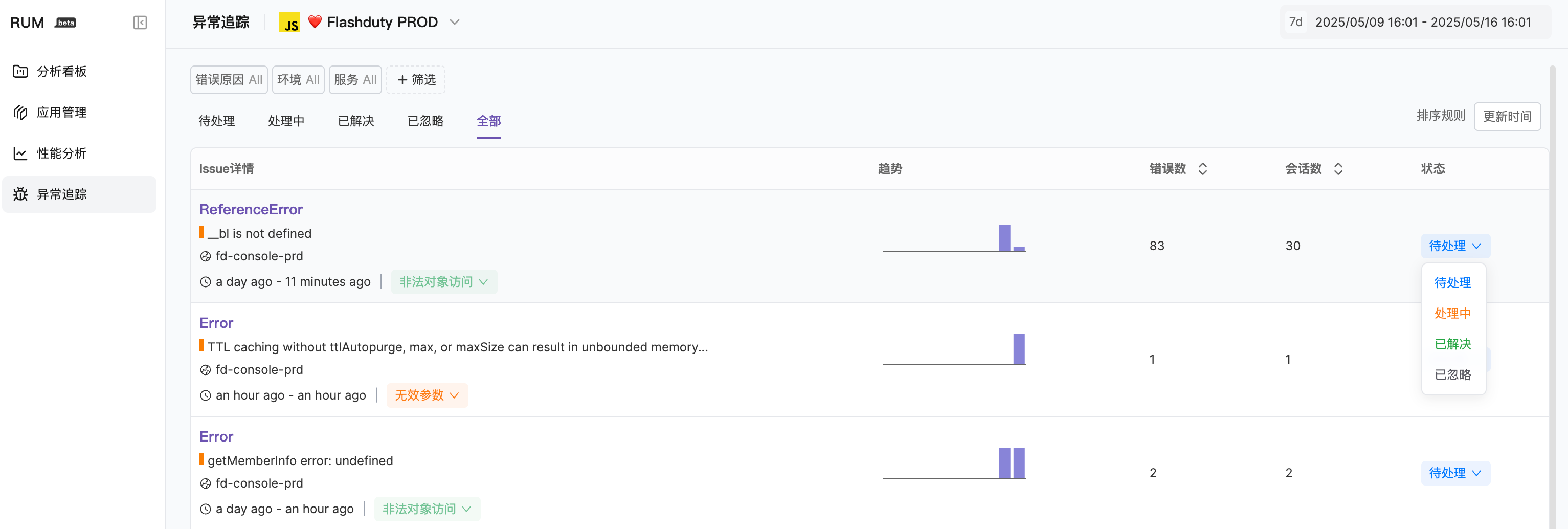 Simply click the current status and select the new status from the dropdown menu.
## Best Practices
Regularly check Issues in **For Review (for\_review)** status to ensure new issues and regressions are handled promptly
Always configure the correct version tag for your application so the system can accurately identify resolved issues
By effectively managing Issue status, your team can focus more on solving important problems, reduce time spent handling noise, and improve overall development efficiency.
## Next Steps
Learn how to view and analyze error details
Simply click the current status and select the new status from the dropdown menu.
## Best Practices
Regularly check Issues in **For Review (for\_review)** status to ensure new issues and regressions are handled promptly
Always configure the correct version tag for your application so the system can accurately identify resolved issues
By effectively managing Issue status, your team can focus more on solving important problems, reduce time spent handling noise, and improve overall development efficiency.
## Next Steps
Learn how to view and analyze error details