Flashduty RUM’s session replay feature helps developers quickly locate issues, analyze user behavior, and optimize product experience by intuitively recreating user operation paths. Integrated into the RUM SDK, it can be enabled with simple configuration, supporting flexible sampling strategies and privacy rule settings.

Session List

In the “Session Replay” menu, you can view recent session records, sorted by time in descending order by default. Supported Features:
  • Sort by session duration, view count, action count, exception count, and other fields
  • Rich filter conditions (such as time range, page, tags, etc.)
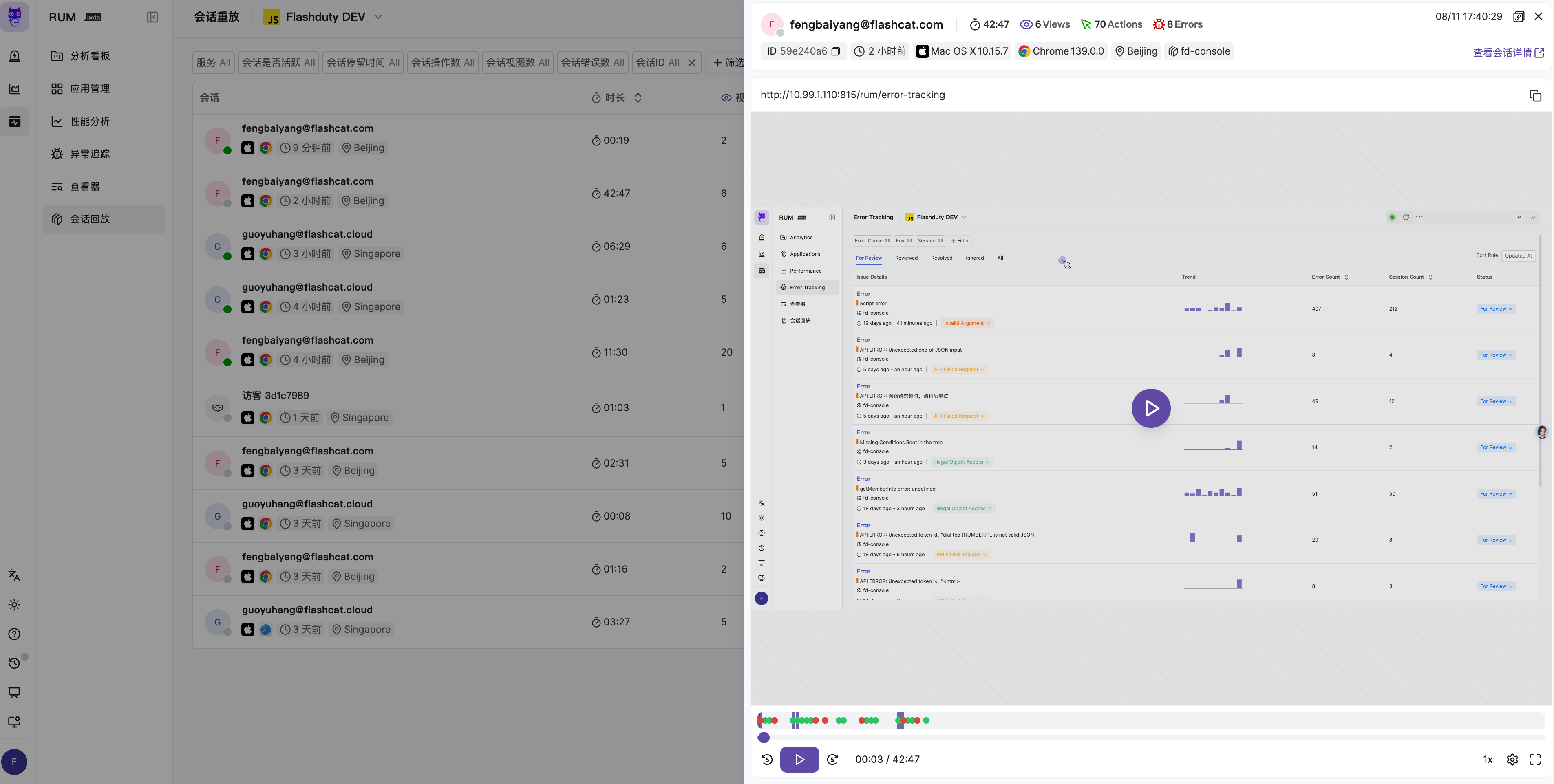
Click on any record to open the player panel:
Session Replay Panel
For quick browsing, only replays with duration greater than 3 seconds are shown in the list.

Player

The player supports play, pause, fast forward, rewind, replay, speed control, fullscreen, and seek functions, with keyboard shortcut support to improve efficiency.

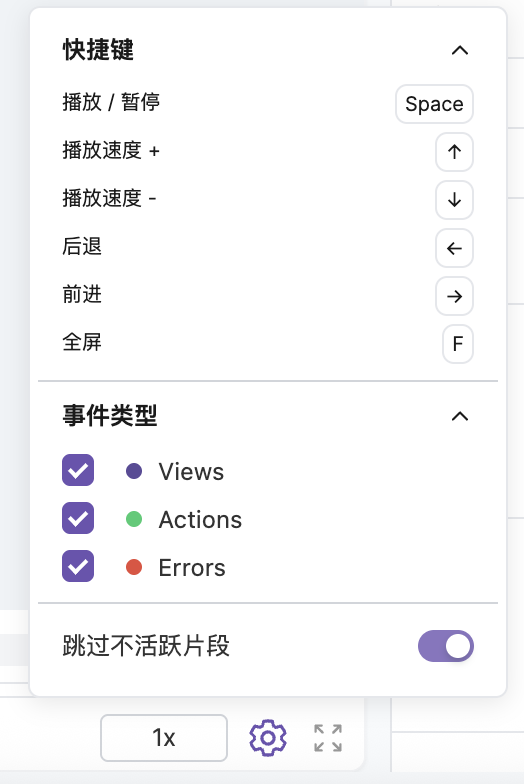
Player Interface
During playback, the timeline marks user actions (Action) and exceptions (Error) with different colored icons, allowing quick overview of key events in the session.
By default, the player automatically skips inactive segments to improve viewing efficiency. You can also disable this feature through configuration to play completely in actual time sequence.
Inactive Segment Configuration

Devtools

Through the “View All Events and Exceptions” feature, you can enter widescreen mode to view the session’s operation timeline and detailed analysis.
Shows all user operations in the session, supporting the following features:
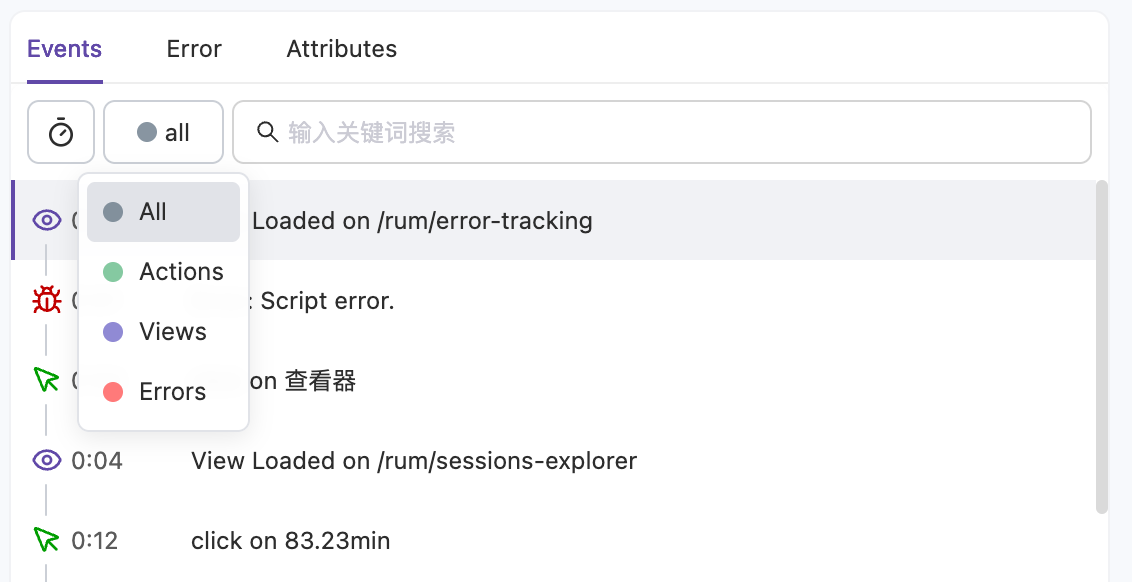
  • Toggle between relative time and absolute time display
  • Filter by event type (such as clicks, page navigation, etc.)
  • Click on a specific event, and the player will automatically jump to the corresponding timestamp
An error-captured session (a Browser application can turn this on under Remote Configuration → Data collection) keeps only a small slice of detail before the error it reported, while the event counts above cover the whole session — so the list reads as shorter than the numbers above it. On the full timeline of such a session, a boundary row marked with a ”⋯” is inserted where the stored detail begins: when the start can be pinned down the row carries that moment (the wording is along the lines of “Error-captured session, detail starts at 〈time〉”), otherwise it reads “Error-captured session; only a small slice before the error was kept”. The row cannot be drilled into and exists only to explain why the detail is incomplete; it does not appear in the window you get when drilling into a single event.
Event Timeline

Next Steps

Privacy Protection

Learn about privacy protection settings