

- Alert Notifications: Deliver Issues as alert events to Flashduty channels, notifying responders through escalation rules
- Webhook Delivery: POST Issue alerts directly to your receiver, suitable for RUM-only private deployments without On-call or for custom notification pipelines
- Alert Grading: Customize alert priority based on error attributes such as user, page, or environment
- Data Filtering: Filter out noise data before Errors are aggregated into Issues, reducing unnecessary alerts
Enable alerts
1
Enter Application Details
Go to “Application Details” - “Alert Settings” page
2
Enable Alerts
Turn on the alert switch and choose a delivery mode: Flashduty channels or Webhook
3
Configure Notification Rules
If you choose Flashduty channels, alert notification rules follow the escalation rules under the channel. You can set up responders for your team to assign alerts when they occur
4
Configure Webhook
If you choose Webhook, enter your receiver URL. Before saving, click “Send Test Event” to verify that the URL is reachable and that your receiver can parse the sample alert event
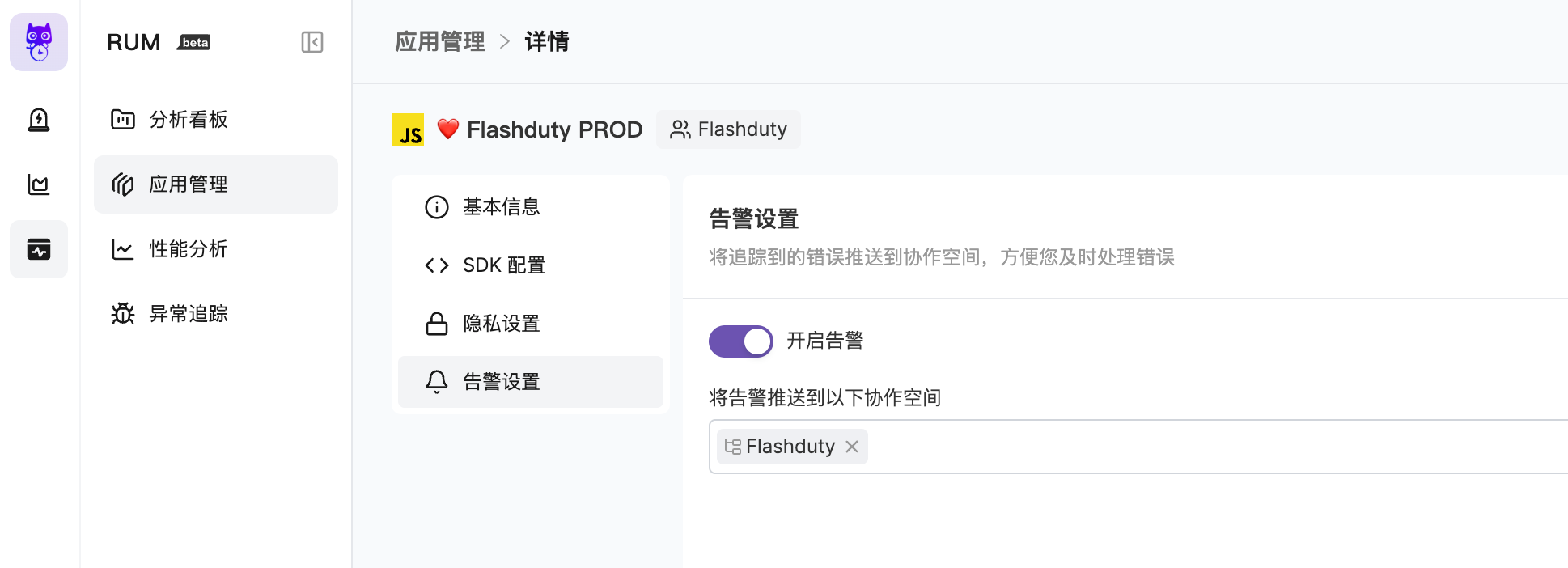
Delivery modes
The Webhook configuration area provides a “Send Test Event” button. The test sends a sample alert event to the URL and returns the HTTP status code and result message. Use it to check reachability and parsing before you save.
Alert trigger conditions
- An Issue triggers an alert event. The actual destination depends on the delivery mode selected in Alert Settings
- With Flashduty channel delivery, whether a notification is triggered depends on the channel’s integration config, noise reduction config, and escalation rules
- With Webhook delivery, RUM sends the event directly to the Webhook URL. Your receiver is responsible for later notification, payload transformation, and retry behavior
- When an Issue is closed, the system triggers a close-type alert event. If the alert is delivered through Flashduty channels, the associated incident may automatically recover
Alert severity
Default grading rules
Without custom grading rules, the system sets each Issue’s severity to Critical, Warning, or Info. Crash Issues are Critical, and Issues older than 7 days are Info.What else affects severity
What else affects severity
- Production Issues rank higher than staging and other environments
- Error messages with critical or warning keywords rank higher
- Issues whose suspected cause is an API failure or code exception rank higher than unknown or network errors
- Issues lasting more than 12 or 24 hours rank higher
Custom alert grading
You can configure custom alert grading rules in “Alert Settings” to set alert priority (P0 / P1 / P2) based on error attributes, enabling more granular alert control. Custom grading rules are evaluated when an Error is reported, producing a priority for that Error. When the Error is aggregated into an Issue:- New Issue: The Issue priority is determined by the priority of the first Error
- Matching existing Issue: If the Error’s priority is higher, the Issue priority is automatically upgraded (never downgraded)
- No rule matched: Default priority P2 is used
Rules are evaluated from top to bottom in priority order; the first matching rule takes effect immediately, and subsequent rules are not checked. You can drag and drop rules to adjust their priority order.
Supported match fields
The operators are “Match” and “Not Match”. A plain value must equal the whole field value. Wildcards
* (for example *vip* for “contains vip”) and regular expressions (for example /^TypeError/i) are supported. A condition takes up to 8 values and matches if any one matches.
Configuration examples
VIP user errors — immediate alert
VIP user errors — immediate alert
Set the highest priority for VIP user errors to ensure immediate response:
- Match condition: User ID matches
*vip* - Alert level: P0 (Critical)
Payment page errors — prioritized handling
Payment page errors — prioritized handling
The payment page is a critical business flow; related errors need priority handling:
- Match condition: Page URL matches
*/payment* - Alert level: P1 (Warning)
Production crashes — immediate alert
Production crashes — immediate alert
Production crashes require immediate response:
- Match condition: Environment matches
production, AND Is Crash matchestrue - Alert level: P0 (Critical)
Data filtering
Data filtering allows you to filter out unwanted noise data before Errors are aggregated into Issues. Filtered Errors will not participate in Issue aggregation or trigger alerts. You can add filter rules in “Alert Settings”. Each rule can have multiple match conditions with AND logic within the same rule. Supported match fields are the same as Custom Alert Grading.Integration with Flashduty
RUM alerts pass through four layers in order: data filtering, alert grading, alert processing, and alert dispatch. For where to configure each layer and when to use it, see Too many RUM alerts? start here. With Flashduty channel delivery, you can process RUM alerts further in the Alert Pipeline. For example, adjust severity by affected user count, suppress repeated alerts in a time window, or customize alert titles. When you choose Webhook delivery, RUM alerts do not enter this On-call processing chain; handle payload transformation, routing, and notification in your receiver. The Auto-analyze automation on the Issue details page is triggered by incidents, and only Flashduty channel delivery turns Issue alerts into incidents. It therefore works only for applications that deliver to channels; Webhook delivery raises no incidents and cannot trigger it.Further reading
RUM Alert Noise Reduction
Typical scenario configurations to quickly reduce unnecessary alert noise
Alert Pipeline
Clean, transform, and filter alerts at the integration layer
Noise Reduction
Aggregate and suppress alerts at the channel level
Escalation Rules
Configure escalation rules to route alerts to the right responders