

Processing order
After an alert event enters Flashduty, it passes through three stages in sequence:
Since label enhancement runs before Pipeline, Pipeline match conditions can reference labels added or modified during the enrichment stage.
Recovery events (event_status is Ok) bypass the alert processing Pipeline entirely and go directly into the alert merge flow. Therefore, discard, inhibition, rewrite, and other rules configured in Pipeline do not apply to recovery events.
How it works
Pipeline sits between Label Enhancement and Route Distribution. Its execution logic is as follows:- Chain Processing: You can configure multiple processing rules that execute sequentially from top to bottom
- Input/Output: The result of a previous rule (for example, modified title) can serve as input for the next rule
- Layer Positioning: Pipeline operates at the integration layer. This means once rules take effect, all alerts ingested through this integration will be affected, regardless of which channel they’re ultimately routed to

Configuration entry
- Go to Integration Center → Alert Events, open an existing integration in the list on the right, and select Alert pipeline.
- Select Add for the first configuration, or Edit if rules already exist.
- Select Add processing rule in the editor, configure the rule, and preview its effect. Select Save to apply the changes.
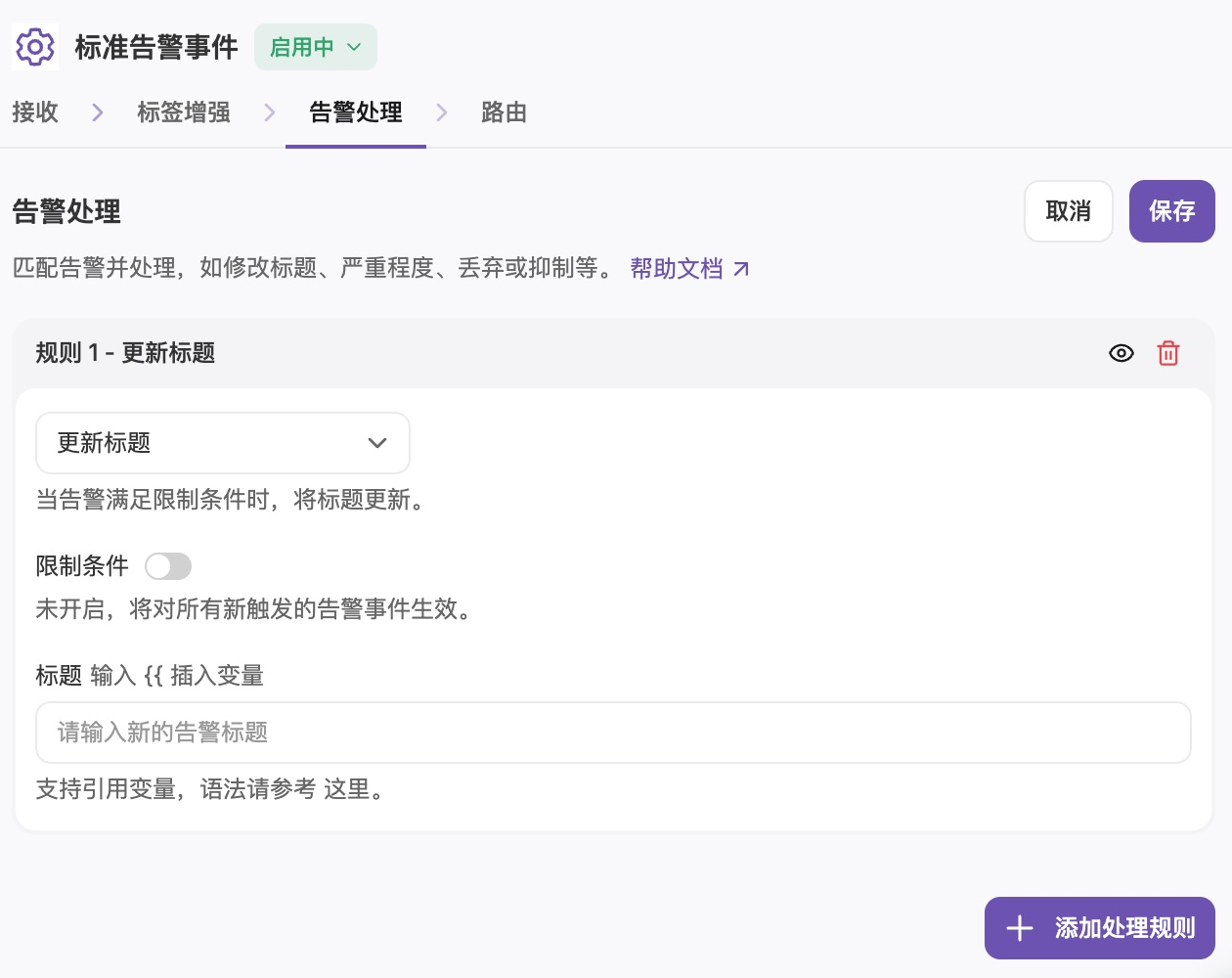
To turn off alert processing for an integration, delete all processing rules and save. Select Add to open the editor and configure rules again.
Core features and scenarios
Custom severity
Flashduty On-call has built-in severity mapping for standard integrations (for example, mapping ZabbixHigh to Critical). But if default rules don’t meet your needs, you can override them through Pipeline.
Scenario: Warning level alerts in the monitoring system are actually critical for core payment business and need to be upgraded to Critical to trigger phone notifications.
Information rewrite
Convert cryptic machine language to human-readable business language using template syntax.- Rewrite Title
- Rewrite Description
Scenario: Original title contains lots of IDs without business meaning.
Alert discard
Matching alerts are discarded: they create no alert and enter no channel. This is similar to “Exclusion Rules” in channels but takes effect earlier.Alert inhibition
Pipeline’s inhibition feature is similar to channel inhibit rules, both supporting dependency-based inhibition based on source alert, target alert, and correlation conditions. Note that Pipeline inhibition only matches source alerts within the same integration, while channel inhibition matches across all alerts in the channel.Inhibition only matches source alerts that have been active within the last 10 minutes (600 seconds). If a source alert was triggered more than 10 minutes ago and has not been updated since, it will not be used for inhibition matching. Ensure your source alerts remain active within this time window.
Rule preview
The right column of the Alert pipeline tab is a permanent Preview card. It runs the rules currently in the editor, unsaved changes included, against one raw event and shows live what each rule did and how the event changed. Until you have processing rules, the tab shows the No alert pipeline configured empty state with an Add button.Event source
Recent events keeps only the latest 20 raw events of each integration: at most one every 10 seconds, expiring after 7 days, and only events received after this feature shipped. If the event you want is not in the list, switch to Custom.
Custom needs at least
title or title_rule, event_status (Critical / Warning / Info / Ok) and labels; other fields are optional. Click Insert example to fill in a sample event.
Both sources share one Event JSON editor. In Recent events mode the lines you changed are marked and Revert restores the original; switching to another event asks before discarding your edits. If the JSON is invalid, the card shows the line, column and reason, keeps the previous preview result, and reruns once you fix it.
How the preview runs
The preview follows the real ingestion order: it runs the integration’s saved Label Enhancement first, then the pipeline rules in the editor from top to bottom. The left column Before (after label enrichment) shows the event before the pipeline rules run; After shows their result. Retained events continue to routing with the processed content. The compared fields are Title, Description, Severity and Labels. A sample keeps only the first 8 KB of the description.Reading the result
A one-line verdict says what happens to this event:
Each rule’s own result appears next to its title in the rule card:
How this event was processed in the right column lists those results in rule order. If a rule is incomplete, that rule and the ones after it are not previewed and the list shows Not previewed: this rule or an earlier one is incomplete. At most 50 rules are previewed at once; beyond that the card asks you to remove some rules. If the preview request itself fails, the card shows Preview failed and the reason.
When you write a title or description template, the value it renders for this event is shown right below the input (after
→), and the labels offered as variables are the ones after label enrichment.
Reference syntax
When rewriting a title or description, start the content with the[TPL] prefix, then reference alert labels and attributes with {{ }}. For more forms, see Reference Variables.
Further reading
Configure Label Enhancement
Dynamically generate or modify alert labels
Configure Filter Conditions
Learn condition matching syntax
Configure Routing Rules
Distribute alerts to different channels
Configure Noise Reduction
Inhibit alerts at the channel layer