

Use cases
Creating a calendar
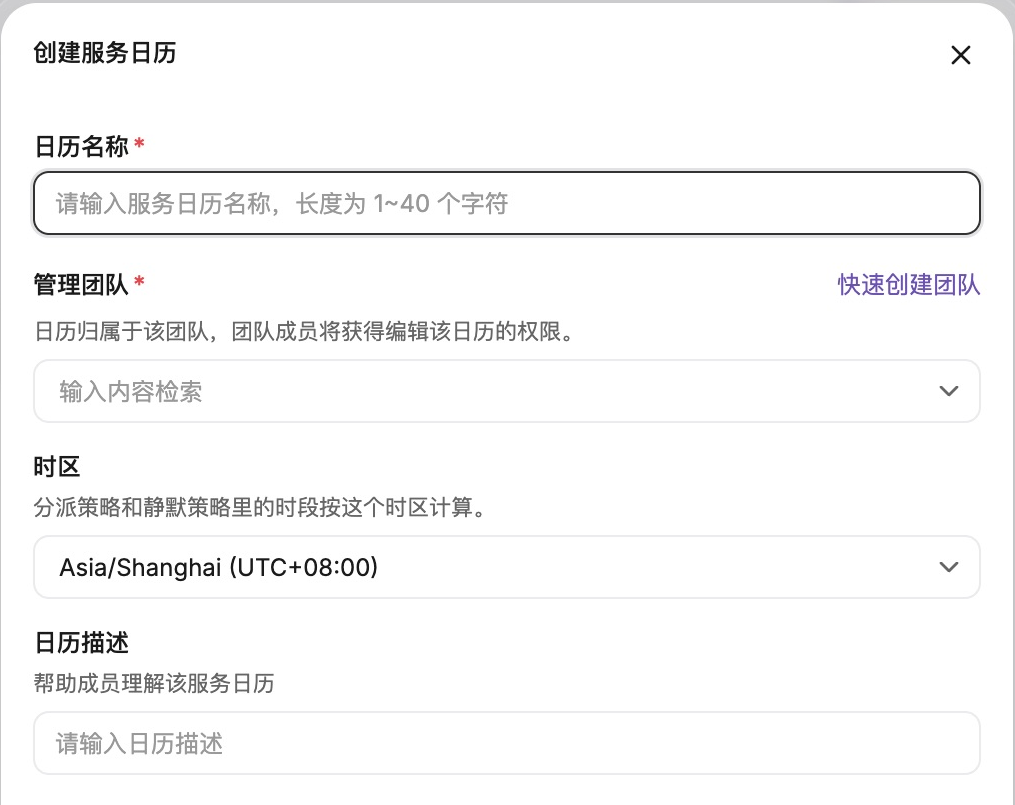
Go to Configuration → Service Calendar and click Create, then fill in the form in the Create Service calendar panel on the right.Each account can have up to 20 service calendars. Once you reach the limit the Create button is disabled until you delete a calendar you no longer use.
Editing a calendar
Link a trading calendar
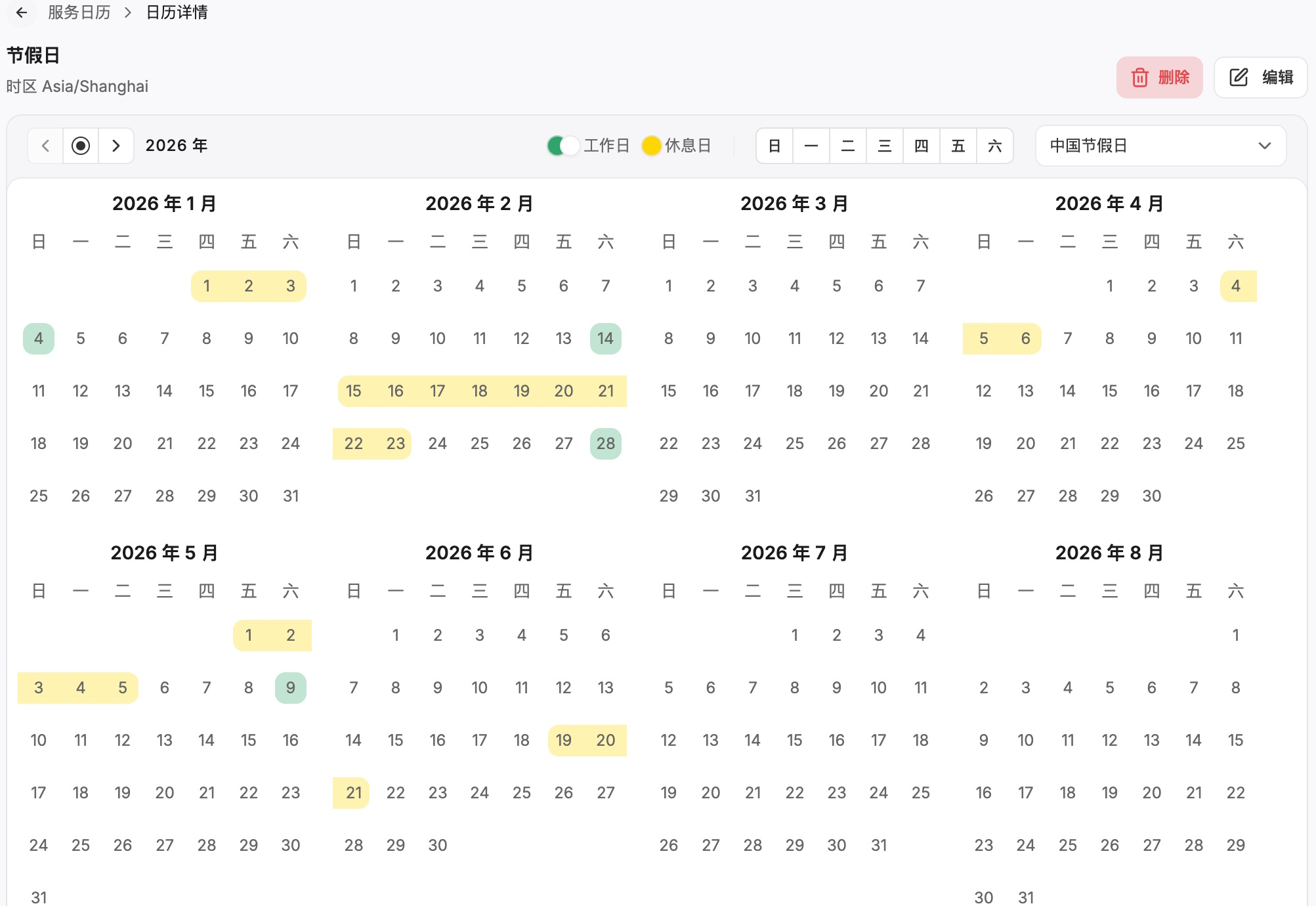
In Other calendars on the detail page, you can select an available trading calendar as well as regional holidays. You can link one trading calendar at a time; selecting another replaces it. The service calendar uses the exchange’s time zone while a trading calendar is linked, and you cannot edit the zone separately. If linking changes the time zone, Flashduty asks for confirmation. Escalation and silence rules referencing this calendar also use the new zone for their time ranges. Three trading calendars are available — China A-shares, Hong Kong and US stocks — and each reads its dates in the exchange’s own zone (Asia/Shanghai, Asia/Hong_Kong, America/New_York).
Half trading days
Hong Kong and US stocks have half trading days; China A-shares do not. The Hong Kong market closes at 12:00 local time on a half day, the US market at 13:00. On such a day, the hours before the close count as a workday and the hours after it as a rest day. The calendar draws these dates green on the left and yellow on the right; hovering shows the close time, and the legend reads “Half day: working until 12:00, non-working after”. Escalation and silence rules that reference the calendar judge their time ranges the same way: on that date, hours before the close fall on the workday side and hours after it on the rest-day side.Which setting wins when a day has more than one?
The first item in this order that has a setting for the day decides it:- Manual settings: days you set as a workday or day off on the calendar
- Linked holiday calendars: a make-up workday wins over holiday rest days
- Weekly rest days: rest days marked by day of week
FAQ
What's the difference between a service calendar and a schedule?
What's the difference between a service calendar and a schedule?
They serve different purposes:
- Schedule: Defines “who handles it”, the recipient of incidents
- Service Calendar: Defines “when to handle it”, the time condition for escalation rules
Related topics
Escalation Rules
Reference service calendars in escalation rules
Noise Reduction
Silence alerts by calendar type