

Incidents, Alerts, and Events
When Flashduty On-call receives an alert event (such as a Zabbix notification), the system automatically triggers an alert, which in turn triggers an incident. Multiple similar active alerts may be grouped into the same incident for unified assignment, notification, and handling. Simply put: An incident is a combination of similar alerts. Without noise reduction, an incident equals an alert. Conversely, with noise reduction, an incident equals its associated multiple alerts. For more about alert noise reduction, read Understanding Noise Reduction.Incident Severity, Status, and Progress
Severity
Incidents, alerts, and events all use these three severity levels. Severity is capitalized, which is important when using APIs. The severity generation rules are:
- Event Severity: Alert events from different integration sources (like Zabbix and Nightingale) have different severity enumerations. Flashduty On-call maps them to these three standard severities according to specific rules. For mapping details, refer to the specific integration documentation. To customize severity, see Alert Processing.
- Alert Severity: Equals the highest severity among associated events. As new events keep merging in, the alert severity only escalates to the worst level and never drops because of a lower-severity event.
- Incident Severity: Equals the highest severity among associated alerts.
Processing Progress
API fields represent progress with the capitalized enum values
Triggered / Processing / Closed. Use these raw values when calling APIs or configuring filters.
Incident Status
Alert status represents the incident’s state in the original monitoring system, i.e., “Recovered” or “Not Recovered”. Incident status is completely determined by its associated alerts.Incident auto-recovery leads to automatic closure (of processing progress); but manually closing an incident has no effect on incident status.
Incident Labels
Labels are a fundamental concept in Flashduty On-call. Different labels describe alert and incident information across various dimensions, and are extensively used in filtering, searching, and grouping scenarios.Label Generation Rules
Alert labels are extracted from event messages reported by the original monitoring system. Different sources have different extraction methods, but generally we follow the capture everything relevant principle. For example, for Prometheus-sourced alert events, Flashduty On-call extracts Labels and Annotations information from the Payload. Flashduty On-call provides label enhancement for automatic label generation. Go to Configure Label Enhancement to learn more.Hide Meta Labels
The label panel on the incident/alert details page provides a Hide Meta Label / Show Meta Label toggle that filters out internal labels whose name starts and ends with__ (Prometheus-style meta labels, such as __instance__ or __name__).
- The button only appears when the current incident or alert actually contains meta labels
- The toggle state is saved as a per-user preference that persists across sessions and devices; the mobile app and the web console share the same preference
- When meta labels are hidden, the JSON view, formatted view, copy action, and drag-to-reorder all operate on the filtered label set
Incident Lifecycle
1
Trigger New Incident
Incidents can be triggered in the following ways:
- Auto-trigger: Flashduty On-call receives an alert event from an integration (like Zabbix notification), event auto-triggers an alert, alert auto-triggers an incident
- Manual trigger: Click Create Incident button in Flashduty On-call console, fill in title, description, severity, etc. to trigger a new incident
- External reporting: After enabling external reporting, external personnel can submit incident tickets through a dedicated link without logging into a Flashduty account. See External Incident Submission for details
2
Assignment and Notification
After a new incident triggers, Flashduty On-call sequentially matches escalation rules under the channel. After matching an escalation rule, the system assigns the incident to individuals, team members, or on-call personnel and sends notifications.You can set different escalation rules for different time periods or incident types to achieve flexible assignment. The system allows you to set multiple levels within an escalation rule. If current level responders don’t acknowledge and resolve the incident within the specified time, the system automatically escalates to the next level.You can flexibly arrange notification methods in escalation rules. Flashduty On-call supports many group chat and direct message notification channels. Direct messages are one-to-one push channels (like voice, SMS, email), group chats push messages to messaging groups (like Feishu/Lark, Dingtalk, Slack) with additional mentions for assignees.
If you assign an incident to a schedule with no one on-call (empty schedule), the system won’t send notifications to individuals, but if you’ve configured group chat channels, messages will still be pushed to those groups.
3
Acknowledge and Resolve
On-call personnel can acknowledge immediately upon receiving notification. You can acknowledge incidents via voice calls or instant messages. After acknowledgment, incident progress changes to Processing.Closing an incident changes progress to Closed. If alerts associated with the incident auto-recover, the incident also auto-closes. Conversely, if you manually close an incident, all associated alerts are automatically closed. This means these alerts will no longer merge new events.
Incident Timeline
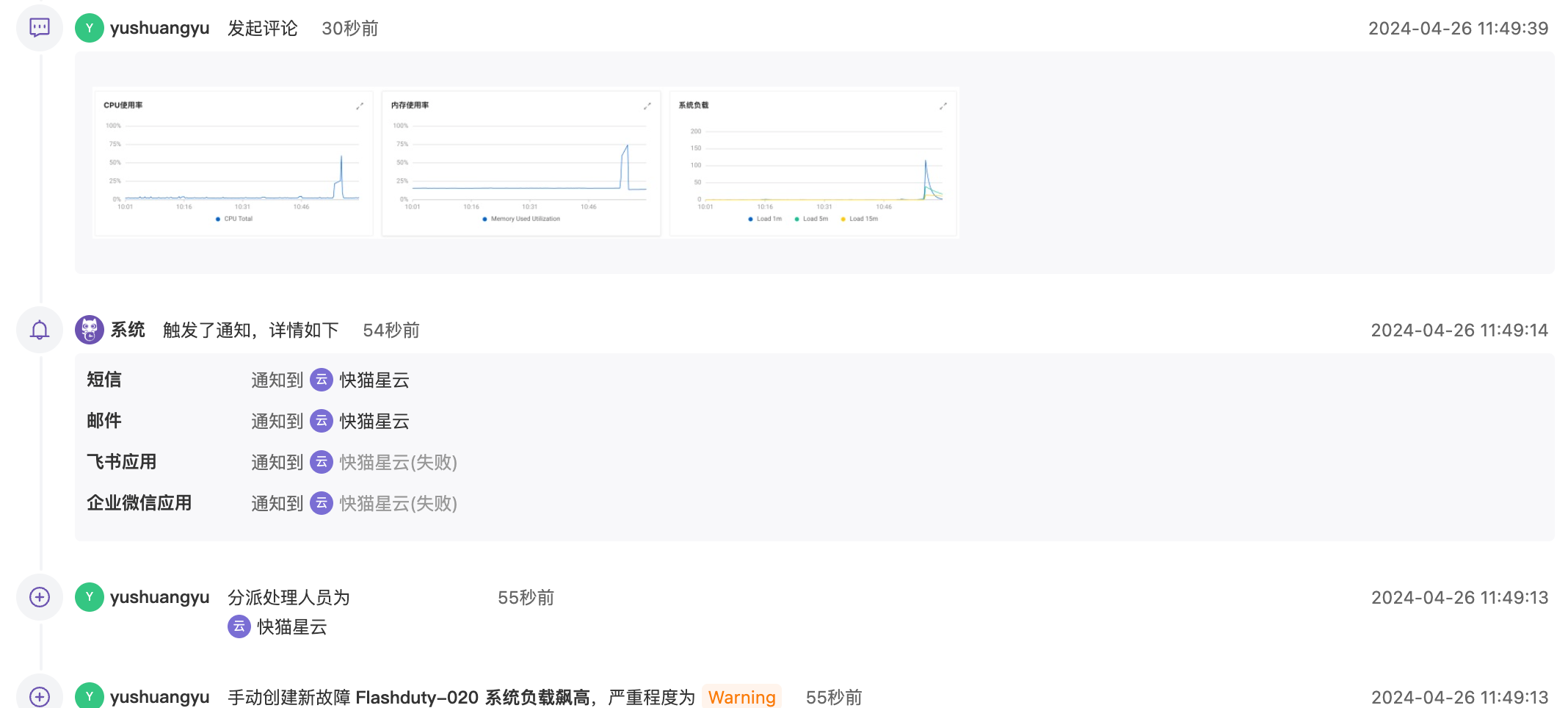
Every incident has a timeline for tracing changes and actions at different historical moments. For example, at what time, through what channel, who was notified, and notification results. Each timeline record shows the full date and time (YYYY-MM-DD HH:mm:ss) by default; hovering switches to a relative time (e.g. “3 minutes ago”).
Triggering Incidents
Trigger via Integration
Flashduty On-call supports most common monitoring systems, including Prometheus, Zabbix, Nightingale, and cloud monitoring. Go to Alert Integration for specific steps.Trigger via API
Flashduty On-call provides a custom event standard, allowing you to report alerts via standard protocol, suitable for any non-integrated monitoring system. For details, read Custom Alert Events.Trigger via Email
Flashduty On-call provides email integration, allowing you to report alerts by sending emails, suitable for all monitoring systems supporting email alerts. For details, read Email Integration Guide.Trigger via Console
You can click the Create button on the incident list page to manually create an incident. Follow these steps:1
Enter incident title
Enter the incident title with a brief description of what happened. This field is required.
2
Select severity
Choose Critical, Warning, or Info.
3
Select channel
Select the channel the incident belongs to. If you are creating within a channel, this field is pre-filled and cannot be changed.
4
Select assignment method
After selecting a channel, the system displays assignment method options:
- By Policy: Select an escalation rule from the current channel. If no escalation rules are available in the channel, this option is disabled
- Direct Assignment: Manually select responders (individuals or schedules) for direct assignment
5
Enter incident description (optional)
Enter a detailed description of the incident. The editor supports rich text and Markdown syntax.
Related Topics
Understanding Noise Reduction
Understand the relationship between events, alerts, incidents and noise reduction principles
Search and View Incidents
Master incident list and details page usage
Handle and Update Incidents
Learn how to acknowledge, snooze, close incidents
Escalate and Reassign Incidents
Learn how to reassign and escalate