

Configuring fields
Creating fields
An account supports creating up to 15 custom fields.
1
Enter Configuration Page
Go to Console Configuration → Custom Fields
2
Create Field
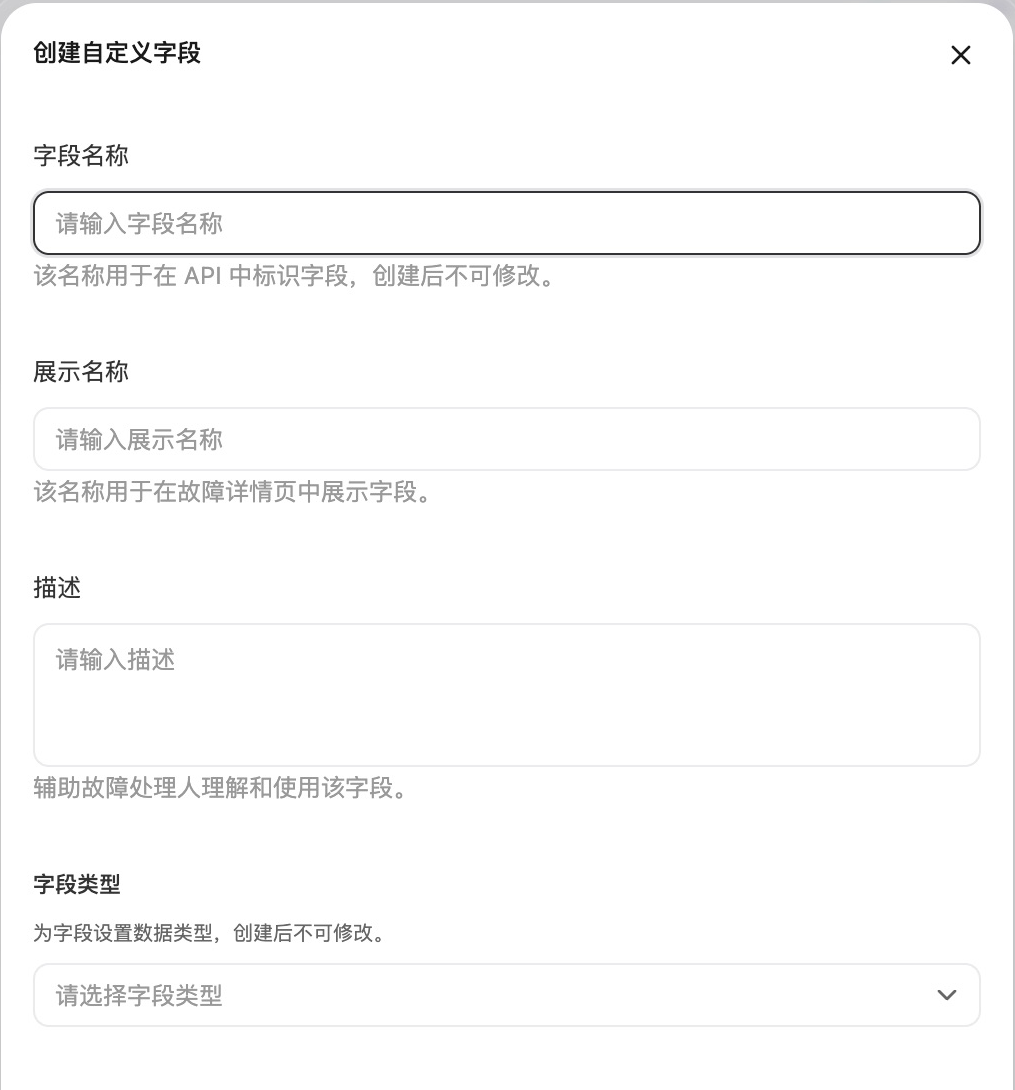
Select Create and enter the following information:
3
Select Field Type
4
Complete Creation
Set options and default values as needed, click Submit to finish.
For single-select and multi-select fields, the default value must be one of the options currently defined on the field. If you delete or modify an option, update the default value accordingly — otherwise the field cannot be saved.
Updating fields
Only the following can be updated:- Display name
- Field description
- Field options (single-select and multi-select types only)
- Default value
Field updates only affect new incidents, not existing ones.
Deleting fields
You can initiate deletion from the console at any time.Examples
Field definition example
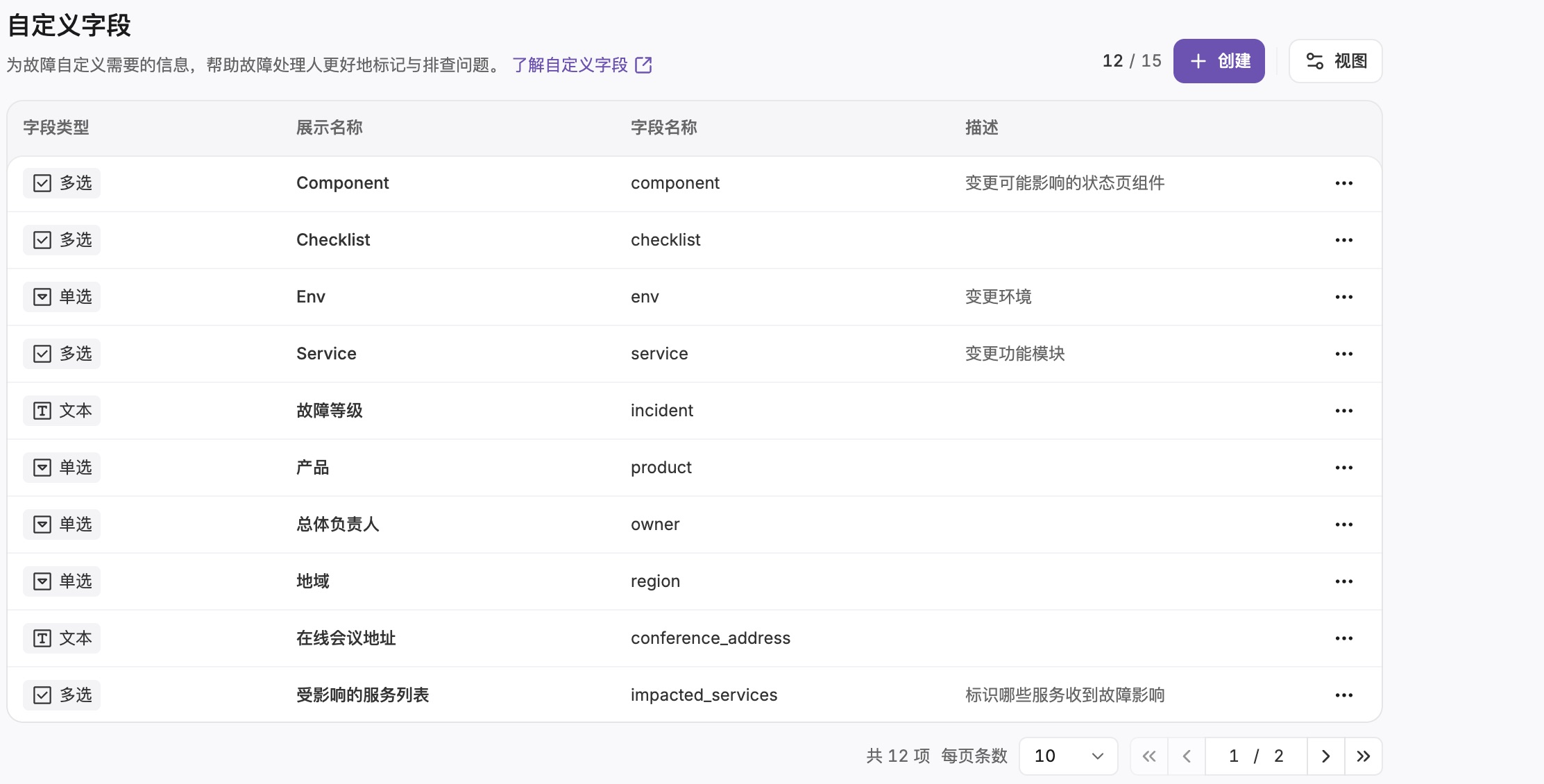
Custom Fields List
Incident information association
Open an incident and edit its field values in the information panel’s Custom fields section. Changes save automatically without a separate submission. Editing requires incident update permission. Select Show empty fields to fill in unset fields, or Hide empty fields to display only fields with values.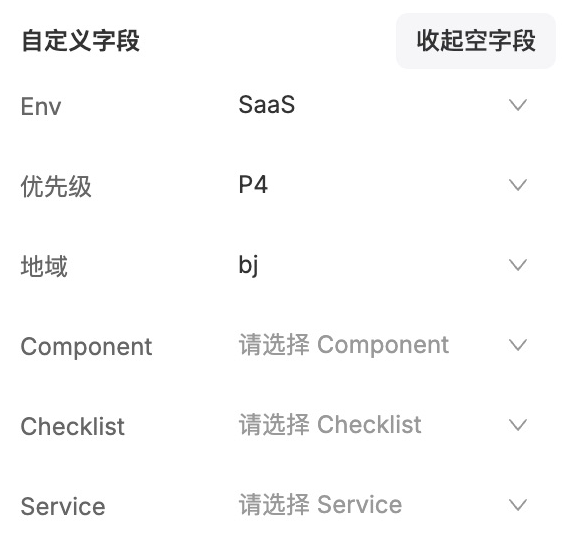
Set Custom Fields in Incident Details
Filter view by field
In the incident list, select Add filter → Custom fields, then choose a field and value. Single-select, multi-select, and checkbox fields support exact filtering, without wildcards or regular expressions. Multi-select fields match incidents containing the selected value; checkbox fields accepttrue or false.
For text fields, enter a keyword in the search box at the end of the filter bar. Search matches content across incident titles, labels, and custom fields; it does not target one specific field. See Search and View Incidents.
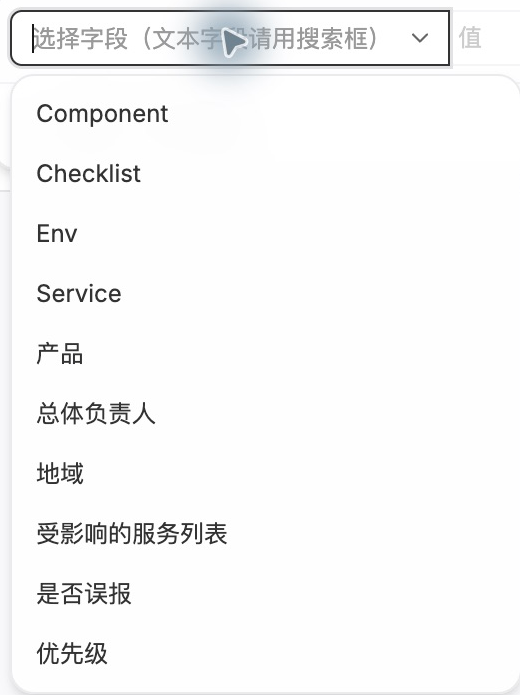
Filter Incidents by Custom Field
FAQ
Why are text fields missing from the custom field filter?
Why are text fields missing from the custom field filter?
The custom field filter lists only single-select, multi-select, and checkbox fields. To find text field content, enter a keyword in the search box at the end of the incident list filter bar. Search results may take a short time to reflect field updates.
Related topics
Search and View Incidents
Learn about incident filtering and viewing features
Handle and Update Incidents
Learn about incident handling workflow
Custom Forms
Collect additional information when creating, acknowledging, and closing incidents