

Accessing Personal Center
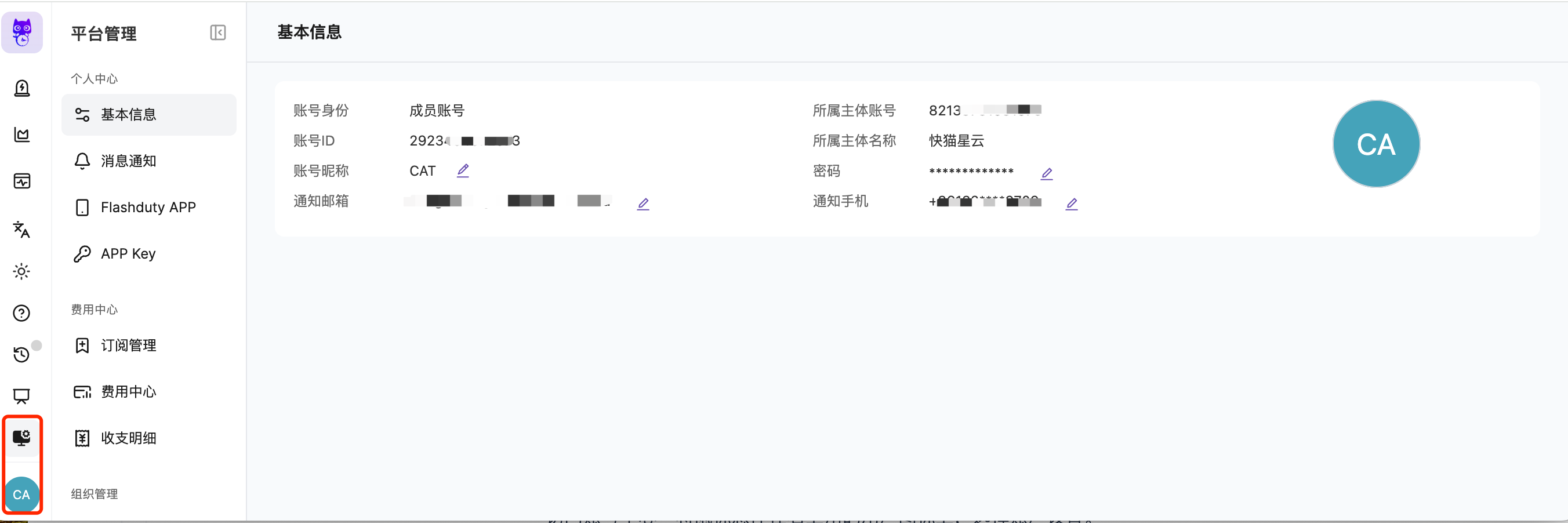
Hover over the user icon in the lower left corner and select Personal Information. Related personal settings (Notification Preferences, APP Key, Flashduty APP) live in the same menu; for organization-level settings, go to Platform Management → Organization → Organization Information.
Personal Information
Personal settings are accessed via the user icon in the lower left corner → Personal Information. The page shows an account profile card at the top and a Login & Security section below.
Account Profile Card
The card displays the identity of the currently logged-in account:Login & Security
Used to log in to this account and to receive alert notifications:Profiles of SSO-synced members are maintained by their identity provider; the edit entries on this page are unavailable — update profile and role in the identity provider instead.
Display Preferences
The organization time zone is maintained by the subject account or an Account.Admin on the Organization Information page. Changing it affects the time display of every member who follows the organization.
Notification Preferences
The Notification Preferences page configures notification channels per notification scene: Incident Dispatch, Collaboration & Follow-up, Schedule Shift, and Internal Status Page. Supported channels per scene:
- Flashduty APP push is offered only for Incident Dispatch: the Flashduty APP currently only has incident-related pages, so APP push is not offered for other scenes
- Voice is offered only for Incident Dispatch
- All four scenes support every IM app type (DingTalk, Feishu/Lark, WeCom, Slack, Microsoft Teams)
Incident Dispatch
When an incident is dispatched to you, choose the notification method separately for each severity. The system supports configuring notification channels separately for Critical, Warning, and Info severity levels. You can select the following notification channels for each level:
To use DingTalk, WeCom, Feishu/Lark, Slack, or other IM notifications, first complete account linking in the corresponding app. You can select multiple notification channels for each level to ensure important alerts are not missed.
Collaboration & Follow-up
How you are notified when others mention you or you are assigned as the owner of an action item:- Collaboration Mention: when others mention you in an incident comment or incident review, you are notified through the selected channels
- Work Item Assignment: when you are assigned as the owner of an Action or Follow-up, you are notified through the selected channels
Flashduty APP push and voice are not offered for Collaboration & Follow-up.
Schedule Shift
When the schedule rotates to you, you are notified through the selected channels. SMS, Email, and IM apps are supported.- Voice and Flashduty APP push are not offered for Schedule Shift
- This configuration applies only when the schedule’s direct-message notification is set to Follow Personal Preferences; if set to Follow Unified Settings, the channels configured in the schedule take precedence
Internal Status Page
When an internal status page you subscribe to has incident or maintenance updates, you are notified through the selected channels. This scene supports IM apps only.Status-page notifications are pushed only through IM apps; subscription emails are sent directly to subscribers’ inboxes and do not read personal preferences.
APP Key
APP Keys are used for API request authentication.
When creating or editing an APP Key, choose its mode under Permission Scope. To give a script or third-party tool only the access it needs, select Custom permissions and choose its required API scopes. You must select at least one scope before saving. A key’s scope never expands the permissions already granted to your current role.
Flashduty APP
Download the app
If your phone brand is not listed above, you can click Download here on the APP management page to get an installation package QR code. Scan it with your phone to download.
Device binding
After installing the app, you need to bind your mobile device to your Flashduty account to receive push notifications.1
Go to APP management page
Navigate to Personal Center → Flashduty APP.
2
Scan QR code to bind device
The page displays a QR code. Open the Flashduty APP, tap the “Scan to Login” button, and scan the QR code on the page to complete device binding.
- Binding a device does not automatically enable notifications — the actual notification method depends on your escalation rule settings
- After unbinding a device, it will no longer receive push notifications
- The QR code has an expiration time; the page automatically refreshes to generate a new QR code when it expires
Push notifications
The Flashduty APP supports free push notifications for alerts, ensuring critical alerts reach you instantly. You can acknowledge, resolve, and escalate alerts anytime, anywhere from your mobile device. We recommend enabling system notification permissions and allowing urgent incident notifications in Do Not Disturb mode to avoid missing important alerts.FAQ
I set personal notification preferences, why didn't notifications trigger?
I set personal notification preferences, why didn't notifications trigger?
- Check if the channel has escalation rules configured. Without escalation rules, incidents won’t trigger notifications
- Check the direct message channel settings in escalation rules. Only “Follow Personal Preferences” mode uses your personalized configuration; “Follow Unified Settings” mode ignores personal preferences
Related Topics
Escalation Rules
Set notification channel to “Follow Personal Preferences”
Feishu/Lark Integration
Link Feishu/Lark app to receive notifications