War Room is an automated collaboration feature designed for incident emergency response, capable of creating and managing dedicated communication groups on mainstream instant messaging platforms.
Plan requirement: This feature requires an On-call Pro or higher subscription. Learn more
Flashduty On-call War Room is an automated collaboration feature designed for incident emergency response. It creates and manages dedicated communication groups on mainstream instant messaging (IM) platforms throughout the entire incident lifecycle, ensuring teams can respond and collaborate efficiently.
Go to On-call → Integration Center → Integration List → Instant Messaging, connect your IM application as needed, and follow the guide to enable war room functionality.
Feishu/Lark Integration
Connect Feishu/Lark application
Dingtalk Integration
Connect Dingtalk application
WeCom Integration
Connect WeCom application
Slack Integration
Connect Slack application
2
Create War Room
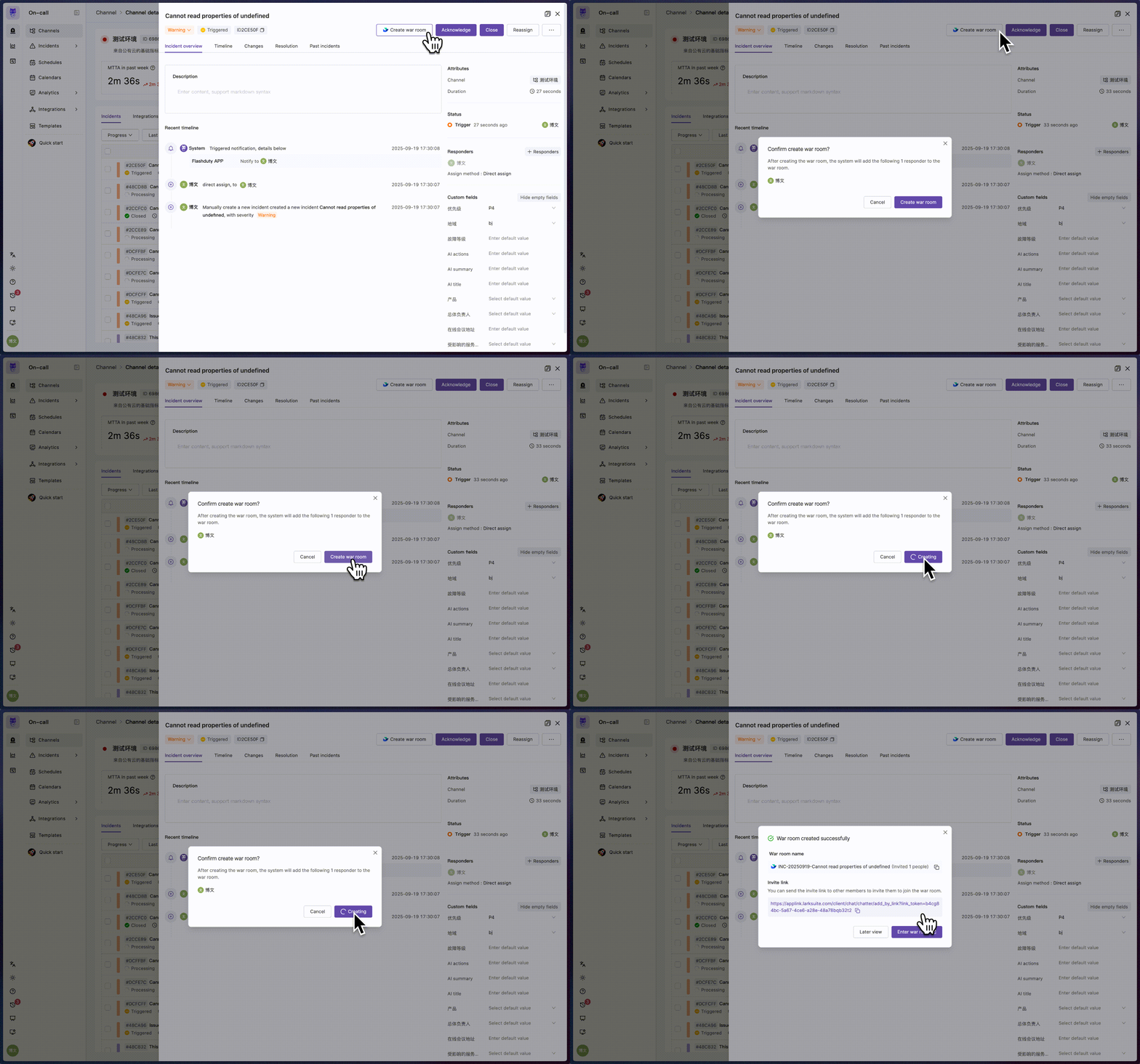
On any active incident’s details page, click Create War Room in the upper right corner.
Console
IM App
Mobile App
Create War Room in Console
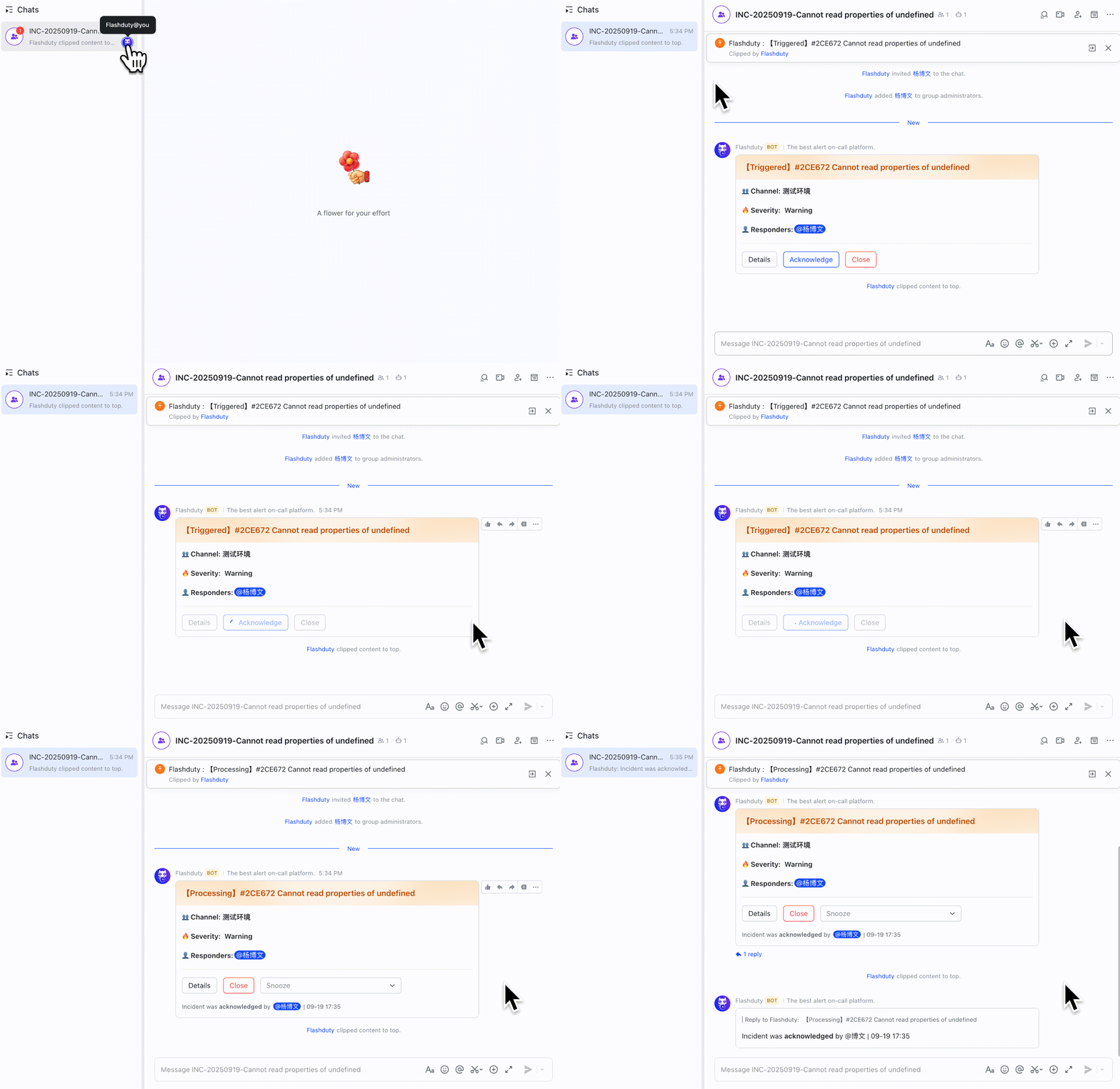
Automatic sync in War Room
When notifying through the Feishu/Lark, Dingtalk, or Slack app, the 👥 Create War Room button at the bottom of the incident card is controlled by a switch in the notification template: edit the app template for that channel under Template Management and turn on Create War Room in the card-fields panel of the Additional info tab (off by default). Only then does the button appear at the bottom of the card, provided the group-creation conditions are met. The card’s More Actions area is now a dropdown menu (custom actions, snooze durations, and unacknowledge), and the war room is no longer one of its entries.
Open the Flashduty App, go to the incident details page, and tap the ⋯ button in the bottom action bar to open More Actions, then choose Create war room. Review the responder list and pick stakeholders in the panel, then submit. The entry is hidden when the incident already has a war room or is closed; when the incident has no responders, the entry is disabled with the toast “This incident has no responders, so a war room cannot be created”.
3
Collaborative Handling
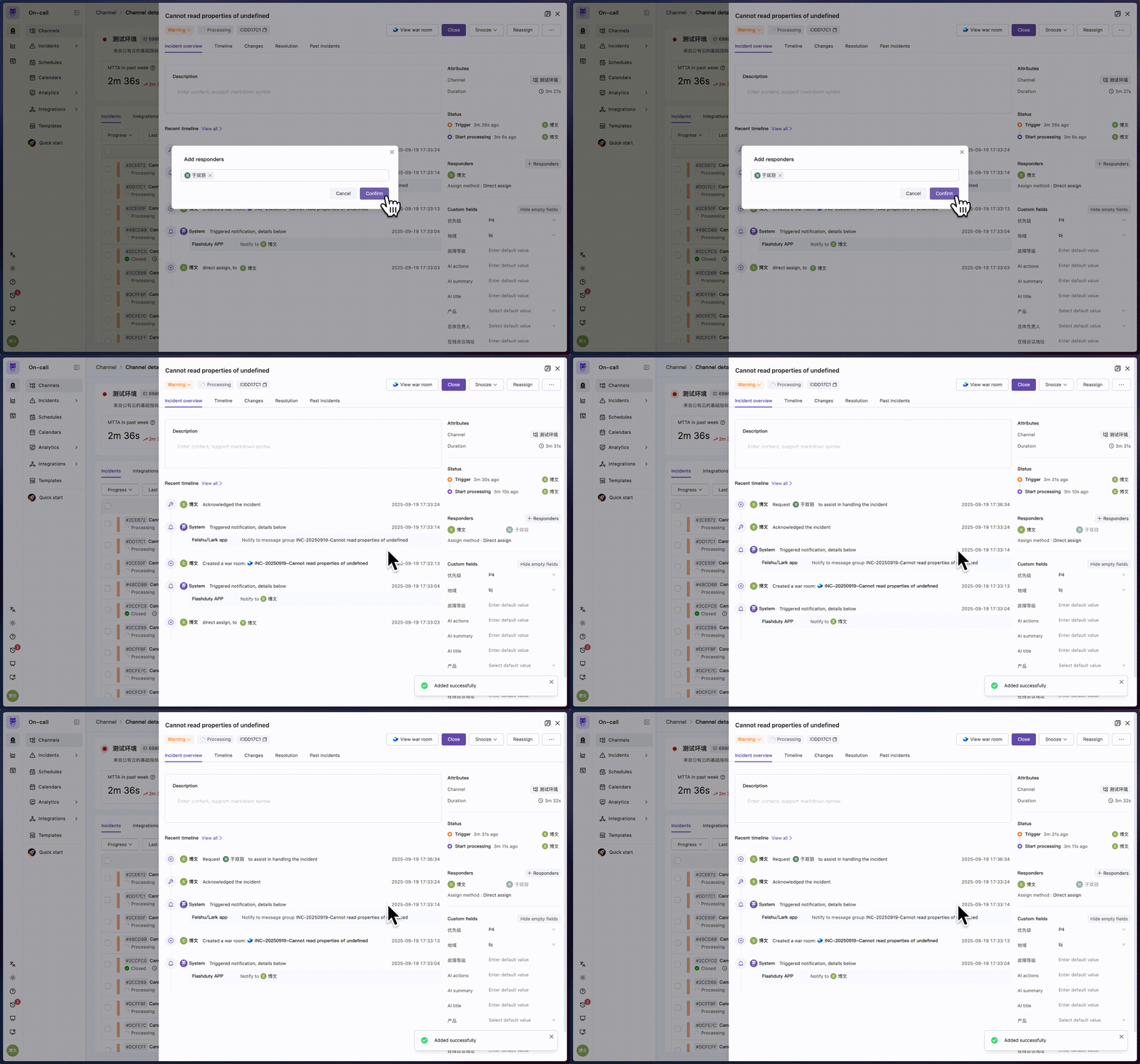
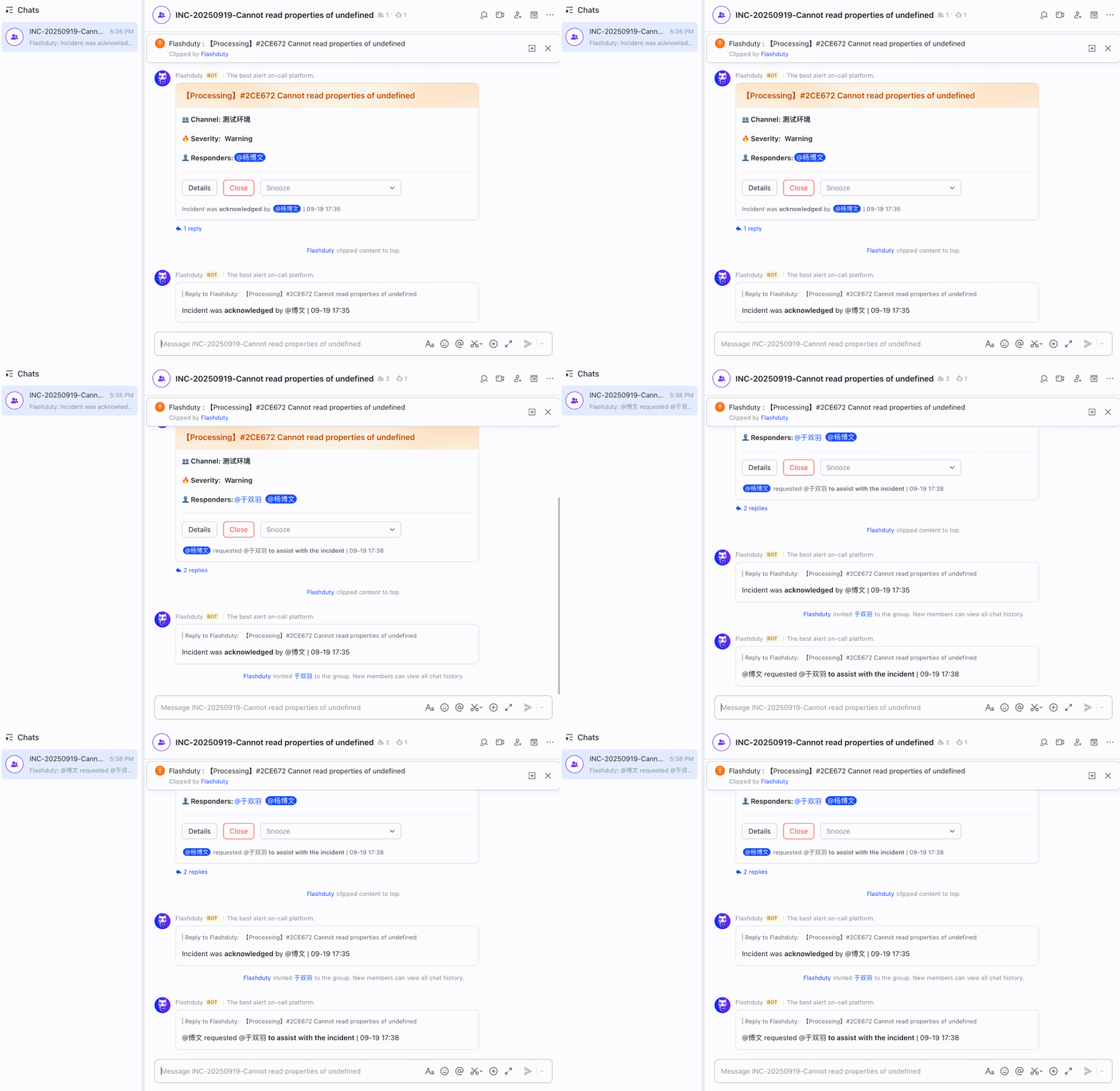
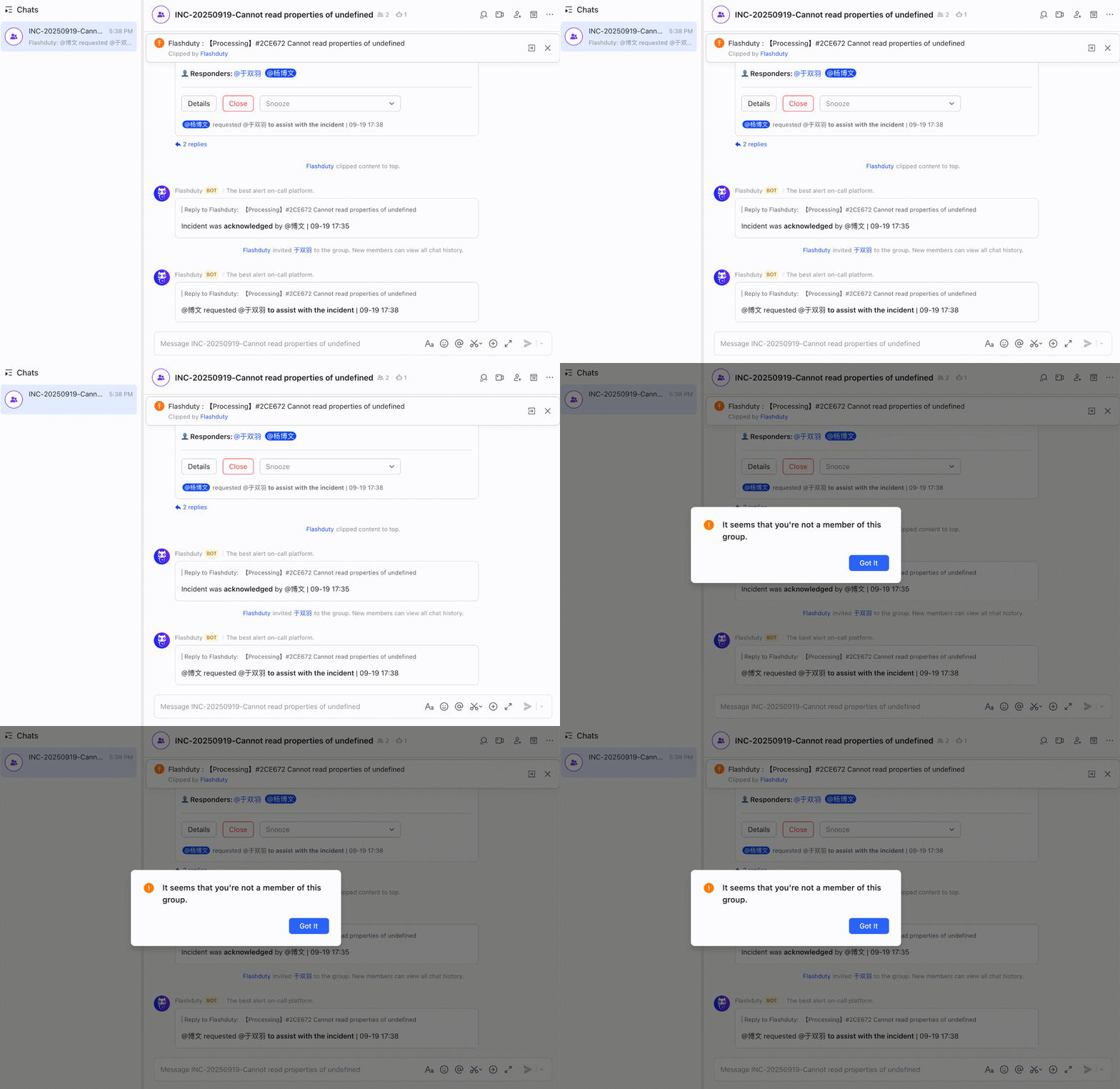
When incident responders change, relevant personnel are automatically synced to the war room. Other members can click View War Room on the incident details page to quickly join the conversation.In the war room, members can acknowledge, close, and snooze incidents, and receive incident status updates from Flashduty On-call.
Console Operation
IM App
Mobile App
Add Members in Console
Automatic sync in War Room
Tap the War room entry card on the incident overview page. IM integrations with deep-link support open the chat directly; when the link cannot be opened (for example, the corresponding IM app is not installed), a dialog shows the group name (one-tap copy) so you can search for the group name in your IM app to join.
4
Dismiss War Room
After the incident is closed, click Dismiss War Room from the … menu on the incident details page.
Console Operation
IM App
Mobile App
Dismiss War Room in Console
Automatic sync in War Room
On the incident details page, tap the ⋯ button in the bottom action bar to open More Actions, then choose Add stakeholders to war room or Dissolve war room (requires confirmation). Both actions remain available after the incident is closed, which is handy for post-mortems.
If the IM integration used by the war room is later disabled or deleted, Add stakeholders to war room and Dissolve war room are hidden in both the console and the mobile app. In that case, ask an account owner or account admin to open the View war room dialog on the incident details page and use Confirm unlink: it removes only the link between the incident and the original group and does not dissolve the group chat, and the timeline records it as “Requested war room unlink”. Before creating a new room, make sure the original group has been handled.
Platform-created war room chats cannot be used as standing notification targets. Every chat carries an origin mark: origin=system means the platform created it (today, that is only war rooms), distinguishing it from human-created chats. Accordingly, the group-chat pickers in escalation rules’ IM app groups (Feishu/DingTalk, Slack, and Microsoft Teams group chats) and in schedule handoff notifications’ group chat channels (Feishu/DingTalk and Slack) automatically exclude war rooms — the Feishu/DingTalk and Slack pickers even read “Select … group chat (war rooms excluded)”. A war room is born with an incident and dies with it: configuring one as a standing notification target points the configuration at a group that is bound to disappear. If a saved chat ID no longer resolves (war room dissolved, bot removed from the group, group deleted), the picker shows that target as Chat unavailable, with a remove button to clear it.
The Flashduty App supports the full war room lifecycle, sharing the same war room capabilities as the console and IM apps. Key mobile behaviors:
Capability gating: The mobile war room requires an On-call Pro or higher subscription and at least one IM integration with war room enabled; when the plan requirement is not met, neither the overview entry nor war-room actions are shown
Overview entry card: When the incident has a war room, the incident overview page shows a War room entry card. Tapping it opens the IM chat directly when the integration supports deep links; if the link cannot be opened or the integration does not provide a share link, a dialog shows the group name (one-tap copy) so you can search for the group name in your IM app to join
Create war room: The entry lives in More Actions in the bottom action bar of the incident details page. It is hidden when the incident already has a war room or is closed; when the incident has no responders, it is disabled with the toast “This incident has no responders, so a war room cannot be created” (the group is created by the backend based on the responders)
Add stakeholders to war room / Dissolve war room: Also in More Actions. Both remain available after the incident is closed (for review), and dissolving requires confirmation; they do, however, require the war room’s IM integration to still be available. Once that integration is disabled or deleted, the two entries disappear from More Actions and an administrator must unlink the war room from the incident details page in the console; the War room entry card on the overview page stays, and tapping it shows “The integration is disabled or deleted. Ask an administrator to unlink the war room from the incident details on desktop. The original group chat will not be dissolved.”
By deeply integrating emergency processes with instant messaging tools, Flashduty War Room brings you an automated, visual, and traceable incident collaboration experience.
Key incident operations (acknowledgment, closure, snooze, comments, etc.) are synced to the war room group as messages in real time. Among them, the four types of action item and follow-up operations are included in the war room’s default reply event set and are posted to the group as plain-text messages when they occur:
Event Type
Example Group Message
i_wi_created
John created Action "Scale up the database connection pool"
i_wi_assignees
John updated assignees on Action "Scale up the database connection pool"
i_wi_completed
John completed Action "Scale up the database connection pool"
i_wi_converted
John converted Action "Scale up the database connection pool" to Follow-up
In messages for follow-up operations, Action is replaced with Follow-up
When the operator cannot be resolved to a specific member, the message shows System as the operator
How does Flashduty implement war room management for incidents?
Flashduty implements war room functionality by integrating applications on IM platforms and calling related APIs for group chats, messages, and user information.
When creating or connecting related applications, you need to manually grant necessary permissions to ensure operational security.
Which IM platforms does Flashduty War Room support?
Currently supported IM platforms:
Platform
Status
Feishu/Lark
✅ Supported
Dingtalk
✅ Supported
WeCom
✅ Supported
Slack
✅ Supported
Due to different levels of openness across IM platforms, the configuration process for accessing war room functionality varies. Flashduty On-call has simplified the configuration steps as much as possible during adaptation.
At any given time, the system only supports enabling war room functionality for one IM integration.
Why is my war room functionality not working as expected?
War room is an advanced feature in IM integration. Please ensure you have completed all necessary configuration steps according to the official documentation. You can find related guides on the integration configuration page or in Flashduty Docs → Integration Guide.To ensure Flashduty can successfully invite members, it needs to obtain their user ID on the IM platform. Please ensure relevant personnel have completed at least one of the following:
1
Configure Notification Information (Recommended)
On the Flashduty On-call Personal Center → Personal Information page, fill in Notification Email and Notification Phone.
2
Use One-click Link Feature
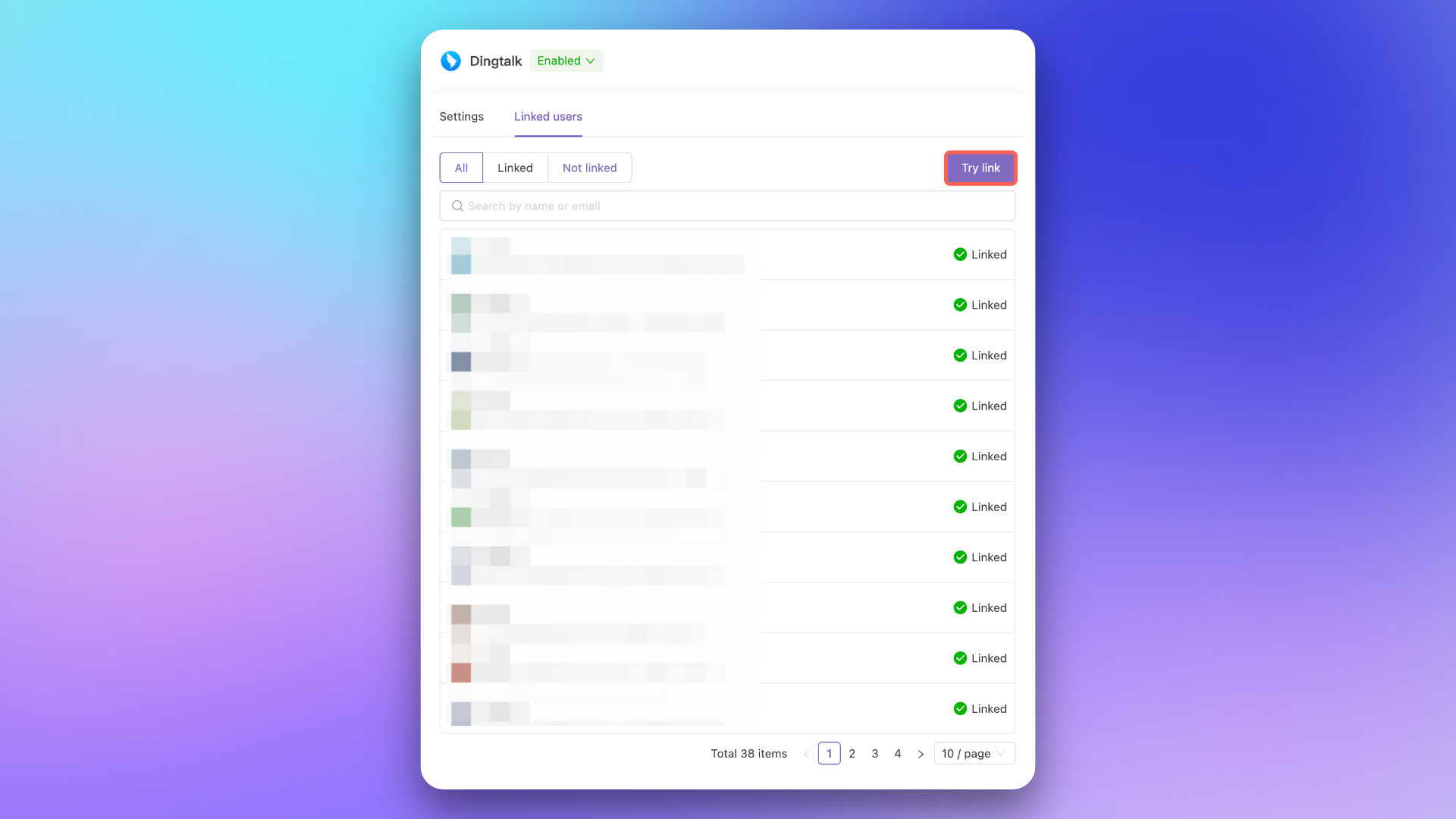
If your IM integration supports it, use the One-click Link feature on the Link Users page. Flashduty On-call will use the notification email and phone configured in the user’s personal center to call application permissions for user information linking.
One-click Link Users
3
Sign In Within IM App
If your IM integration supports it, complete a sign in within the IM app to automatically link accounts.
If the issue persists, please contact Flashduty technical support.
WeCom war room creation fails with 'requires at least two people'?
WeCom requires application group chats to have at least 2 members. When creating a WeCom war room, Flashduty resolves the incident’s responders, incident owner, and the current operator into WeCom user IDs. If fewer than 2 members with linked WeCom accounts can be resolved, creation fails with the error:
Creating a WeCom war room requires at least two people. Add more linked WeCom members and try again.
Resolution: Ensure at least 2 of the incident’s responders have completed WeCom account linking (see the steps in “Why is my war room functionality not working as expected?” above). Use One-click Link or guide members to sign in within the WeCom app to complete the binding.
War rooms integrate deeply with AI SRE: when a war room opens, AI SRE automatically runs a first round of diagnosis and posts its findings back to the group; you can also @ AI SRE in the chat to follow up or start a new investigation. See the AI SRE introduction and IM platforms.
When a war room opens, AI SRE analyzes the incident and posts a first round of findings — before anyone has started investigating
Follow up in chat
@ AI SRE in the group to start or continue an investigation; the agent replies in the thread, visible to the whole team
Context-aware investigation
Reply to an alert or incident card and the agent resolves the referenced incident automatically — no manual context-pasting
Incident review
Generate structured post-mortems from the incident timeline and investigation evidence
To build a more comprehensive context of the incident’s full lifecycle, AI-generated post-mortem reads war room chat history. Ensure your IM integration has been granted the necessary permissions — see Feishu/Lark or Slack integration guides for details.