

Choose how to connect
You have three ways to create a Feishu/Lark integration. They differ in who creates the Feishu app and who does the configuration afterwards:
A private Flashduty deployment cannot reach the Feishu QR-code endpoints, so it can only use Enter credentials manually.
Scan to create a Flashduty-managed app (recommended)
- When you create a Feishu/Lark integration, Feishu/Lark app authorization defaults to Create a new app (recommended). Fill in the name and click Save; a QR code appears.
- Scan it with Feishu to confirm: the Feishu confirmation page lists the permissions requested, click Create. Flashduty stores nothing before you confirm.
- After you confirm, Flashduty creates the app in your Feishu tenant (named Flashduty by default) and submits the first review. The app sends and receives messages and reads group messages, and Feishu requires a tenant admin to approve it before it can do so.
-
Once the first review passes, Flashduty configures everything: it generates the
Encrypt KeyandVerification Tokenfor the event and callback encryption strategy; adds the web and mobile login redirect URLs; sets the availability scope to all members (on the first configuration only — later versions keep the scope an admin chose); adds the permissions the enabled features need, plusapplication:application:self_manageandapplication:application:patchso Flashduty can update the configuration and publish versions later without another scan; points both events and callbacks at the Flashduty request URL (eventim.message.receive_v1, callbackcard.action.trigger); enables the Web App and Bot abilities, with the Flashduty web app as the workplace default. It then publishes a new version for the admin to review. - After both reviews pass, the integration is ready to use. If Feishu did not accept the default ability in that version, Flashduty publishes one more small version to add it, without affecting usage.
Use an existing app
Choose Use an existing app under Feishu/Lark app authorization, enter the app’sApp ID, and click Save. Then scan with the Feishu account of the app’s owner or a collaborator to authorize Flashduty to manage it. The two reviews and the automatic configuration are the same as for a new app. An App ID already used by another Flashduty account is refused.
Managed app states
Both the integration detail page and the integration list show the state of a managed app.
For a working integration Flashduty checks the credential every 10 minutes; when the Secret is reset, the app is deactivated, or it is deleted, the state changes to one of the above. After you enable a feature that needs more permissions (for example importing war room chat history into a post-mortem, or using AI SRE in Feishu), the detail page shows “Enabled features need N more Feishu permissions”; click Submit for Feishu admin review and Flashduty adds the permissions and publishes a new version, with no scan needed.
Create Feishu/Lark app
The steps below apply only to Enter credentials manually (including Lark international and private deployments). Flashduty does this configuration for a scanned or already upgraded integration, so you don’t need to perform them.1. Create custom app
Visit Feishu/Lark Developer Console to create an enterprise custom app. You can use the Flashduty official icon as the app icon. For details, see Feishu/Lark development documentation Create Enterprise Custom App.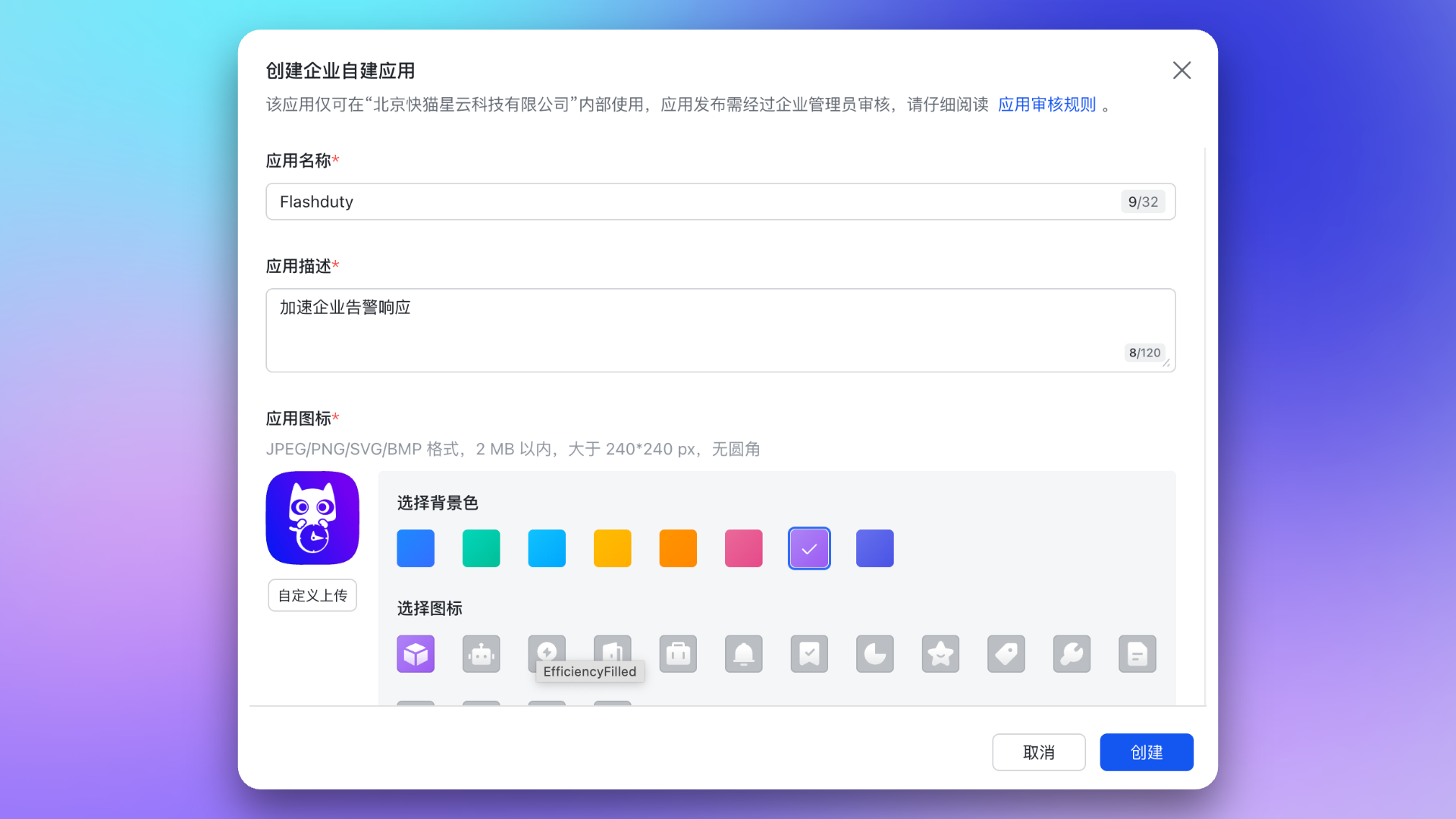
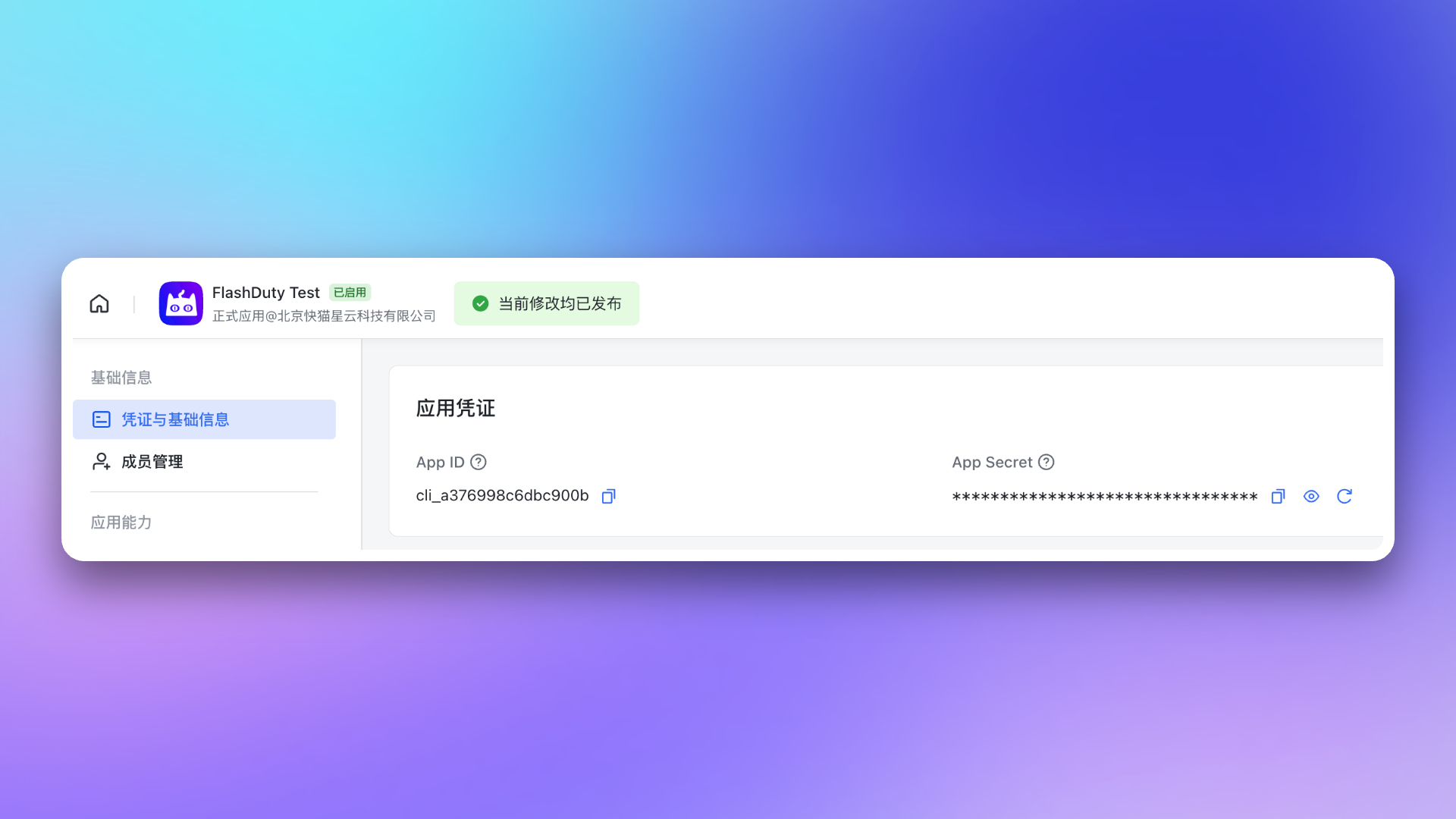
2. Copy credential information
Go to Credentials & Basic Info page, copyApp ID and App Secret for later use.
3. Copy event callback token information
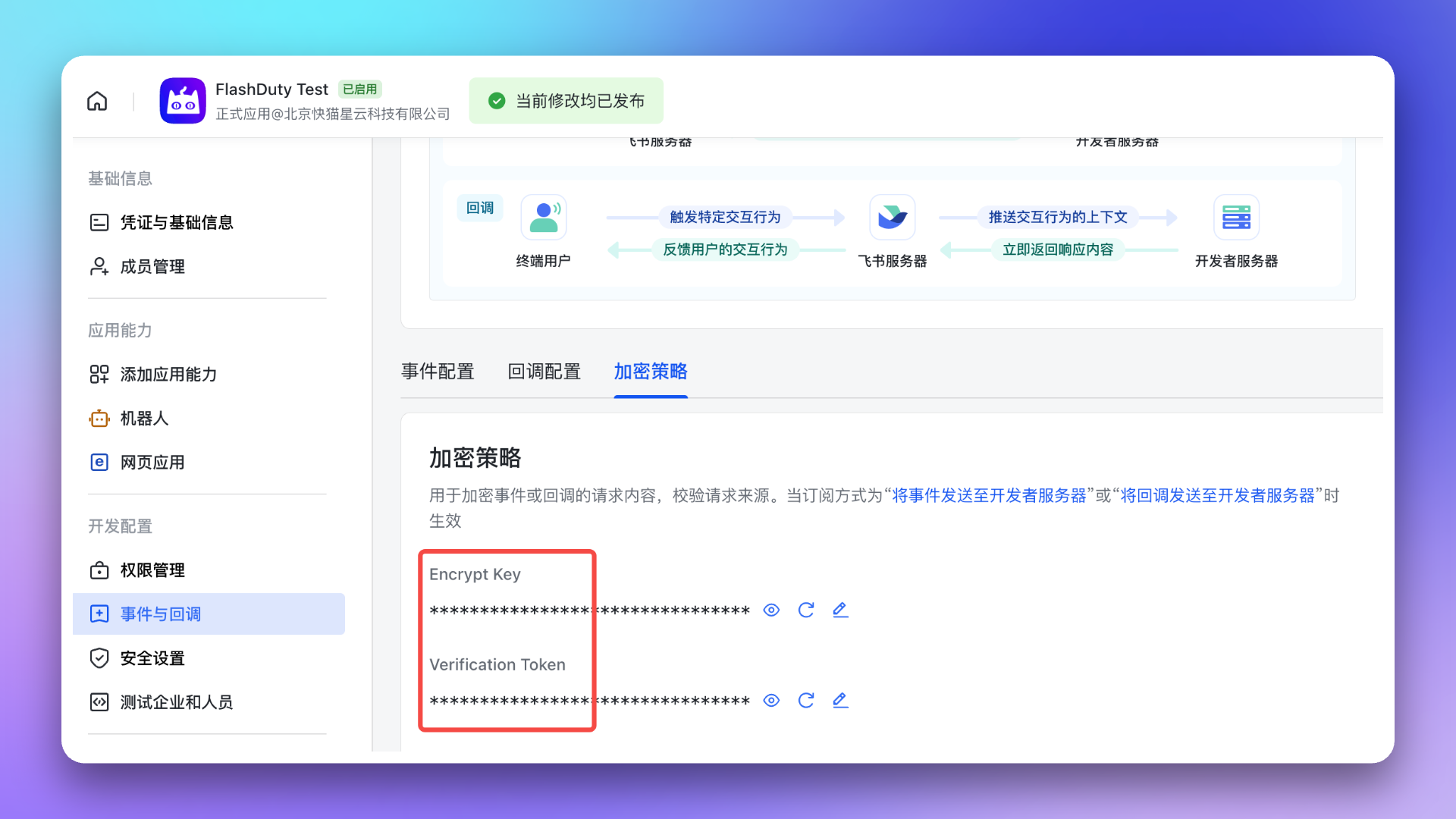
Go to Development Configuration → Events & Callbacks → Encryption Strategy page, generate and copyEncrypt Key (recommended for better security; leave it empty if you did not set one in Feishu) and Verification Token for later use.
Add Feishu/Lark integration
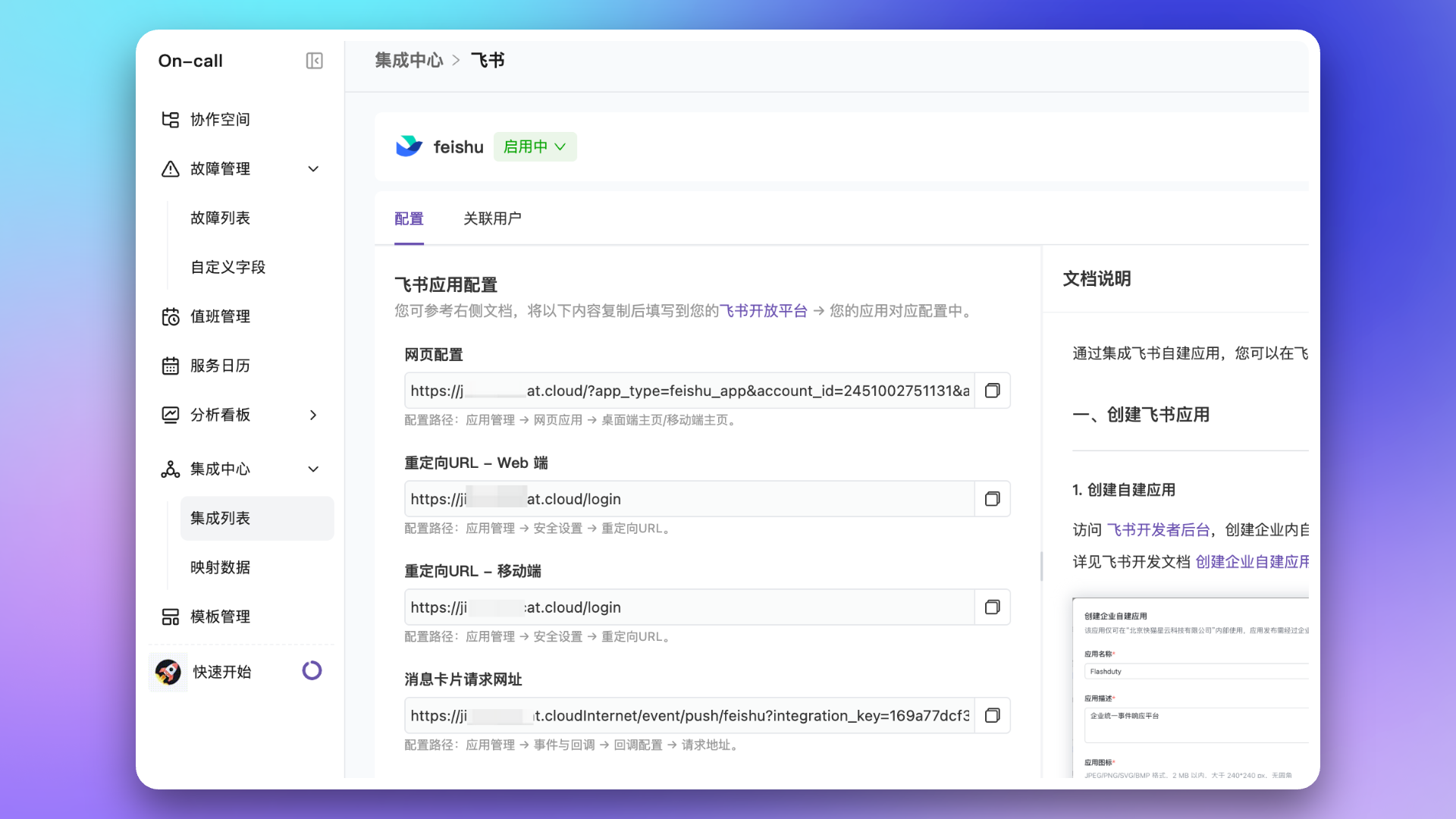
In the Flashduty On-call Integration Center, select Instant Messaging → Feishu/Lark, choose Enter credentials manually under Feishu/Lark app authorization (a new integration defaults to scanning; a private deployment and an existing integration go straight to the credential form), then fill inName, plus the App ID, App Secret, Verification Token, and Encrypt Key from the previous step, and click Save. On save, the system exchanges the App ID and App Secret for an access token once; a wrong value is reported right away.
If you use Lark (the international version), also turn on the Is Lark Version toggle. When enabled, the system communicates with Lark international endpoints. The Lark Developer Console is at open.larksuite.com — complete the app creation and permission configuration steps described above on that site.
After successful creation, you’ll see the added Feishu/Lark integration in the list. Click its name to open the details page: it gives you a numbered 5-step setup guide, each step offering the addresses or permission list to copy, and the numbers match “Finish setup in Feishu” below.
Finish setup in Feishu
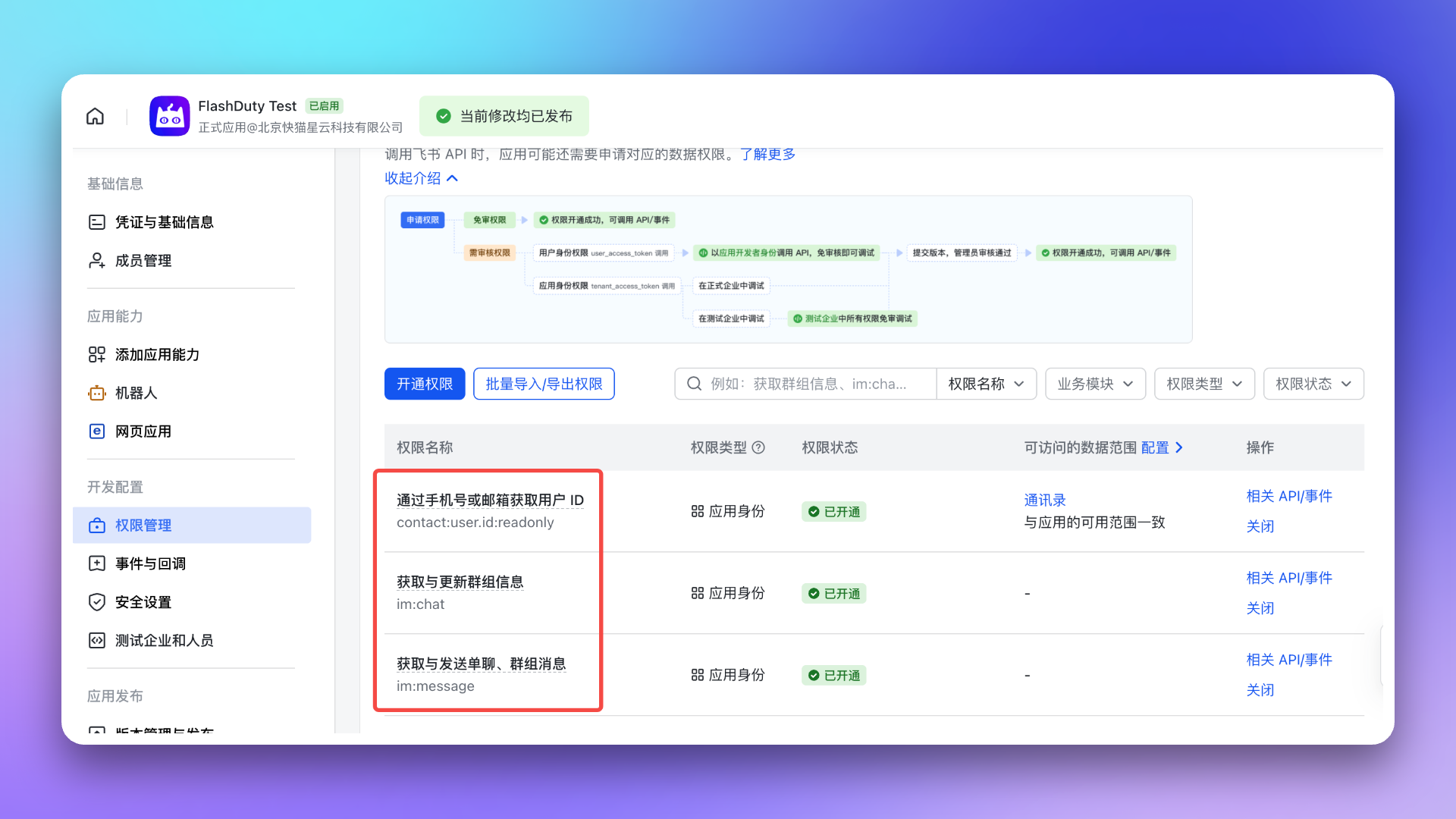
Finish setup in Feishu on the details page splits the remaining work into 5 numbered steps, one per Feishu developer console page, numbered as in this section, with “N / 5 done” at the top right. Granting permissions and verifying the request URL happen on the Feishu side, so the page re-reads the state when you come back to it (or when you click Check again): Feishu verifies the request URL, so step 3 ticks itself off; Feishu never reports the app abilities, the redirect URLs, or the version release, so confirm those three by clicking the button once you have done them. Confirming needs edit permission on the integration; members without it only see the state.1. Grant permissions
Go to the Permission Management page, choose “Batch actions › Batch import/export permissions”, paste the permission list copied from Copy permission list (N) in step 1 of the details page, click “Next, confirm new permissions”, then confirm. The list is the JSON Feishu’s batch import accepts, shaped like{"scopes":{"tenant":[...],"user":[]}}, and contains every permission in the table below.
The table covers basic notifications, War Room, AI SRE conversations, and AI-generated post-mortems. Pay special attention to im:message.p2p_msg:readonly and im:message.group_at_msg:readonly; without them, Feishu/Lark will not push direct-chat messages or group @bot messages to Flashduty. When Allow AI to reply proactively is enabled, also confirm that im:message.group_msg is granted and im.message.receive_v1 is subscribed under Events & Callbacks; otherwise Feishu/Lark only pushes @bot messages. im:message.reactions:write_only is used for the ACK after the assistant decides to reply. After changing permissions or event subscriptions, publish a new app version for the changes to take effect in production.
What the three groups are for: Basic is required for alert notifications, card buttons, member linking, and war rooms; War room post-mortem is only needed when a post-mortem imports the war room chat history; AI SRE is only needed to use AI SRE in Feishu/Lark.
The platform checks this step for you: it is done once the whole Basic group is granted, shown as “All N basic permissions granted”, and as “N basic permission(s) missing” while any is missing; grant the other two groups as needed, they do not affect the check mark.
2. Add the web app and bot
-
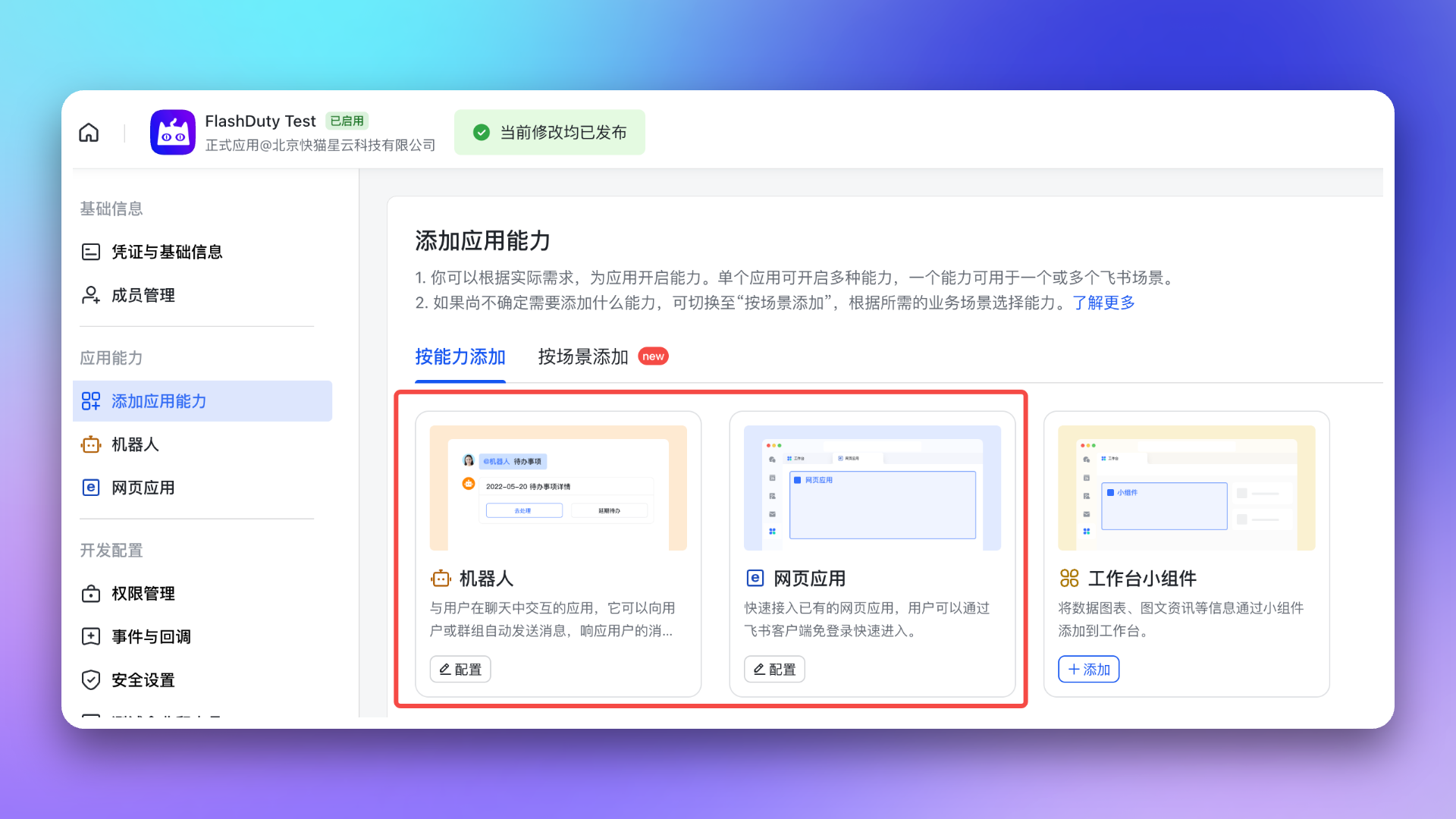
Return to Feishu/Lark Developer Console, enter the Feishu/Lark app you just created, go to Add App Capabilities → Add by Capability page, and enable both Web App and Bot capabilities.
-
Go to Web App page, configure
Desktop HomepageandMobile Homepage, both using the address given in step 2 of the details page. See Feishu/Lark development documentation Configure App Homepage URL.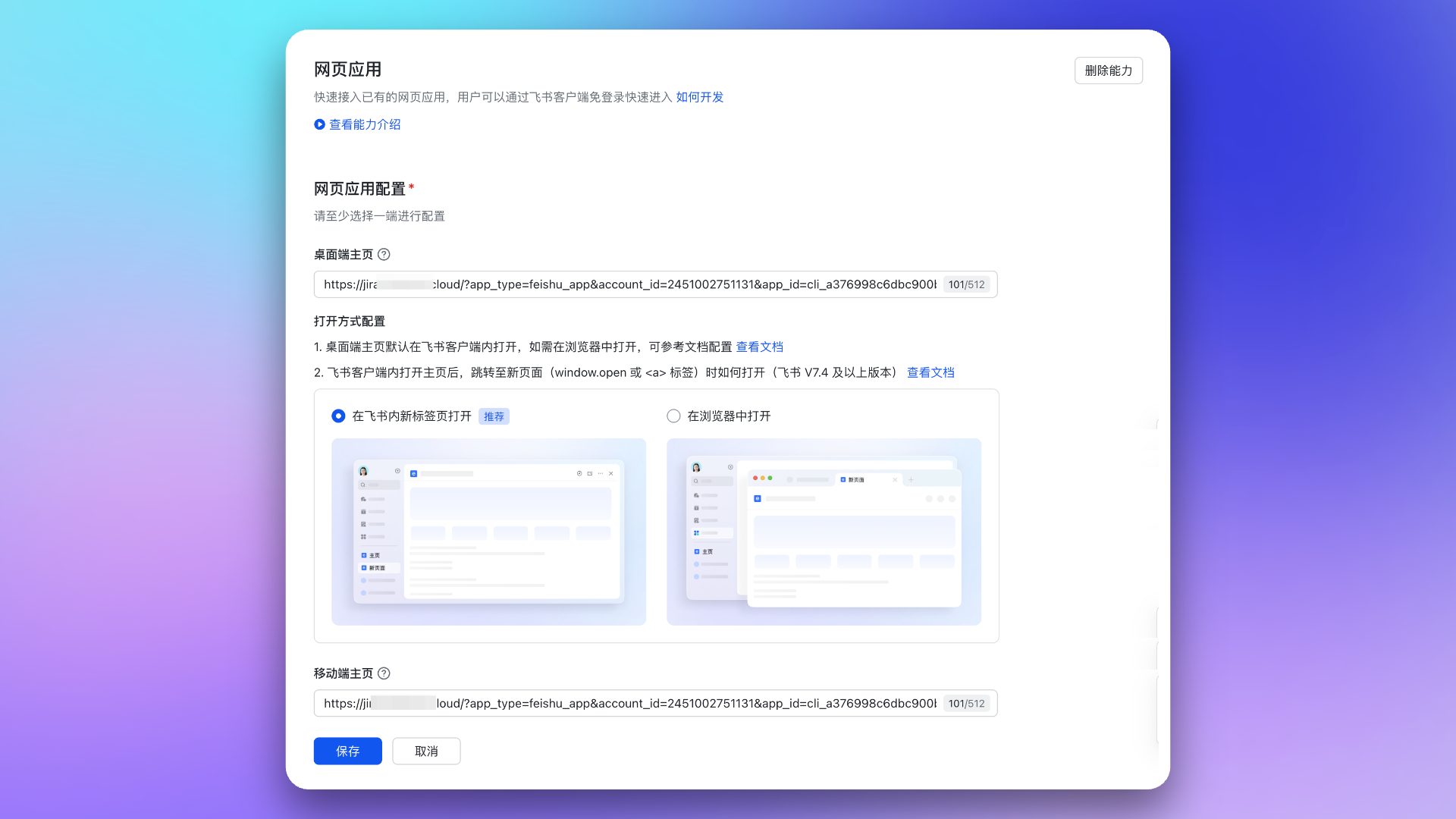
3. Set up events and callbacks
Events and callbacks share one request URL, the address given in step 3 of the details page. When you save the request URL, Feishu immediately calls it to verify it.-
Go to Event Callbacks → Event Configuration page, choose “Send events to the developer server” as the subscription method, paste the request URL, and save. Then add the event
im.message.receive_v1.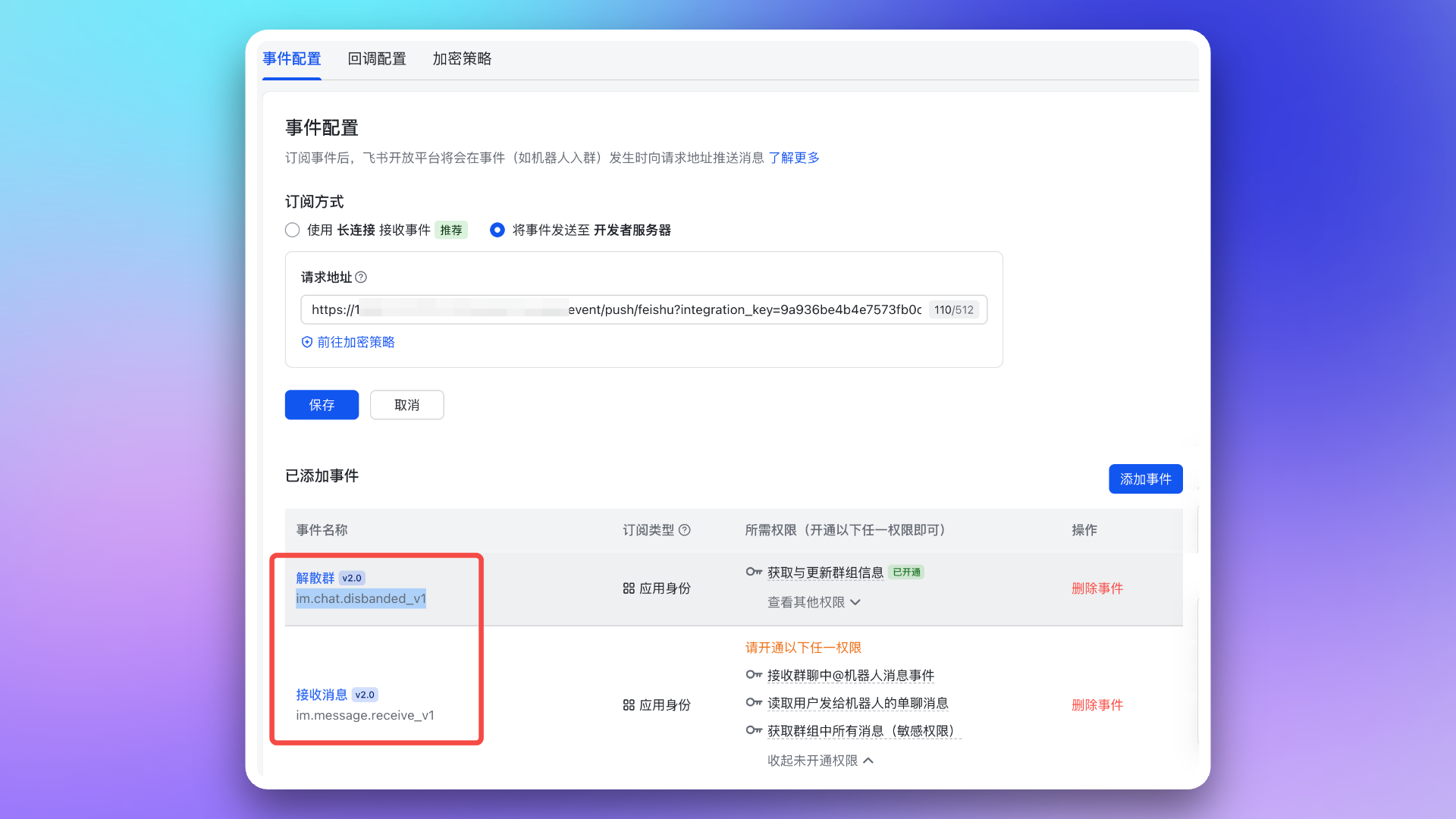
-
Switch to the Callback Configuration page, paste the same request URL and save, then add the callback
card.action.trigger.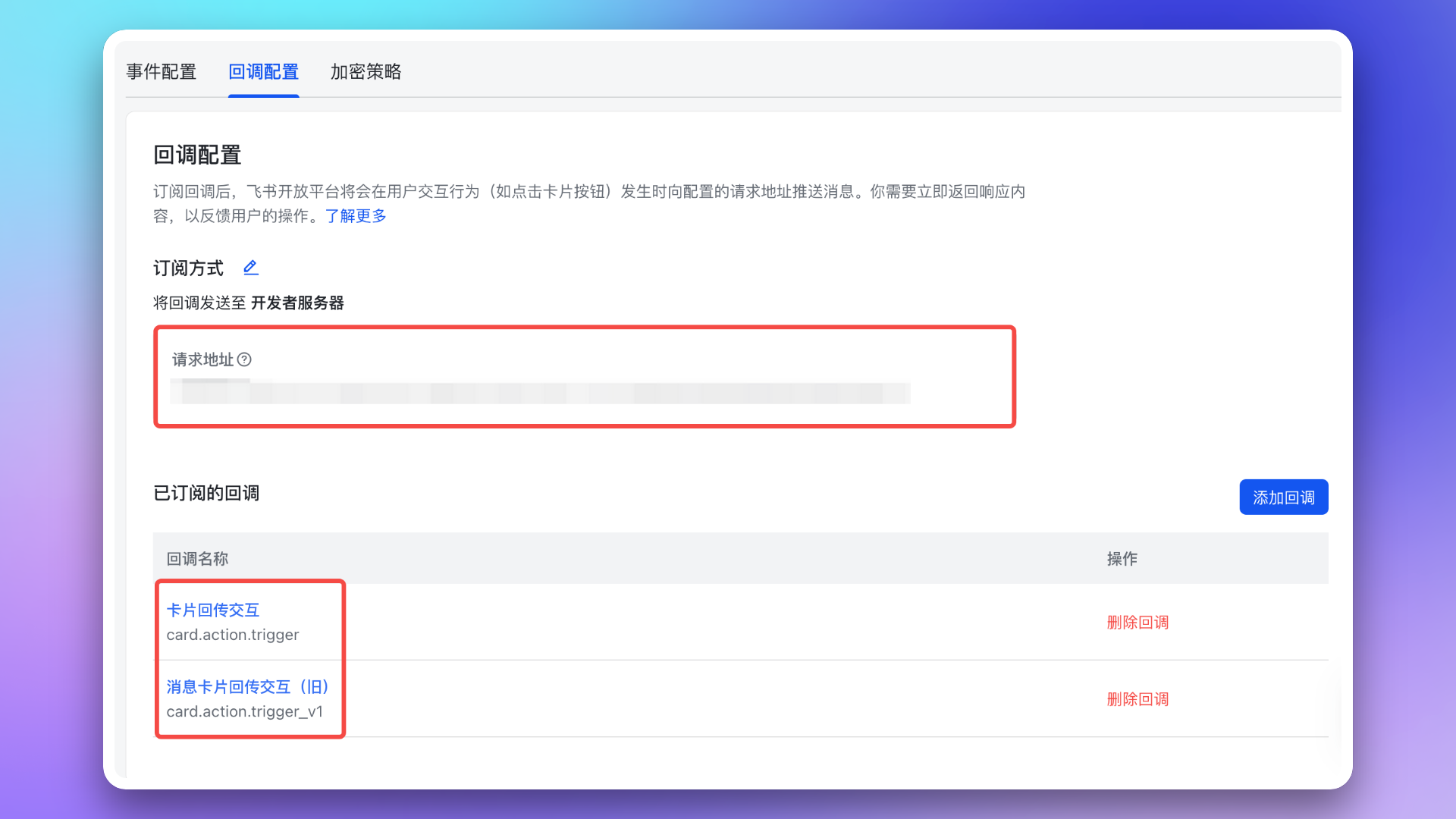
Verification Token or Encrypt Key entered when you created the integration most likely differs from the one on Feishu’s Encryption Strategy page; correct it on the integration edit page and save again.
4. Set redirect URLs
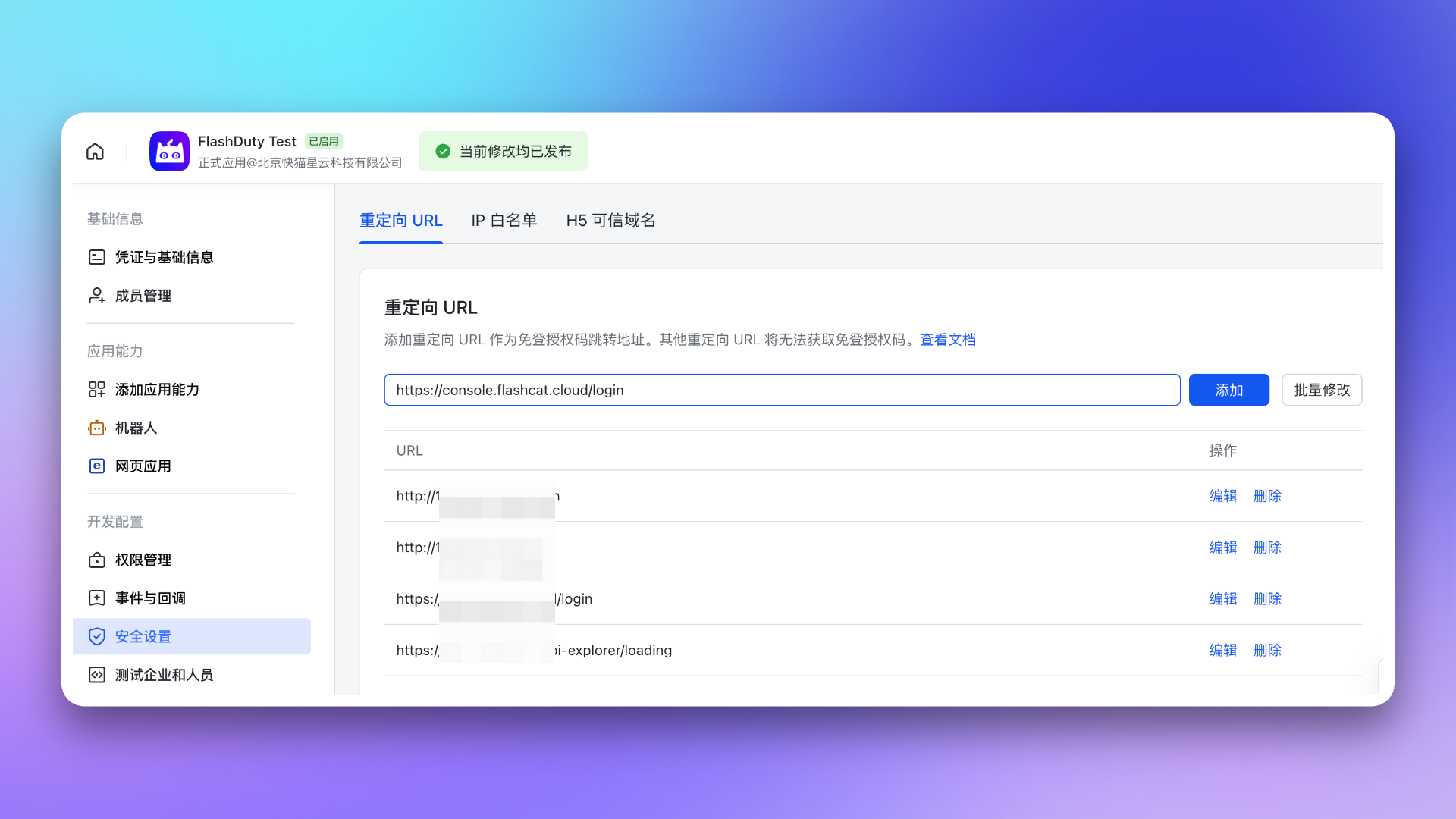
Go to the Security Settings page and add both addresses given in step 4 of the details page underRedirect URL: the web one (…/login) and the mobile one (…/login). Feishu does not report this configuration back, so click I’ve added them in step 4 of the details page when you are done.
See Feishu/Lark development documentation Configure Redirect URL.
5. Set visibility and publish
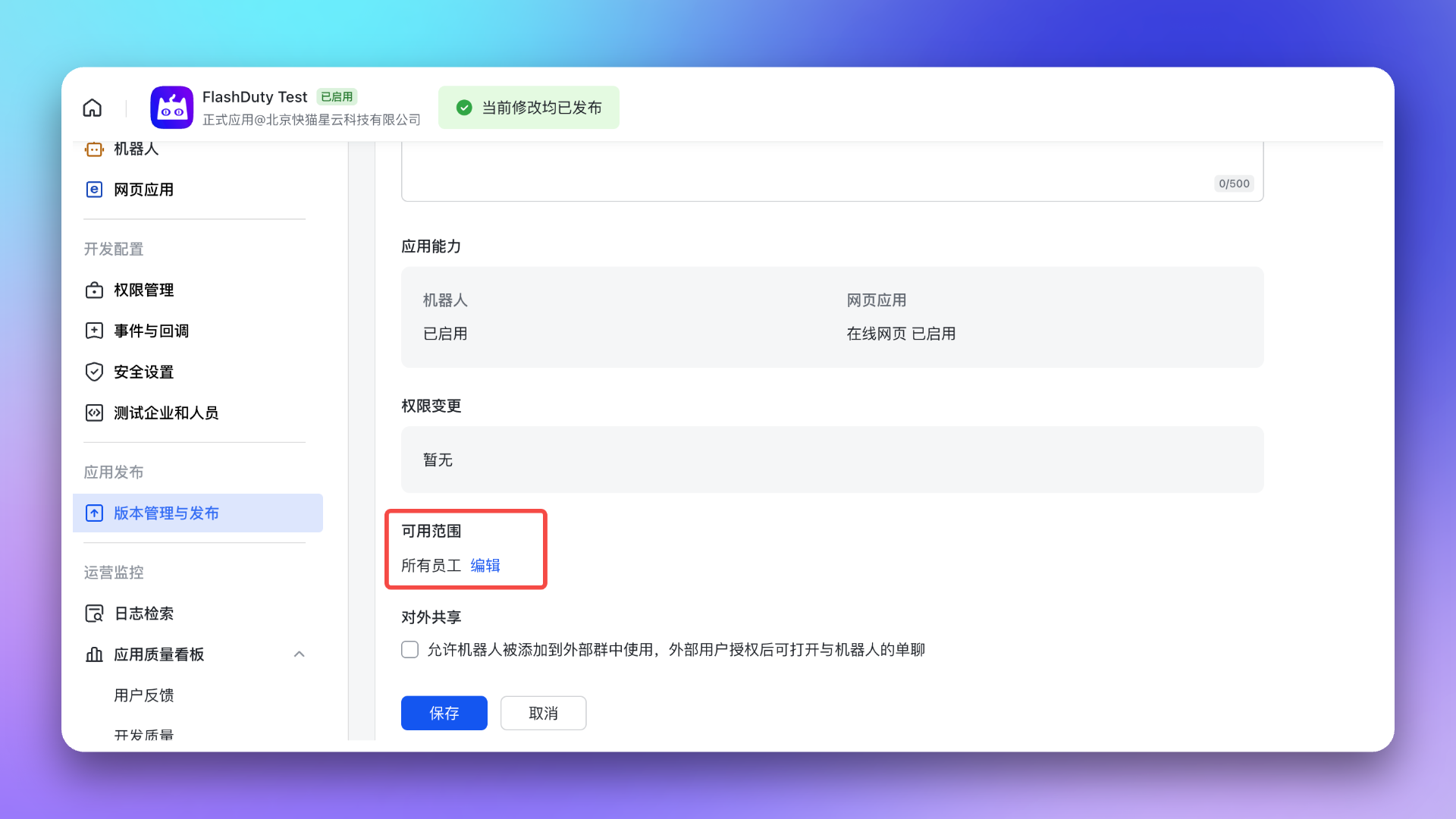
Open the Version Management & Release page, create a version, set Availability to “all employees”, and submit it for release (it takes effect after a tenant admin approves). The changes from steps 1–4 only take effect after you publish; every later change to permissions, events, or callbacks needs another published version. Click I’ve published it in step 5 of the details page when you are done. See Feishu/Lark development documentation App Publishing and Usage.To ensure everyone can use the app, adjust the app Visibility to all employees before publishing.
Switch to Flashduty-managed
For an integration that entered credentials manually, the details page shows “Switch to Flashduty-managed so you no longer edit settings in the Feishu console” above the setup steps. Once you scan with the Feishu account of the app’s owner or a collaborator, Flashduty takes the app over: the 5 steps above are no longer needed, and permissions that new features require are submitted to the Feishu admin automatically. TheApp Secret and the push address stay the same, so alert notifications are not interrupted.
Lark international and private deployment integrations do not show this entry; keep maintaining them manually.
Access the app
After publishing, you can access the app on Mobile or Desktop. First access requires login to link Feishu/Lark and Flashduty accounts; subsequent access will be passwordless. On both mobile and desktop: Feishu/Lark → Workspace → Search app name → Open App.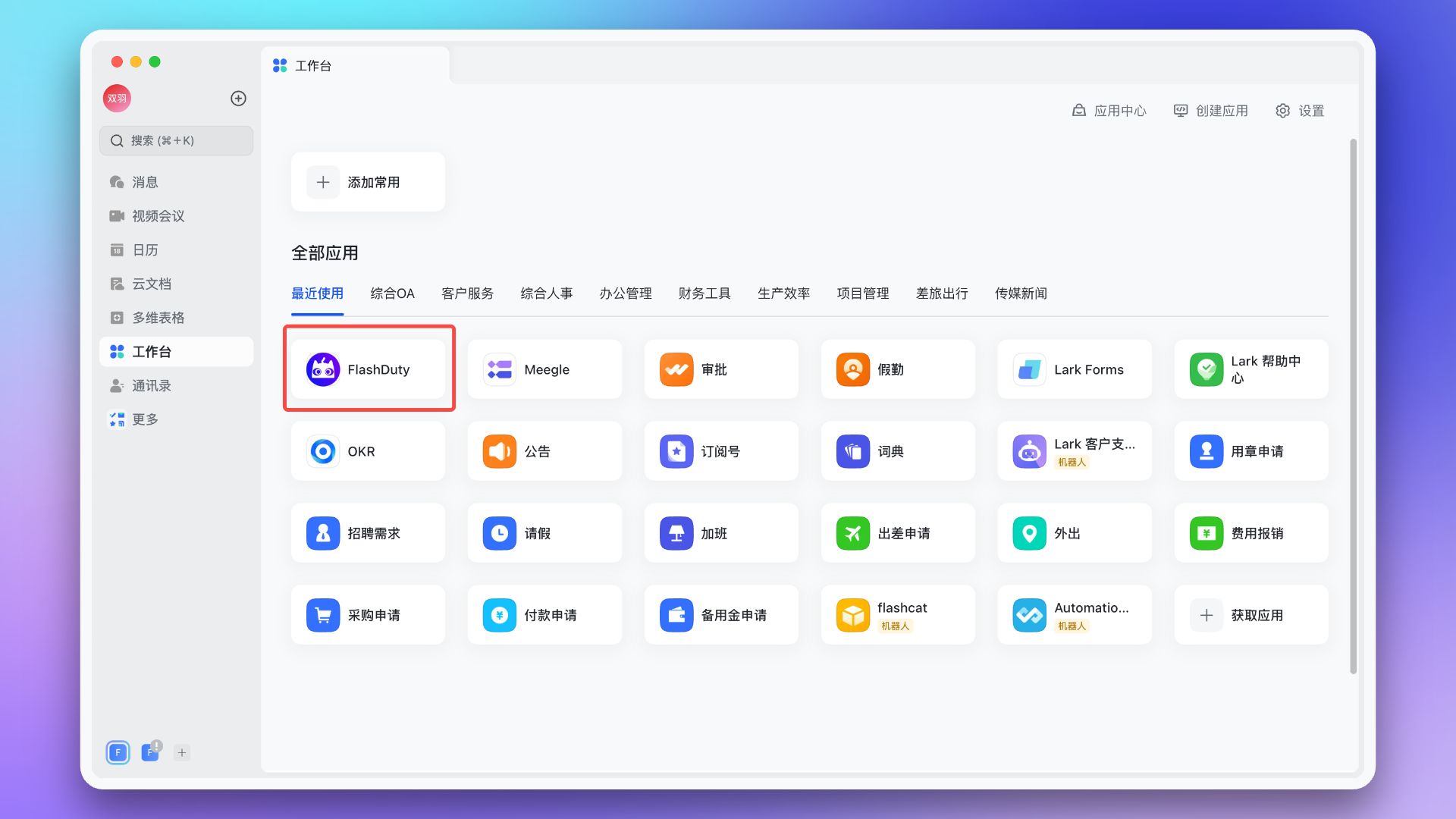
Configure war room
After completing the previous steps, in the Flashduty On-call integration configuration page’s Advanced Features section, check Enable War Room to activate this feature—no additional configuration needed. Only one IM integration can have War Room enabled at a time; turn it off in the other integration first. See War Room.AI SRE controls
Configure the AI SRE switches under Advanced Features; see IM platform for what each one does. Allow AI SRE conversations in IM and AI SRE uses thread replies in regular group chats are on by default, while Allow AI to reply proactively is off by default: once enabled, the assistant reads group messages that do not mention it and answers only when it judges a reply worthwhile, @mentions are always answered, and it needsim:message.group_msg plus the im.message.receive_v1 event as described in Grant permissions.
Linked users
In the Linked Users tab of the integration detail page, filter members by All / Linked / Unlinked, or search by name or email. Click One-Click Link to match members to Feishu/Lark accounts by their phone number or email and link them automatically, the same result as a member logging into Flashduty from Feishu/Lark. Members receive Feishu/Lark notifications only after they are linked. If linking fails, verify that the member’s phone number or email matches their Feishu/Lark account.Automatic linking
Members do not need to do anything: the system links them automatically, once right after you save the integration and then once an hour across every enabled Feishu/Lark integration. Automatic linking resolves each member’s verified phone number or email in the personal center in batches of 50 to obtain Feishu/Lark account IDs. Feishu returns an emptyuser_id both for accounts it cannot find and for users outside the app’s visibility scope, so both count as not found. If the Feishu/Lark app lacks contact permissions (error codes 99991672 / 99991679) or Feishu rejects its credentials, automatic linking pauses for that integration for 24 hours; grant the permissions and save the integration again to resume.
A member whose Feishu/Lark account was not found is not looked up again for 7 days; changing the member’s contact information triggers a new attempt. One-Click Link ignores the 7-day window and looks everyone up again right away; if it reports No new members linked, this run produced no new binding.
FAQ
Messages cannot be delivered to individuals, operation log shows 'App not linked'?
Messages cannot be delivered to individuals, operation log shows 'App not linked'?
Go to Feishu/Lark → Workspace → Search app name → Open App, and sign in once to link your Feishu/Lark and Flashduty accounts. Flashduty needs this identity to deliver messages.If the member has already verified a phone number or email in the personal center, the system may have linked the account automatically, without any sign-in; check the current linking status in the Linked Users tab of the integration detail page.
Escalation rule Feishu/Lark group chat list is empty?
Escalation rule Feishu/Lark group chat list is empty?
- Go to Feishu/Lark, add the created Flashduty bot to the target group chat
- Return to escalation rule configuration page, refresh and reselect the group chat list
Feishu/Lark custom app API limits?
Feishu/Lark custom app API limits?
Call Limits:
Rate Limits:
Why isn't War Room working as expected?
Why isn't War Room working as expected?
- Check again that the app has been granted the permissions listed in the Grant permissions step
- See the FAQ section in War Room documentation