

In Flashduty
You can get the integration push URL in either of the following ways.Use a dedicated integration
Choose this option if all alerts go to one channel. It’s the simpler setup.View dedicated integration setup steps
View dedicated integration setup steps
- In the Flashduty console, select Channel and open a channel
- Select Configuration → Integrations → Private integration, then click Add an integration
- Choose Google Cloud Monitoring integration and click Save to generate a card
- Open the generated integration card and copy the Push URL
Use a shared integration
Choose this option if you need to route alerts to different channels based on the alert payload.In Google Cloud
The push URL of one GCP Cloud Monitoring integration accepts all of the following sources. No code runs in Google Cloud.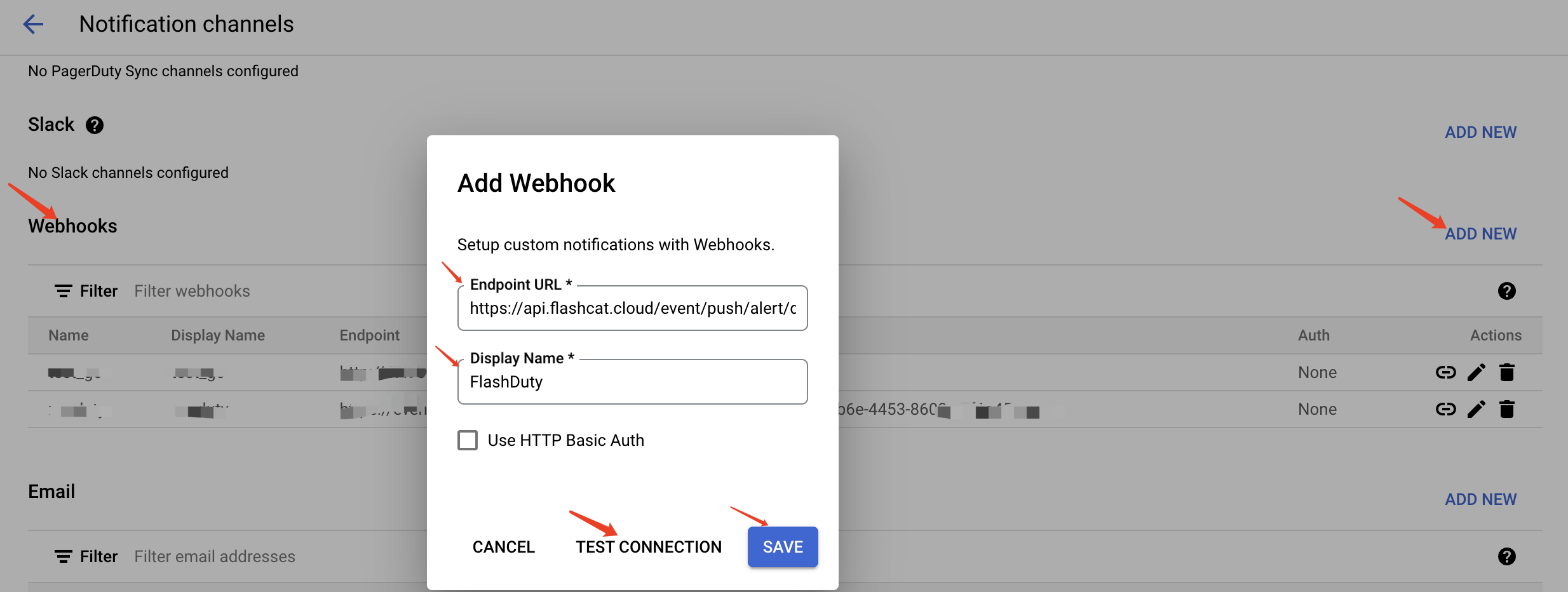
 Metric alerts, uptime checks, log-based alerts, and PromQL alerts (Managed Service for Prometheus) are all sent by alerting policies and are configured the same way.
Below, push URL means the integration push URL you copied earlier, in the form
https://api.flashcat.cloud/event/push/alert/google-cm?integration_key=<integration key>.Cloud Monitoring: webhook notification channel
Step 1: Configure alert channel
-
Log in to the Google Cloud Console, search for the
Monitoringproduct, and enter its console -
Find
Alertingin the left menu and clickEDIT NOTIFICATION CHANNELSto create a channel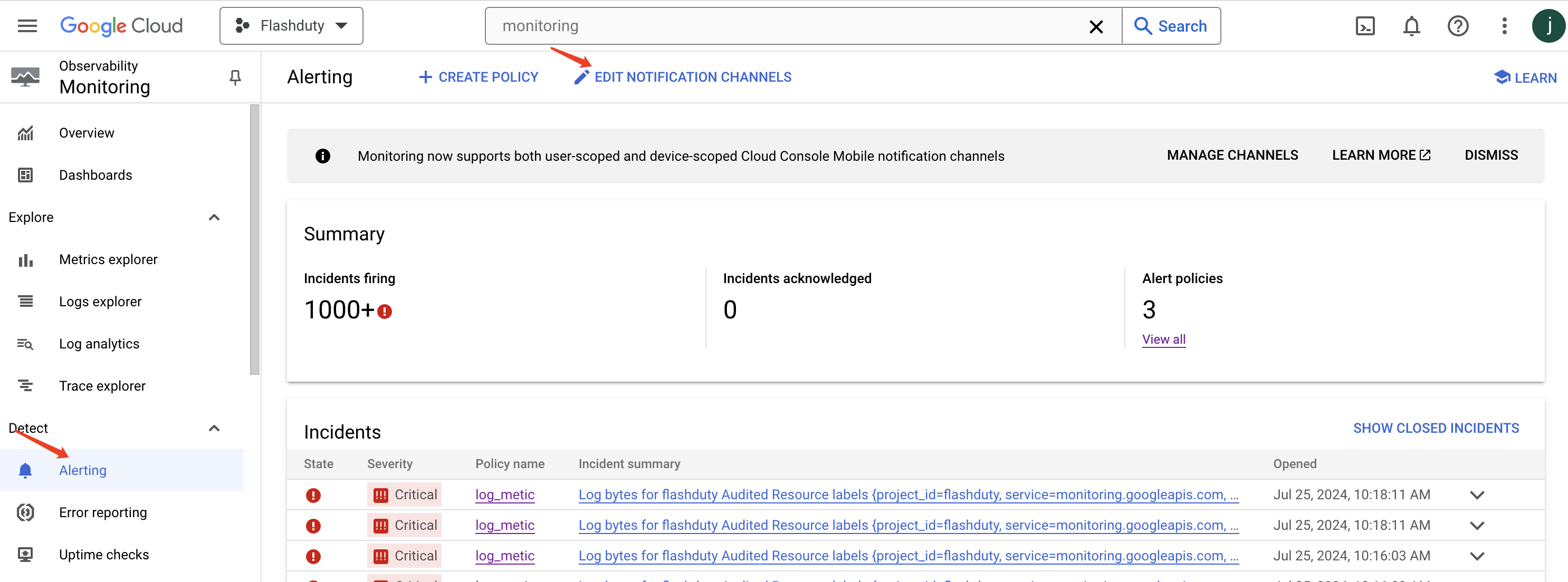
-
Find
Webhookson the Notification channels page and clickADD NEW -
Enter the integration push URL in the
Endpoint URLfield (the URL will be generated after saving the integration name on the current page) -
Enter Flashduty in the
Display Namefield -
Click
TEST CONNECTIONand thenSAVEto complete
Step 2: Use Flashduty alert channel in alert policy
- Return to the
Alertingpage - Create or edit an existing policy
- Skip other policy configurations (configure alert conditions according to business requirements)
- On the
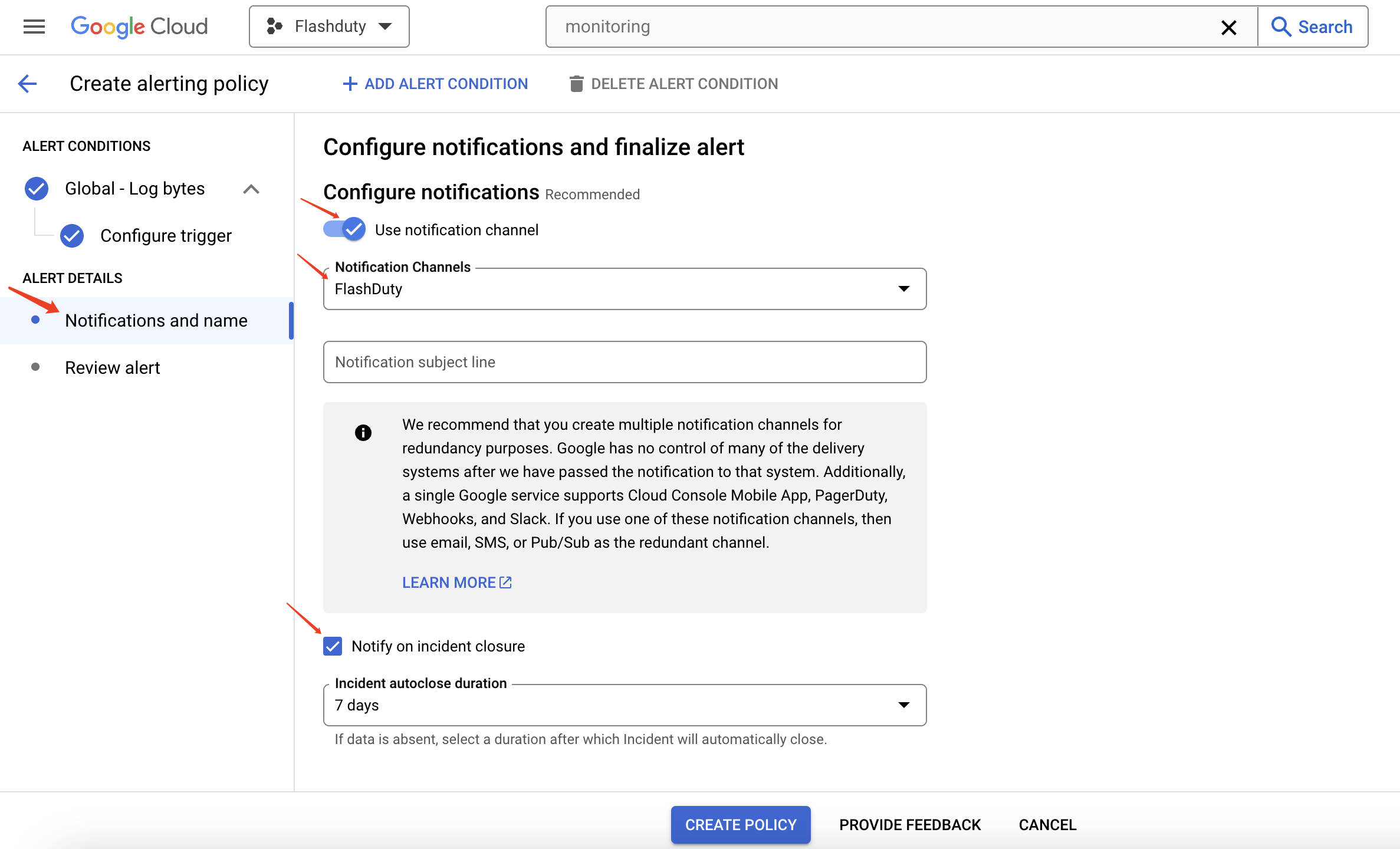
Notifications and namepage, keepUse notification channelenabled - Select the Flashduty channel created in Step 1 from the
Notification channelsdropdown, and checkNotify on incident closure - Complete other configurations and save the policy
Metric alerts, uptime checks, log-based alerts, and PromQL alerts (Managed Service for Prometheus) are all sent by alerting policies and are configured the same way.Cloud Monitoring: Pub/Sub notification channel
If your organization requires alerts to go through Pub/Sub, use a Pub/Sub notification channel. The Alert Key is the same as for the webhook channel (incident_id), so the two channels are interchangeable.- Create the topic and push subscription as described in Create a Pub/Sub push subscription.
- In
Alerting→EDIT NOTIFICATION CHANNELS, clickADD NEWin thePub/Subsection and enter the topic name. - As prompted, grant
service-<project number>@gcp-sa-monitoring-notification.iam.gserviceaccount.comthePub/Sub Publisherrole on the topic. - Select this Pub/Sub channel in the alerting policy’s
Notification channelsand checkNotify on incident closure.
Error reporting
Error Reporting sends notifications through Cloud Monitoring webhook notification channels (schema version 1.0). It supports webhooks only, not Pub/Sub.- Create a webhook notification channel as in step 1 of Cloud Monitoring: webhook notification channel (you can reuse the same Flashduty channel).
- Open the
Error Reportingpage and clickConfigure notifications. - Select the Flashduty channel under
Notification channelsand save.
Resolved occurs again.- One error group (same project, same error details link) maps to one alert. A notification for the same group merges into the alert while it is still open.
- Error Reporting sends no “resolved” notification, so the alert never recovers by itself. Close it in Flashduty.
- Alerts have Warning severity. To use another severity, append
&severity=Critical(orInfo) to the push URL.
Security Command Center
Security Command Center (SCC) can only continuously export findings to Pub/Sub. A push subscription forwards them to Flashduty.- Create the topic and push subscription as described in Create a Pub/Sub push subscription.
- Grant the SCC service account the
Pub/Sub Publisherrole on the topic, then create a continuous export (NotificationConfig), for example:
- The finding’s resource name,
finding.name, is the Alert Key, so every update to one finding merges into one alert. - The alert recovers when the finding’s
statebecomesINACTIVE(remediated, resource deleted, or set by hand) or itsmutebecomesMUTED. It triggers again when the finding becomesACTIVEorUNMUTED. - Threat findings (for example, from Event Threat Detection) never become INACTIVE automatically. Change their state or mute them in SCC.
Cloud Billing budgets
Budget alerts are available only as programmatic notifications through Pub/Sub.- Create the topic and push subscription as described in Create a Pub/Sub push subscription.
- Go to
Billing→Budgets & alerts, create or edit a budget, and set threshold rules (actual and/or forecasted cost). - Under
Manage notifications, checkConnect a Pub/Sub topic to this budget, select the topic above, and save.
- A message that exceeds no threshold creates no alert.
- Actual cost (
alertThresholdExceeded) and forecasted cost (forecastThresholdExceeded) create separate alerts. - The Alert Key combines the billing account, budget, budget period, cost type, and the highest threshold exceeded. Repeated messages for the same threshold merge into one alert. Crossing a higher threshold creates a new alert.
- Budget alerts never recover automatically. When a new budget period starts, alerts are tracked for the new period. Close alerts from the previous period by hand.
Create a Pub/Sub push subscription
Sections II, IV, and V share these steps. One push subscription can carry several sources.- Go to
Pub/Sub→Topicsand clickCREATE TOPIC(or use an existing topic). - In the topic, click
CREATE SUBSCRIPTION:- Delivery type: select
Push. - Endpoint URL: enter the integration push URL.
- Enable authentication: leave unchecked. The
integration_keyin the push URL authenticates the request; Flashduty does not check Pub/Sub identity tokens. - Enable payload unwrapping: leave unchecked. Flashduty needs the message attributes (such as a budget’s
budgetId), which unwrapping drops.
- Delivery type: select
- Save the subscription.
Severity mapping
Cloud Monitoring (same for webhook and Pub/Sub)
Security Command Center
Cloud Billing budgets
Error Reporting: always Warning; change it with the
severity push URL parameter.Alert labels
Cloud Monitoring resource labels and metadata labels never overwrite an existing label with the same name.
FAQ
Does the Pub/Sub push subscription need authentication?
Does the Pub/Sub push subscription need authentication?
No. The
integration_key in the push URL identifies the integration. Leave Enable authentication unchecked.Why don't budget alerts appear?
Why don't budget alerts appear?
- The first message can take several hours.
- A message that exceeds no threshold creates no alert.
- Check whether
Enable payload unwrappingis checked on the push subscription. Unwrapping drops the message attributes, so Flashduty cannot identify the budget.
Why doesn't an SCC alert recover automatically?
Why doesn't an SCC alert recover automatically?
Check whether the NotificationConfig filter contains
state="ACTIVE", and whether the finding is a threat finding, which never becomes INACTIVE automatically.