

In Flashduty On-call
You can get the integration push URL in either of the following ways.Use a dedicated integration
Choose this option if all alerts go to one channel. It’s the simpler setup.View dedicated integration setup steps
View dedicated integration setup steps
- In the Flashduty console, select Channel and open a channel
- Select Configuration → Integrations → Private integration, then click Add integration
- Select Dynatrace integration and click Save to generate a card
- Open the generated integration card and copy the Push URL
Use a shared integration
Choose this option if you need to route alerts to different channels based on the alert payload.Configure in Dynatrace
1
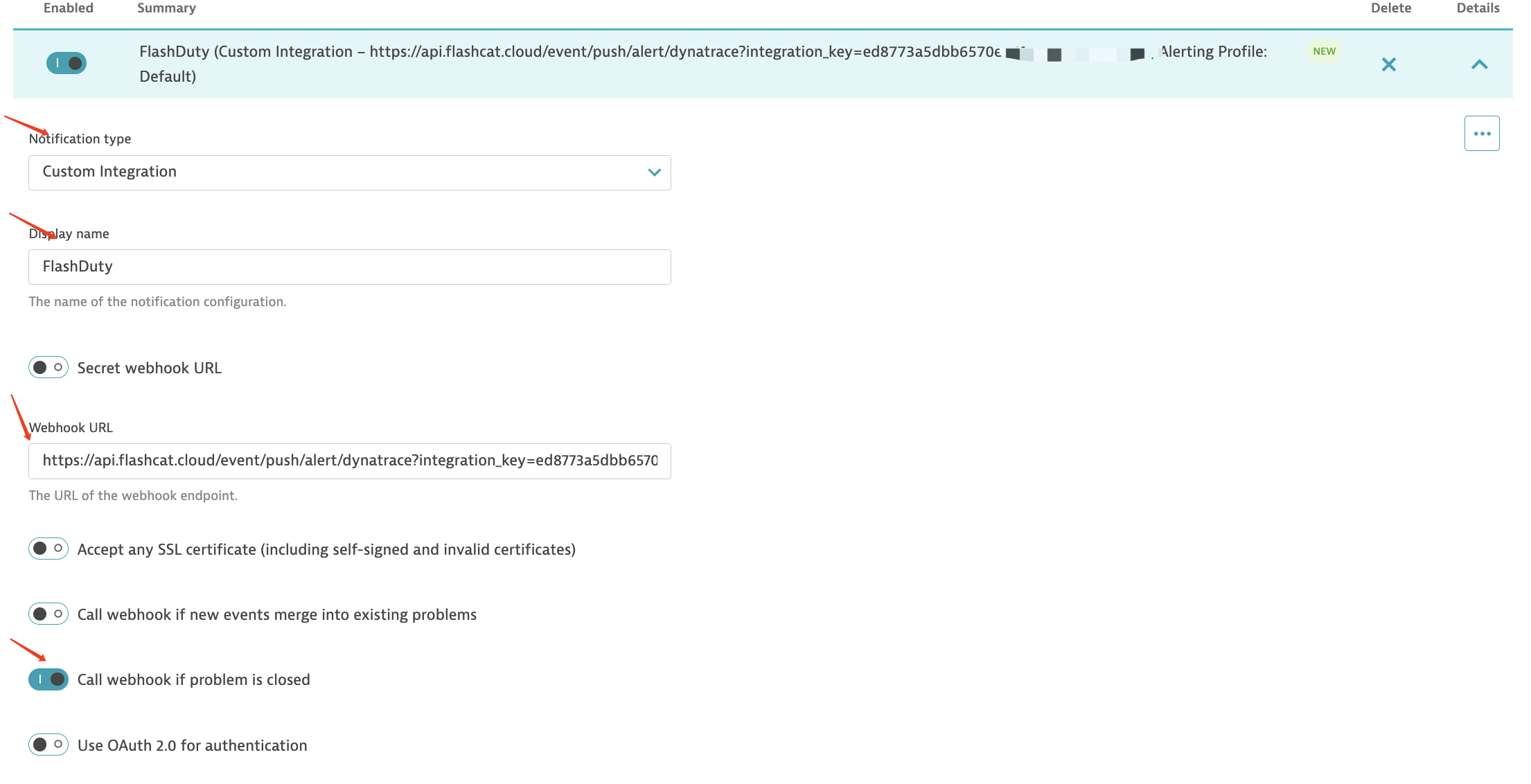
Add a Custom integration notification in Dynatrace
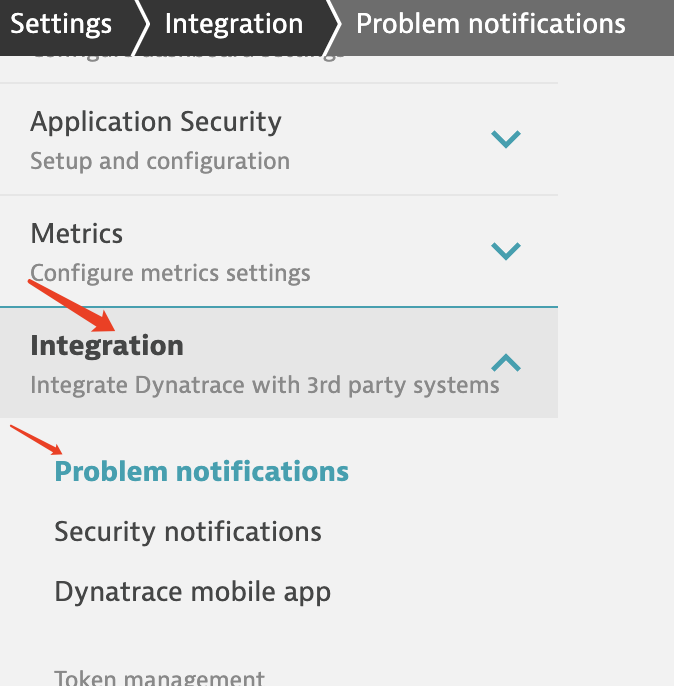
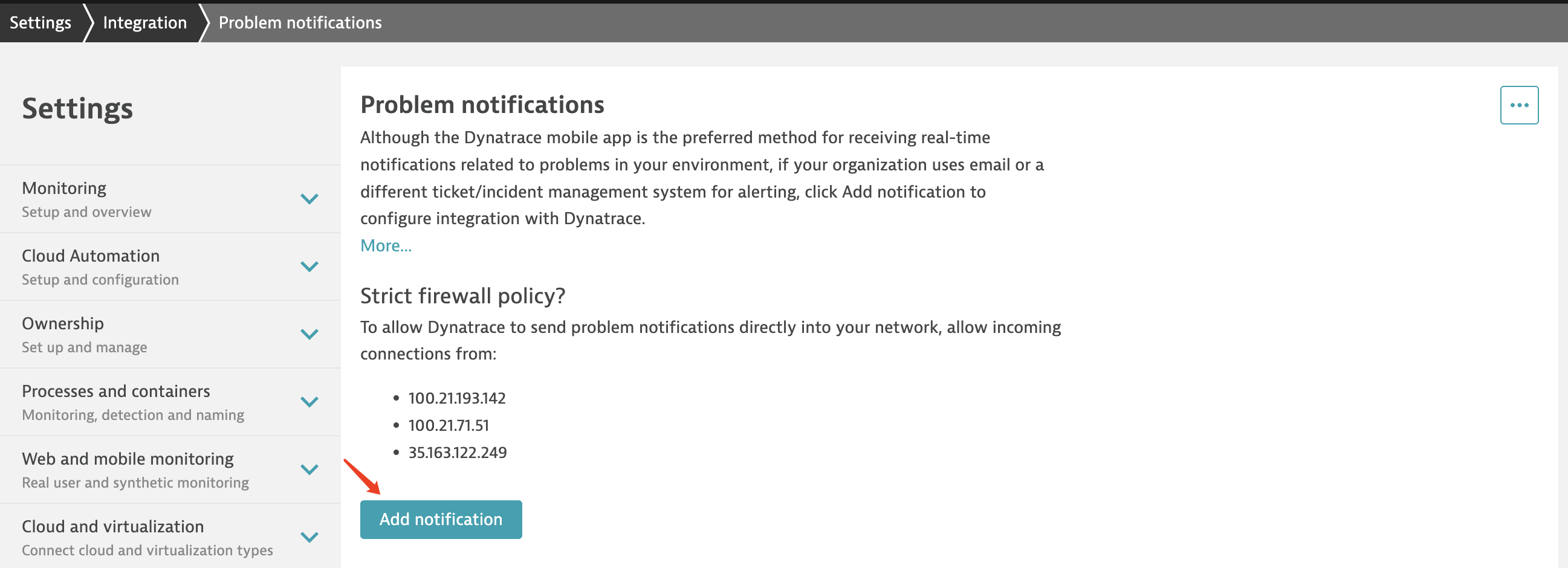
Where: Dynatrace › Settings › Integration › Problem notifications › Add notificationIn the new Dynatrace UI, open Settings from the Manage section under Apps in the left navigation; in Dynatrace Classic it is Settings Classic.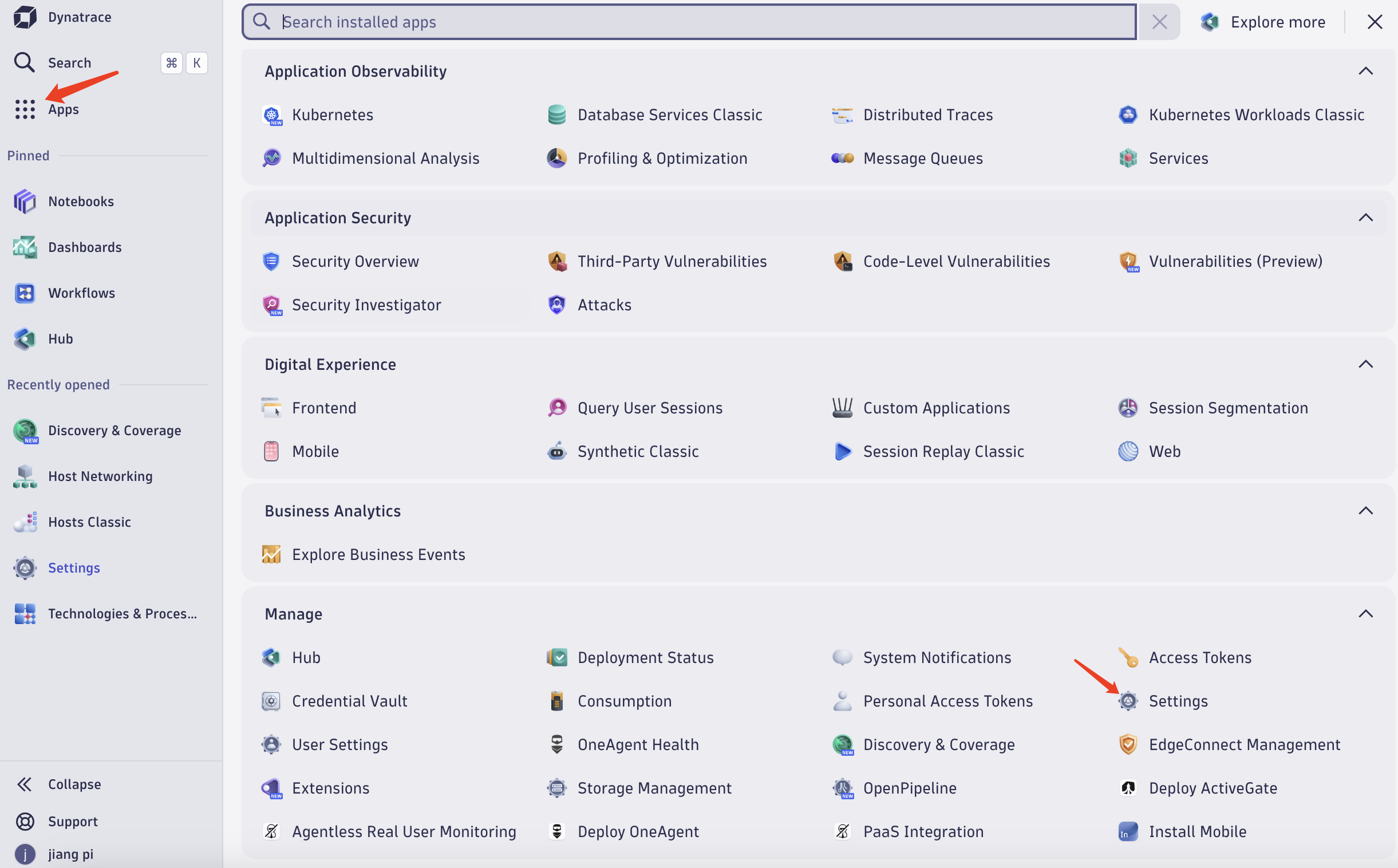
2
Fill in the Custom payload in Dynatrace
Where: Dynatrace › Settings › Integration › Problem notifications › Add notification › Custom payloadEnter the following in Custom payload: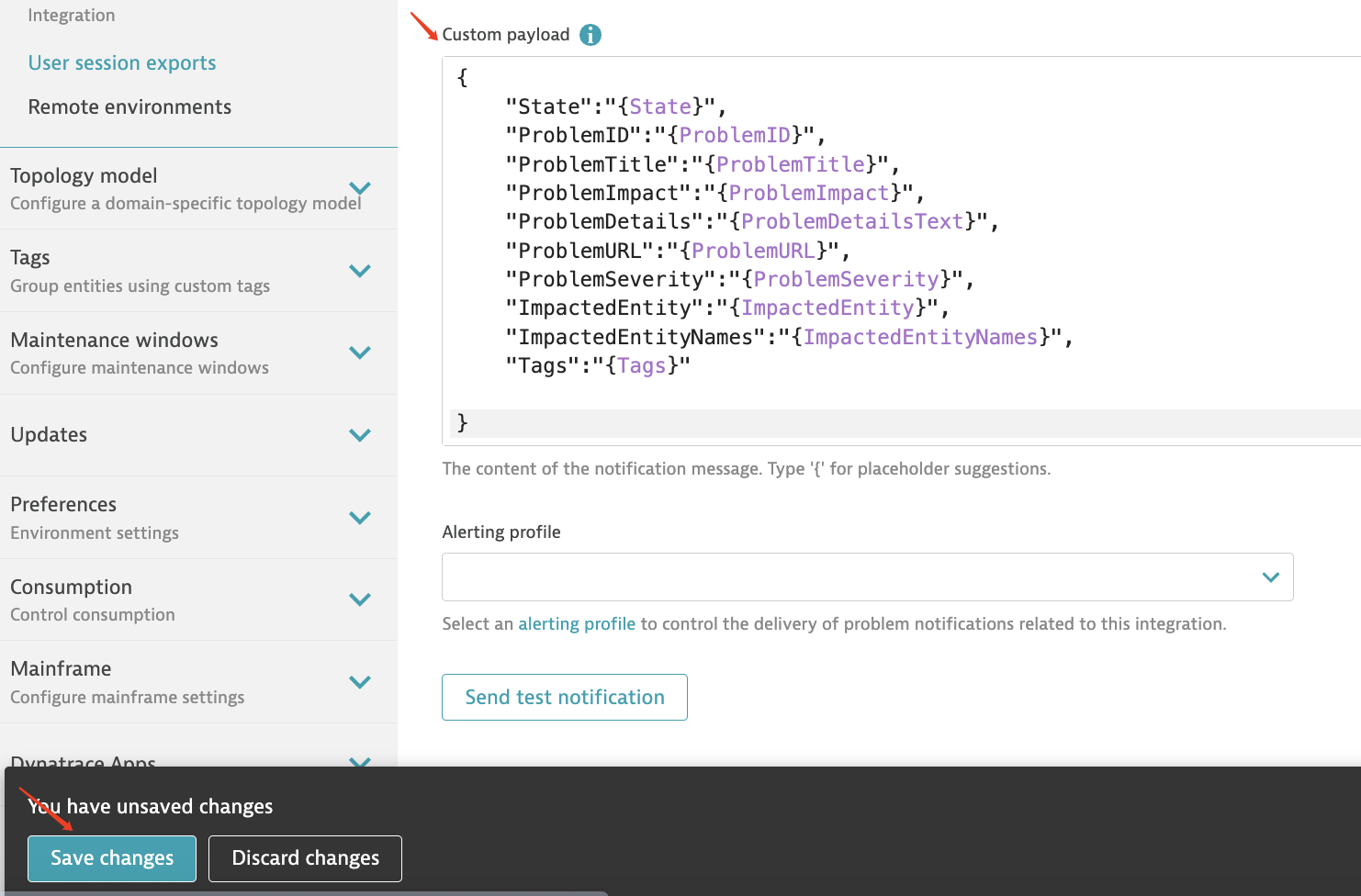 Click Save changes.
3
Send a test and verify with a real problem
Where: Dynatrace › Settings › Integration › Problem notificationsOpen the notification you just created and click Send test notificationSend test notification only proves that Dynatrace can reach
{integration_url}. Whether the test body carries fields such as PID and ProblemSeverity depends on what Dynatrace actually sends, so do not treat it as a payload check. Produce a real problem in Dynatrace (or wait for an existing one to fire). A few seconds later, the integration in Flashduty shows a Latest event time, which means the setup works.When the problem closes, Dynatrace sends another notification with State set to RESOLVED, and the matching Flashduty alert recovers.Status and severity
Alert Key and recovery
Flashduty usesPID (the Dynatrace problem ID) from the payload as the Alert Key, so repeated notifications for one problem merge into one alert. When State is RESOLVED the alert recovers; any other value triggers at the severity above. The alert title is “impacted entity names::problem title”.