

In Flashduty On-call
You can get the integration push URL in either of the following ways.Use a dedicated integration
Choose this option if all alerts go to one channel. It’s the simpler setup.View dedicated integration setup steps
View dedicated integration setup steps
- In the Flashduty console, select Channel and open a channel
- Select Configuration → Integrations → Private integration, then click Add integration
- Choose SolarWinds integration, click Save to generate a card
- Open the generated integration card and copy the Push URL
Use a shared integration
Choose this option if you need to route alerts to different channels based on the alert payload.Configure SolarWinds
SolarWinds has five alert types (Anomaly, Entity, Event, Log, Metric Group), each requiring its own alert channel, so create five webhook channels, one per type you use.1
Create a webhook notification service in SolarWinds
Where: SolarWinds › Settings › Notification Services › Webhook › CREATE CONFIGURATION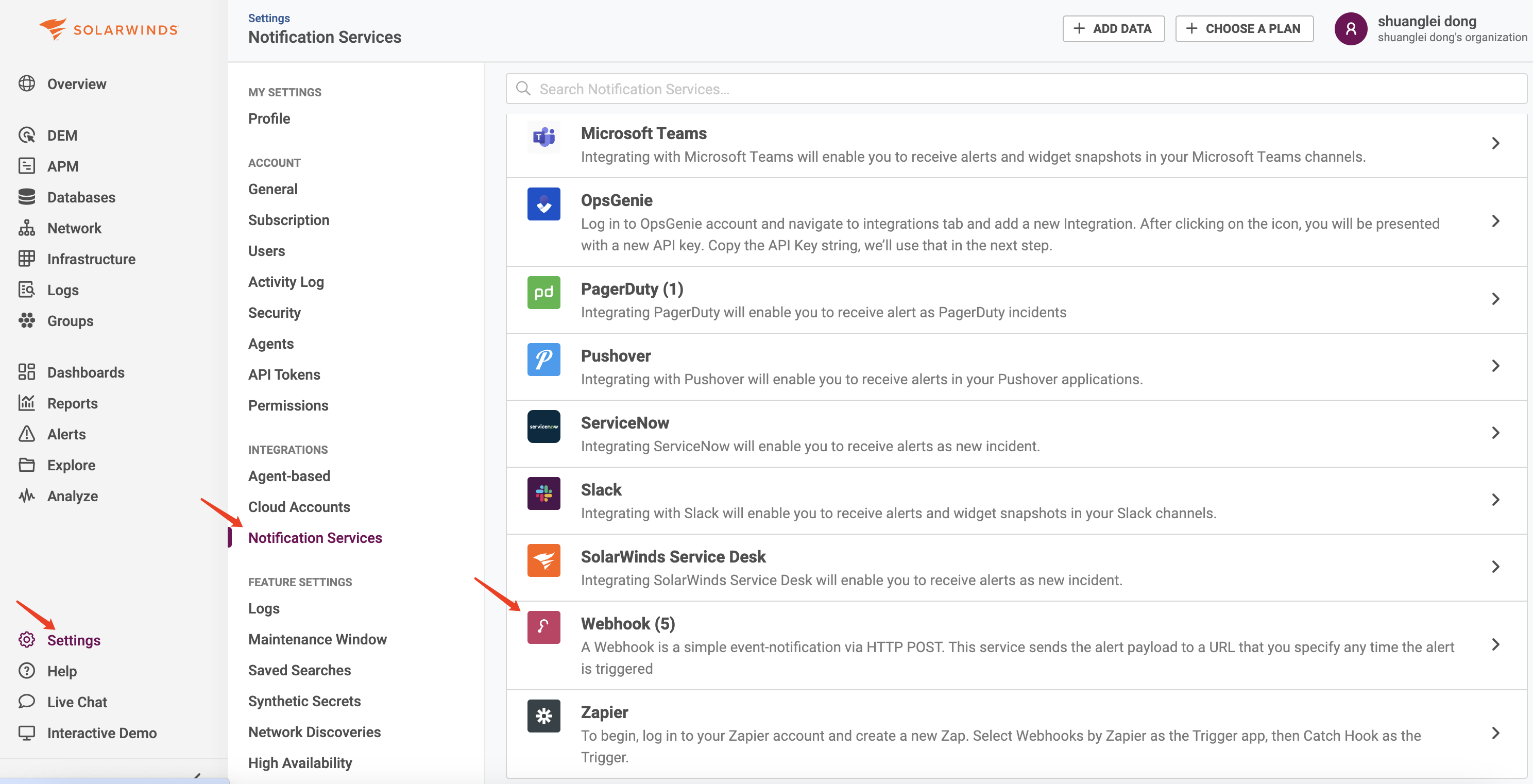
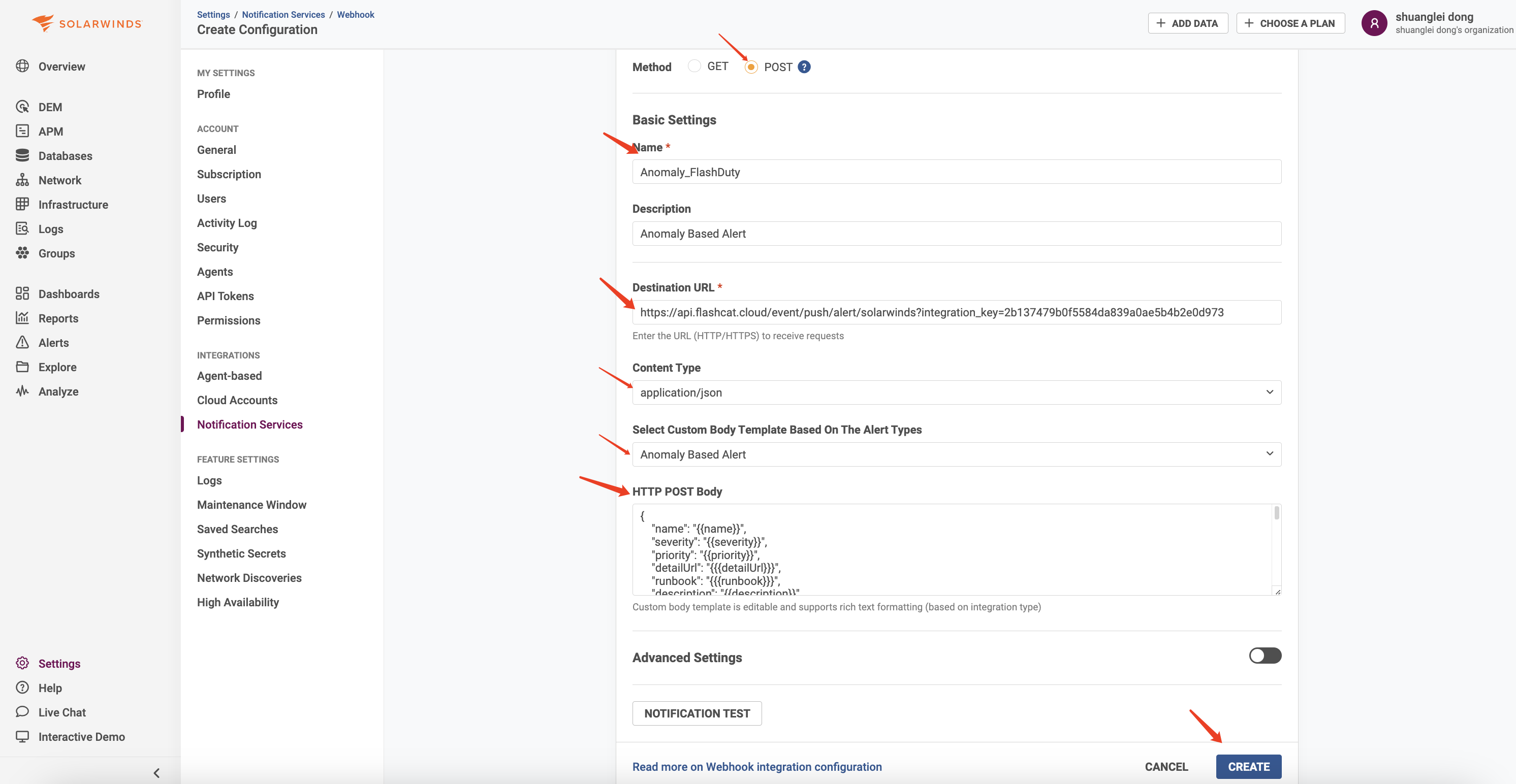 Repeat to create webhook channels for the other types.
Click CREATE when done.
Repeat to create webhook channels for the other types.2
Use the channel in a SolarWinds alert policy
Where: SolarWinds › Alerts › Alert Settings › create or edit a policy › ActionsConfigure the alert rule as needed (omitted here). In the Actions section: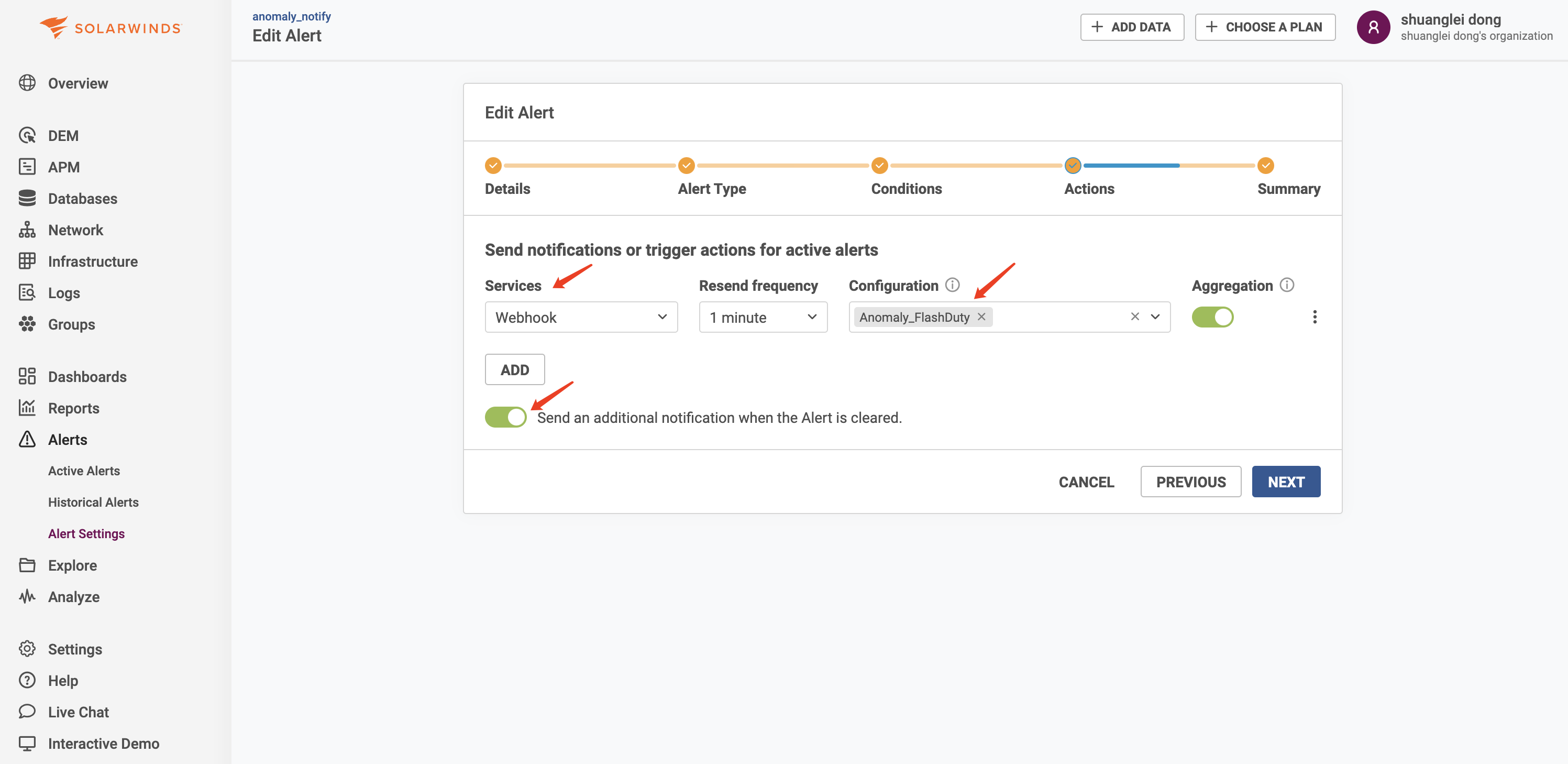
Click Save after completing the other settings.
3
Trigger an alert and confirm
Where: SolarWinds › Alerts › Alert SettingsThe test notification SolarWinds offers when creating a webhook channel only proves that the Flashduty URL is reachable; it does not replace a real alert. Let an alert rule that uses the channel fire. After a few seconds, go back to Flashduty. If the integration shows a Latest event time, the setup works. When the condition clears, the alert recovers automatically.
Status and severity
Any other value is treated as Info. When SolarWinds sends a cleared notification, the alert recovers.