

In Flashduty On-call
You can get the integration push URL in either of the following ways.Use a dedicated integration
Choose this option if all alerts go to one channel. It’s the simpler setup.View dedicated integration setup steps
View dedicated integration setup steps
- In the Flashduty console, select Channel and open a channel
- Select Configuration → Integrations → Private integration, then click Add integration
- Choose Graylog integration and click Save to generate a card
- Open the generated integration card and copy the Push URL
Use a shared integration
Choose this option if you need to route alerts to different channels based on the alert payload.In Graylog
1
Create an HTTP Notification in Graylog
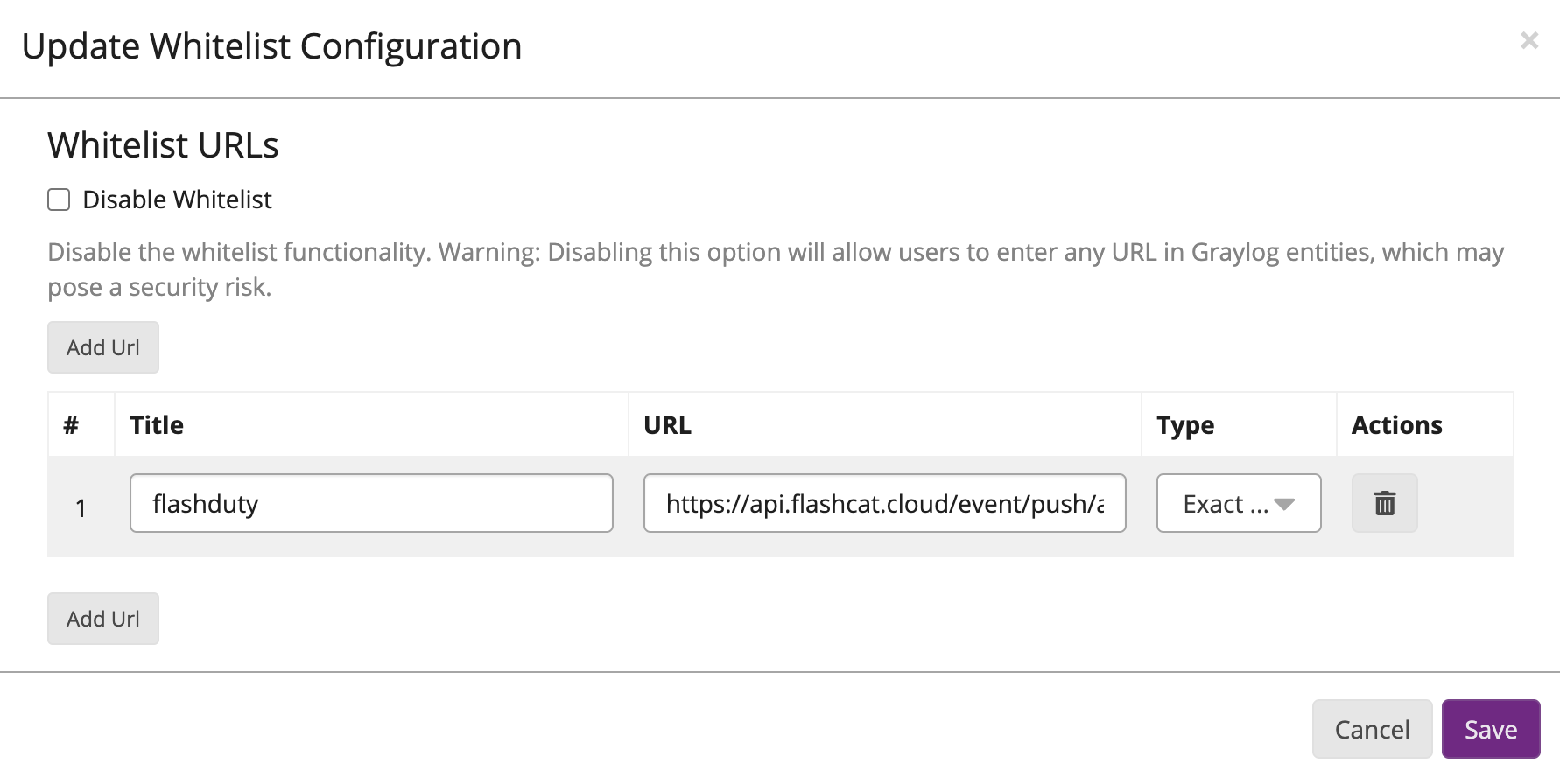
Where: Graylog › Alerts › Notifications › Create Notification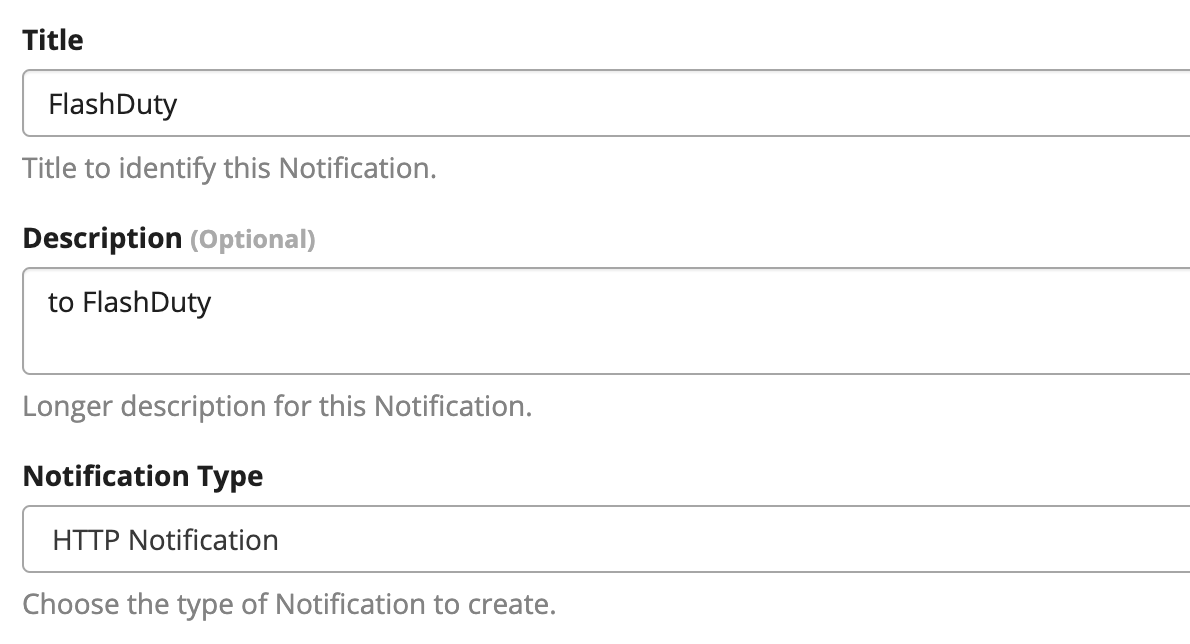 The first time you enter this URL, Graylog requires it to be added to the URL whitelist:
 Click Save to whitelist the URL:
 After saving, submit Create.
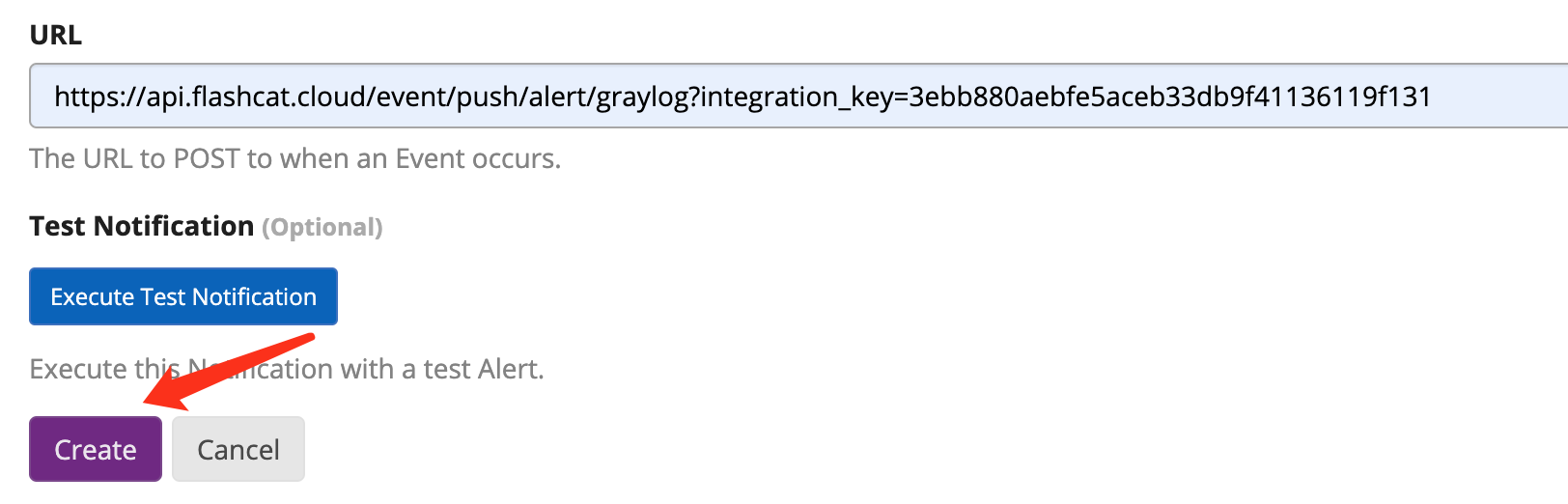
The first time you enter this URL, Graylog requires it to be added to the URL whitelist:Click Save to whitelist the URL:After saving, submit Create.2
Use the notification in a Graylog Event Definition
Where: Graylog › Alerts › Event Definitions › Create or edit an Event Definition › Notifications
Then click Next until the definition is saved.
3
Trigger an alert and confirm Flashduty receives the event
Where: Graylog › Alerts › Event DefinitionsLet real log data meet the Event Definition’s condition and wait for the event to fire. After a few seconds, go back to Flashduty. If the integration shows a Latest event time, the setup works.