

In Flashduty On-call
You can get the integration push URL in either of the following ways.Use a dedicated integration
Choose this option if all alerts go to one channel. It’s the simpler setup.View dedicated integration setup steps
View dedicated integration setup steps
- In the Flashduty console, select Channel and open a channel
- Select Configuration → Integrations → Private integration, then click Add integration
- Choose UCloud CloudWatch integration and click Save to generate a card
- Open the generated integration card and copy the Push URL
Use a shared integration
Choose this option if you need to route alerts to different channels based on the alert payload.In UCloud
1
Configure a notice template in UCloud CloudWatch
Where: UCloud console › CloudWatch › Notice Management › Contact Template › Create (or edit an existing template)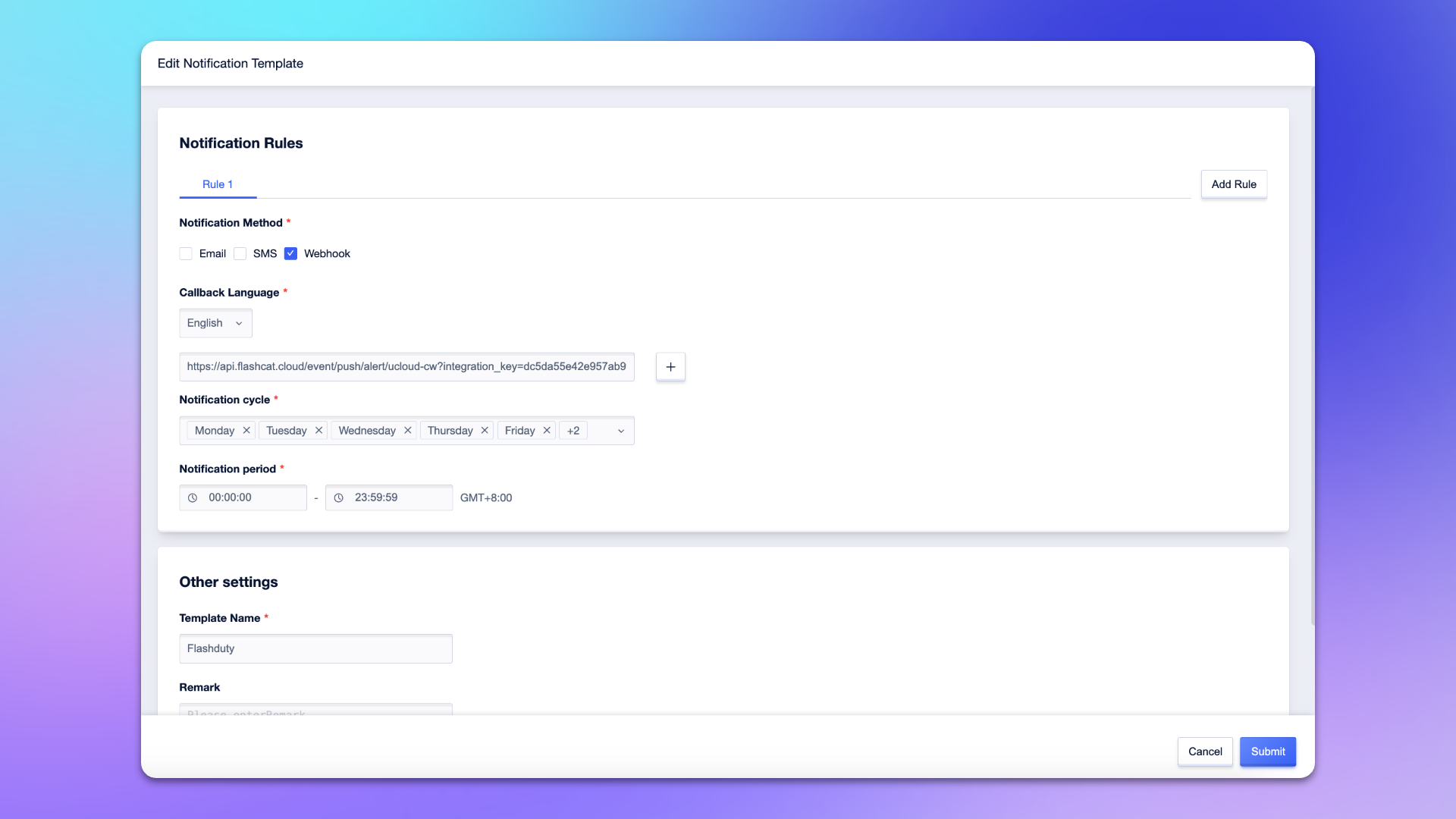
Configure other options as needed and click
Submit.2
Use the template in an alarm policy
Where: UCloud console › CloudWatch › Alarm Management › Alarm Policy › Create (or edit an existing policy) › Notification Settings
Configure other options as needed and click
Submit.3
Trigger an alert and confirm
Where: UCloud console › CloudWatch › Alarm Management › Alarm PolicyUCloud CloudWatch has no standalone callback test. Let a rule in the policy fire, or wait for a real alert.Go back to Flashduty. If the integration shows a Latest event time, the setup works.