

In Flashduty On-call
You can get the integration push URL in either of the following ways.Use a dedicated integration
Choose this option if all alerts go to one channel. It’s the simpler setup.View dedicated integration setup steps
View dedicated integration setup steps
- In the Flashduty console, select Channel and open a channel
- Select Configuration → Integrations → Private integration, then click Add integration
- Choose Tencent Cloud CLS integration and click Save to generate a card
- Open the generated integration card and copy the Push URL
Use a shared integration
Choose this option if you need to route alerts to different channels based on the alert payload.Configure Tencent Cloud CLS
1
Create a notification channel group in CLS
Where: Tencent Cloud console › Cloud Log Service (CLS) › Monitoring Alerts › Notification Channel Groups › Create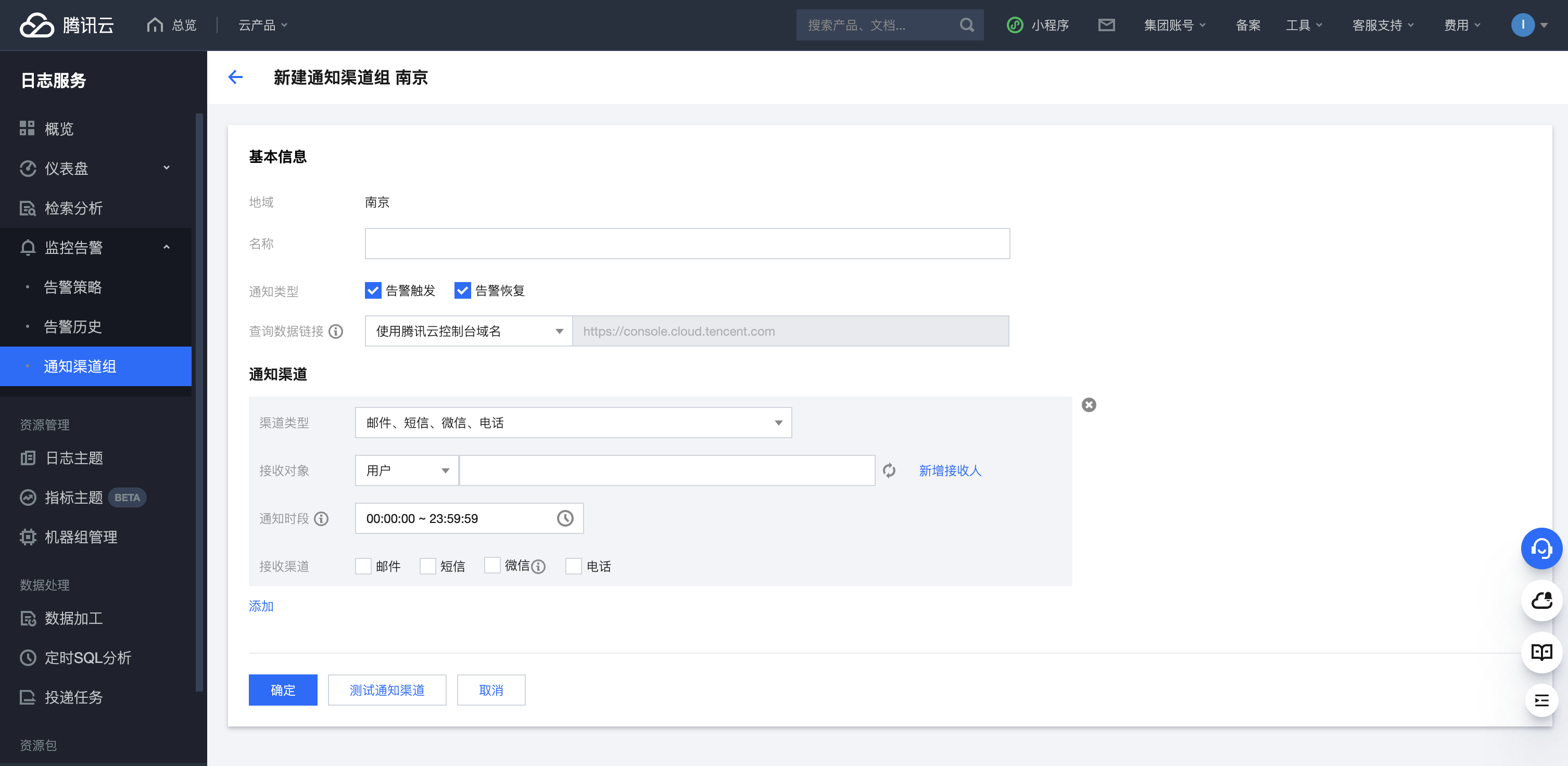
Click OK to save. Click Add to add more channels.
2
Create an alert policy in CLS and link the channel group
Where: Tencent Cloud console › Cloud Log Service (CLS) › Monitoring Alerts › Alert Policies › Create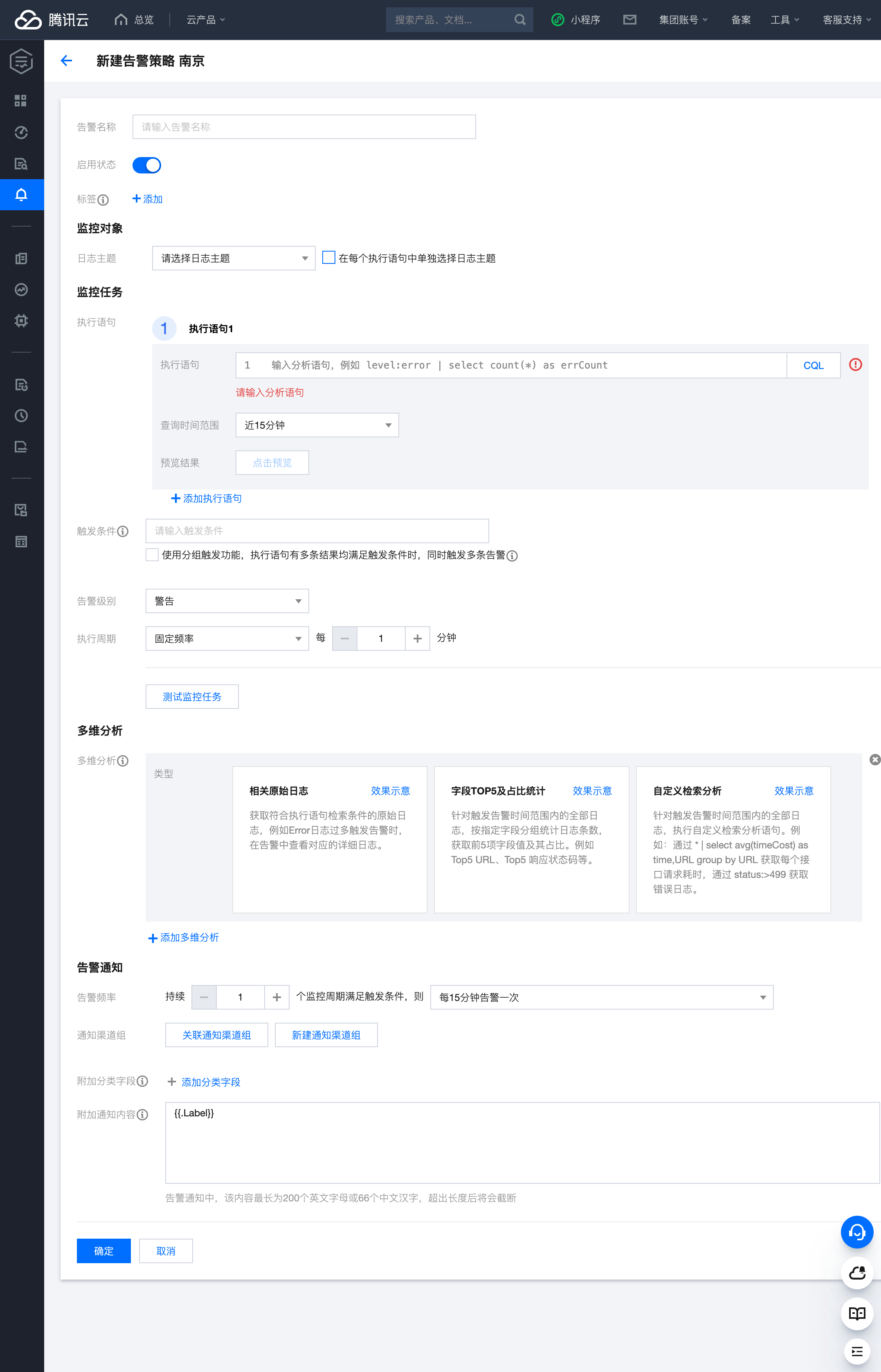
3
Configure the custom callback content and confirm
Where: Tencent Cloud console › Cloud Log Service (CLS) › Monitoring Alerts › Alert Policies › Create › Alert notification › Custom callbackAfter you link the channel group, the callback content settings appear:After you save the alert policy, wait for it to fire. Return to Flashduty. If the integration shows a latest event time, the setup works.
Status and severity
Tencent Cloud CLS monitoring alert level mapping to Flashduty: