

In Flashduty On-call
You can get the integration push URL in either of the following ways.Use a dedicated integration
- In the Flashduty console, select Channel and open a channel
- Select Configuration → Integrations → Private integration, then click Add integration
- Select n8n, then click Save
- Open the generated integration card and copy the Push URL
Use a shared integration
- In the Flashduty console, go to Integration Center → Alert Events
- Select n8n and enter an integration name
- Configure the default route and select a channel. You can add more rules under Routing after creation
- Click Save and copy the generated Push URL
Configure n8n
1
Download and import the template
Download the Flashduty error workflow template. In the n8n workflow editor menu, select Import from File and import the file.The template includes Error Trigger, settings, event conversion, HTTP Request, and response validation nodes. No community nodes are required.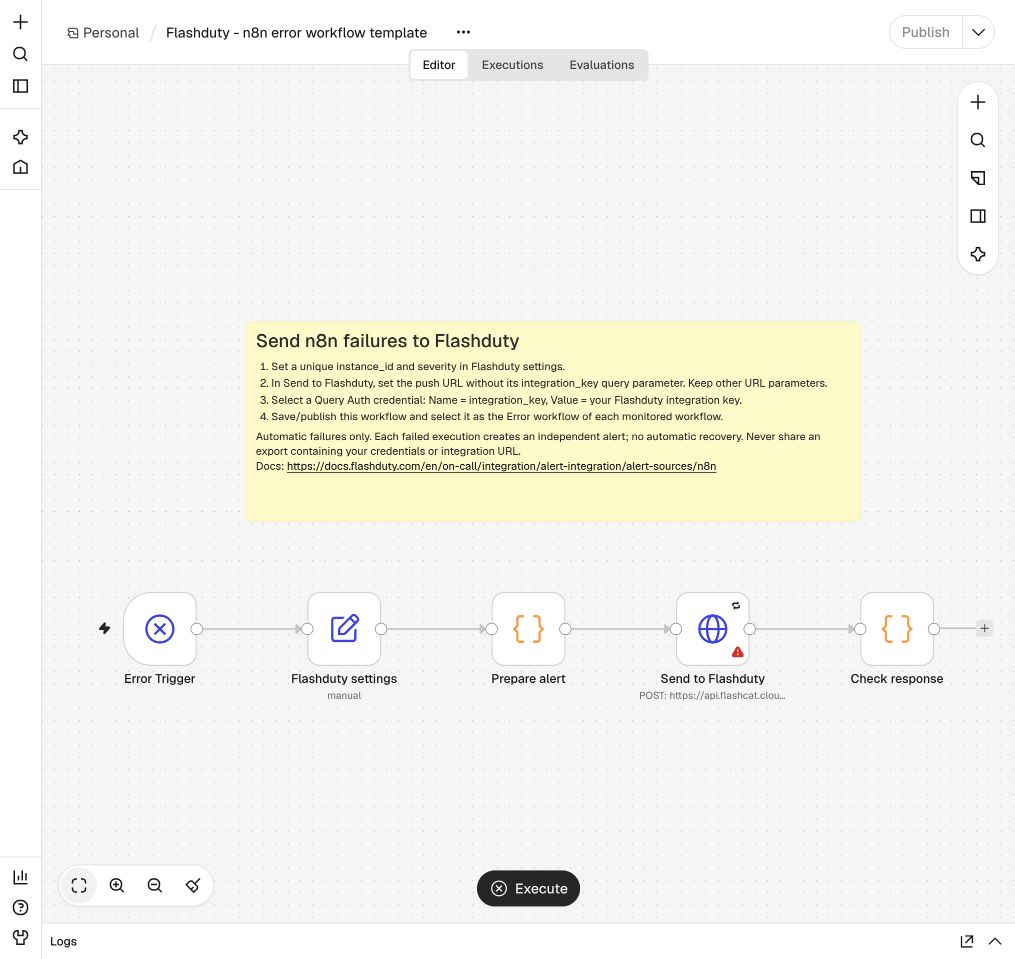
2
Set the instance and severity
Open Flashduty settings and configure: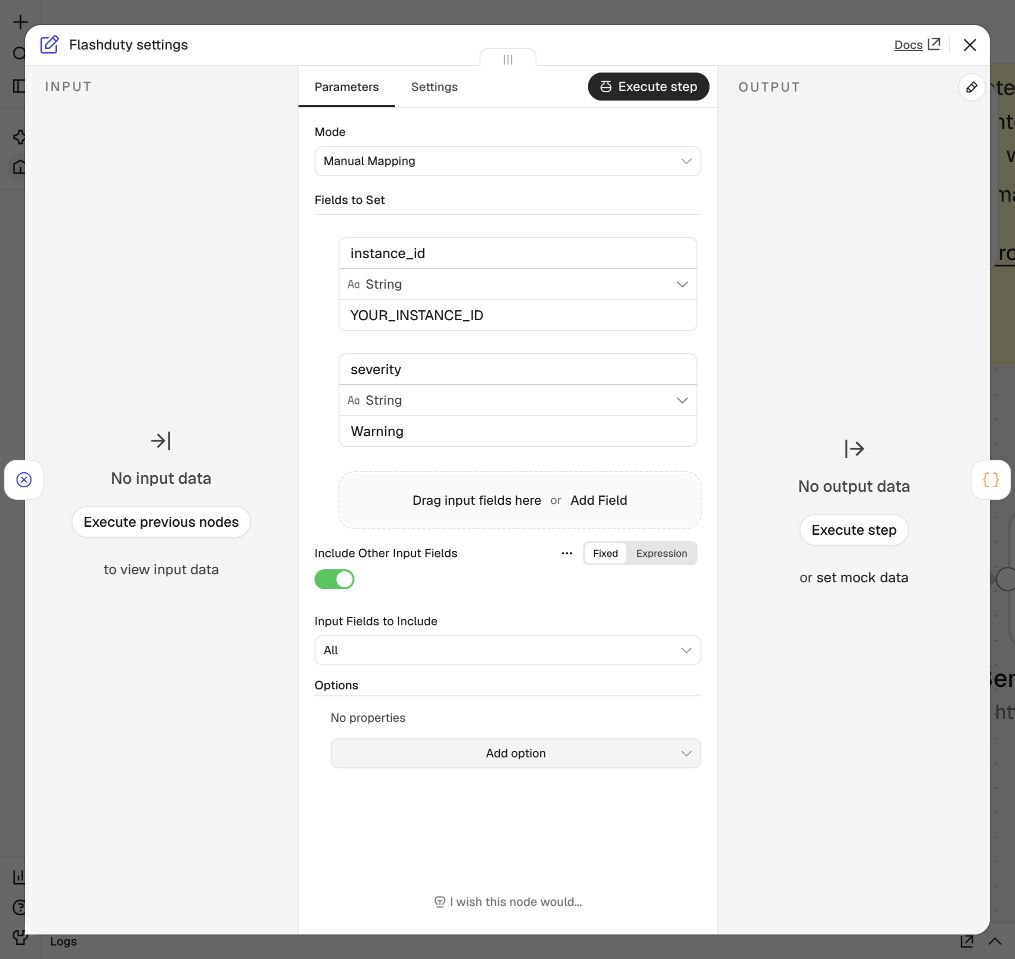
The instance identifier must not exceed 64 characters. Replace
YOUR_INSTANCE_ID with your actual value.3
Configure the push URL and credentials
Open Send to Flashduty. Set URL to your push URL, removing its
integration_key parameter and keeping any other parameters.Keep Authentication → Generic Credential Type → Query Auth and create a credential:Name the credential
Flashduty integration key, save it, and select it. The integration key stays in n8n credentials instead of the workflow template.4
Connect business workflows
Save the error workflow. Publish it in versions that provide a Publish action.Open a business workflow to monitor. Under Settings → Error workflow, select Flashduty - n8n failure alerts. Save and publish the business workflow.Repeat for each workflow you want to monitor. Enable saving failed executions so that failure events include an execution ID.
Verify the integration
- Create a test business workflow with a Webhook or Schedule Trigger followed by a Stop And Error node.
- Set its Error workflow to the imported error workflow, then save and publish it.
- Send a webhook request or wait for the schedule to trigger a failure.
- Confirm that the error workflow succeeds and Check response returns
request_idandalert_key. - In the target Flashduty channel, confirm the alert and check its workflow ID, execution ID, and error summary.
Manual business workflow runs do not trigger Error Trigger. Use an automatic
trigger for verification. Afterwards, deactivate or delete the test workflow
and close the test incident manually.
Alert mapping
Different failed executions use different alert keys. HTTP Request retries reuse the same event and alert key. A new failure from retrying a business workflow creates another alert. Flashduty can still group these alerts into one incident according to the channel’s alert grouping rules.
For trigger failures without a business execution ID, the
execution_id label identifies the error workflow execution. The template stops with an error if workflow or execution identity is missing.
The template excludes full execution inputs, outputs, error stacks, and error contexts. Error summaries can still contain business information; adjust Prepare alert as needed. The template accepts only Critical, Warning, and Info and never sends an Ok recovery event.
FAQ
Why is there no alert after a business workflow fails
Confirm that the business workflow is published, has an Error workflow, and failed during an automatic execution. In n8n execution history, check whether the error workflow ran and inspect Send to Flashduty and Check response.How do I troubleshoot a failed push
Check the push URL, Query Auth credential, and network connectivity. The template uses a 10-second request timeout and up to three attempts for failed requests. Anerror in the Flashduty response fails Check response. Fix the configuration before running the error workflow again. Re-executing a trigger failure without a business execution ID creates a new alert key.