

In Flashduty
You can obtain an integration push URL through either of these two methods:
Using Private Integration
Choose this method when you don’t need to route alert events to different channels. It’s simpler and recommended.Using Shared Integration
Choose this method when you need to route alerts to different channels based on the alert event’s payload information.In Splunk
I. Splunk Alert Push Configuration
- Log in to your Splunk console
- In the
Search and Reportapplication, search for keywords you want to monitor, such as “error” - In the upper right corner’s save menu, select
Alertsto configure the search keywords as monitoring items
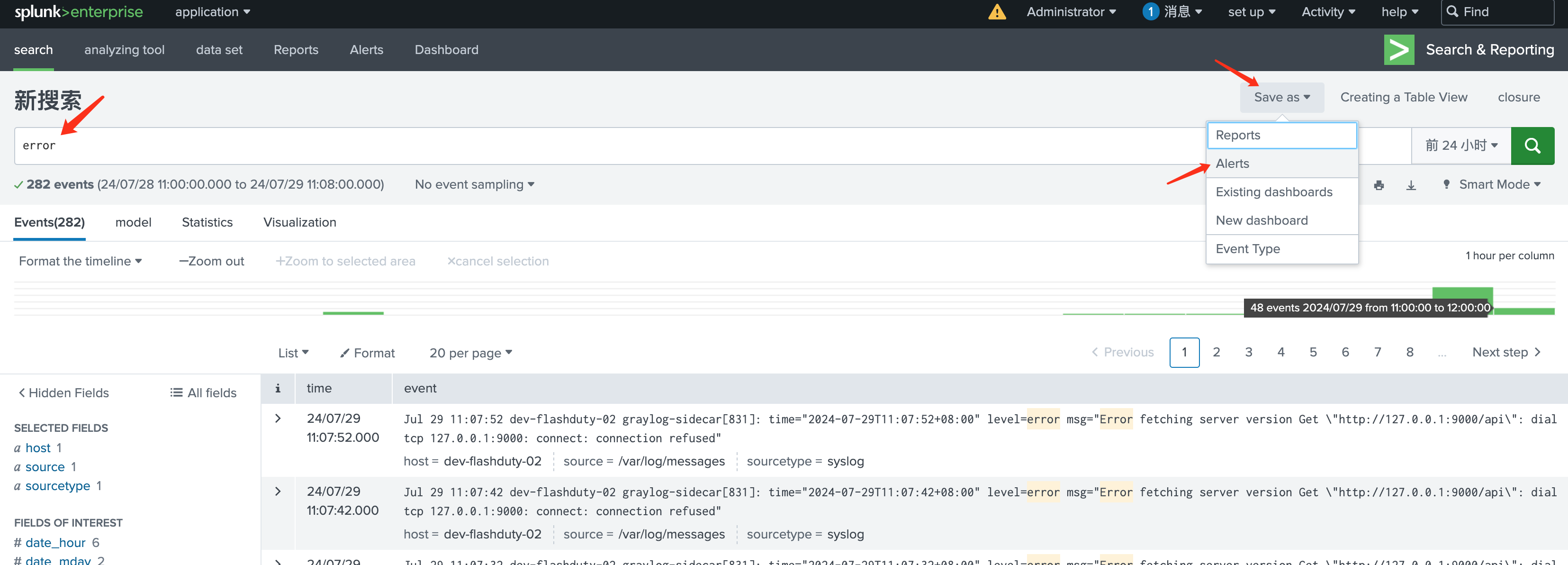
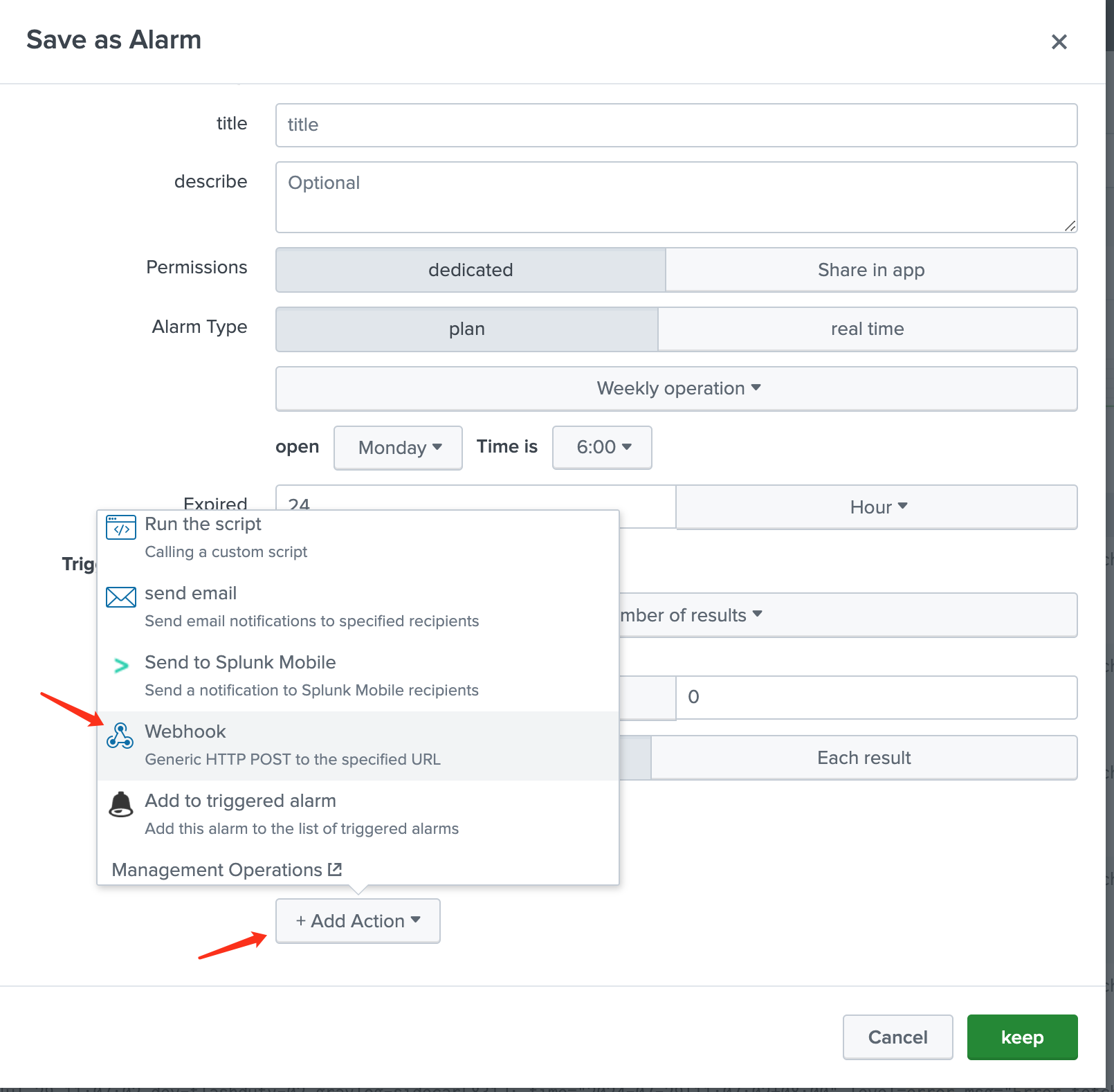
- In the configuration popup, enter relevant information. Configure the
set upandTriggering conditionssections according to your needs - In the
Trigger Actionsection, clickAdd Actionand selectWebhook
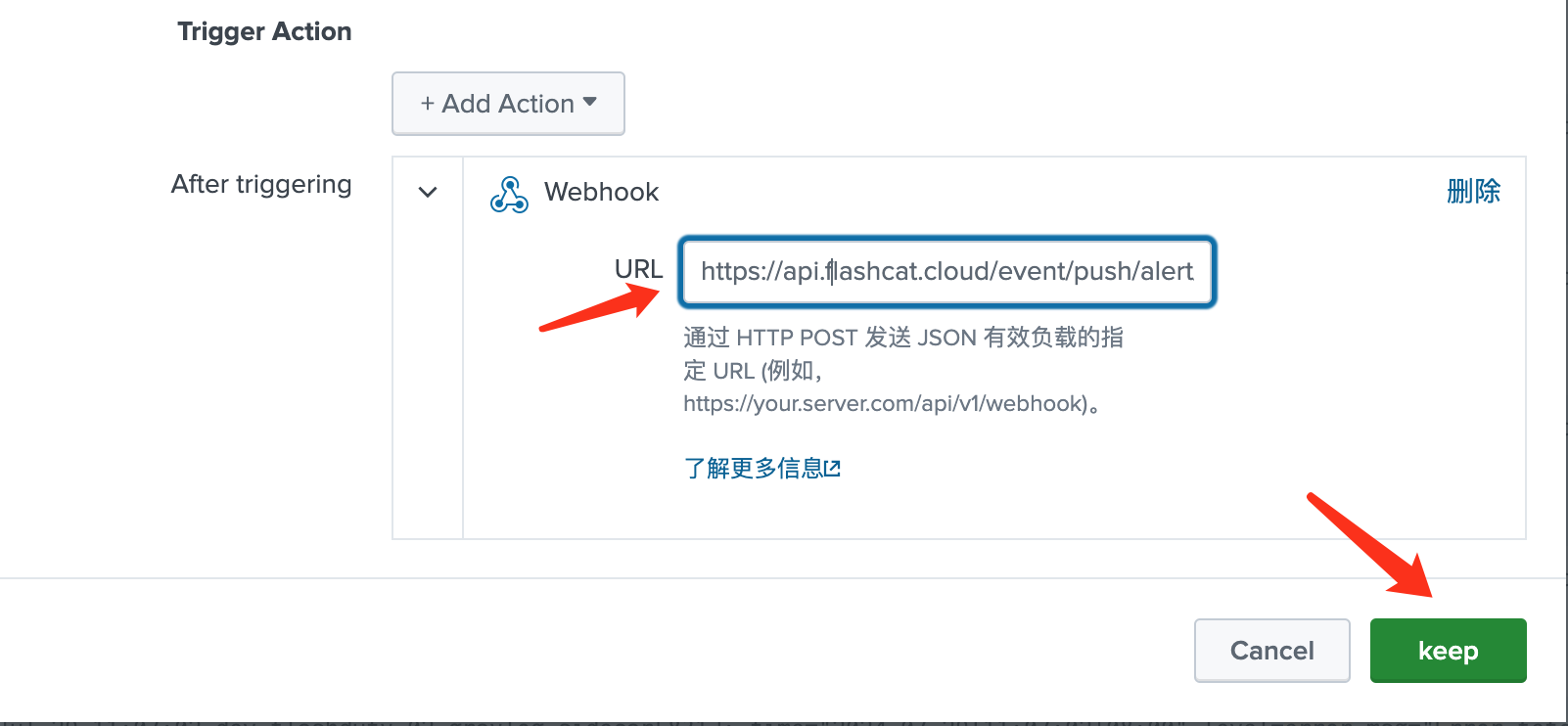
- In the
Webhooksection, enter the integration push URL in theURLfield (the URL will be generated after saving the integration name on the current page) and save to complete the alert configuration
II. Status Mapping
Since Splunk alert events don’t differentiate severity levels, all alert events pushed from Splunk to Flashduty will have a Warning status and won’t include recovery events.