

In Flashduty On-call
You can get the integration push URL in either of the following ways.Use a dedicated integration
Choose this option if all alerts go to one channel. It’s the simpler setup.View dedicated integration setup steps
View dedicated integration setup steps
- In the Flashduty console, select Channel and open a channel
- Select Configuration → Integrations → Private integration, then click Add integration
- Choose Falcon integration, click Save to generate a card
- Open the generated integration card and copy the Push URL
Use a shared integration
Choose this option if you need to route alerts to different channels based on the alert payload.Configure Falcon
Set the callback URL in every alert template that should send events, and bind the template to a host group.1
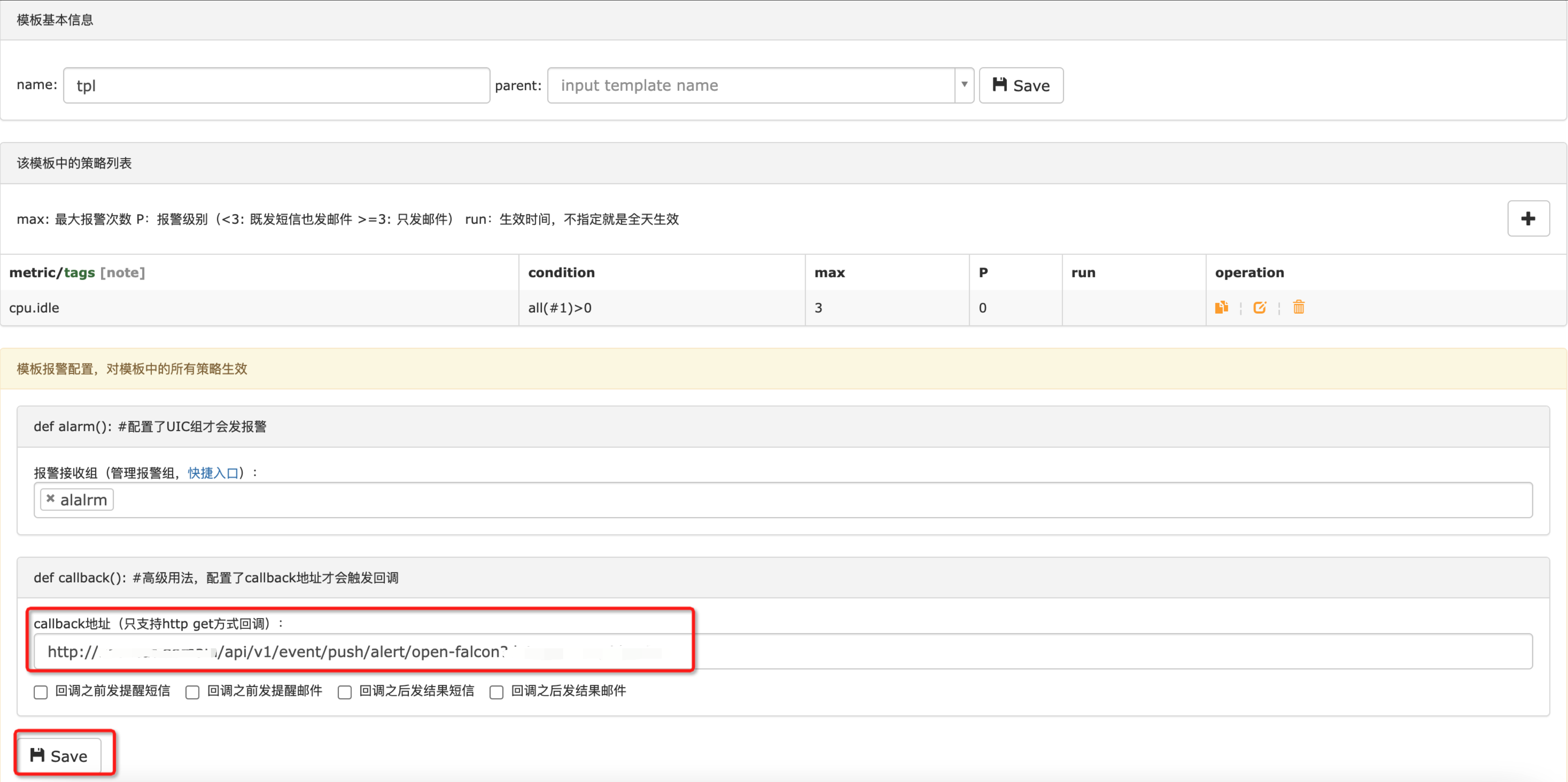
Set the callback URL in a Falcon alert template
Where: Falcon Dashboard › Templates
 Similarly, you can configure the same push URL for Expressions alert rules.
Open an alert template, enter the push URL in the callback input and click Save. Repeat for every alert template that needs to send events.
Similarly, you can configure the same push URL for Expressions alert rules.2
Bind the alert template to a host group
Where: Falcon Dashboard › HostGroups › templatesOn the host group’s templates page, enter the template name and click bind. Skip this step if the template is already bound to the host group.
3
Trigger an alert and confirm
Falcon has no entry to send a test callback, so wait for a real alert, or let a host bound to the template cross a threshold.Go back to Flashduty. If the integration shows a Latest event time, the setup works. When the alert recovers, Falcon pushes an event with status OK to the same callback URL and Flashduty closes the matching alert, so no separate recovery notification is needed.
Status and severity
Open-Falcon to Flashduty alert severity mapping: